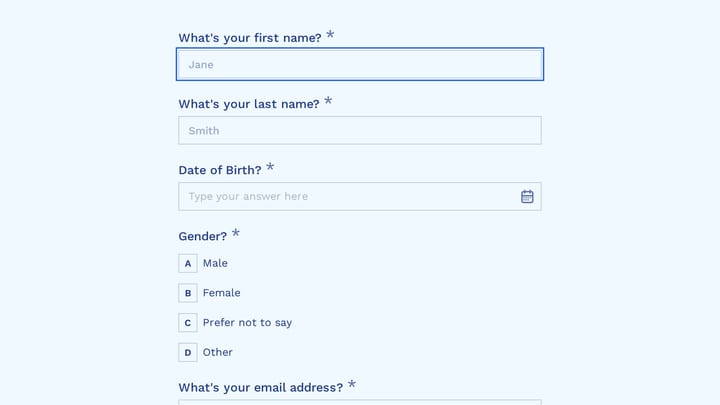
Your waiting room is empty, but your schedule is packed. Patients are filling out intake forms on their phones in the parking lot, submitting them before they even walk through your door. That’s the power of a well-designed patient intake form — it saves time for everyone and creates a smoother experience from the first interaction.
Most healthcare practices still rely on clipboards and paper forms, creating bottlenecks that frustrate patients and staff alike. Digital patient intake forms solve this problem while improving data accuracy and compliance. Here’s how to build one that actually works.
Why digital patient intake forms matter
Paper intake forms create unnecessary friction. Patients arrive early, hunt for pens, squint at tiny checkboxes, and hand over forms with illegible handwriting. Staff spend time deciphering responses and manually entering data into systems.
Digital forms eliminate these pain points. Patients can complete forms at home, on mobile devices, with built-in validation that prevents errors. You get clean, structured data that integrates with your practice management software. Studies show digital intake forms reduce check-in time by 60% and improve data accuracy by 40%.
The key is designing forms that feel intuitive, not overwhelming. A poorly designed digital form is worse than paper — at least paper doesn’t crash or confuse people with unclear navigation.
Step 1: Choose the right form builder platform
Your form builder choice determines everything from design flexibility to compliance features. Look for platforms that offer:
- HIPAA compliance tools — encryption, secure data storage, business associate agreements
- Mobile optimization — most patients will complete forms on phones
- Conditional logic — show relevant questions based on previous answers (coming soon for some platforms)
- Integration capabilities — connect with your practice management system
- Custom branding — maintain your practice’s professional appearance
Free form builders often lack healthcare-specific features. Paid platforms typically offer better security and compliance tools, but evaluate based on your specific needs rather than price alone.
Step 2: Map out your essential information
Start with a comprehensive list of everything you need to know, then ruthlessly prioritize. Every additional field reduces completion rates, so include only what’s absolutely necessary for the first visit.
Must-have sections:
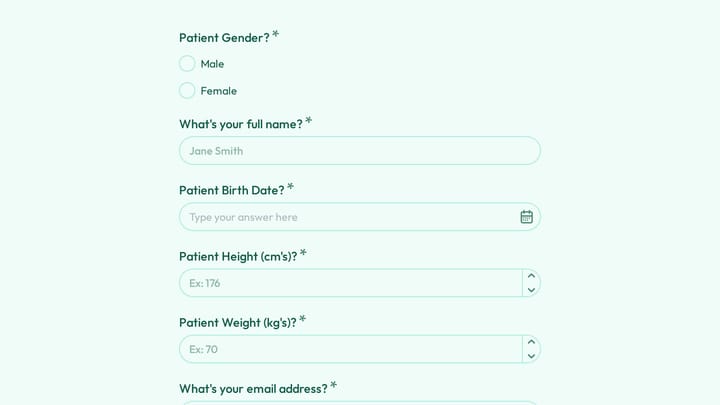
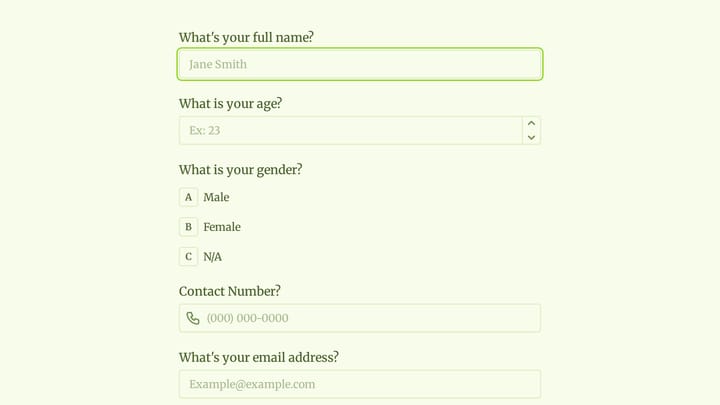
- Personal information (name, DOB, contact details)
- Insurance information (provider, policy numbers, group ID)
- Emergency contact
- Current medications and allergies
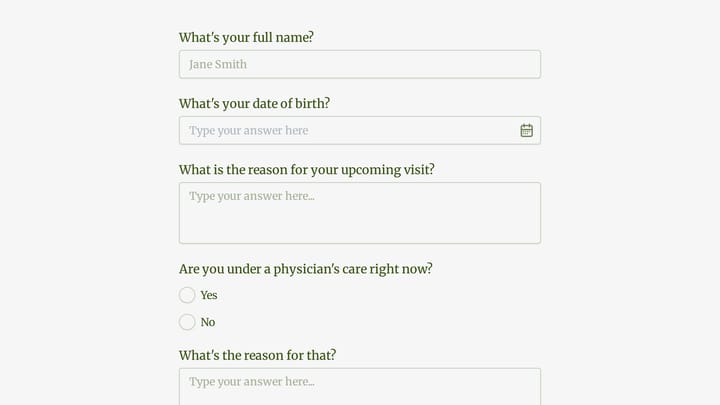
- Primary complaint or reason for visit
- Medical history (major conditions, surgeries)
- Current symptoms
Nice-to-have sections:
- Family medical history
- Lifestyle questions (smoking, alcohol, exercise)
- Previous healthcare providers
- Detailed symptom timeline
- Patient preferences
Save the nice-to-have information for follow-up forms or in-person conversations. Your initial patient intake form should focus on what’s critical for providing safe, effective care.
Step 3: Design for mobile-first completion
Over 70% of patients will complete intake forms on mobile devices. Design with small screens in mind from the start, rather than adapting a desktop form later.
Mobile optimization best practices:
- Use single-column layouts — never put fields side by side
- Make tap targets large (minimum 44px height)
- Use appropriate input types (number pad for phone numbers, date picker for dates)
- Break long forms into multiple pages with progress indicators
- Test on actual phones, not just browser developer tools
Consider the context where patients will complete forms. They might be in a car, dealing with pain, or feeling anxious about their appointment. Simple, clear design reduces cognitive load during an already stressful time.
Step 4: Structure your patient intake form flow
The order of questions affects completion rates and data quality. Start with easy, familiar information to build momentum, then progress to more complex medical details.
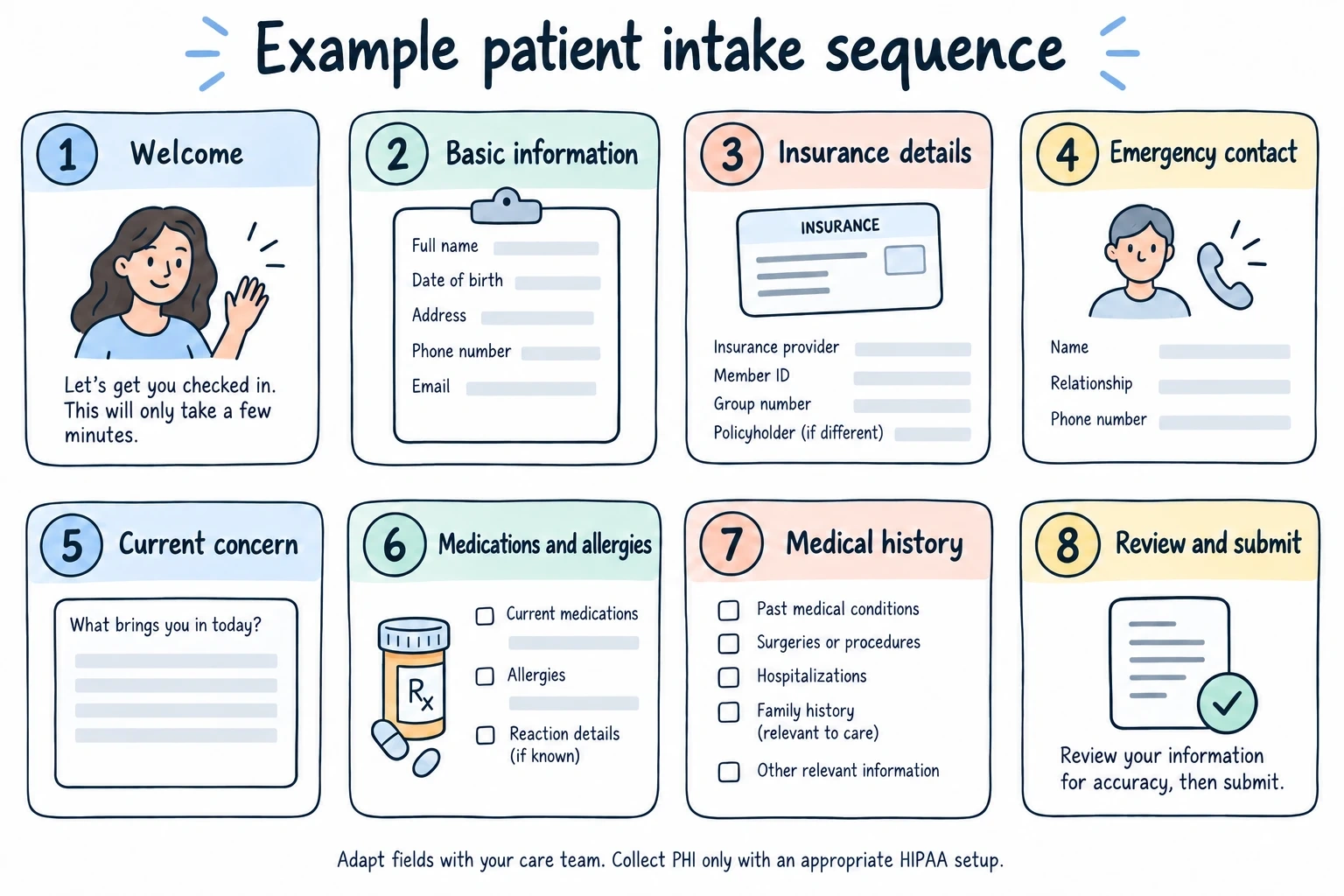
Recommended flow:
- Welcome page — brief explanation of what to expect
- Basic information — name, date of birth, contact details
- Insurance details — carrier, policy information, photos of cards
- Emergency contact — one person, essential details only
- Current concern — reason for visit, symptoms, timeline
- Medications and allergies — current prescriptions, known allergies
- Medical history — major conditions, surgeries, hospitalizations
- Review and submit — chance to check answers before submitting
Use progress indicators so patients know how much remains. Consider adding estimated completion time (“This form takes about 5 minutes”) to set expectations.
Step 5: Write clear, patient-friendly questions
Medical terminology confuses patients and leads to inaccurate responses. Use plain language that anyone can understand, regardless of education level or health literacy.
Instead of: “List current pharmaceutical interventions and dosages” Use: “What medications are you currently taking? Include the dose if you know it.”
Instead of: “Indicate any known hypersensitivities or adverse reactions” Use: “Are you allergic to any medications, foods, or other substances?”
Provide examples for complex questions. For medication lists, show sample formats: “Lisinopril 10mg once daily” or “Advil as needed for headaches.” This helps patients provide consistent, useful information.
Step 6: Add smart validation and help text
Form validation prevents errors and reduces follow-up calls. But aggressive validation frustrates users — balance accuracy with usability.
Essential validation rules:
- Required field indicators (but don’t make everything required)
- Format validation for phone numbers, dates, insurance IDs
- Real-time feedback for incorrect entries
- Clear error messages explaining what went wrong
Add contextual help where needed. A small info icon next to “Group ID” can explain where to find this on an insurance card. Help text should be easily accessible but not clutter the interface.
Step 7: Make sure you’re HIPAA compliant and secure
Patient health information requires special protection. Your form builder and data handling practices must comply with HIPAA regulations.
Key compliance requirements:
- End-to-end encryption for data transmission and storage
- Access controls and audit logs
- Business associate agreement with your form provider
- Secure data backup and retention policies
- Patient consent for electronic information sharing
Don’t assume your form builder handles compliance automatically. Review their security documentation and make sure your implementation meets healthcare standards.
Step 8: Test with real patients before launching
Internal testing catches technical issues but misses usability problems. Test your patient intake form with actual patients or patient volunteers before rolling it out practice-wide.
Testing checklist:
- Complete the form on different devices and browsers
- Time how long completion takes for various patient types
- Note where people get confused or stuck
- Check data accuracy and completeness
- Verify integration with your practice management system
Make adjustments based on feedback. A form that works perfectly for your tech-savvy staff might confuse elderly patients or those with limited digital experience.
Common patient intake form mistakes to avoid
Making forms too long: Every additional question reduces completion rates. Start with essentials and collect additional information over time.
Poor mobile experience: Forms that don’t work well on phones create barriers for most patients. Test extensively on mobile devices.
Unclear navigation: Patients should always know where they are in the process and how to move forward or back.
Missing validation: Allow reasonable input variations rather than forcing rigid formats. “John Smith Jr.” should be acceptable, not just “John Smith.”
Ignoring accessibility: Consider patients with visual impairments, motor difficulties, or cognitive challenges. Use proper form labels, color contrast, and clear instructions.
Skipping security: Healthcare data requires special protection. Don’t compromise on encryption and compliance features.
Measuring success and making improvements
Track key metrics to understand how your patient intake form performs:
- Completion rate — percentage of patients who start and finish the form
- Time to complete — average duration from start to submission
- Error rate — how often patients submit incomplete or incorrect information
- Staff feedback — how the digital process affects workflow efficiency
- Patient satisfaction — direct feedback about the form experience
Review these metrics monthly and make iterative improvements. Small changes like clearer instructions or better field labeling can significantly impact completion rates.
Ready to create your patient intake form?
A well-designed patient intake form improves efficiency for your practice and creates a better first impression for patients. Focus on essential information, optimize for mobile devices, and prioritize clear communication over comprehensive data collection.
Start with a patient intake form template if you want a ready-made structure, then tailor it to your practice’s workflow and compliance requirements.
We built Fomr specifically for creating professional forms that work beautifully on any device. You can start building your patient intake form right now without creating an account — just visit our guest editor and see how easy it is to create forms that patients actually want to complete.