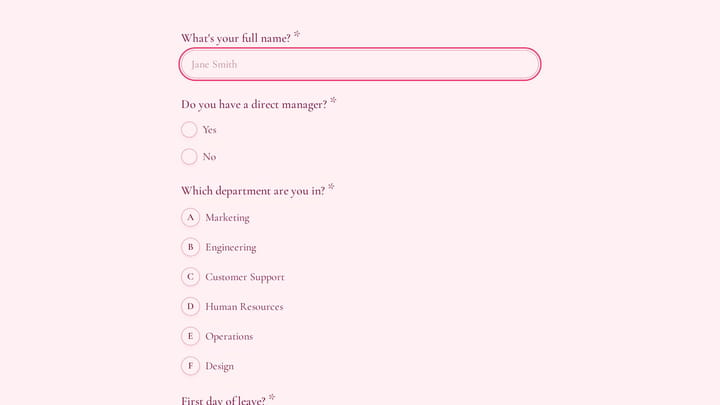
Managing time off requests shouldn’t feel like herding cats. Yet most companies still rely on email chains, paper forms, or clunky systems that create more confusion than clarity. A well-designed time off request form eliminates the back-and-forth, captures all necessary details upfront, and makes the approval process smooth for everyone involved.
If you’re an HR manager tired of incomplete requests or a team lead who needs better visibility into upcoming absences, this guide will walk you through creating a time off request form that actually works.
Why your current time off process probably isn’t working
Most time off request systems fail because they’re either too complicated or too simple. Email requests miss crucial details. Paper forms get lost. Complex HR software overwhelms employees who just want to take a day off.
The sweet spot is a digital form that captures everything you need without feeling like a tax document. Employees can submit requests quickly, managers get all the context they need to make decisions, and HR can track patterns and maintain records automatically.
A good time off request form also reduces the emotional friction around asking for time off. When the process is clear and professional, employees feel more confident submitting requests, and managers can respond more consistently.
Essential fields for your time off request form
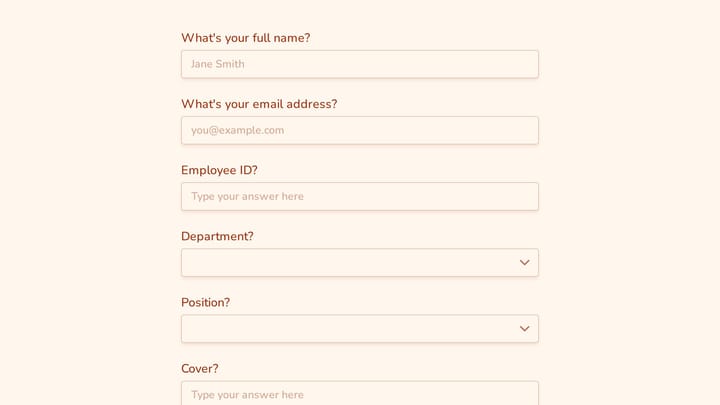
Before jumping into the technical build, you need to decide what information to collect. Here are the must-have fields for any effective time off request form:
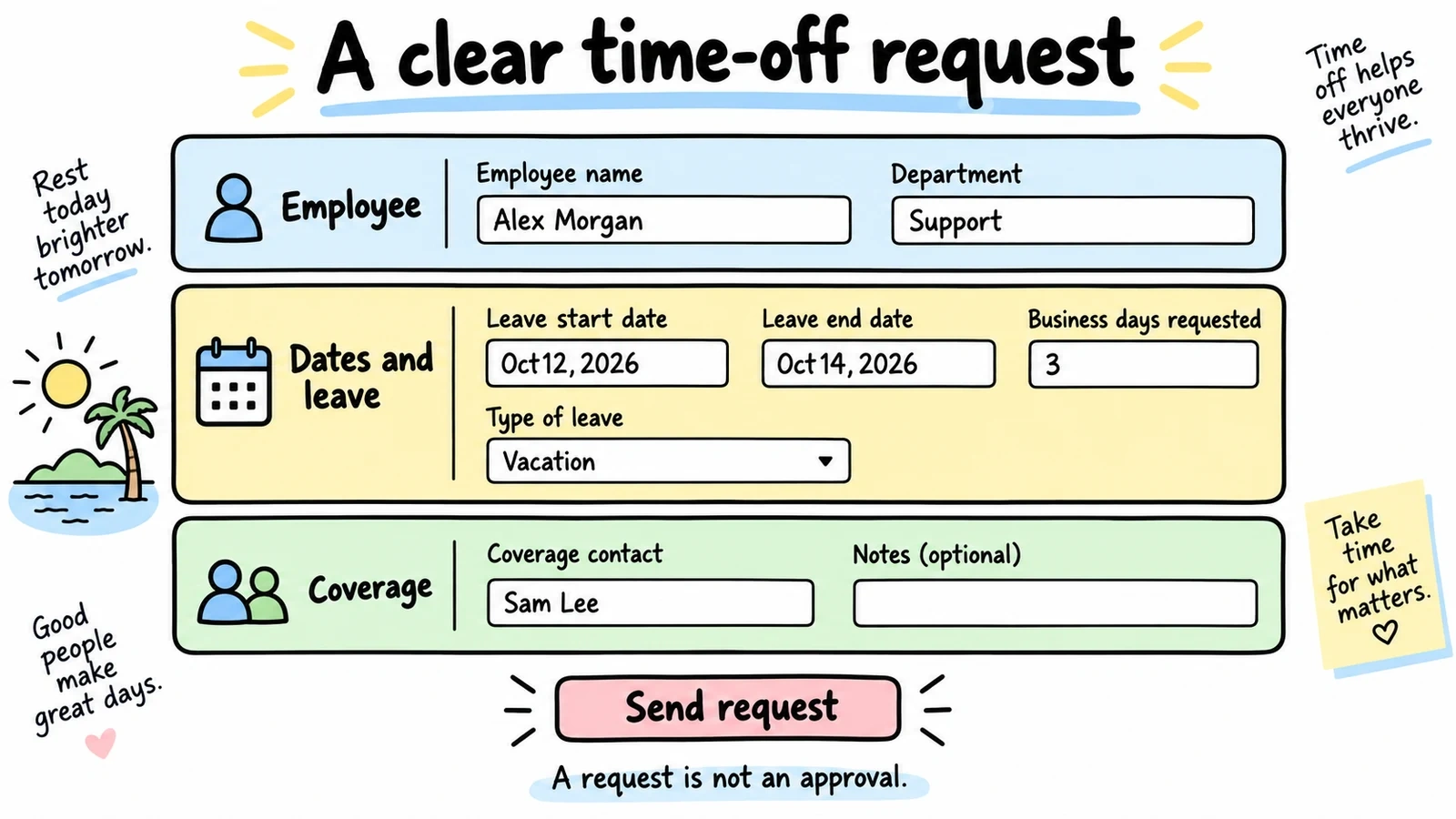
Employee identification
- Full name
- Employee ID or department
- Direct manager’s name
- Contact information (phone/email)
Request details
- Start date
- End date
- Total days requested
- Type of leave (vacation, sick, personal, etc.)
- Reason for request (optional but helpful for planning)
Coverage information
- Who will handle urgent matters
- Status of current projects
- Any handoff notes or instructions
Additional context
- Whether this is paid or unpaid leave
- If this connects to previously approved time off
- Any special circumstances
The key is collecting enough information to make informed decisions without creating a bureaucratic nightmare. Most employees can fill out these fields in under two minutes.
Step 1: Choose your form builder platform
You need a form builder that makes it easy to create professional-looking forms without technical skills. Look for these features when evaluating options:
- Drag and drop interface — You shouldn’t need to write code to add a date picker or dropdown menu
- Date field functionality — Essential for time off forms, but surprisingly many basic form builders handle dates poorly
- Conditional logic — Show different fields based on the type of leave requested (coming soon in many platforms)
- Mobile responsiveness — Employees often submit requests from their phones
- Integration capabilities — Connect to your existing HR systems or email workflows
Free form builders can handle most time off request needs. You don’t need enterprise software for this use case unless you’re managing thousands of employees.
Step 2: Design your form structure
Start with a clean, logical flow that mirrors how people think about time off requests. Here’s a proven structure:
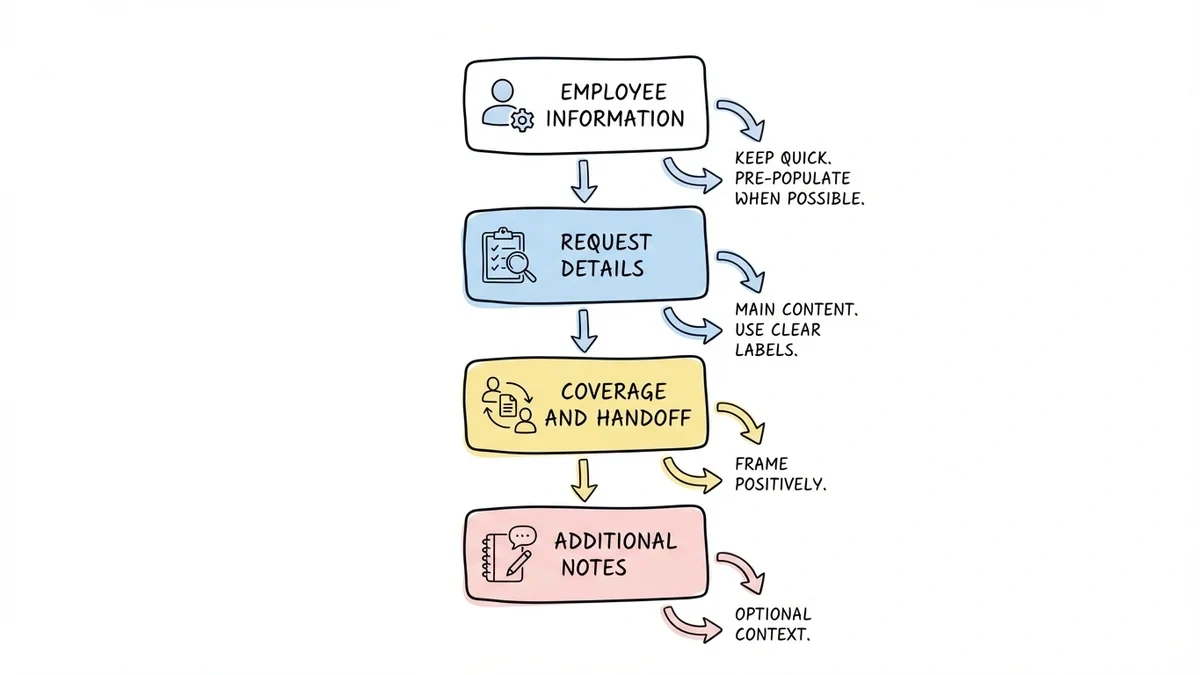
Section 1: Employee Information Keep this at the top but make it quick. If employees are logged into your system, pre-populate these fields when possible.
Section 2: Request Details This is the meat of your form. Use clear labels and helpful placeholder text:
- “Start date” instead of “From”
- “End date” instead of “To”
- “Total business days requested” with auto-calculation if your form builder supports it
Section 3: Coverage and Handoff Frame this positively. Instead of “Who will do your work?” try “Who should we contact for urgent matters while you’re away?”
Section 4: Additional Notes Give people space to explain special circumstances, but make it optional. Some requests need context, others don’t.
Keep the visual design clean and professional. This isn’t the place for creative flair. Clarity and efficiency matter more than personality.
Step 3: Set up smart field types and validation
The right field types make your form faster to complete and reduce errors:
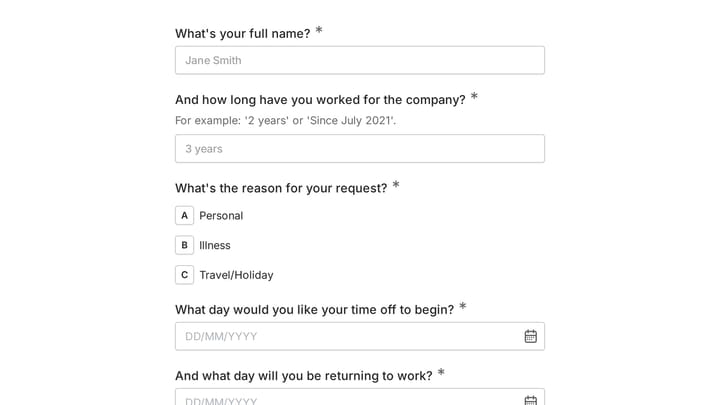
Date fields with calendar pickers Never use text boxes for dates. Calendar widgets prevent formatting errors and make it easier to see conflicts with weekends or holidays.
Dropdown menus for leave types Create a standardized list: Vacation, Sick Leave, Personal Day, Bereavement, etc. This helps with reporting and keeps categorization consistent.
Radio buttons for simple choices Use these for yes/no questions like “Is this request connected to previously approved time off?”
Text areas for explanations Make these optional and include helpful placeholder text like “Brief explanation (optional) - helps us plan coverage.”
Validation rules
- Require end dates to be after start dates
- Set minimum advance notice (e.g., requests must be at least 48 hours in advance)
- Flag requests that exceed available PTO balances
Good validation catches problems before they reach managers, saving everyone time.
Try a time off request in Fomr
Fomr can collect the leave dates and request details in a form your team reviews. Try the example below; approval decisions and leave-balance checks belong in your HR process.
Give it a try
Try this Fomr time off request form
Try the employee, coverage, and leave-detail fields in this Fomr time off example. It collects a request for review rather than approving leave or checking a balance.

Step 4: Build in approval workflow considerations
Your time off request form needs to connect to an approval process. Think through this workflow before finalizing your form design:
Notification setup When someone submits a request, who gets notified? Usually the direct manager, but some companies route through HR first or copy department heads.
Status tracking Employees want to know if their request is pending, approved, or denied. Plan how you’ll communicate status updates.
Record keeping You’ll need these submissions for payroll, compliance, and planning. Make sure your form builder can export data or integrate with your HR systems.
Escalation paths What happens if a manager doesn’t respond within your standard timeframe? Build this into your process planning.
Many form builders have basic workflow features, but you might need to connect your form to email automation or project management tools for more sophisticated approval routing.
Step 5: Test your form thoroughly
Before rolling out your time off request form company-wide, test it with a small group. Here’s what to check:
User experience testing Ask 3-4 employees to submit test requests while you watch. Note where they hesitate, get confused, or ask questions. These friction points will frustrate everyone once the form goes live.
Mobile testing Pull up your form on different phone sizes. Can people easily select dates? Are dropdown menus accessible? Is the text readable without zooming?
Data collection testing Submit several test requests and check what data you receive. Is everything formatted correctly? Are notifications working? Can you easily export the information you need?
Edge case testing What happens if someone requests a single day off? Multiple non-consecutive days? Time off that spans a weekend or holiday? Test these scenarios to avoid surprises.
Fix any issues before your official launch. It’s much easier to refine the form with a test group than to troubleshoot problems when your entire company is using it.
Common mistakes that kill time off request forms
Making it too long Every additional field reduces completion rates. If you’re not sure whether to include something, leave it out. You can always add fields later based on actual needs.
Poor mobile experience More than half of employees will access your form on mobile devices. If it’s hard to use on a phone, people will put off submitting requests or make errors.
Vague field labels “Date” could mean start date, end date, or request submission date. “Type” could refer to leave type, employee type, or request type. Be specific with every label.
No confirmation message People need to know their request was submitted successfully. Include a clear confirmation page with next steps and expected response times.
Ignoring your approval workflow The form is just the first step. If managers don’t know how to access and respond to requests, your beautiful form becomes useless.
Not planning for edge cases Half-day requests, emergency leave, and requests that span pay periods all need consideration. Plan for these scenarios upfront.
Best practices for time off request forms
Keep it conversational Use natural language in your field labels and instructions. “When would you like your time off to start?” reads better than “Requested start date.”
Provide context Include brief explanations for fields that might be confusing. “Employee ID (found on your badge or paycheck)” saves support tickets.
Set clear expectations Tell people how long the approval process takes and what happens next. “Your manager will respond within 2 business days” manages expectations.
Make it accessible Use sufficient color contrast, clear fonts, and logical tab order for keyboard navigation. This benefits everyone, not just users with disabilities.
Plan for peak times Your form will get heavy use before holidays and summer months. Make sure your form builder can handle traffic spikes without slowing down.
Integrating your time off request form with existing systems
Most companies need their time off data to connect with other systems. Here are common integration needs:
Payroll systems Approved time off needs to flow to payroll for accurate paychecks. Look for form builders that can export to CSV or connect directly to popular payroll platforms.
Calendar systems Some teams add approved time off to shared calendars automatically. This requires integration with Google Calendar, Outlook, or your project management platform.
HR information systems If you use dedicated HR software, you’ll want time off requests to sync with employee records and PTO balance tracking.
Email and notifications Set up automated emails for request confirmations, approvals, and denials. This keeps everyone informed without manual work.
Start with the most critical integration (usually email notifications) and add others based on your actual workflow needs.
Measuring success and making improvements
Once your time off request form is live, track these metrics to gauge its effectiveness:
Completion rates What percentage of people who start the form actually submit it? Low completion rates suggest the form is too long or confusing.
Time to complete How long does it take the average person to fill out your form? Anything over 3-4 minutes suggests opportunities for improvement.
Error rates How often do managers need to follow up for missing information? High error rates indicate unclear fields or missing validation.
User feedback Ask employees about their experience with the form. What’s frustrating? What would make it easier?
Use this data to refine your form over time. Small improvements in usability can significantly reduce the administrative burden on your HR team.
Ready to build your time off request form?
A well-designed time off request form eliminates confusion, reduces back-and-forth emails, and makes the approval process smoother for everyone. The key is balancing thoroughness with simplicity. Collect what you need without overwhelming users.
Start building your time off request form today with our drag and drop form builder. You can create, test, and deploy your form in minutes, with all the field types and features you need. Try it free without signing up and see how easy it is to improve your time off process.