A poorly designed work order form creates chaos. Maintenance requests get lost, priorities aren’t clear, and your team wastes time chasing down missing information. But get it right, and you’ll streamline your entire workflow while keeping everyone accountable.
We’ll walk you through building a work order form that captures everything you need the first time. No follow-up emails, no confusion about urgency levels, and no more “I thought someone else was handling this” moments.
What makes a work order form effective
The best work order forms balance thoroughness with speed. Your employees need to submit requests quickly, but you need enough detail to prioritize and assign tasks properly.
Key elements every work order form should include:
- Clear identification: Who’s requesting, what location, when it was submitted
- Problem description: Specific details about the issue or request
- Priority level: Urgent, normal, or low priority with clear definitions
- Asset information: Equipment ID, room number, or specific location details
- Contact information: How to reach the requester for follow-up questions
The form should take under 3 minutes to complete. Any longer and people will skip important details or avoid submitting requests altogether.
Step 1: Choose your form builder platform
You need a form builder that handles file uploads (for photos), dropdown menus (for categories), and integrates with your existing systems. Skip basic contact form builders that can’t handle the complexity of work order management.
Look for these essential features:
- Conditional logic: Show different fields based on request type (coming soon in many platforms)
- File upload capability: Photos help technicians understand problems faster (coming soon in some platforms)
- Mobile optimization: Most requests come from phones and tablets
- Data export options: You’ll need to integrate with your maintenance management system
- Custom styling: Match your company branding for professional appearance
Free form builders often limit file uploads or responses, which becomes a problem as your maintenance program grows. Plan for scale from the start.
Step 2: Structure your work order form fields
Start with the most critical information and work your way down. People abandon forms when they feel overwhelmed, so organize fields logically.
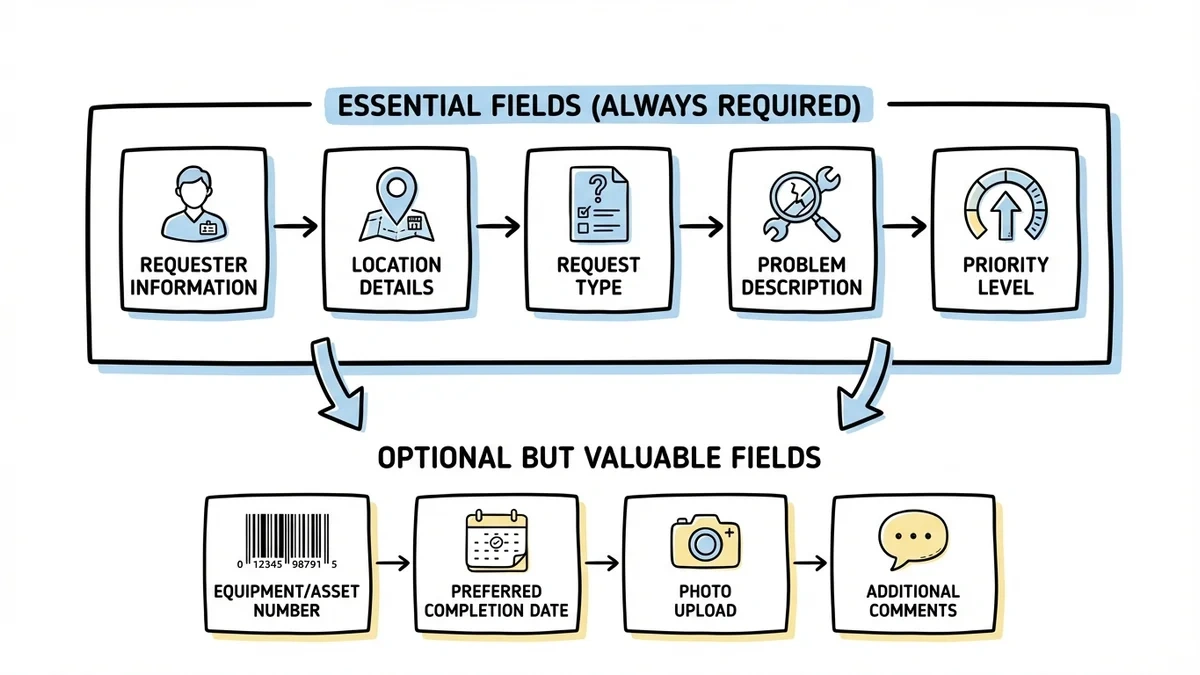
Essential fields (always required):
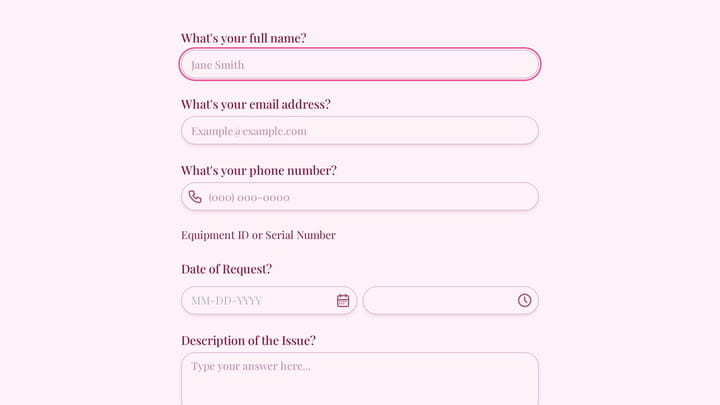
- Requester information: Full name, department, phone number, email
- Location details: Building, floor, room number, or specific area
- Request type: Dropdown menu with categories like electrical, plumbing, HVAC, general maintenance
- Problem description: Text area with clear instructions for detail level
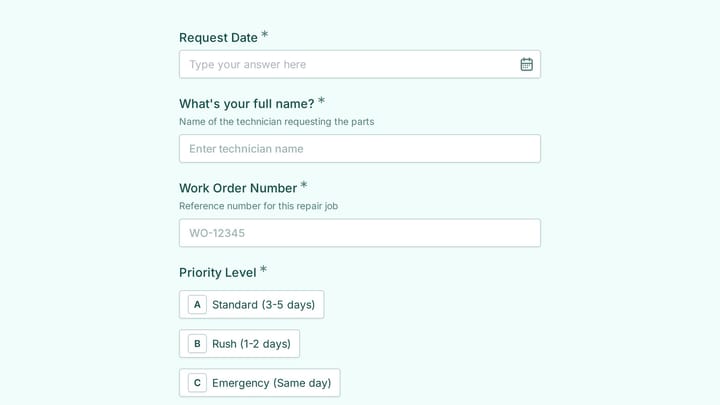
- Priority level: Urgent (safety hazard), high (affects productivity), normal (routine maintenance)
Optional but valuable fields:
- Equipment or asset number (if applicable)
- Preferred completion date
- Photo upload for visual reference
- Additional comments or special instructions
Group related fields together. Put location information in one section, problem details in another. This mental organization helps people complete forms faster and more accurately.
Step 3: Write clear field labels and instructions
Vague labels create confusion and incomplete submissions. Instead of “Description,” use “Describe the problem in detail (include what’s broken, when it started, and any error messages).”
Good label examples:
- “Building and room number (e.g., Main Building, Room 205)”
- “Equipment involved (check asset tag if available)”
- “When did you first notice this problem?”
Poor label examples:
- “Details”
- “Location”
- “Other information”
Add help text under complex fields. For priority levels, define what qualifies as urgent versus normal. For equipment fields, explain where to find asset tags or ID numbers.
Keep instructions concise but specific. A one-sentence explanation prevents most confusion without cluttering the form.
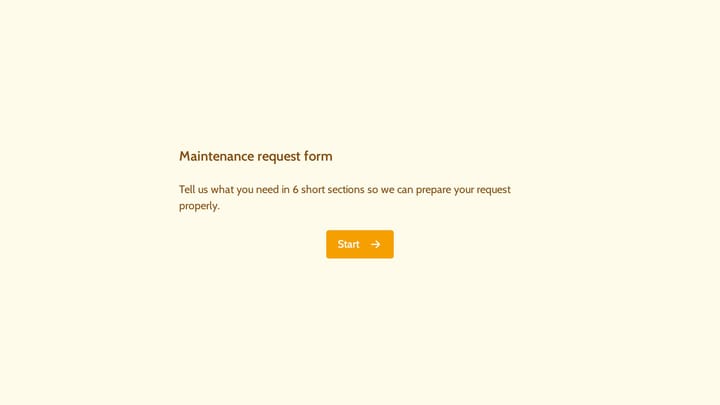
Try a maintenance intake example in Fomr
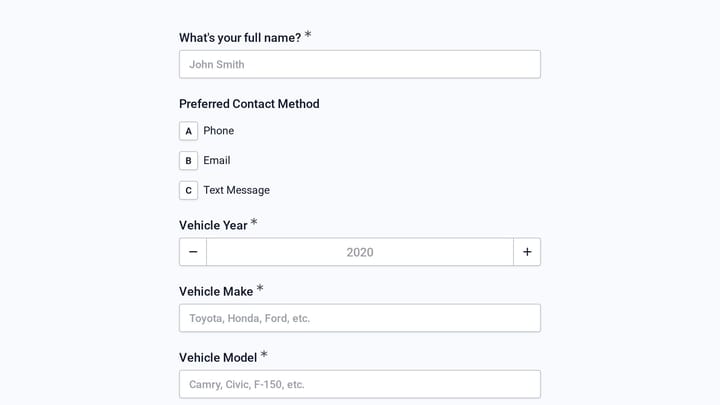
Fomr can collect maintenance requests for your team to turn into work orders. Try the request form below, then add the assignment and tracking fields your process needs. This example does not automate dispatch or conditionally route requests.
Give it a try
Try this Fomr maintenance request form
Try this Fomr maintenance-request form to see the intake experience. It collects details for review; it does not dispatch work, assign staff, or automate approvals.

Step 4: Set up conditional logic for different request types
Different maintenance requests need different information. Electrical problems require safety details that plumbing requests don’t need. Use conditional logic to show relevant fields based on the request type.
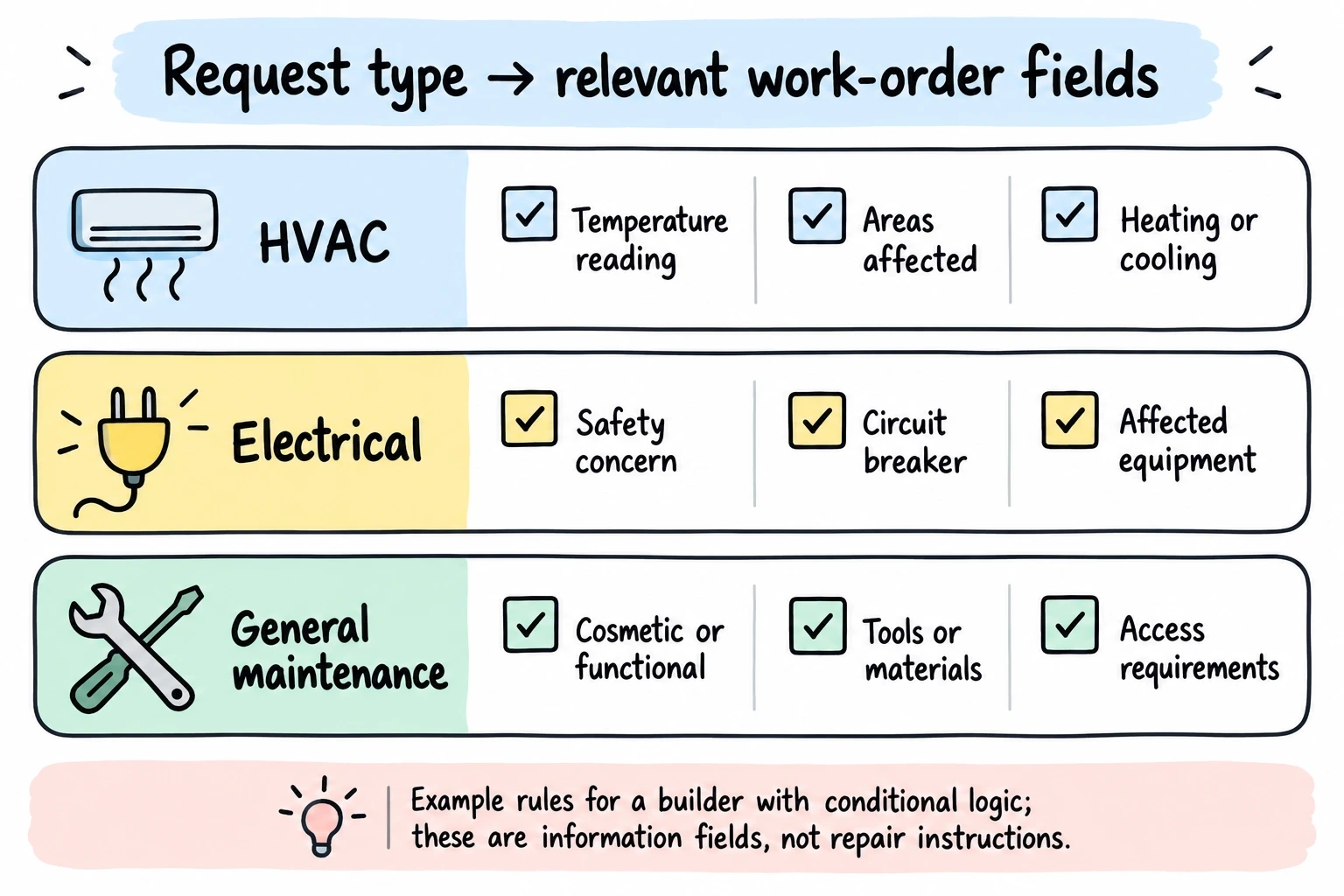
Example conditional flows:
HVAC requests might show:
- Current temperature reading
- Which areas are affected
- Heating or cooling issue dropdown
Electrical requests might show:
- Safety concern checkbox
- Circuit breaker information
- Equipment that stopped working
General maintenance might show:
- Cosmetic or functional issue
- Tools or materials needed
- Accessibility requirements
This approach keeps forms short while capturing specialized information. Someone reporting a broken light switch doesn’t need to see plumbing-specific fields.
Most modern form builders support conditional logic through simple if-then rules. In Fomr they’re called Logic rules, and they’re available on every plan, including free. Set these up during the initial build rather than adding them later.
Step 5: Design for mobile completion
Over 60% of work order requests come from mobile devices. Your form must work perfectly on phones and tablets, not just desktop computers.
Mobile optimization checklist:
- Large, touch-friendly buttons and form fields
- Single-column layout that doesn’t require horizontal scrolling
- Dropdown menus instead of long lists of radio buttons
- Auto-focus on the first field when the form loads
- Clear visual hierarchy with adequate spacing between sections
Test your form on actual mobile devices, not just browser developer tools. Real-world testing reveals usability issues that simulations miss.
Consider the context where people submit work orders. They’re often in awkward locations (under desks, in mechanical rooms) with poor lighting. Keep forms visually clean and easy to read.
Step 6: Configure automated responses and notifications
Set up immediate confirmation for form submissions. People need to know their request was received and what happens next.
Confirmation email should include:
- Unique work order number for reference
- Summary of submitted information
- Expected response timeframe
- Contact information for urgent issues
- Next steps in the process
Configure notifications for your maintenance team based on priority levels. Urgent requests should trigger immediate alerts, while routine maintenance can go into a daily digest.
Include enough detail in notifications so technicians can start preparing without opening the full system. Priority level, location, and brief problem description help with initial triage.
Step 7: Test with real scenarios
Before rolling out your work order form, test it with actual maintenance scenarios from your organization. Have colleagues submit test requests for different problem types.
Testing scenarios to try:
- Emergency electrical issue requiring immediate attention
- Routine HVAC maintenance request
- Broken equipment with photo documentation needed
- Request from someone unfamiliar with building layout
- Submission from a mobile device in poor lighting conditions
Pay attention to completion time and any fields that cause confusion. If testers skip important information or ask clarifying questions, revise those sections.
Test the entire workflow, not just form submission. Verify that notifications work correctly and that maintenance staff can access all necessary information.
Common work order form mistakes to avoid
Making everything required: Only mark truly essential fields as required. Optional fields for additional context are valuable, but forced completion leads to fake data or form abandonment.
Using technical jargon: Your form will be used by people across different departments with varying technical knowledge. Write for the least technical user while still capturing detailed information.
Ignoring follow-up workflow: A great form is worthless if submitted requests disappear into a black hole. Plan how requests move from submission to completion before building the form.
Overcomplicating priority levels: Three priority levels (urgent, normal, low) work better than five or six. Too many options create decision paralysis and inconsistent categorization.
Forgetting about integration: Consider how form data connects to your existing maintenance management system. Manual data entry defeats the purpose of digital forms.
Skipping mobile testing: Forms that work on desktop but fail on mobile create frustration and reduce submission rates. Always test on actual devices.
Measuring work order form success
Track these metrics to improve your form over time:
- Completion rate: Percentage of people who start versus finish the form
- Average completion time: How long it takes to submit a request
- Follow-up question rate: How often you need to contact requesters for clarification
- Duplicate submission rate: Multiple requests for the same issue indicate unclear processes
Monitor these monthly and adjust your form based on patterns. High abandonment rates suggest the form is too long or confusing. Frequent follow-up questions indicate missing fields or unclear instructions.
Survey your maintenance team about information quality. They’ll quickly identify which fields provide value and which create busywork.
Ready to build your work order form?
A well-designed work order form transforms maintenance chaos into organized workflow. Start with essential fields, add conditional logic for different request types, and optimize for mobile completion.
The key is balancing thoroughness with simplicity. Capture what you need without overwhelming requesters, and always test with real users before launching.
Try building your work order form with our drag-and-drop editor. No signup required, and you can see exactly how it’ll look and work before sharing it with your team.