You built a form. It looks great. But it’s sitting on a separate page, and every time you send someone a link, half of them never click through. The fix is straightforward: embed the form directly on your website so visitors can fill it out without leaving the page they’re already on.
Embedded forms consistently outperform linked forms. Keeping users on the same page can increase submissions by up to 25%, according to Unbounce. Less friction, more completions.
Three ways to embed a form on a website
There’s no single “right” method. The best approach depends on your website platform, your technical comfort level, and how much control you want. Here’s a quick comparison:
| Method | Works On | Technical Skill | Best For |
|---|---|---|---|
| HTML embed (iframe) | Any website | Basic | Universal compatibility |
| WordPress plugin | WordPress only | Beginner | Built-in form building |
| Third-party form builder | Any website | Basic | Design control + advanced features |
Let’s walk through each one.
Embedding with HTML (the universal method)
This works on every platform: WordPress, Squarespace, Wix, Webflow, custom-coded sites, you name it. If your site can render HTML, you can embed a form.
Get your embed code
Every form builder generates an embed code you can copy. It’s usually under a “Share” or “Embed” button. The code looks something like this:
<iframe src="https://your-form-url.com/form-id" width="100%" height="500" frameborder="0"></iframe>That’s it. One line of HTML. Copy it.
Paste it where you want the form
The process varies slightly by platform, but the idea is the same: find the HTML editor for the page you want, and paste the code.
On a static HTML site: Open the file, paste the iframe where you want it, save and upload.
On a CMS (WordPress, Squarespace, Webflow): Edit the page, switch to the HTML or code view, paste the embed code, then publish.
Test it
This step gets skipped way too often. After embedding, check three things:
- Submit a test response to make sure data actually comes through
- Open it on your phone — if the form doesn’t resize properly, your mobile visitors (over half your traffic) will bounce
- Try a different browser — what works in Chrome might break in Safari
If the form doesn’t display at all, check that your site allows iframe content. Some security settings block iframes by default.
Embedding on WordPress with plugins
WordPress users have a shortcut: form plugins that handle both building and embedding in one step.
Popular options:
- WPForms — drag-and-drop builder, beginner-friendly
- Gravity Forms — more powerful, steeper learning curve
- Contact Form 7 — lightweight, free, no visual editor
These plugins generate a shortcode like [contact-form-7 id="123"]. Paste that shortcode into any page or post, and the form appears. No HTML editing required.
The tradeoff? You’re locked into WordPress. If you ever migrate platforms, your forms don’t come with you. Plugin-based forms can also slow down your site if you’re not careful, since every plugin adds JavaScript and CSS that your pages need to load.
Embedding from a third-party form builder
This gives you the most flexibility. You build your form in a dedicated tool, then embed it on whatever platform you’re using.
Most form builders offer multiple embed formats:
- Iframe embed — works everywhere, easy to implement
- JavaScript embed — more responsive, adapts better to your page layout
- Popup embed, which appears as an overlay when triggered
- Inline embed that renders directly within your page content
Fomr uses a JavaScript widget with data attributes for embedding. First, add the script to your page’s <head>:
<script async src="https://fomr.io/widget/embed.js"></script>Then add a div where you want the form to appear:
<div data-fomr-id="YOUR_FORM_ID"></div>For popup forms, you can add data attributes to any trigger element:
<button data-fomr-id="YOUR_FORM_ID" data-fomr-type="popup" data-fomr-popup-overlay="true" data-fomr-popup-position="center"> Open form</button>The forms are responsive out of the box, so they’ll look right on mobile without extra work.
The real advantage over WordPress plugins is portability. Your forms live independently of your website platform. Redesign your site, switch from WordPress to Webflow, add the same form to different pages — it all works without rebuilding anything.
Where to place your embedded form
Placement matters more than most people realize. A well-designed form buried at the bottom of a page nobody scrolls to won’t collect much.
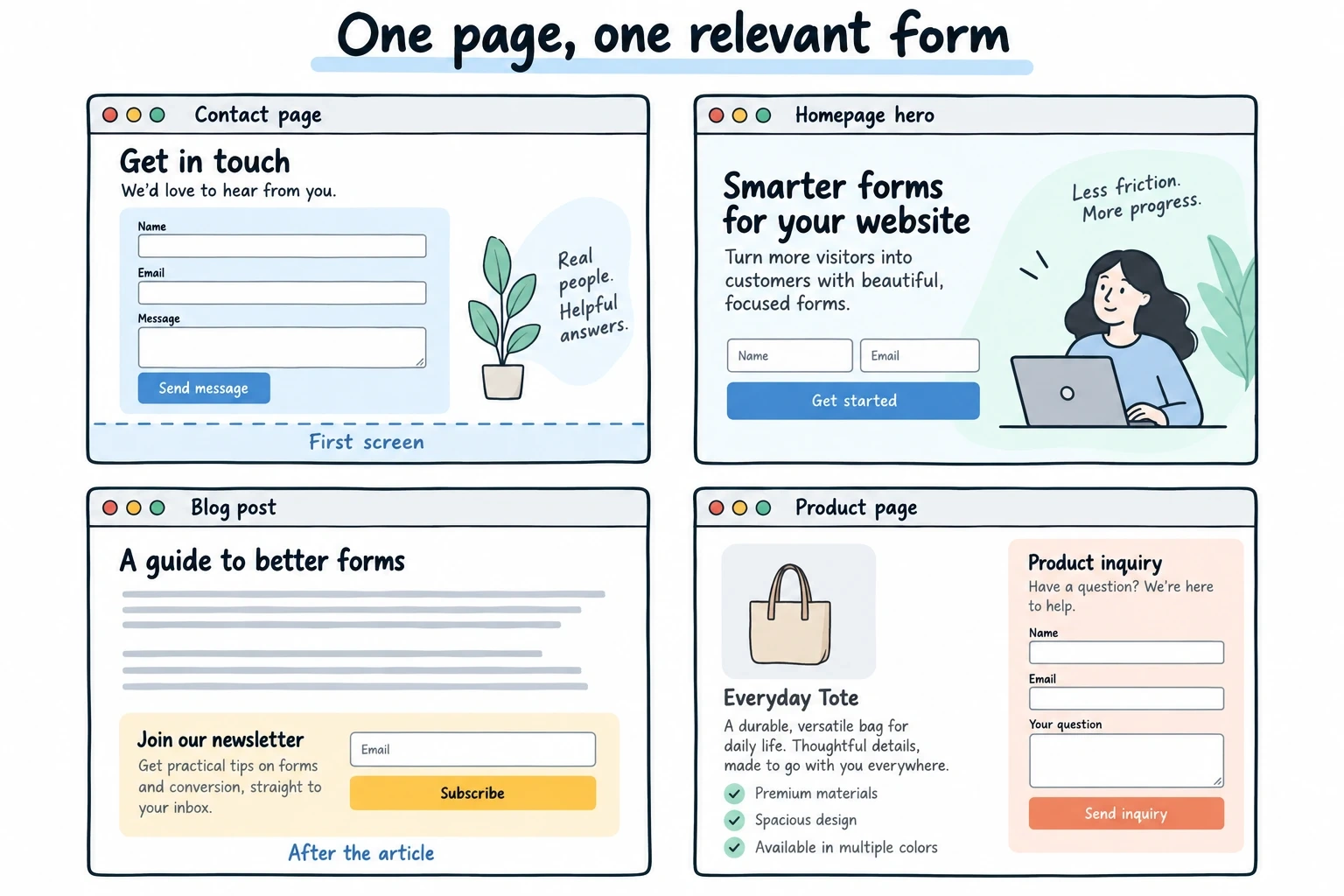
High-converting placements:
- End of blog posts — readers who make it to the bottom are engaged and primed to act
- Contact page above the fold, so people don’t scroll to find the one thing they came for
- Product page sidebar, which catches visitors while they’re evaluating your offer
- Homepage hero section — if lead capture is your primary goal, put the form front and center
A/B test your placement if you can. Moving a form from the bottom of a page to the middle has been known to double conversion rates. The “right” spot depends on your specific audience and page layout.
Making your embedded form look like it belongs
Nothing screams “afterthought” louder than an embedded form that clashes with the rest of your site. Mismatched fonts, different color schemes, a visible iframe border — these details erode trust.
Match your brand. Your form’s colors, typography, and spacing should feel like a natural extension of the page. If your site uses Inter and a blue accent color, your form should too.
Remove the chrome. Set frameborder="0" on iframes. Hide any “powered by” badges if your plan allows it. Visitors shouldn’t be able to tell where your site ends and the form begins.
Size it right. Forms that are too narrow feel cramped. Too wide and they look disconnected. Match the width of your content column, and set the height to avoid unnecessary scrollbars inside the iframe.
Keeping your embedded forms fast
A form embed that adds 3 seconds to your page load is a conversion killer. It also hurts your SEO, since Google factors page speed into rankings.
Choose a lightweight form builder. Some platforms load massive JavaScript bundles for even the simplest form. Check your page speed before and after embedding. If the form adds more than 500ms, that’s a red flag.
Lazy-load when possible. If your form is below the fold, there’s no reason to load it immediately. Many form builders support lazy loading, which delays the form embed until the visitor scrolls near it.
Skip unnecessary plugins. On WordPress, every form plugin you install adds overhead, even if you’re only using it on one page. One dedicated form builder with a single embed code is almost always lighter than a full plugin installation.
Avoiding the most common embedding mistakes
After helping thousands of users embed forms, these are the problems we see over and over:
Not testing on mobile. This is the number one issue. Your form might look perfect on a 27-inch monitor and be completely broken on an iPhone. Always test on real devices, not just browser resize.
Embedding multiple forms on one page. Every form you add is a decision the visitor has to make. One page, one form, one clear action. If you need different forms for different audiences, use separate landing pages.
Ignoring error messages. When a visitor fills out your form incorrectly, the error message should tell them exactly what to fix. “Please enter a valid email” is useful. “Error in field 3” is not.
Forgetting about privacy. If you’re collecting personal data, you need a privacy notice near the form. This isn’t optional in the EU (GDPR) and is becoming standard practice everywhere. A simple “We’ll only use this to respond to your inquiry” line goes a long way.
Measuring whether your embedded form is working
Embedding the form is step one. Knowing whether it’s actually performing is step two.
Track these metrics:
- Conversion rate — what percentage of page visitors submit the form? Anything below 2% means something needs to change.
- Abandonment rate — are people starting the form but not finishing? This points to too many fields or a confusing layout.
- Time to completion — if your 3-field contact form takes people an average of 4 minutes, something is wrong.
- Mobile vs. desktop split — if mobile conversion is significantly lower, you have a responsive design problem.
Most form builders include basic analytics. For deeper insight, connect your forms to Google Analytics or your existing tracking setup.
Start embedding
You don’t need to be a developer to embed a form on your website. Pick the method that matches your platform, paste the code, test it on mobile, and you’re live.
If you want forms that look polished without fighting CSS, Fomr’s guest editor lets you build and embed one in minutes — no account needed. The free plan includes unlimited forms and responses, so there’s nothing stopping you from trying it right now.
Give it a try
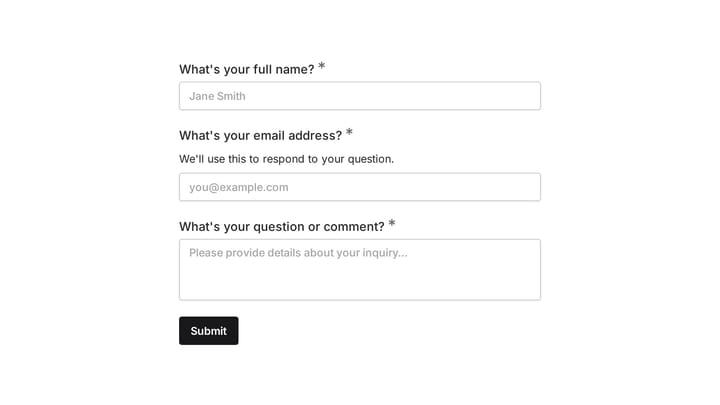
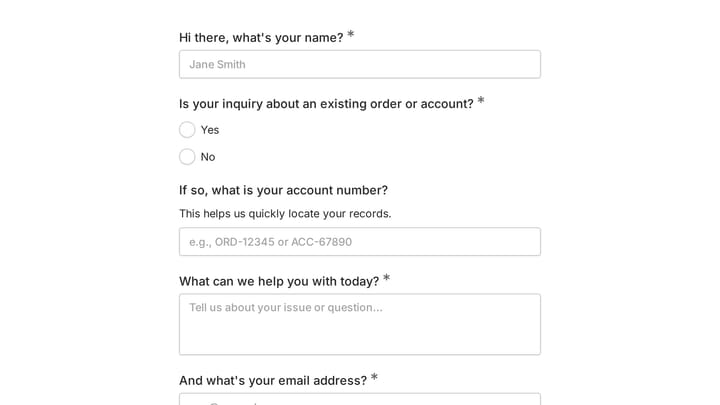
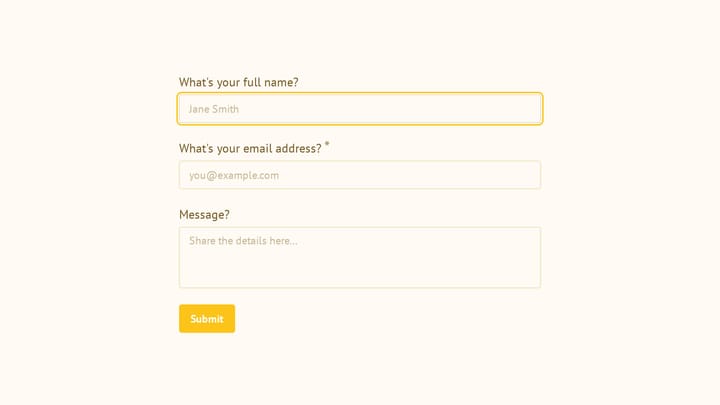
Try this Fomr inquiry form
Try the name, phone, email, and message fields in this Fomr inquiry form. This is the respondent view of the form content you can embed on your website.