Someone fills out your form and then… silence. Did it go through? Should they expect a reply? They don’t know, so a few of them fill it out again, and now you have duplicate submissions and a mildly annoyed respondent.
We just shipped the fix: email notifications that work in both directions. Your forms can now send a confirmation email to the person who submitted, and the notification emails your team receives are fully customizable, down to the exact answers you want to see in the subject line.
Confirmation emails for respondents
This is the one people have been asking for. On Pro, add an Email question to your form, then pick it as the recipient in the form’s notification settings. From that point on, everyone who completes the form gets a confirmation email.
And it’s not a generic “thanks for your submission” template with our logo on it. You write the subject, you write the body, and you can pull the respondent’s own answers into both.
A few ways this plays out in practice:
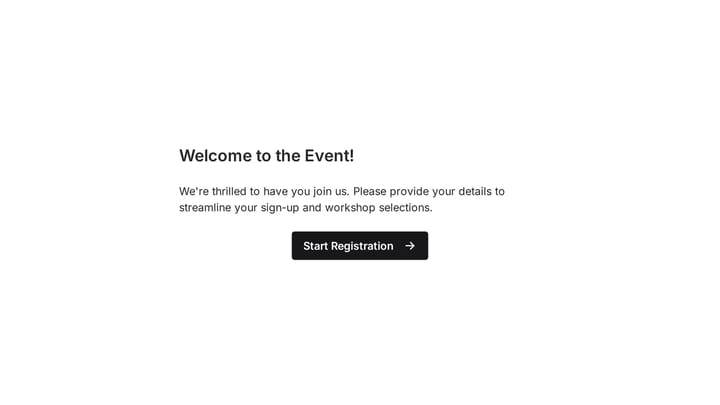
- Event registrations — “You’re in, @First name! Here’s what happens next” lands better than a receipt-style acknowledgment.
- Support and request forms — Confirm what was submitted so the requester has a record without asking you for one.
- Applications — Set expectations up front: what was received, when they’ll hear back.
The respondent gets certainty, and you stop answering “did my form go through?” emails.
Notifications for your team, rewritten
Admin notifications got a real upgrade too. Each form can now alert up to 10 team members, so the whole crew handling submissions hears about them at the same time. No more forwarding chains.
On Pro, you can also rewrite the notification email itself: your own subject, your own body. If your team triages submissions by urgency, put the urgency answer straight in the subject line and let people sort from the inbox list.
Type @ to pipe in answers
The template editor is where this gets fun. Type @ anywhere in the subject or body and pick from the form’s questions or Hidden values. When the email sends, the placeholder is replaced with what that respondent actually submitted.
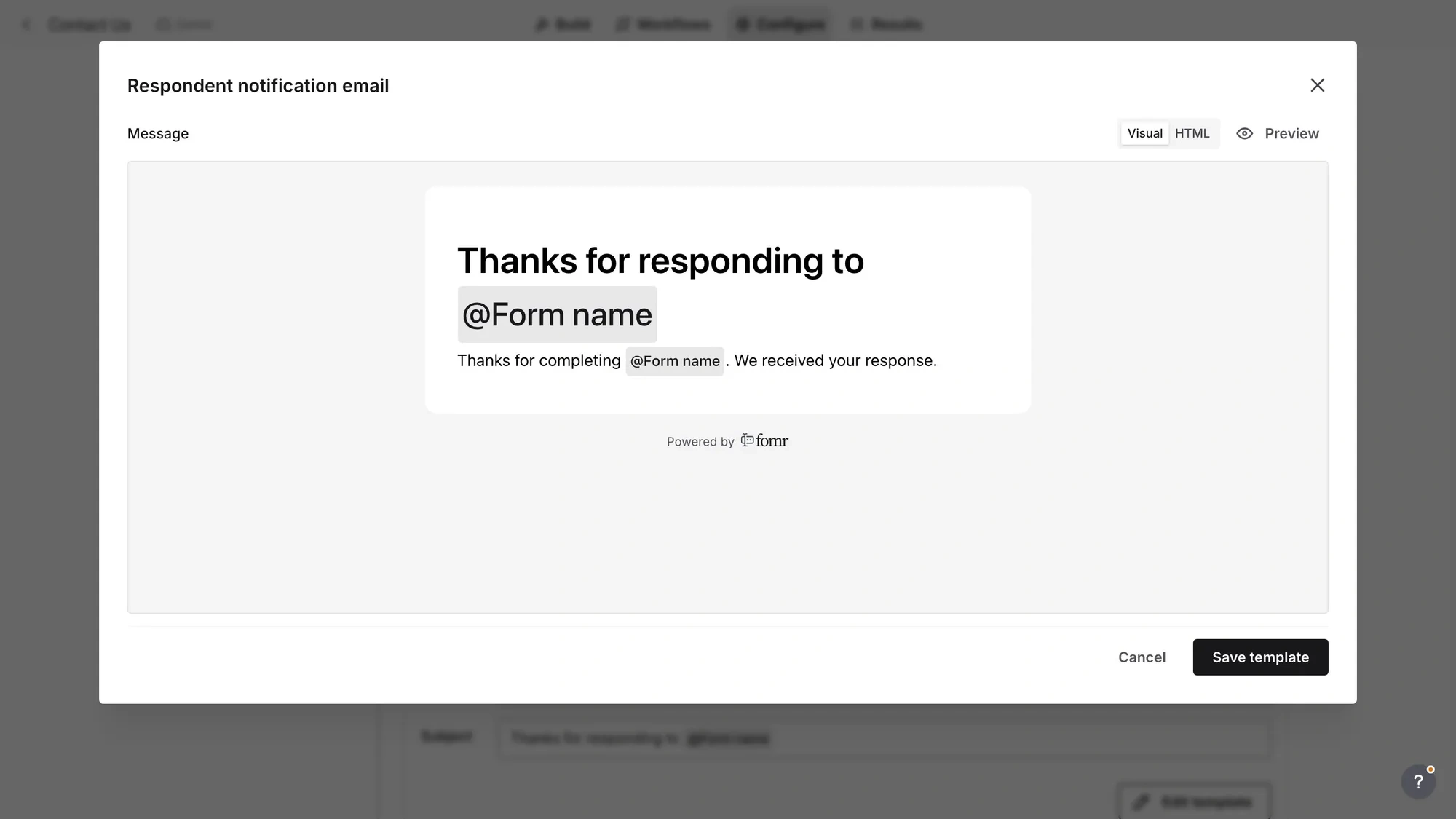
So a notification subject can be “New demo request from @Company name”, and the body can open with the budget answer, the timeline answer, whatever your team needs to see first. Hidden values work the same way, which is handy if you pass UTM parameters or campaign names into your forms and want them visible in the notification.
You can also add links and buttons to any template. Confirmation emails can point respondents to your docs, your calendar, or wherever they should go next.
Read the whole submission from your inbox
Our favorite part: templates can include the full answer summary. Every question, every answer, right in the email.
That means you can process most submissions without opening Fomr at all. The notification arrives, you read the complete response in your mail client, and you act on it. For teams that live in email, this quietly removes a whole step from the workflow.
And when you do need the app (to update a response, compare it against others, export), there’s a template button that opens that exact submission in your Results view. One click from inbox to the right row.
A visual editor, with HTML when you want it
Templates are edited in a visual editor with a live preview, so you see the email as your recipients will. Formatting, links, buttons, and @-pipes all work directly in the visual mode.
If you’d rather hand-tune the markup, flip to HTML mode and edit the source. The toggle sits right in the editor, and the preview covers both modes. Most people will never leave visual mode, but if your brand guidelines demand pixel-level control, it’s there.
What’s free and what’s Pro
Here’s the split:
- All plans: submission notifications for your team, now with up to 10 recipients per form.
- Pro ($24/month): respondent confirmation emails, plus custom subjects and bodies for both respondent and team notifications.
The default notifications are solid on their own. Pro is for when you want the emails to sound like you.
Set it up in a minute
Open any form in the app, head to the notification settings, and pick who gets emailed. To send respondent confirmations, make sure the form has an Email question, then select it as the recipient and customize the template.
Full details are in the changelog. And if you haven’t built a form with us yet, start one now — no account required.