Until now, form responses in Fomr lived in one place: the Results tab. That’s fine for reviewing answers, but most teams don’t stop there. Responses get copied into a spreadsheet, shared with a teammate, fed into some other process. Usually by hand.
Today we’re launching Workflows, and the first thing you can do with them: send form responses to Google Sheets automatically.
What Workflows are
A workflow is an automation that runs when someone completes your form. You build it from the new Workflows tab in the form editor: a trigger (“New response”) connected to one or more actions. When the trigger fires, the actions run. That’s the whole model.
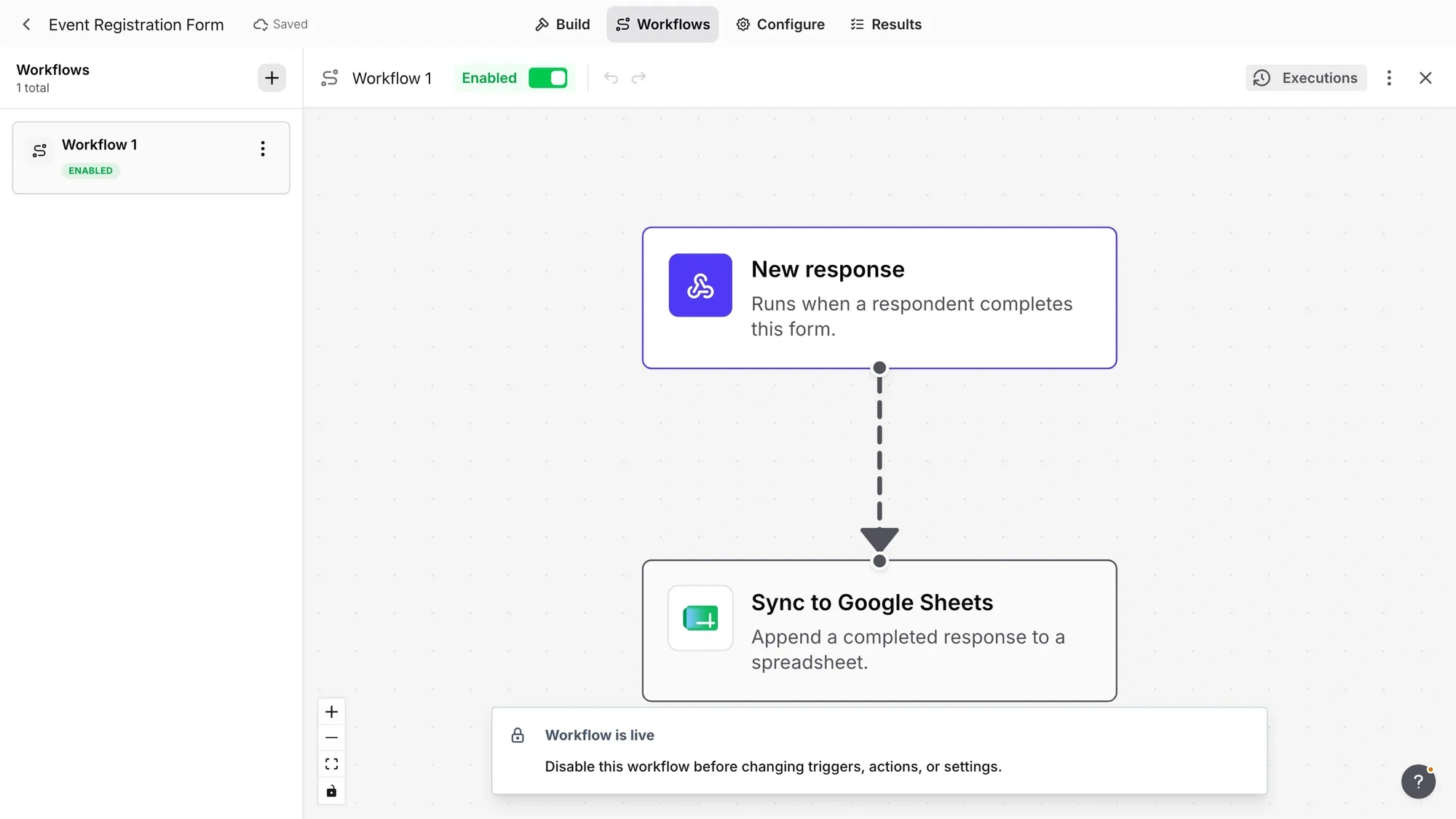
Before a workflow goes live, we validate the whole thing on our side: the graph is checked, your plan limits are checked, and the connected Google account is verified. If something’s off, you find out when you enable the workflow, not three days later when you notice the spreadsheet stopped filling up.
Google Sheets is the first action
Connect a Google account from the Integrations page in the app sidebar, add the Google Sheets action to a workflow, and every completed submission appends a new row to your spreadsheet.
You can name a new spreadsheet right from the workflow action and Fomr creates it for you. Once it exists, open it directly from the settings panel.
The columns mirror your Results tab: a Submitted at timestamp, then one column per question. Question labels stay in sync with your form, so renaming a question in Fomr updates the spreadsheet header too. Dates and date-times keep their stored UTC values, and time answers are written as plain time text, so nothing gets silently reformatted by Sheets.
We can’t see the rest of your Drive
This part matters, so we’ll be direct about it. When you connect a Google account, Fomr requests access only to spreadsheets it creates or spreadsheets you explicitly pick. We cannot browse your other Google Drive files. Not your documents, not your other spreadsheets, nothing.
Plenty of integrations ask for blanket Drive access because it’s easier to build. We didn’t want that trade-off, and you shouldn’t have to accept it just to get responses into a spreadsheet.
When a sync fails, you’ll know
Automations that fail silently are worse than no automations. Every workflow keeps an execution log: open it to see each run, inspect the status of every action, and retry anything that failed with one click.
So if a sync doesn’t go through, the response isn’t lost. It’s sitting in the execution log waiting for a retry.
Available on the free plan
Free workspaces get one enabled workflow per form. If a workspace downgrades with more workflows enabled, the extras are paused rather than deleted, so nothing is lost.
What’s next: Notion, Airtable, n8n, Zapier
Google Sheets is the first action, not the last. Notion, Airtable, n8n, and Zapier integrations are coming next, all built on the same workflow system, so once you’ve set up one workflow, the rest will feel familiar.
Which one should we ship first? Vote on the roadmap — we genuinely use it to order the queue.
Set it up in a few minutes
The Google Sheets setup guide walks through the whole flow: connecting your Google account, building the workflow, and picking or creating a spreadsheet.
Or just open the app, pick a form, and head to the Workflows tab. Your next form response can land in a spreadsheet without anyone copying it there.