Team members are now live in Fomr, which means your forms no longer have to live inside one person’s account. You can invite teammates, assign roles, and work together from a shared organization on every plan, including Free.
This release is bigger than a new settings page. It changes how teams can use Fomr for real work: HR requests, event registrations, client intake, customer feedback, internal approvals, school forms, nonprofit applications, and all the other cases where one person builds the form but several people need to help manage it.
Why team members matter for online forms
Forms rarely stay solo for long. A founder creates a contact form, then customer support needs response access. An HR lead builds an onboarding form, then finance needs a clean export. An agency creates intake forms for clients, then a project manager needs to adjust copy before a campaign goes live.
The old workaround was ugly: share a password, forward exports, duplicate forms, or ask one person to make every edit. That works for a week. Then someone leaves, a response gets missed, or nobody knows which form version is the current one.
Team members fix that by making collaboration part of the account model. Each person gets their own login. Work stays inside the organization. Access can be granted, changed, paused, or removed without handing over the keys to everything.
That matters for security too. The OWASP principle of least privilege is simple: give people only the access they need to do their job. NIST describes identity and access management in similar practical terms: the right people should have the right access to the right resources at the right time. You do not need a heavyweight enterprise setup to take that idea seriously. You just need a clean way to separate day-to-day form work from account-level controls.
What shipped with team members
The first version of team members focuses on the collaboration flows teams need most often: invitations, roles, organization switching, and access management.
Invite teammates by email
Admins can invite teammates from Settings → Team members. Enter an email address, choose a role, and send the invite.
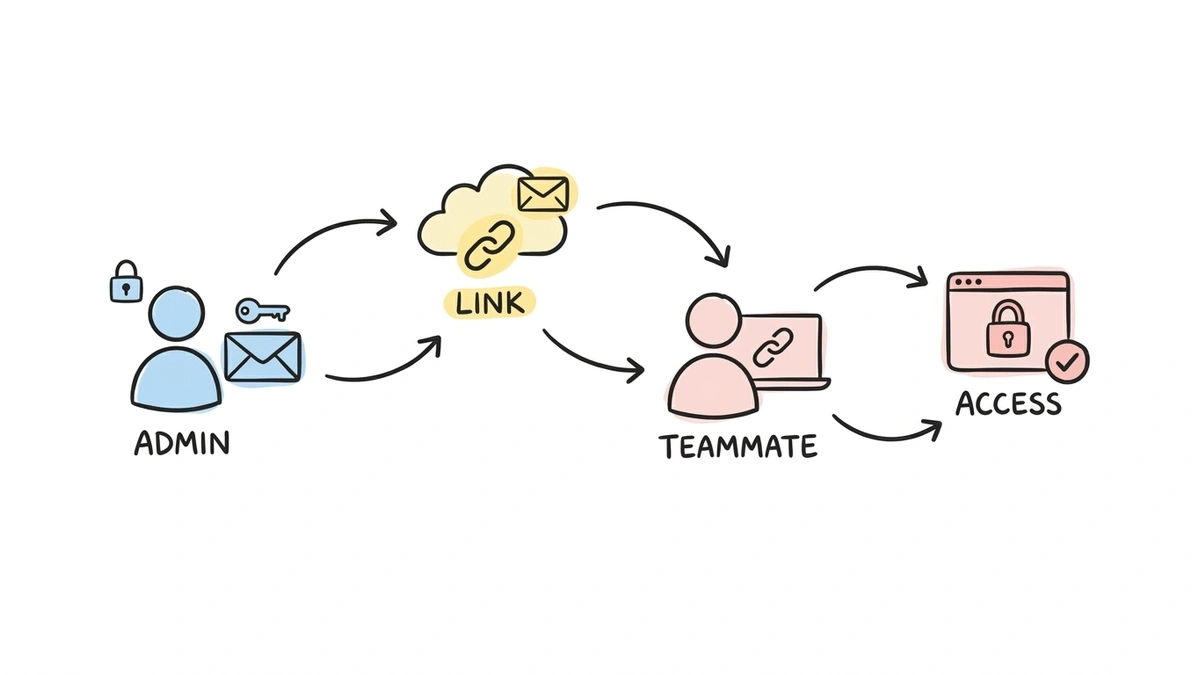
The invited person receives an email with a link to accept. Before they join, Fomr shows the organization name and role so they know exactly what they are accepting.
There are two small details here that matter:
- The invited person must sign in with the same email address that received the invite.
- That email address must be verified before the invite can be accepted.
This keeps invites tied to the right person. If someone opens the link while signed in with a different email, Fomr tells them to switch accounts instead of quietly adding the wrong user.
Manage pending invites
Invites do not disappear into a black box. The Team members page shows pending invites alongside active and blocked members.
Admins can resend an invite if the recipient missed the email. They can cancel an invite if it was sent to the wrong address, if the person no longer needs access, or if an old invite should stop working.
If an admin invites an address that already has a pending invite, Fomr refreshes that invite instead of creating duplicates. This keeps the member list readable and avoids the “which invite should I use?” problem.
Use admin and member roles
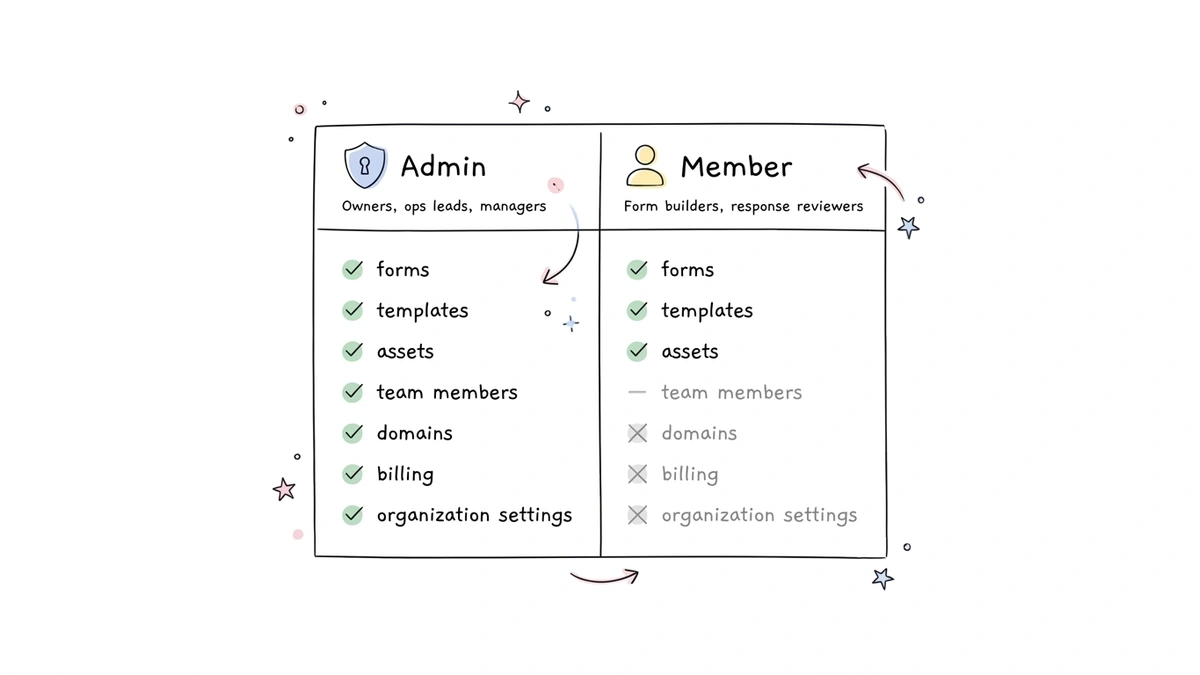
Fomr now includes two organization roles:
| Role | Good for | Access |
|---|---|---|
| Admin | Owners, operations leads, managers, and people responsible for the account | Can manage forms, templates, assets, team members, domains, billing, and organization settings |
| Member | Teammates who build forms, review responses, or keep templates updated | Can manage forms, templates, and assets without team, domain, billing, or organization settings access |
This is intentionally simple. Most teams do not need a maze of roles on day one. They need a way to say, “You can work on forms” without also saying, “You can change billing and remove teammates.”
As Fomr grows, we will keep expanding collaboration with care. The goal is not to make access control feel like a separate product. The goal is to give teams enough control that day-to-day work feels calm.
Change roles later
Roles are not permanent. Admins can change another member’s role from the Team members page.
This helps when responsibilities change. A contractor may need member access while working on a project. A teammate may become responsible for billing or domains and need admin access. A founder may want to move account management to an operations lead.
Fomr protects a few risky cases. You cannot use the Team members page to change your own role, and Fomr prevents an organization from losing its last active admin. If you are the only active admin, add or restore another admin before stepping away.
Better control over team access
Inviting people is only half of collaboration. You also need to manage access after people join.
Block access without removing membership
Admins can block a member. Blocking removes access while keeping the person in the organization list.
That is useful when access should pause but may come back later. Maybe someone is between projects. Maybe a contractor’s work is on hold. Maybe a teammate needs access reviewed before returning.
Blocked members cannot switch into the organization until an admin unblocks them. Their membership still exists, so restoring access is quick.
Remove members when access should end
Admins can also remove members. Removal takes the person out of the organization.
Use removal when someone no longer belongs to the team, no longer works with your forms, or was added by mistake. Their past actions remain attributed to them, but they no longer have organization access.
This distinction, block for temporary pauses and remove for permanent exits, makes access cleanup less awkward. You can choose the action that matches the situation.
Keep one active admin
Fomr checks for last-admin situations before sensitive changes. You cannot leave, block, remove, or demote the only active admin in an organization.
It is a small guardrail, but a useful one. Losing admin access can turn a normal team change into a support problem. The app now catches that before it happens.
Organization switching for people on more than one team
Some people belong to more than one organization. Agencies manage multiple client workspaces. Freelancers work with more than one team. Consultants may help several departments.
You can now switch organizations from Settings → Organization without signing out.
The switcher shows the organizations your account belongs to and marks the current one. Active memberships can be opened right away. Blocked memberships stay visible, but you cannot switch into them until an admin restores access.
This makes the account model clearer: one person can have one Fomr login and belong to multiple organizations, each with its own forms, responses, templates, assets, domains, billing, and settings.
How this helps different teams
The obvious benefit is “more people can use the account.” The better benefit is that work can move to the person closest to it.
Small businesses
A small business might have one person who owns the website, another who answers customer inquiries, and another who handles operations. With team members, the person who receives responses can view them directly instead of waiting for exports.
The owner can stay an admin. The rest of the team can be members. Nobody needs to share a login.
Agencies
Agencies often build many similar forms: campaign lead forms, client intake forms, feedback surveys, event registrations. Team members make it easier for account managers, designers, and operators to collaborate inside one organization.
Pair this with form templates, and an agency can keep reusable client patterns in one place. A designer can create the template, an account manager can adapt it, and an admin can keep account settings under control.
HR and operations teams
HR forms tend to touch several people. One teammate builds the onboarding form. Another reviews submissions. Someone else exports data for payroll or compliance.
Team members let that happen without making one person the bottleneck. Members can work with forms and templates, while admins manage organization settings and billing.
Schools and nonprofits
Schools and nonprofits often have many occasional collaborators: coordinators, volunteers, department leads, committee members. Per-seat pricing can punish that kind of work.
Fomr includes unlimited team members on the Free plan. That means you can invite the people who need to help without worrying that every extra collaborator turns into another bill.
A note on pricing
Team members are available on every plan. Free includes unlimited forms, unlimited responses, unlimited fields, and unlimited team members.
That is deliberate. Collaboration is not an advanced feature for most teams. It is how work gets done. Charging per user can make teams ration access in strange ways: one shared login for the whole team, exports passed around by email, or one overloaded admin who has to make every change.
We would rather keep the collaboration basics open and charge for the account-level polish that belongs in Pro: custom domains, hidden Fomr branding, SEO controls, redirect on completion, expanded storage for collected files, and row-level Partial Response access.
What to set up first
If you are adding team members today, here is the order I would use.
- Invite one backup admin. Make sure at least two active people can manage account-level settings.
- Invite day-to-day collaborators as members. Give form builders and response reviewers access without billing or domain controls.
- Clean up old access. Remove people who no longer need the workspace. Block anyone whose access should pause.
- Check shared templates. If your team repeats the same form patterns, save the best versions as templates.
- Document who owns what. Fomr can manage access, but your team still needs clear ownership for forms, responses, and follow-up.
The goal is not to create process for its own sake. It is to make sure the right person can do the next useful thing without asking for credentials.
What comes next
This release lays the foundation for deeper collaboration. Fomr now understands organizations, memberships, roles, invite states, and organization switching as first-class parts of the product.
That gives us room to build more team workflows over time: richer permissions, better activity visibility, and tighter handoffs around responses and templates. We will keep the first version simple while we learn how teams actually use it.
For now, you can invite teammates, assign roles, manage pending invites, switch organizations, and control access from the app.
Start collaborating in Fomr
Open Settings → Team members to invite your first teammate, or read the team members help guide for step-by-step setup.
If you have not tried Fomr yet, you can start with the guest editor, build a form without signing up, then create an account when you are ready to publish and invite your team.