
Fomr organizations give your team a shared workspace for forms, responses, templates, assets, domains, billing, and settings. Instead of sharing one login, each person signs in with their own account and works inside the organization they belong to.
Admins control who can join and what level of access they get. Members can keep building and managing forms without access to billing, domains, organization settings, or team management.
What team members can access
Section titled “What team members can access”Team members work inside the same organization. That means they can help create forms, edit existing forms, review responses, use shared templates, and reuse assets that belong to the organization.
Access depends on the person’s role:
| Role | Access |
|---|---|
| Admin | Can manage forms, templates, assets, team members, domains, billing, and organization settings |
| Member | Can manage forms, templates, and assets without team, domain, billing, or organization settings access |
Use Admin for people who should manage account-level settings. Use Member for people who should work on forms and responses without changing team access or billing.
Invite a team member
Section titled “Invite a team member”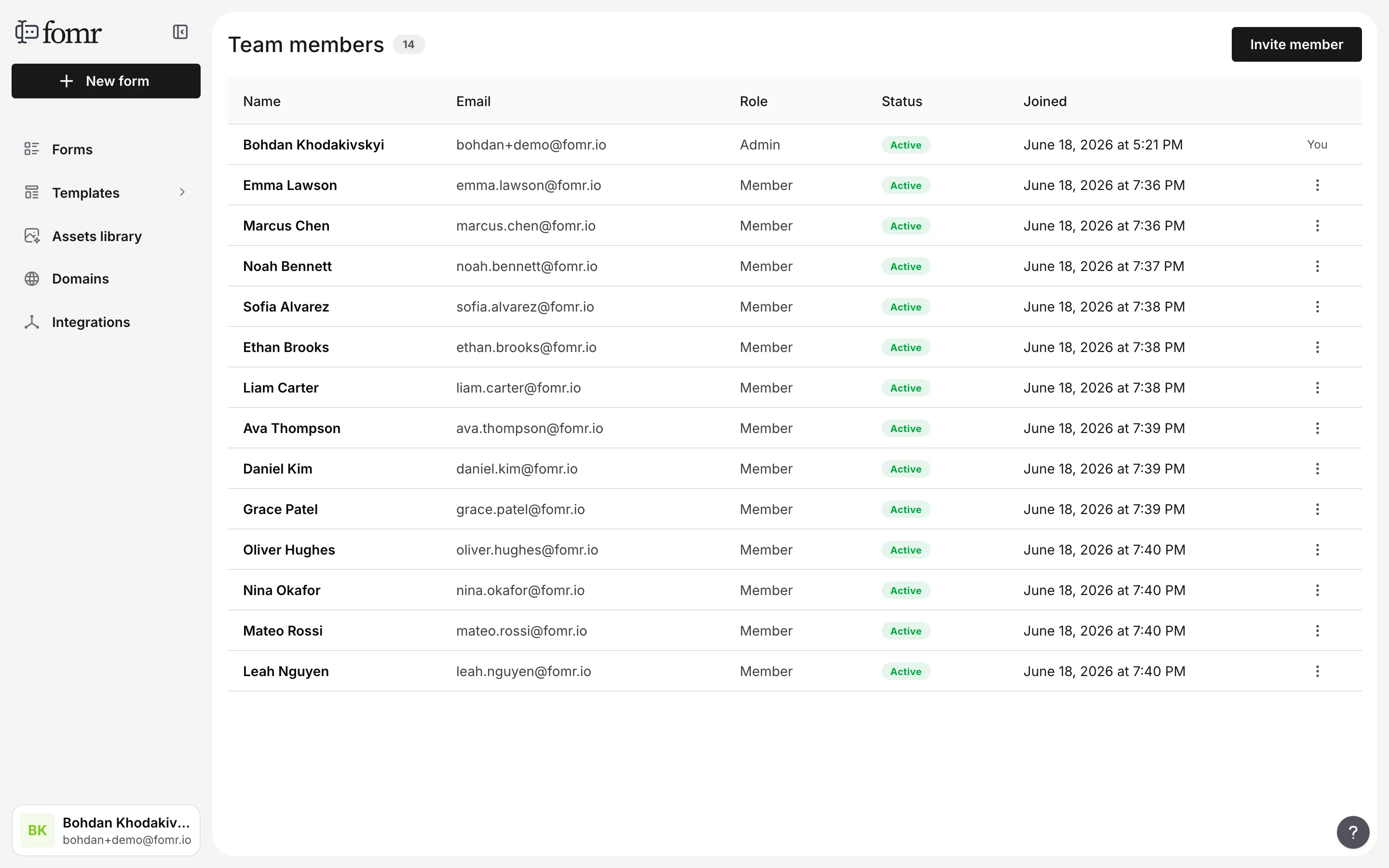
-
Sign in as an organization admin and go to Settings → Team members
-
Click Invite member
-
Enter the person’s email address
-
Choose their role
-
Click Send invite
Fomr sends an invite email to the address you entered. The Team members page shows active members, blocked members, and pending invites in one table, so admins can see who has access and who still needs to accept.
If the person missed the email, choose Resend from the pending invite actions menu. If the invite should no longer be used, choose Cancel.
Accept an invite
Section titled “Accept an invite”When someone invites you to an organization, open the invite link from the email. Fomr shows the organization name and role before you accept.
You must be signed in with the invited email address, and that email must be verified. If you are signed in with a different email address, sign out and sign in with the invited email before opening the link again.
After the invite is accepted, Fomr switches you into that organization and takes you back into the app.
Manage pending invites
Section titled “Manage pending invites”Admins can manage pending invites from Settings → Team members.
- Resend sends a fresh invite email to the same address.
- Cancel makes the pending invite unusable.
- Sending a new invite to an address that already has a pending invite refreshes that invite instead of creating a duplicate.
If an invite link is invalid or expired, ask an admin to resend the invite and use the latest email.
Change a member’s role
Section titled “Change a member’s role”Admins can change another member’s role when someone’s responsibilities change.
-
Go to Settings → Team members
-
Open the actions menu for the member
-
Click Change role
-
Choose the new role
-
Click Update role
You cannot change your own role from the Team members page. If you need to step down from admin access, ask another admin to update your role.
Fomr also protects your organization from losing its last active admin. If you are the only active admin, add or restore another admin before changing roles, blocking members, removing members, or leaving.
Block, unblock, or remove members
Section titled “Block, unblock, or remove members”Admins can manage access from Settings → Team members.
- Block temporarily removes a member’s access without deleting their membership.
- Unblock restores access for a blocked member.
- Remove takes the member out of the organization.
Blocking is useful when access should pause but may be restored later. Removing is better when someone no longer belongs to the organization.
Members cannot block, unblock, or remove themselves from the Team members page. To remove your own access, leave the organization from organization settings.
Switch organizations
Section titled “Switch organizations”If your account belongs to more than one active organization, you can switch between them without signing out.
-
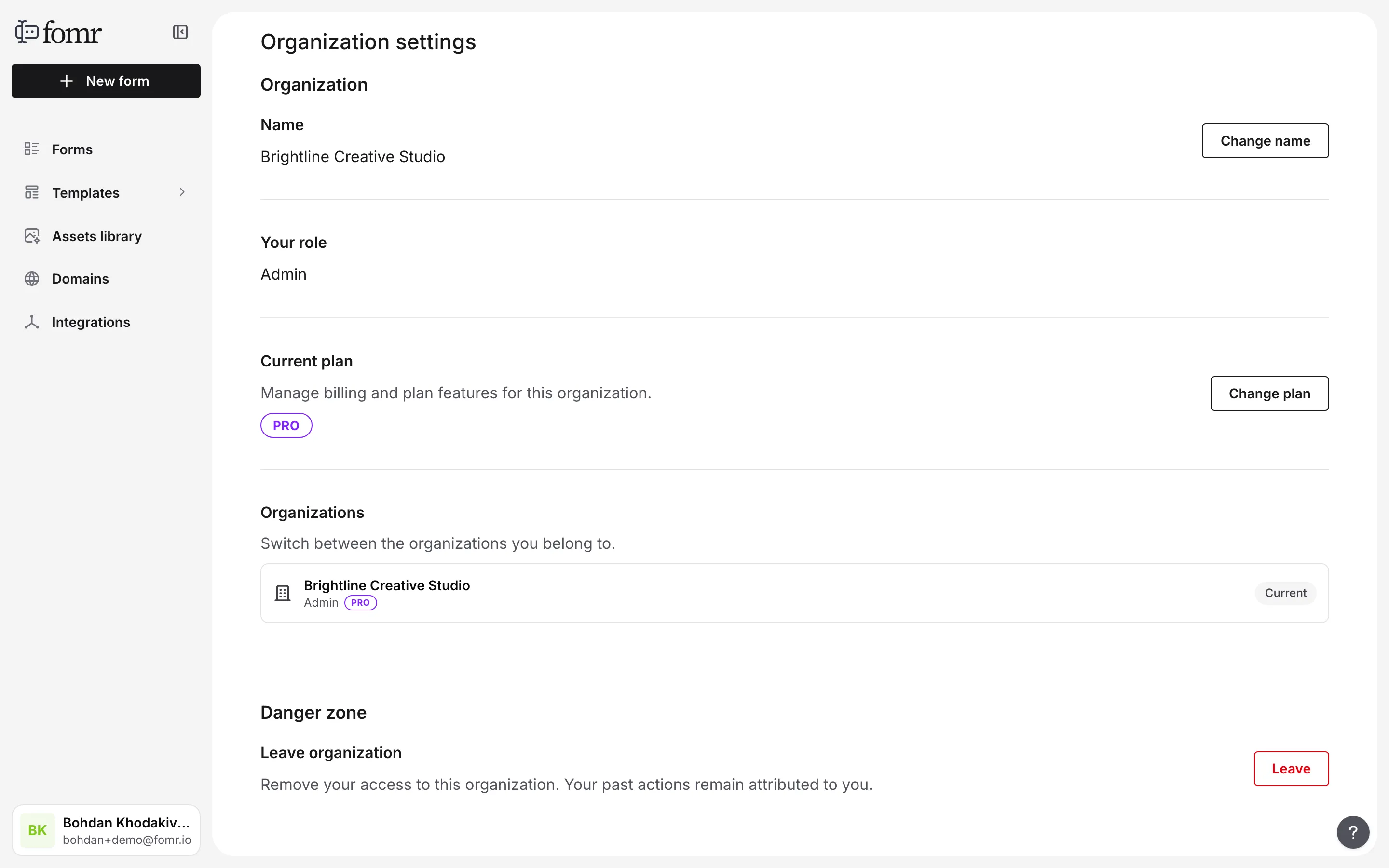
Go to Settings → Organization
-
Find the Organizations section
-
Click Switch next to the organization you want to open
Blocked memberships stay visible in the list, but you cannot switch into them until an admin restores your access.
An organization switch applies to every open Fomr tab in the same browser. If local edits have not synced yet, Fomr may pause the switch rather than risk moving those edits into the wrong organization.
Leave an organization
Section titled “Leave an organization”You can remove your own access from an organization from Settings → Organization.
-
Go to Settings → Organization
-
Find Leave organization
-
Click Leave and confirm
Leaving removes your access, but your past actions remain attributed to you. If you belong to another active organization, Fomr switches you there. If you do not, you will need another admin to invite you again.
If you are the last active admin, add or restore another admin before leaving.
Troubleshooting invites and access
Section titled “Troubleshooting invites and access”The invite says it belongs to a different email
Section titled “The invite says it belongs to a different email”Sign out, then sign in with the exact email address that received the invite. If your team sent the invite to the wrong address, ask an admin to cancel it and send a new one.
The invite says your email is not verified
Section titled “The invite says your email is not verified”Verify your email address first, then open the invite link again.
The invite is invalid or expired
Section titled “The invite is invalid or expired”Ask an admin to resend the invite from Settings → Team members. Use the newest email, because older invite links may no longer work.
You cannot see the Team members page
Section titled “You cannot see the Team members page”Your role may not include team member access. Ask an admin to check your role from Settings → Team members.
Fomr warns about local changes
Section titled “Fomr warns about local changes”If Fomr says changes are still being saved, choose Cancel and wait for saving to finish, or reconnect if you are offline. If you have already reached sign-in, sign back in to the same account to keep and resume those edits. If you sign in to a different account, Fomr asks before deleting the previous account’s local recovery data; choose Cancel unless you are sure you no longer need those changes. Downloading updates does not trigger this warning.
