
Templates help you create forms faster by starting from pre-built designs instead of a blank canvas. Browse the Template gallery for ready-to-use forms, save your own forms as templates to reuse across projects, or create a new template with AI while signed in. Your own templates live in your workspaces, next to your forms.
Understanding templates
Section titled “Understanding templates”Templates are pre-configured forms that serve as starting points for new forms. When you create a form from a template, you get a complete copy that you can customize without affecting the original template.
How templates work
Section titled “How templates work”Template → Create form from template → New form (independent copy) ↓ Customize as needed ↓ Publish your formChanges you make to a form created from a template don’t affect the original template, and vice versa. Each form is completely independent after creation.
Template benefits
Section titled “Template benefits”- Save time: Start with a working structure instead of building from scratch
- Consistency: Maintain uniform form designs across your organization
- Best practices: Learn from well-designed templates that follow form design principles
- Reusability: Turn your best forms into templates for future use
Browsing the Template gallery
Section titled “Browsing the Template gallery”The Template gallery holds Fomr’s ready-made templates for common forms.
Opening the gallery
Section titled “Opening the gallery”-
Log in to Fomr
-
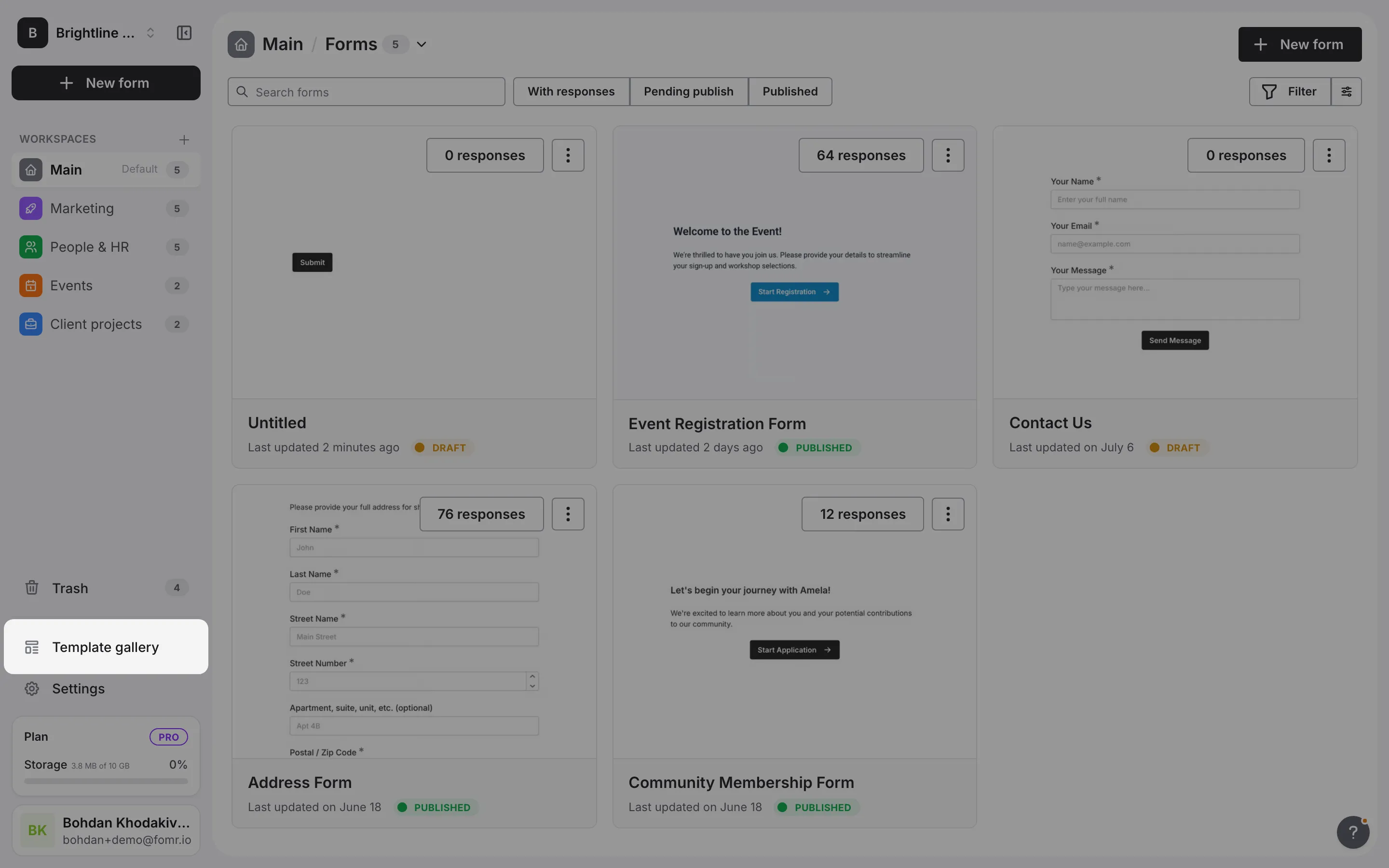
Click Template gallery in the sidebar
-
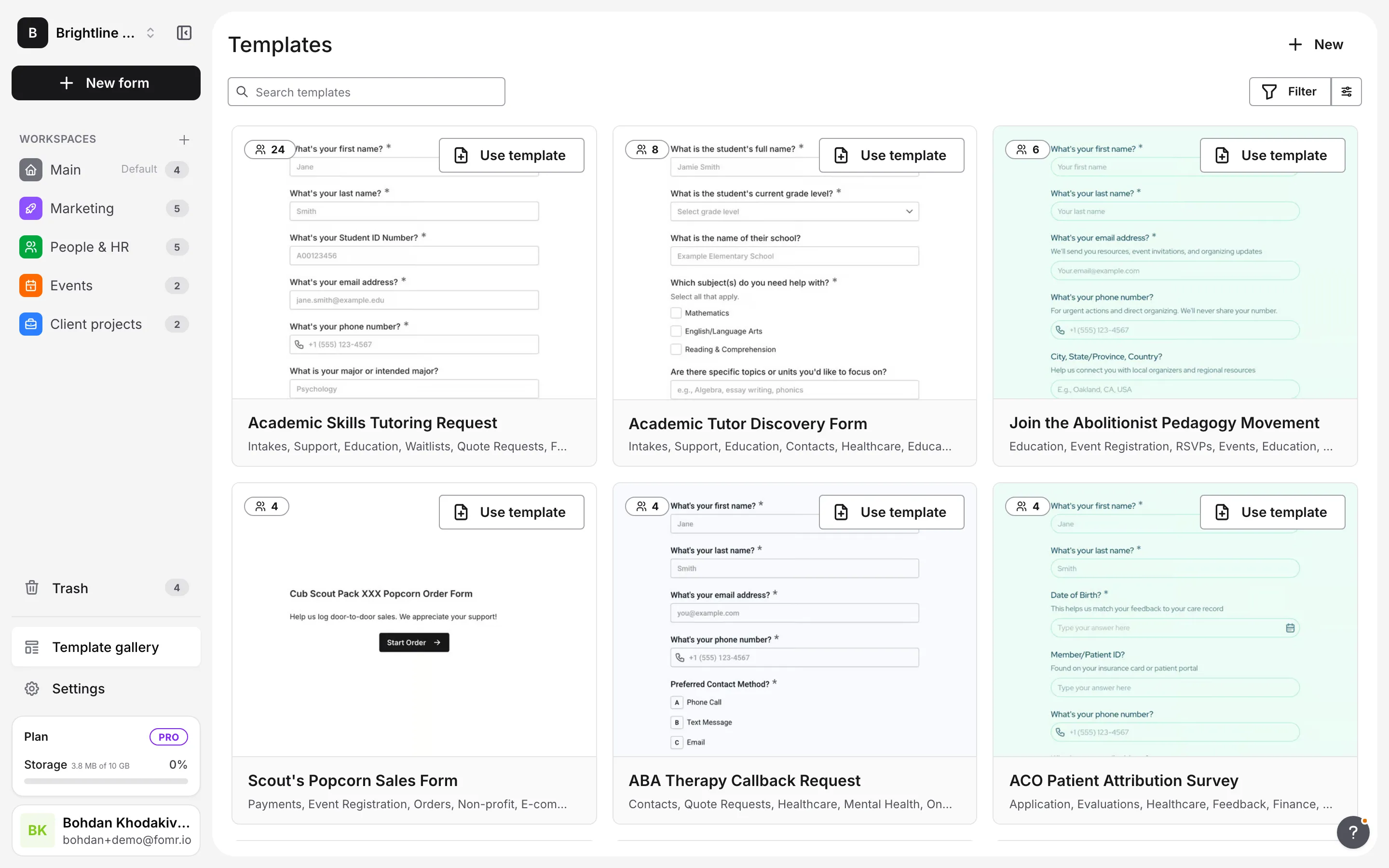
Browse the templates, starting with the most used ones
Filtering the gallery
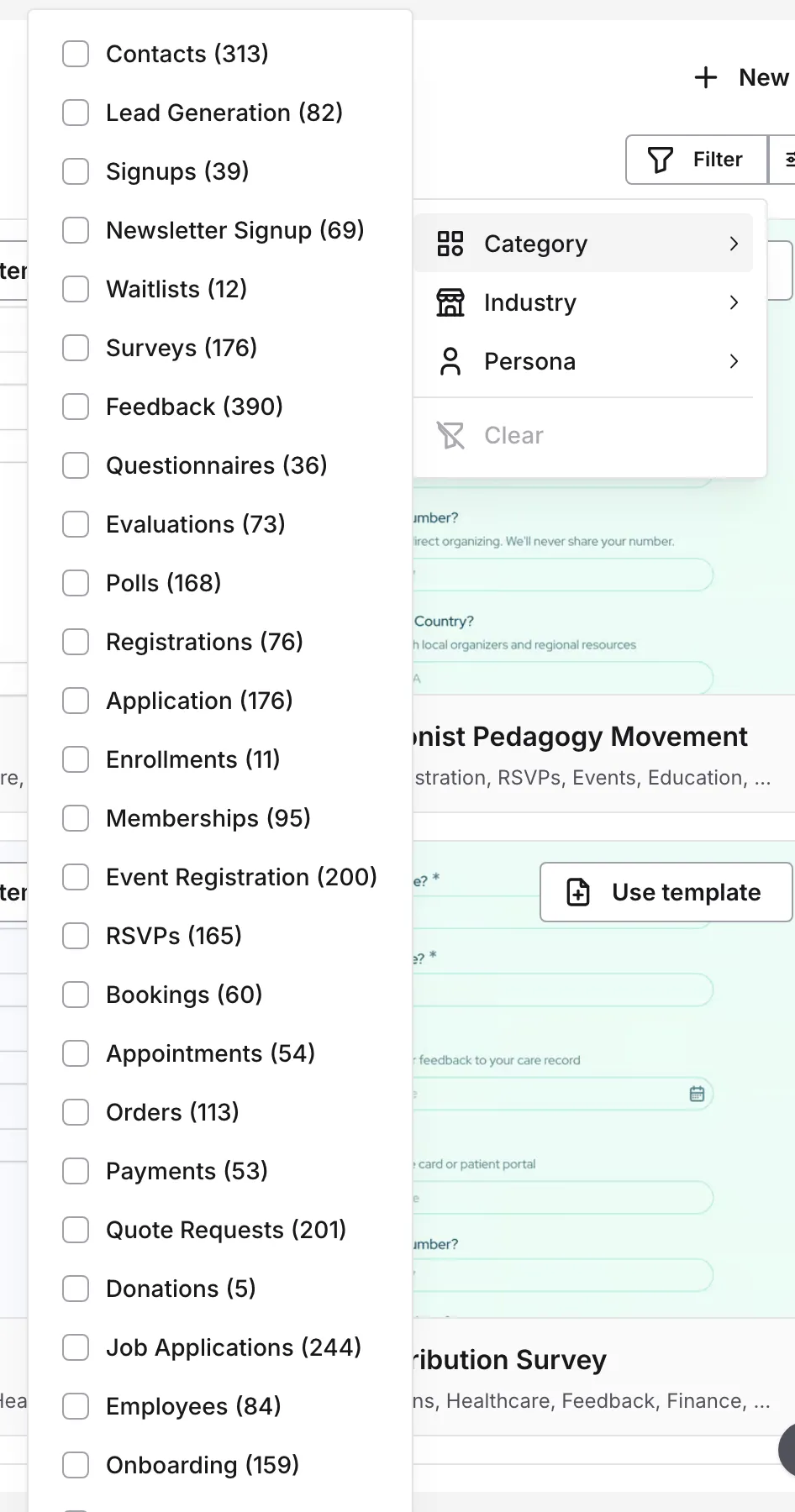
Section titled “Filtering the gallery”Use the search box to find templates by name, or open Filter to narrow the list by:
- Category: the kind of form, such as contact, survey, or registration
- Industry: the field the template is built for
- Persona: the role the template is built for
Each option shows how many templates it contains. You can check several options at once, and clear them all with Clear.
Previewing a gallery template
Section titled “Previewing a gallery template”Click a template card to open its preview. The preview shows the full form, which you can click through page by page, along with its tags and how many people have used it. Use the arrows on either side to move to the previous or next template, and click Use template when you find one you like.
Creating a form from a template
Section titled “Creating a form from a template”You can start a form from a gallery template or from one of your own templates.
How to create from a template
Section titled “How to create from a template”-
Open the Template gallery, or open a workspace and switch to its Templates list
-
Find the template you want to use
-
Click Use template on the template card (or in the gallery preview)
-
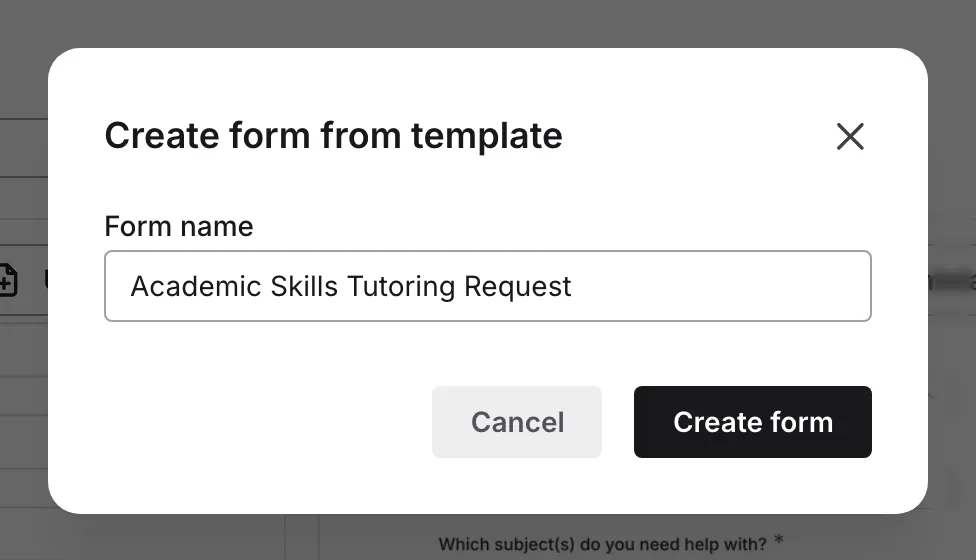
In the Create form from template dialog, check the Form name. It’s prefilled with the template’s name, and you can change it.
-
Click Create form
The new form opens in the editor. It’s created in the workspace you’re in. When you start from the Template gallery, that’s the workspace you visited last.
What gets copied
Section titled “What gets copied”When you create a form from a template, the new form includes:
- All pages and their structure
- All form components and their settings
- Question text, supporting content, and placeholders
- Design and theme settings
- Component configurations (required components, validation, etc.)
- Logic rules and Calculated values
What doesn’t get copied
Section titled “What doesn’t get copied”The following are not copied from templates:
- Responses (templates don’t have responses)
- Publishing status (new forms start as drafts)
- Version history
After creating from a template
Section titled “After creating from a template”Once your form is created:
-
Review the form structure in the editor
-
Customize questions, text, and settings as needed
-
Adjust the design and theme to match your brand
-
Configure notifications and other settings
-
Preview and test your form
-
Publish when ready
Saving forms as templates
Section titled “Saving forms as templates”Turn your well-designed forms into reusable templates that you can use again or share with your team.
When to save as template
Section titled “When to save as template”Consider saving a form as a template when:
- You’ve created a form you’ll want to reuse
- You want to standardize forms across your organization
- You’ve built a form structure that works well for a specific purpose
- You want to share a form design with team members
You can also start a new template with AI from an empty template canvas. AI-created templates stay private to your organization, so your team can reuse them without making them public.
How to save a form as a template
Section titled “How to save a form as a template”-
Open the form you want to save as a template
-
Open Configure and go to the General tab
-
Under Actions, click Save as template
-
In the Create template dialog, enter a Template name. It’s prefilled with the form’s name.
-
Choose how to create the template:
- Create a copy keeps your form unchanged and creates a new template from it
- Convert to template turns the form itself into a template
-
Click Create template
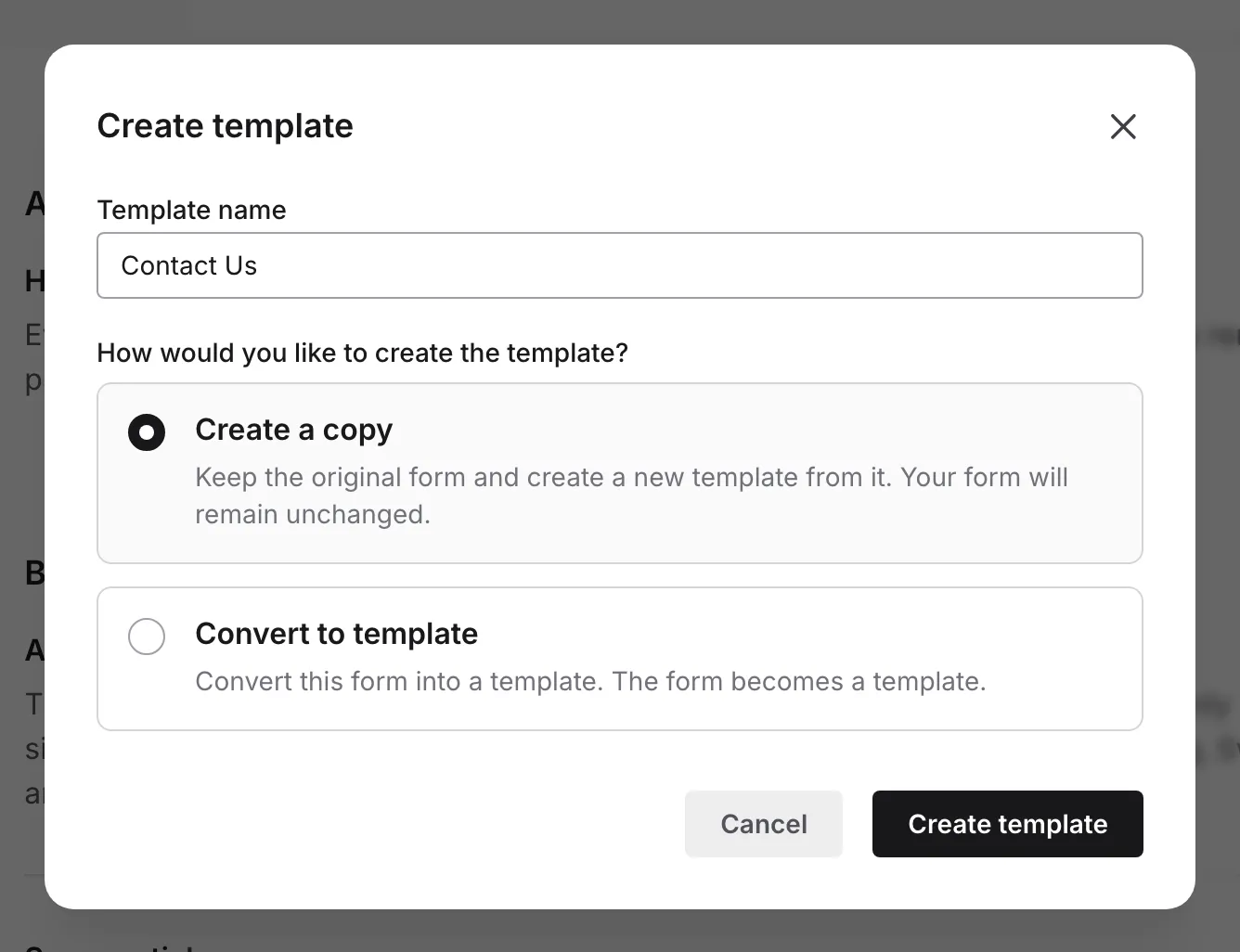
Convert to template isn’t available for published forms or forms with responses. To convert a published form, archive or unpublish it first. Otherwise, choose Create a copy.
After you create a copy, choose Open template to go to the new template, or Continue editing form to stay in your form. When you convert a form, the template opens right away.
The new template is saved in the same workspace as the form.
Managing templates
Section titled “Managing templates”Keep your template library organized and up to date.
Viewing your templates
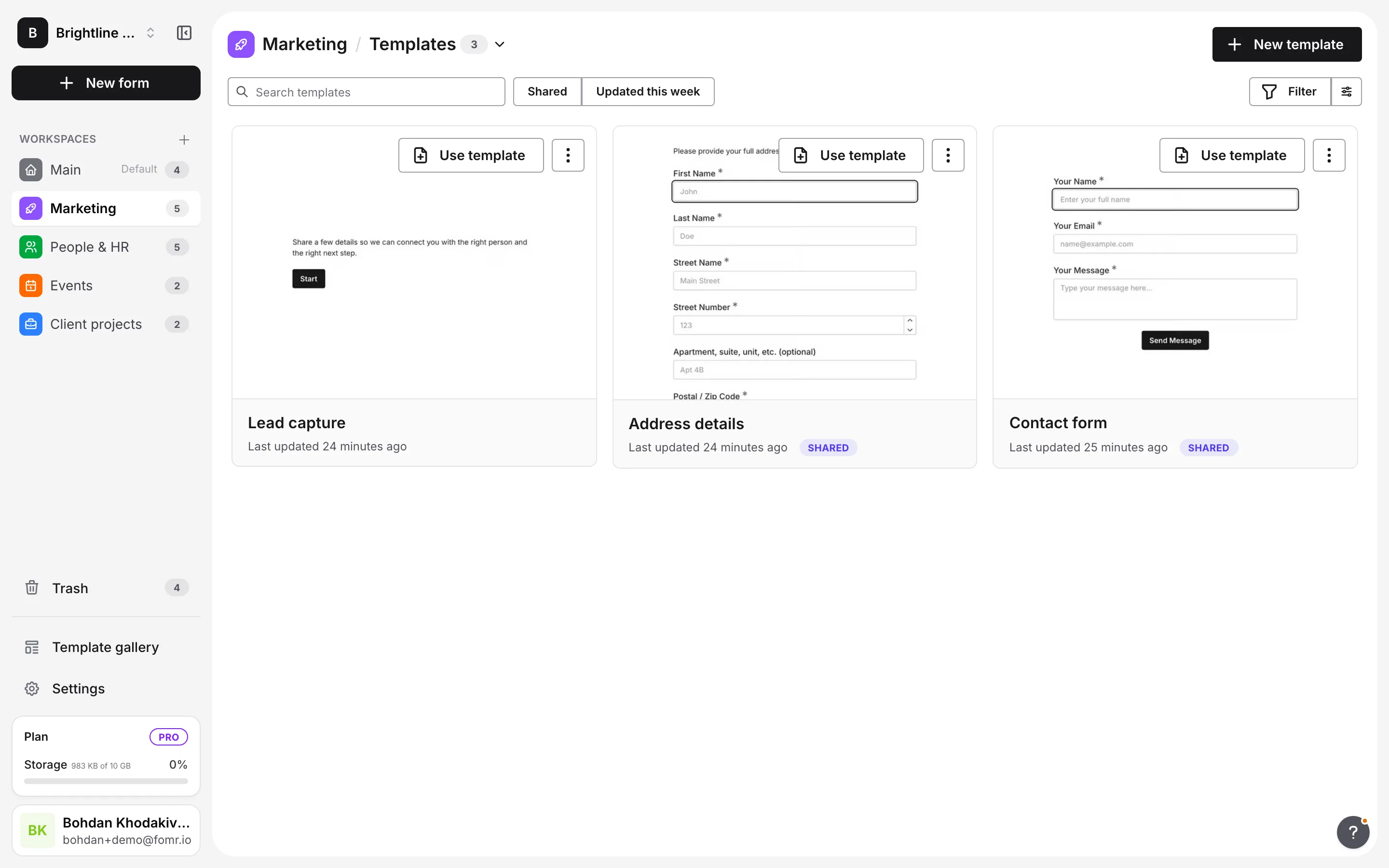
Section titled “Viewing your templates”Your templates appear in the Templates list of the workspace they belong to. Open a workspace in the sidebar, click the section name in the page title, and choose Templates. To create a template from scratch, click New template.
Templates in the Default Workspace are shared with every workspace, so they also appear in every other workspace’s Templates list with a Shared badge. Use the Shared preset or the Source filter to show only shared templates, or only the workspace’s own. Learn more about workspaces.
Template card menu
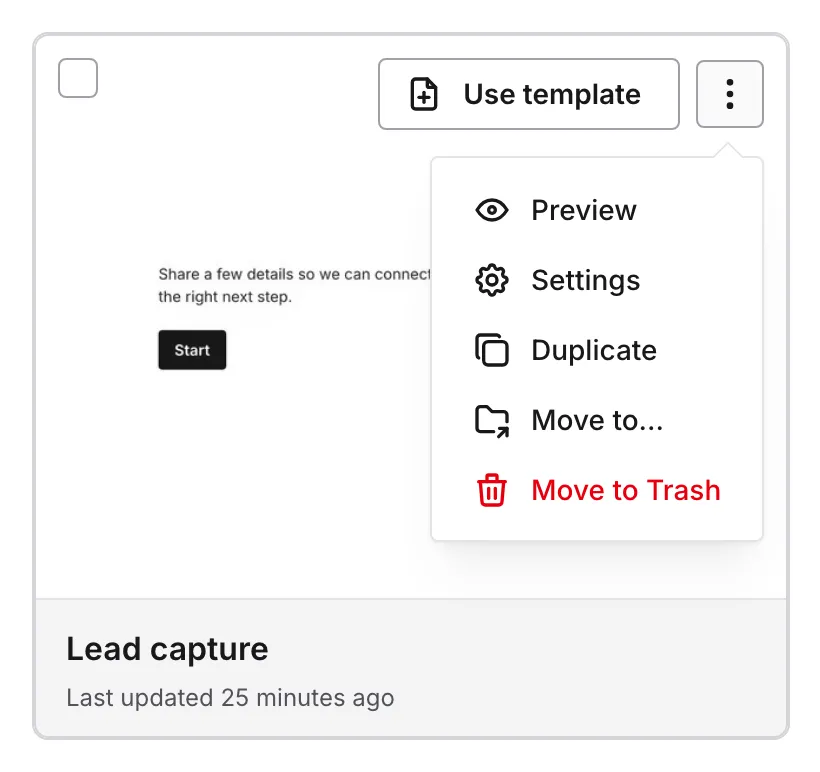
Section titled “Template card menu”Open the … menu on a template’s card for more options:
- Preview: opens the template in preview mode
- Settings: opens the template’s settings
- Duplicate: creates a copy of the template
- Move to…: moves the template to another workspace
- Move to Trash: moves the template to Trash
Duplicating templates
Section titled “Duplicating templates”To copy a template, open the … menu on its card and choose Duplicate. The copy is created in the same workspace as the original, named after it with “copy” added, and opens in the editor.
Moving and sharing templates
Section titled “Moving and sharing templates”To move a template to another workspace, open the … menu on its card and choose Move to…, then pick the workspace. To move several templates, select them and click Move to… in the action bar. Moving templates between workspaces is a Pro feature.
To share a template with every workspace, move it to the Default Workspace. Shared templates that leave the Default Workspace stop appearing in other workspaces. Learn more about shared templates and assets.
Editing templates
Section titled “Editing templates”To update an existing template:
-
Open the workspace’s Templates list
-
Find the template you want to edit
-
Click on the template to open it
-
Make your changes in the editor. They’re saved automatically.
Deleting templates
Section titled “Deleting templates”If you no longer need a template:
-
Open the template you want to delete
-
In the template’s settings, scroll to the Danger zone
-
Under Move template to Trash, click Move to Trash
You can also open the … menu on the template’s card and choose Move to Trash, or select several templates and click Move to Trash in the action bar. Confirm, and the templates move to Trash.
Deleted templates stay in Trash for 30 days, where you can restore them. After that they are deleted permanently. Forms created from the template are not affected.
Template best practices
Section titled “Template best practices”Use descriptive names. Choose template names that clearly indicate the form’s purpose. “Q4 Customer Survey” is better than “Survey 1”.
Share templates everyone needs. Keep templates the whole team uses in the Default Workspace so they appear in every workspace.
Keep templates updated. If you improve a form design, consider updating the template so future forms benefit from the improvements.
Start simple. When creating templates, include the essential structure but leave room for customization. Overly specific templates may need significant modification.
Test before saving. Preview and test your form thoroughly before saving it as a template to ensure it works correctly.
Frequently asked questions
Section titled “Frequently asked questions”Can I edit a template after creating it?
Section titled “Can I edit a template after creating it?”Yes, you can edit your custom templates at any time. Changes to a template don’t affect forms that were already created from it.
Do templates count against my form limit?
Section titled “Do templates count against my form limit?”No, templates are separate from your forms. Since Fomr offers unlimited forms, this isn’t a concern regardless.
Can team members use my templates?
Section titled “Can team members use my templates?”Yes. Everyone in your organization can open every workspace and use the templates in it. To make a template appear in every workspace, keep it in the Default Workspace, where it’s shared with all of them. This makes it easy to maintain consistency across your team’s forms.
What happens to forms if I delete a template?
Section titled “What happens to forms if I delete a template?”Nothing. Forms created from a template are completely independent. Deleting a template, or deleting it permanently from Trash, has no effect on existing forms.
Can I create a template from a template?
Section titled “Can I create a template from a template?”Yes. To copy a template as-is, open the … menu on its card and choose Duplicate. You can also create a form from a template, customize it, and then save that form as a new template.
Troubleshooting
Section titled “Troubleshooting”Template not appearing in the list
Section titled “Template not appearing in the list”- Ensure you completed the save process
- Check that you’re in the right workspace. A template saved in a workspace other than the Default Workspace only appears in that workspace.
- Clear any search terms, presets, or filters that might hide the template
Can’t find a specific template
Section titled “Can’t find a specific template”- Try different search terms
- Clear any active filters
- Check if the template was deleted. Deleted templates appear in Trash for 30 days.
Form looks different from template preview
Section titled “Form looks different from template preview”- Templates may have been updated since you last viewed them
- Some elements may require customization after creation
