Someone fills out your form. They hit submit. And then… nothing happens. No email lands in your inbox. No confirmation reaches the person who just gave you their information. The submission sits in a database somewhere, invisible, until you remember to check it three days later.
This is the most common failure mode for online forms, and it has nothing to do with design or conversion rates. A form builder with email notification support solves the problem that matters most after someone converts: making sure a human actually sees the response and acts on it.
If you’ve ever lost a lead because you didn’t see their form submission until a week later, or had a customer complain that they never got a confirmation after signing up, you already know the cost. Let’s talk about what good form email notifications look like, what to look for in a tool, and how to set them up without overcomplicating things.
Why form submission notifications matter more than you think
The obvious reason is speed. Harvard Business Review found that companies who respond to leads within an hour are seven times more likely to qualify them than companies who wait even two hours. A form without email notifications adds friction to that response time because you’re relying on someone to manually check a dashboard.
But there’s a less obvious reason too. Email notifications create a paper trail. When a customer submits a support request, a booking inquiry, or a complaint, the notification email becomes the starting point for your team’s response. It can be forwarded, replied to, tagged in a shared inbox, or turned into a ticket. Without that email, the submission exists only inside the form builder’s interface, which means someone has to log in and check it regularly.
For small businesses running lean, that “check the dashboard” habit breaks down fast. You get busy, you forget, and submissions pile up. Notifications push information to you instead of waiting for you to pull it.
Give it a try
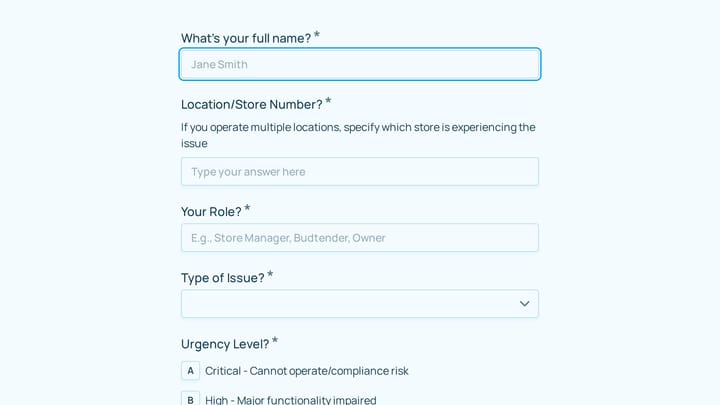
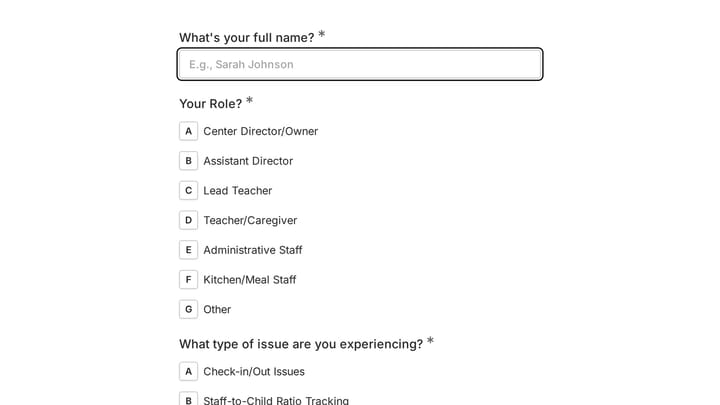
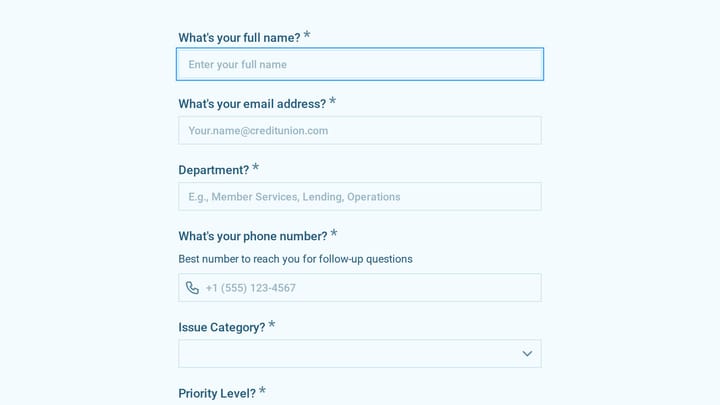
Fill out this live support request form
This is a real, working template from our gallery. Fill it out like a respondent would, then make it your own.

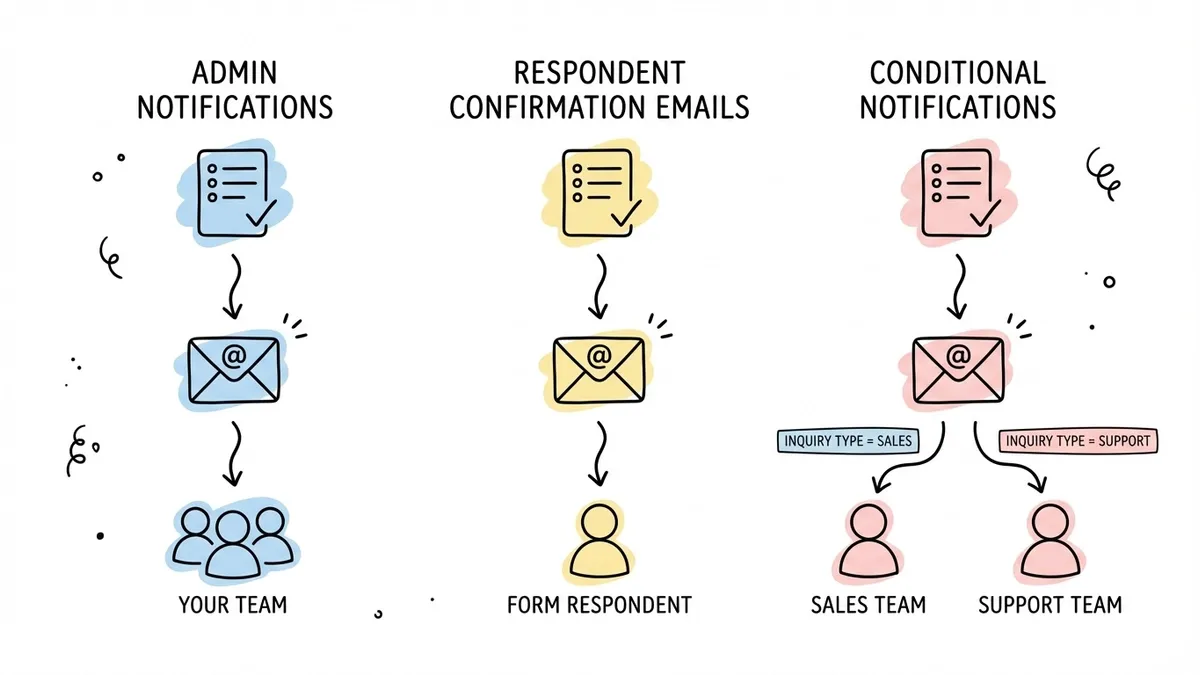
The three types of form email notifications
Not all notification emails serve the same purpose. Most form builders offer some combination of these three, and understanding the differences helps you set them up correctly.
Admin notifications
These go to you or your team when someone submits a form. They’re the “hey, you got a new submission” emails. A good admin notification includes the full submission data in the email body so you can read it without clicking through to a dashboard.
The basics you need: the ability to choose which email addresses receive the notification, a clear subject line (ideally customizable), and the actual form responses included in the message. Some tools let you route notifications to different people based on the submission content, which is useful if you have a contact form that handles both sales inquiries and support requests.
Respondent confirmation emails
These go to the person who submitted the form. They serve two purposes: confirming that the submission went through, and setting expectations for what happens next.
A good confirmation email says something like “We received your inquiry and will respond within 24 hours.” A bad one says nothing, leaving the person wondering if the form even worked. For lead generation forms, the confirmation email is also your first touchpoint with a potential customer. It sets the tone for the relationship.
The tricky part is that confirmation emails require collecting an email address in your form (obviously) and having the form builder send from a reasonable-looking address. If your confirmation comes from “[email protected],” it looks impersonal at best and spammy at worst.
Conditional notifications
This is where things get more sophisticated. Conditional notifications send different emails to different people based on what the respondent selected in the form. A few examples:
- A contact form routes sales inquiries to the sales team and support questions to the support team
- An event registration form sends different confirmation details based on which session the person signed up for
- A feedback form escalates low satisfaction scores to a manager automatically
Not every form needs conditional notifications. But if you’re building forms that serve multiple purposes or multiple departments, they save a lot of manual sorting.
What to look for in a form builder’s notification features
The feature comparison pages for form builders tend to focus on the editor, templates, and integrations. Notification features get buried in a footnote. Here’s what actually matters when you’re evaluating tools.
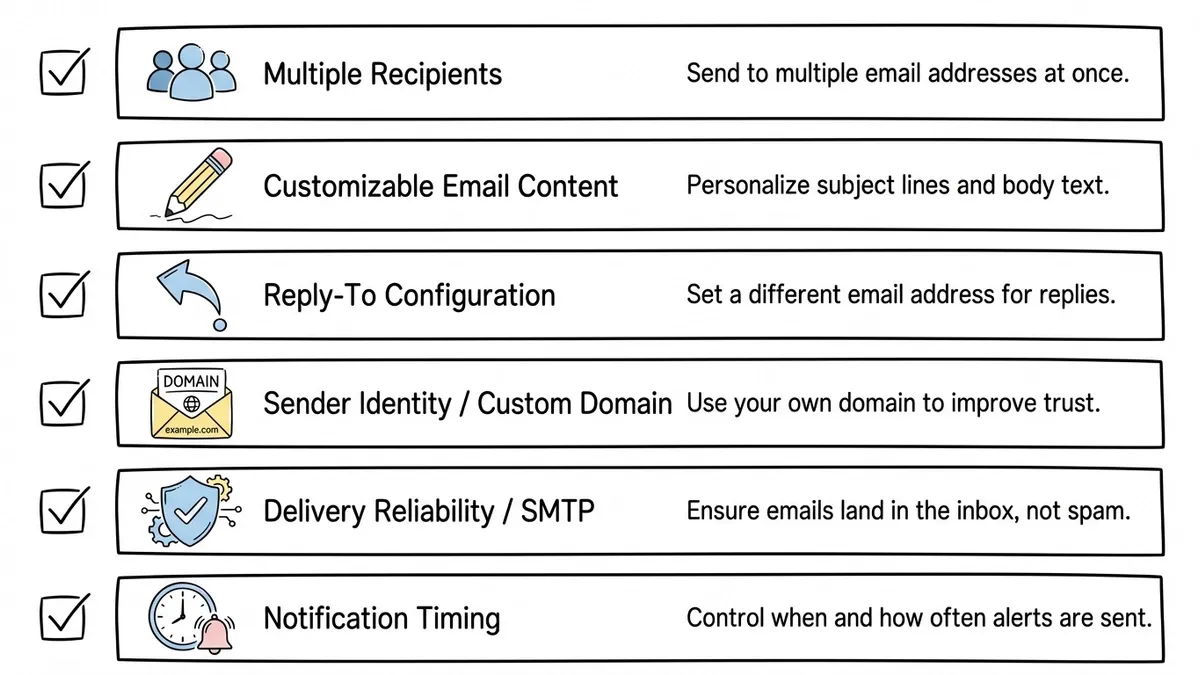
Multiple notification recipients
Can you send admin notifications to more than one email address? This sounds basic, but some free plans restrict you to a single recipient. If your form handles inquiries that multiple people need to see, you need this.
Customizable email content
Can you control what the notification email says, or are you stuck with a generic template? The best tools let you write your own subject line, body text, and choose which form fields appear in the email. Some let you use merge tags to pull in the respondent’s name or other data.
Reply-to address configuration
When you get an admin notification and hit “reply,” where does that reply go? Good form builders let you set the reply-to address to the respondent’s email, so you can respond directly from your inbox without copying and pasting addresses.
Sender identity for confirmation emails
Confirmation emails that come from “[email protected]” look unprofessional. Look for tools that let you customize the sender name, or better yet, send from your own domain. This usually requires DNS configuration (SPF/DKIM records), but it’s worth it for any form that represents your brand.
Delivery reliability
This one is hard to evaluate before you buy, but it matters. Form notification emails need to actually arrive in inboxes, not spam folders. Tools that use dedicated email infrastructure (or let you connect your own SMTP server) tend to have better deliverability than tools that send everything through a shared service.
Notification timing
Most notifications send immediately, which is what you want for admin alerts. But for respondent confirmations, some tools offer delayed sending or drip sequences. That’s overkill for most use cases, but worth knowing about if you’re building something like a multi-day event registration.
Best practices for form notification emails
Setting up notifications is the easy part. Getting them right takes a bit more thought.
Keep admin notifications scannable
Your admin notification email will compete with every other email in your inbox. Make it easy to triage at a glance. A good format:
- Subject line that includes the form name and a key detail (e.g., “New contact form: Sarah from Acme Corp”)
- The most important fields at the top of the email body
- A direct link to the full submission in the form builder’s dashboard
If your form builder lets you customize the notification template, front-load the information your team needs to decide whether to act immediately or handle it later.
Write confirmation emails like a human
The default confirmation email for most form builders is something like “Thank you for your submission. We have received your response.” That’s technically accurate and completely lifeless.
Write your confirmation the way you’d respond if someone emailed you directly:
- Acknowledge what they submitted (“Thanks for reaching out about our consulting services”)
- Set a clear expectation (“We’ll get back to you within one business day”)
- Give them something useful in the meantime (“Here’s a link to our FAQ” or “Here’s what to prepare for our call”)
Skip the corporate tone. The person just gave you their information. Treat that like the small act of trust it is.
Don’t over-notify
It’s tempting to set up notifications for everything. Every submission, every field change, every partial completion. Resist this. Notification fatigue is real, and when your team starts ignoring form notification emails because there are too many of them, you’re back to the original problem of missed submissions.
Start with one admin notification per form, sent to the people who actually need to act on it. Add more only when you have a specific reason.
Test your notifications before going live
This sounds obvious, but a surprising number of people publish forms without ever submitting a test entry. Check that:
- Admin notifications arrive in the right inboxes (check spam folders too)
- Confirmation emails look correct on both desktop and mobile
- Reply-to addresses work as expected
- The email content includes the right fields and doesn’t expose data that should stay private
One test submission takes 30 seconds and can save you from missing your first real lead.
Use notifications as a bridge, not a destination
Email notifications are a starting point for your workflow, not the whole workflow. For simple contact forms, getting an email and replying might be enough. But as your form volume grows, you’ll want notifications feeding into something more structured: a CRM, a shared inbox, a project management tool, or a helpdesk.
Most form builders offer integrations with these tools (or will soon). Plan for that growth even if you don’t need it today.
Common notification problems and how to fix them
Even with a good setup, things go wrong. Here are the issues I see most often.
Notifications landing in spam
This happens when the form builder’s sending domain has poor reputation, or when the email content triggers spam filters. Fixes: use a tool with good email infrastructure, avoid spammy language in your notification templates (“FREE,” “ACT NOW,” excessive caps), and if possible, authenticate your sending domain with SPF and DKIM records.
If you’re using a form builder that lets you connect your own SMTP server or email service (like SendGrid or Postmark), that gives you the most control over deliverability.
Wrong people getting notified
This usually means your notification routing is too broad. If everyone on the team gets every form submission, the important ones get lost in the noise. Narrow your recipient list to the people who need to act, and use conditional routing if your tool supports it.
Confirmation emails that confuse respondents
If your confirmation email doesn’t clearly state what happens next, people will submit the form again, email you separately asking if it worked, or just assume you’re ignoring them. Be explicit about next steps and timeline.
Notification delays
Some form builders batch their notification emails instead of sending them instantly. If response speed matters to your business (and for sales leads, it almost always does), verify that your tool sends notifications in real time. A 15-minute delay might not sound like much, but it’s the difference between catching someone while they’re still thinking about your product and reaching out after they’ve moved on.
How Fomr handles email notifications
Fomr supports email notifications for form submissions out of the box. When someone fills out your form, you get an email with the submission details. You can set this up in the form settings without touching any code.
Since Fomr’s free plan includes unlimited forms and unlimited responses, you’re not paying extra to get notifications on high-volume forms. That’s worth noting because some tools gate notification features behind paid tiers or cap the number of notification emails per month.
Some advanced notification features, including conditional routing and third-party integrations like Zapier, are coming soon. The core notification workflow, getting an email when someone submits your form, works today. If you want to try it, you can start building a form without even creating an account.
Picking the right tool for your notification needs
Here’s a practical framework for deciding what you need:
If you’re a solo operator or small team collecting contact form submissions, feedback, or simple inquiries: you need basic admin notifications and a respondent confirmation email. Most form builders handle this fine, including free tools. Focus on reliability and ease of setup over advanced features.
If you’re running multiple forms across departments (sales, support, HR, events): you need conditional routing, multiple recipients per form, and customizable notification templates. This is where mid-tier tools earn their price.
If you’re processing high volumes (hundreds of submissions per day): email notifications alone won’t cut it. You need integrations that push submissions directly into your CRM, helpdesk, or database. Notifications become a backup, not the primary workflow.
For most people reading this, the first category is where you’ll start. Don’t over-engineer your notification setup. Get the basics right, make sure emails actually arrive, and build from there.
Start with the form, not the notification
It’s easy to get lost in notification configuration before you’ve even built the form. Start the other way around. Build a form that collects the right information, test it, then set up notifications that route that information to the right people.
If you don’t have a form builder yet, Fomr’s guest editor lets you build one right now without signing up. Set up your fields, configure your notification email, submit a test entry, and see the notification land in your inbox. The whole process takes about five minutes.