Most Google Forms vs Microsoft Forms comparisons open with a feature grid and let you sort it out yourself. That’s backwards. For most teams the decision is already made before you compare a single feature, and it comes down to one thing: which office suite you already pay for.
Neither tool is sold separately. Both are free extras attached to a much bigger subscription, so the sensible default is the one bundled with the accounts your team signs into every morning. That’s the one where sharing, permissions, and exports work without anyone filing an IT ticket.
The two-line version:
- Google Workspace, or plain free Gmail accounts: use Google Forms.
- Microsoft 365 for business or education: use Microsoft Forms.
If that settles it, you can stop reading and go build the form. The rest of this post is for the cases where ecosystem doesn’t decide it: free personal Microsoft accounts, high-volume collection, file uploads, and anything a customer is going to see.
Every limit below was checked against Google’s and Microsoft’s own documentation in August 2026. A couple of widely repeated numbers turned out to be unverifiable, and I’ve said so rather than repeat them.
Google Forms vs Microsoft Forms: the limits that actually bite
Same criteria applied to both, including the ones that make each tool look bad.
| Google Forms | Microsoft Forms | |
|---|---|---|
| Cost | Free with any Google account | Free with any Microsoft account |
| Responses per form, free personal account | None published | 200 |
| Responses per form, paid personal account | None published | 1,000 |
| Responses per form, business or education licence | None published | 5,000,000 (50,000 on GCC High and DoD tenants) |
| Forms per account | None published | 400 |
| Questions per form | None published | 200 |
| Restrict responses to your org | Workspace accounts only | Business and education licences only, disabled on consumer accounts |
| Anonymous public responses | Yes | Yes |
| File uploads | Yes, but responders must sign in to a Google account | Org-restricted forms only |
| Where responses land | Responses tab, linked Google Sheet, CSV download | Responses tab, live Excel workbook in OneDrive or SharePoint |
| Design control | Theme colour, background colour, header image, font and size per text level | Theme gallery, custom hex colour, background image upload |
One number I could not verify: the template counts both tools ship with. Both galleries need a signed-in account to load, and the figures floating around older blog posts don’t trace back to any vendor page. Both libraries are small and general-purpose. If templates are your deciding factor, neither tool is going to impress you.
The 200-response wall on free Microsoft accounts
This is the biggest asymmetry between the two, and it’s the one that catches people out.
A form built on a free personal Microsoft account (Outlook.com, Hotmail, Live) stops at 200 responses. Pay for a consumer Microsoft 365 subscription and it goes to 1,000. Those are Microsoft’s own published figures, alongside caps of 400 forms per account and 200 questions per form.
Google publishes no per-form response cap at all. I went looking for one and it isn’t documented anywhere in Google’s help pages.
What Google does document is the spreadsheet ceiling: a Google Sheet tops out at 10 million cells. A 20-question form writes 21 columns per response, so the arithmetic puts you somewhere around 475,000 responses before the Sheet gives out. For a class survey or an event RSVP list, that isn’t a limit. It’s a rounding error.
The failure mode is what makes the 200 cap sting. The form stops accepting responses mid-campaign. Microsoft’s guidance is to export what you’ve collected to Excel, clear the responses from the form, then start again. That works, but you’re doing manual data surgery while people are still trying to submit, and your running summary charts reset to zero.
If you’re on a free Microsoft account and expect real volume, Microsoft Forms is the wrong tool. Not a close call.
What you only get with a Microsoft 365 licence
Microsoft Forms on a free personal account is a visibly smaller product than the one your work account gets. Two restrictions do most of the damage.
Org-restricted responses
The “Only people in my organization can respond” and “Specific people in my organization can respond” settings are only available to Office 365 Education and Microsoft 365 Apps for business users. On a consumer account, sharing with people in your org is disabled outright.
That second option is genuinely useful and Google has no direct equivalent. You name individuals or groups, and only they can open the form. For a manager collecting something from twelve named people, that beats sending a public link and hoping.
File uploads
Here’s the part almost nobody mentions. Microsoft Forms only offers the file upload question when one of those two org-restricted settings is turned on. No organisation, no file uploads. And because those settings require a work or school sign-in, you cannot collect a file from a member of the public through Microsoft Forms at all. Uploads land in the form owner’s OneDrive for Business, capped at 10 files per question and a per-question size limit you choose.
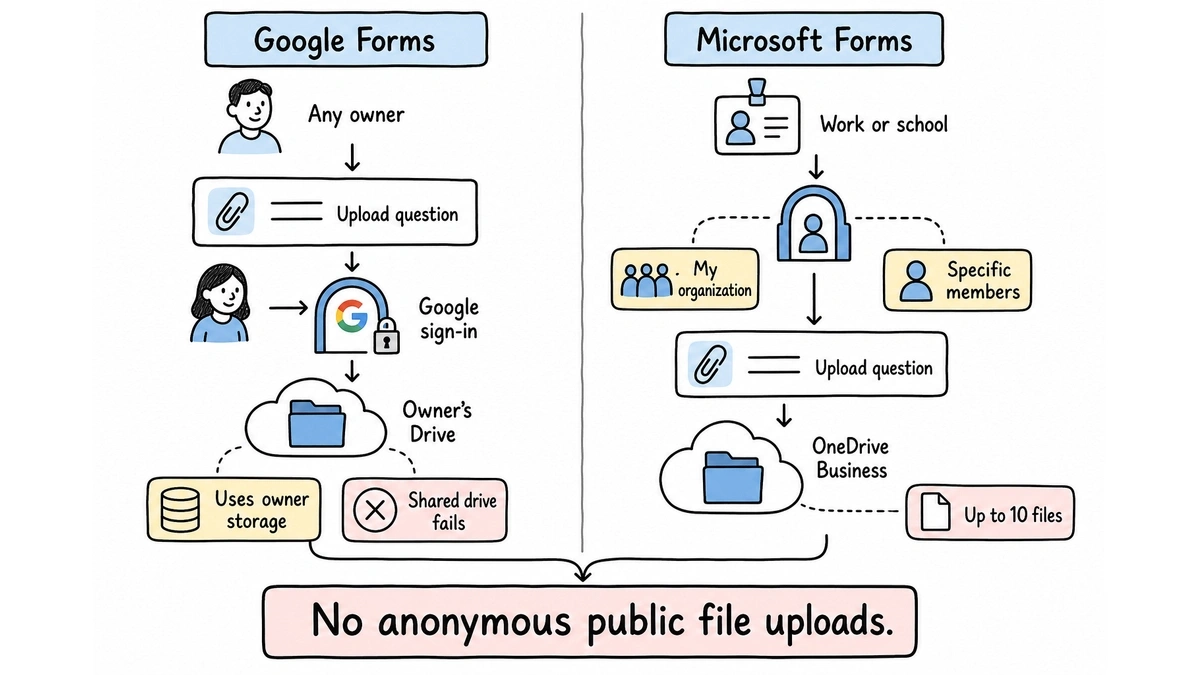
Google’s version is softer but not open either. The file upload question works on any account, free ones included, but Google’s documentation is blunt about the trade: “To answer this question, responders need to sign in to a Google Account.” Files go into a new folder on the owner’s Drive and eat the owner’s storage quota. Uploads also break if your form lives in a shared drive.
So neither tool collects a file from an anonymous stranger. Google at least lets you try, provided your whole audience has Google accounts. Worth knowing before you build a job application form on either one and discover the problem after posting the link.
Where responses land, and how you get them out
Google Forms keeps responses in a Responses tab with summary charts and links out to a Google Sheet that updates as submissions arrive. CSV download is there too. If your team analyses in Sheets, there’s no export step at all.
Microsoft Forms does the same thing with Excel. “Open in Excel” produces a workbook with a live connection back to the form. Personal forms save the workbook to OneDrive; group forms save it to SharePoint.
These are functionally a wash. Pick based on which spreadsheet your finance person already has open.
Where Microsoft Forms is genuinely better
Documented headroom for large collections. On a Microsoft 365 for business licence, a single form is documented to take 5,000,000 responses. Google publishes nothing, and the Sheet running underneath gives out around half a million on a 20-question form. If you’re surveying a 40,000-person employer and want a number in writing before you commit, Microsoft has one and Google doesn’t.
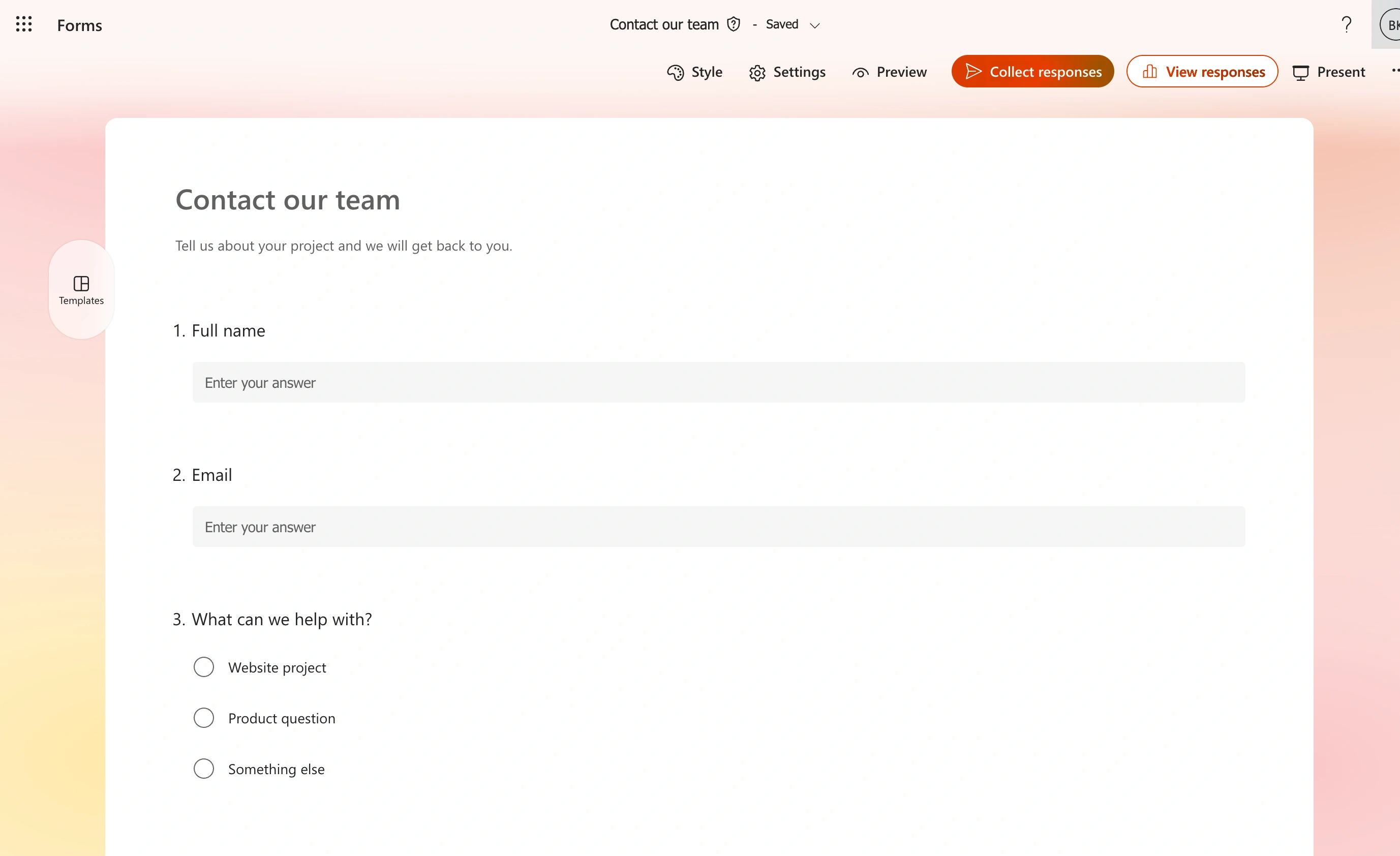
For the sample contact form, we added name, email, topic, and message questions. The editor keeps these in a vertical sequence, making the order easy to review before opening the respondent preview.
Data governance you already have. Responses and uploaded files stay inside OneDrive and SharePoint, under whatever retention, DLP, and eDiscovery policies your organisation already runs. For regulated teams this is the whole argument, and it’s a strong one.
Brand colour control. Microsoft’s Style pane accepts a hex value for your brand colour and lets you upload a background image. Google gives you a theme colour, background colour, header image, and font control per text level. My honest read is that Microsoft’s default output looks slightly more current, though both are still obviously stock.
Where Google Forms is genuinely better
The free tier, by a wide margin. No published response cap, no form count cap, no question count cap. Microsoft publishes all three and enforces them at 200, 400, and 200 respectively. For anyone not already inside Microsoft 365, this alone decides it.
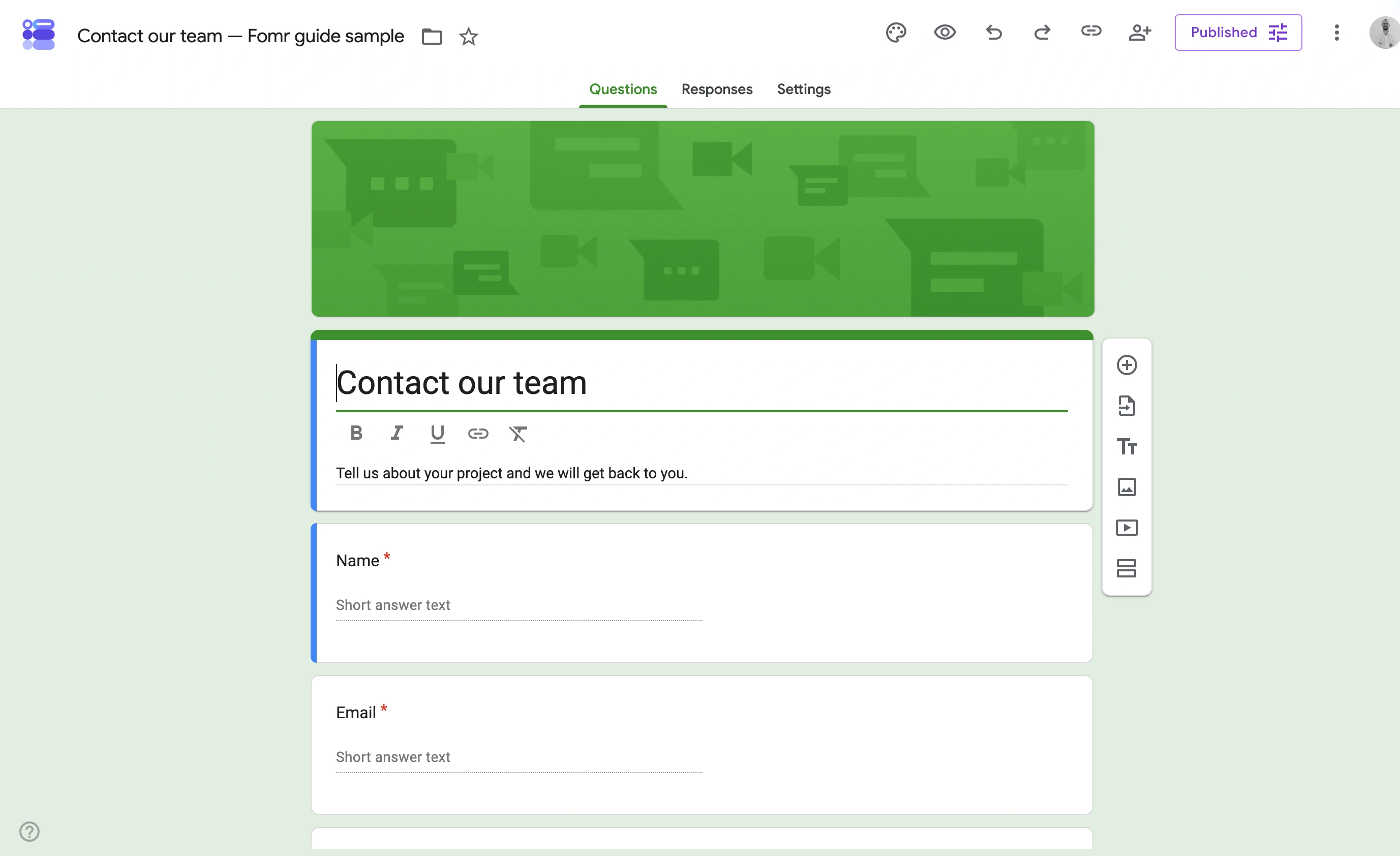
Our contact-form example uses separate question cards for the contact details and message. The question toolbar stays beside the active card, so adding a field does not require leaving the form.
Public collection without a licence. A free Google account gives you a form that anyone on the internet can fill in, at whatever volume you need. Getting the equivalent out of Microsoft Forms means paying for a business licence.
Questions per form. Google doesn’t cap this. If you’re running a long research questionnaire, Microsoft’s 200-question limit is a real ceiling.
If Google Forms is your starting point and you’re weighing what else exists, we’ve covered that separately in our roundup of the best Google Forms alternatives.
Neither one is a design tool
Both tools were built to move data into a spreadsheet. Design is an afterthought in each, and it shows: a theme colour, a header or background image, and a font picker, wrapped around a layout you can’t change.
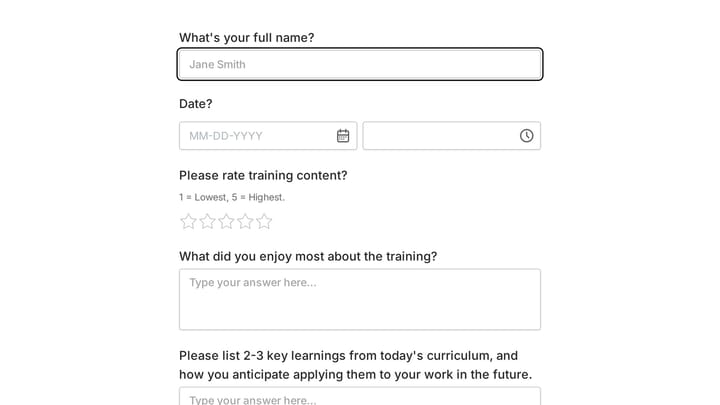
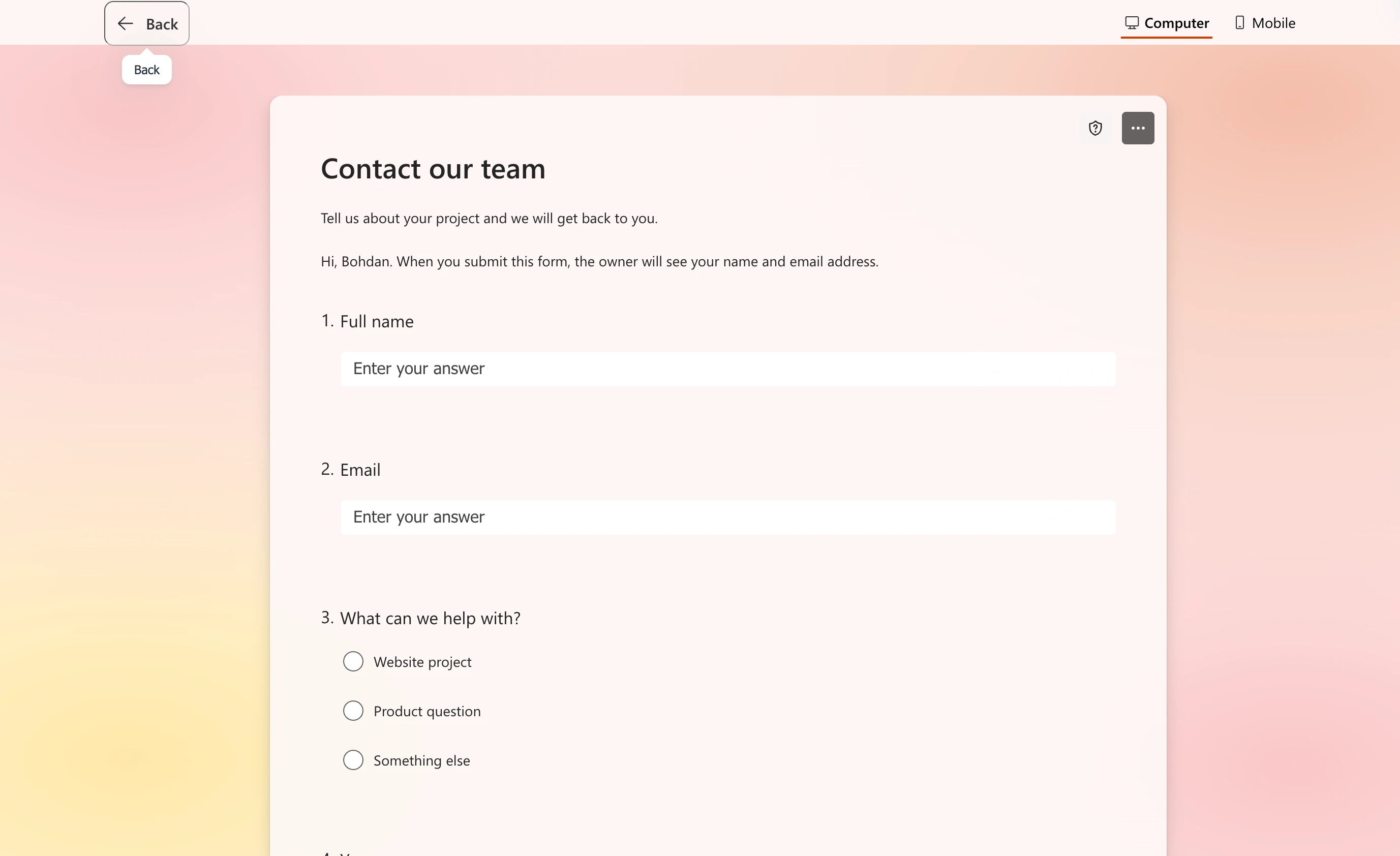
The respondent preview strips away the editing controls and presents our name, email, topic, and message questions in order. It is worth checking this view with the audience you intend to invite, especially when using an organization account.
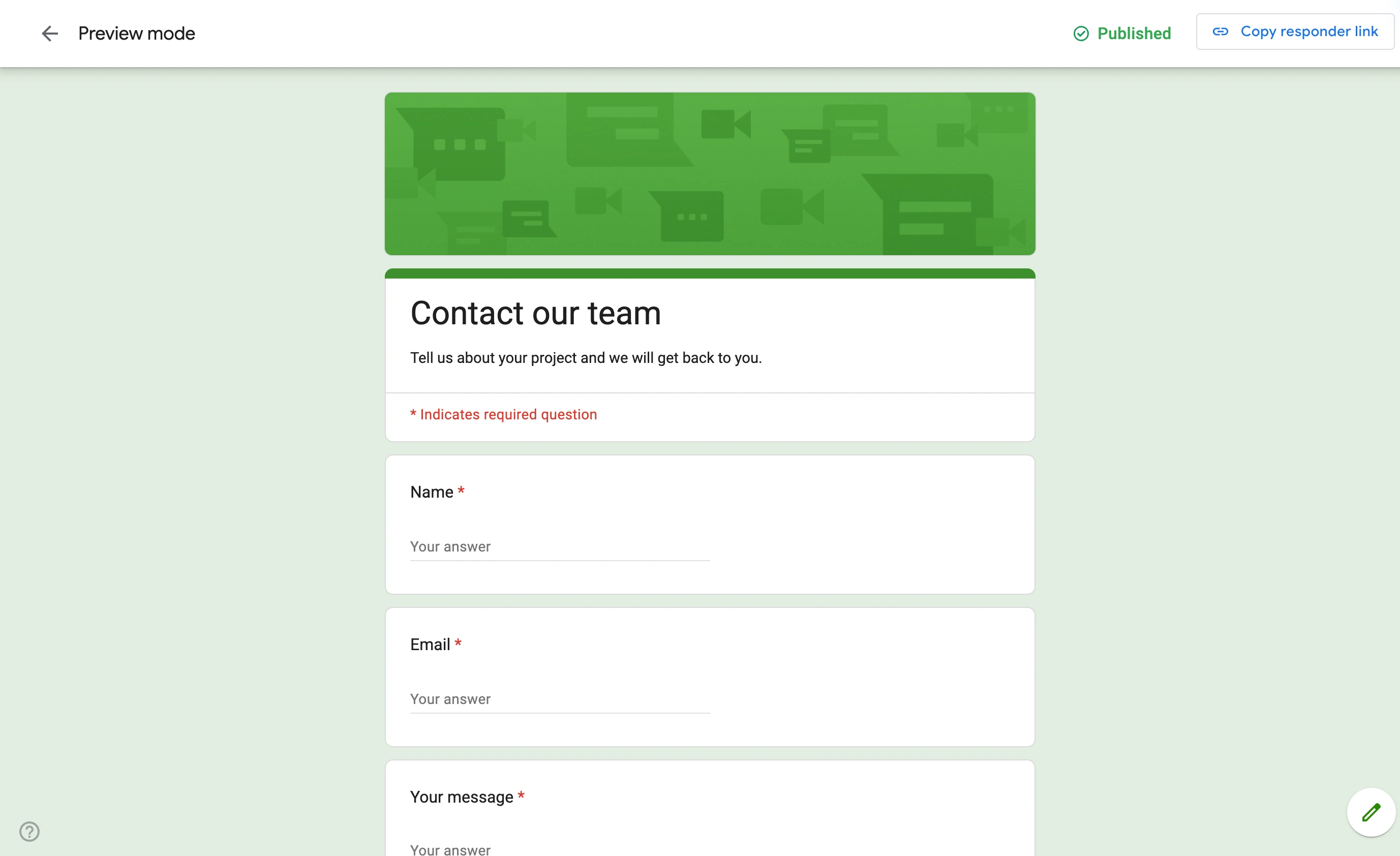
The published example makes the design limits concrete: questions appear as stacked cards under a single header. It is easy to scan, but the contact form retains Google Forms’ familiar appearance.
For an internal survey nobody cares. For a form on your pricing page, a client intake form, or an event registration your marketing team is running ads to, it matters a lot. A stock Google Form on a branded landing page reads as a seam in the experience, and people notice.
That gap is why we built Fomr. It’s a form builder where the design is the point: 1,700+ fonts, full colour and background control, custom logos, multi-page layouts, and 30+ components. The free plan has unlimited forms, responses, fields, and team members, so there’s no cap to run into. You can share by link, embed on your site, trigger a popup, or print a QR code.
What Fomr doesn’t do yet, stated plainly: payment collection and integrations with Zapier or Notion are both still on the roadmap, along with a REST API and webhooks. Google Sheets sync did ship, so responses can land in a spreadsheet just like they do with Google Forms. File uploads did ship, on every plan including free, and respondents don’t need to sign in to anything to attach a file. If your form needs branching, Fomr has conditional logic on every plan, including free. We track what ships on the changelog.
Give it a try
Try this Fomr customer feedback survey form
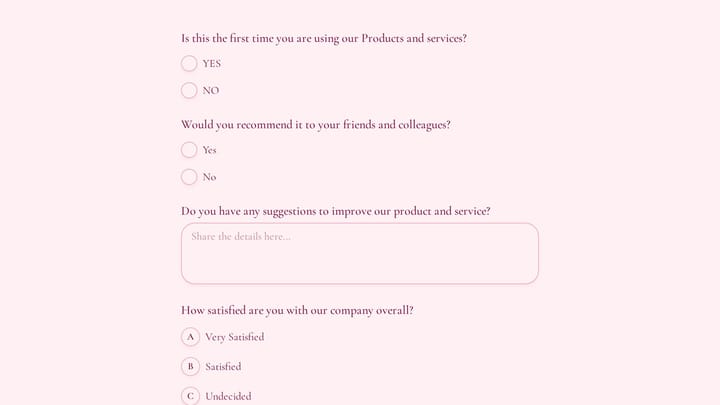
Try the recommendation, improvement, and satisfaction questions in this Fomr feedback survey. It shows how to collect responses, without automated research analysis or scoring.

Google Forms vs Microsoft Forms: which is better for your team?
One verdict per buyer, because there isn’t a single winner.
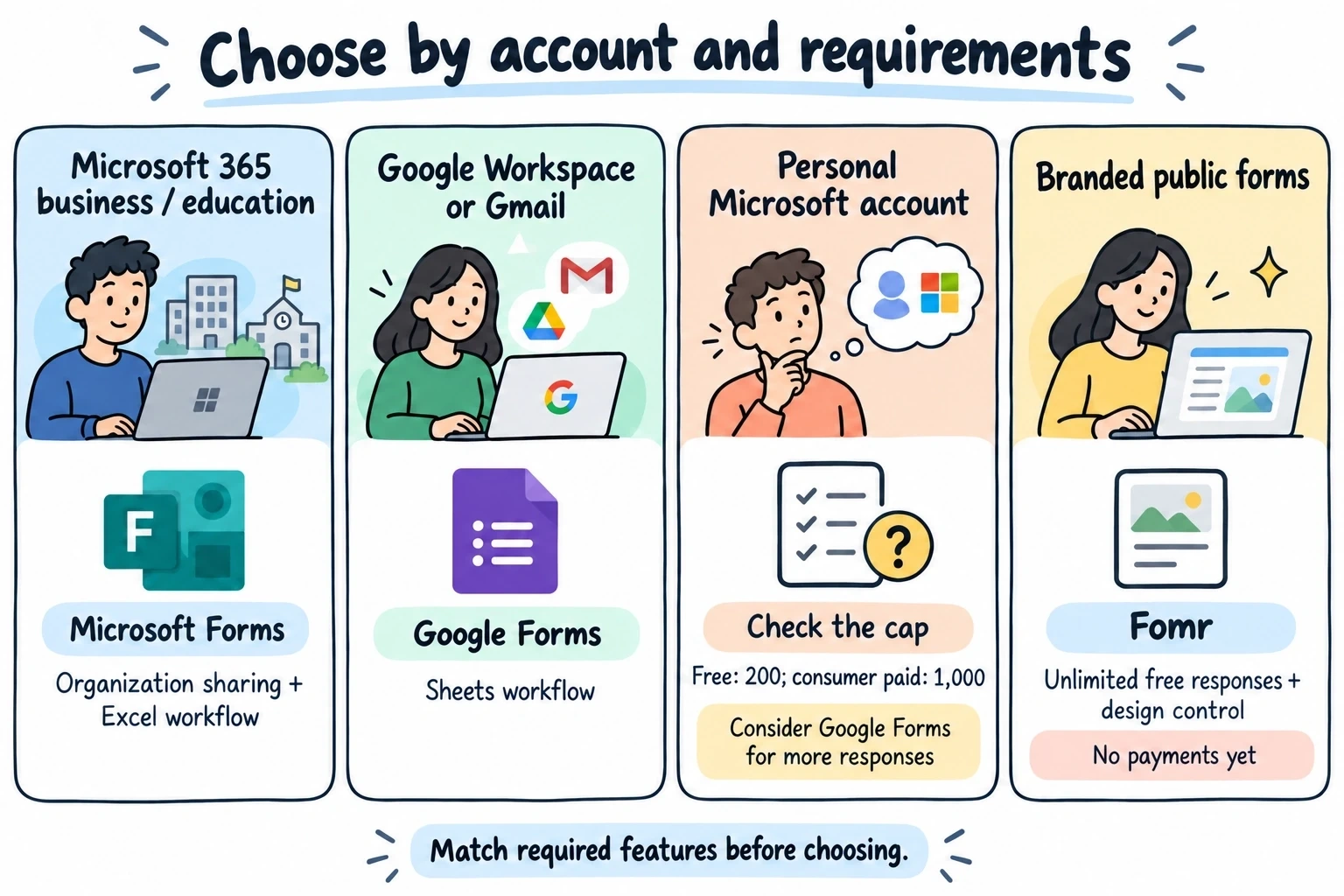
You already pay for Microsoft 365 business or education. Use Microsoft Forms. Org-restricted sharing, file uploads, the 5,000,000-response ceiling, and SharePoint governance all come with the licence you’re already buying. Switching to Google Forms here means running data outside your compliance perimeter for no gain.
You’re on Google Workspace, or free Gmail. Use Google Forms. The Sheets connection removes an entire export step, and you get no response cap for free.
You’re on a free personal Microsoft account. Use Google Forms anyway. The 200-response wall is too low for anything public, and the workaround is manual. This is the one case where microsoft forms vs google forms has a clear loser regardless of which suite you prefer.
You’re building something customers will see. Neither. Both will collect the data fine and both will look like a stock form doing it. Try Fomr in the guest editor without creating an account, and see whether the design control is worth leaving your suite for. If you want the head-to-head detail, we keep pages on Fomr vs Google Forms and Fomr vs Microsoft Forms.
What I’d do
Answer three questions in order and you’re done.
- Does your org run on Microsoft 365 business or education? Use Microsoft Forms and stop.
- Will more than 200 people fill this in, and are you on a free Microsoft account? Use Google Forms.
- Will a customer or prospect see this form? Neither will look the part, so budget the twenty minutes to build it somewhere with real design control.
Migration cost between the two is low, which is the good news. Both are simple enough that rebuilding a form takes minutes, and both export to a spreadsheet, so historical responses come with you. What doesn’t transfer: the live spreadsheet connection has to be rewired, any org-restricted sharing rules need setting up again, and shared links break, so anything already published needs updating.
That last one is the reason to pick correctly the first time rather than switch later.
Ready to build a form that doesn’t look like it came free with a spreadsheet? Start in the Fomr guest editor with no signup, or read the docs first.