Conditional logic lets your form respond to each person filling it in. You set it up with Logic rules. Each rule reads like a sentence: when these conditions match, then do these things.
A rule can show or hide questions and other components, make a question required or optional, jump past pages that don’t apply, send respondents to a different ending, or update a Calculated value. For example, a form can ask for a company name only from people who say they’re buying for a business, skip a page of follow-up questions nobody needs, and send qualified leads to an ending with a booking link.
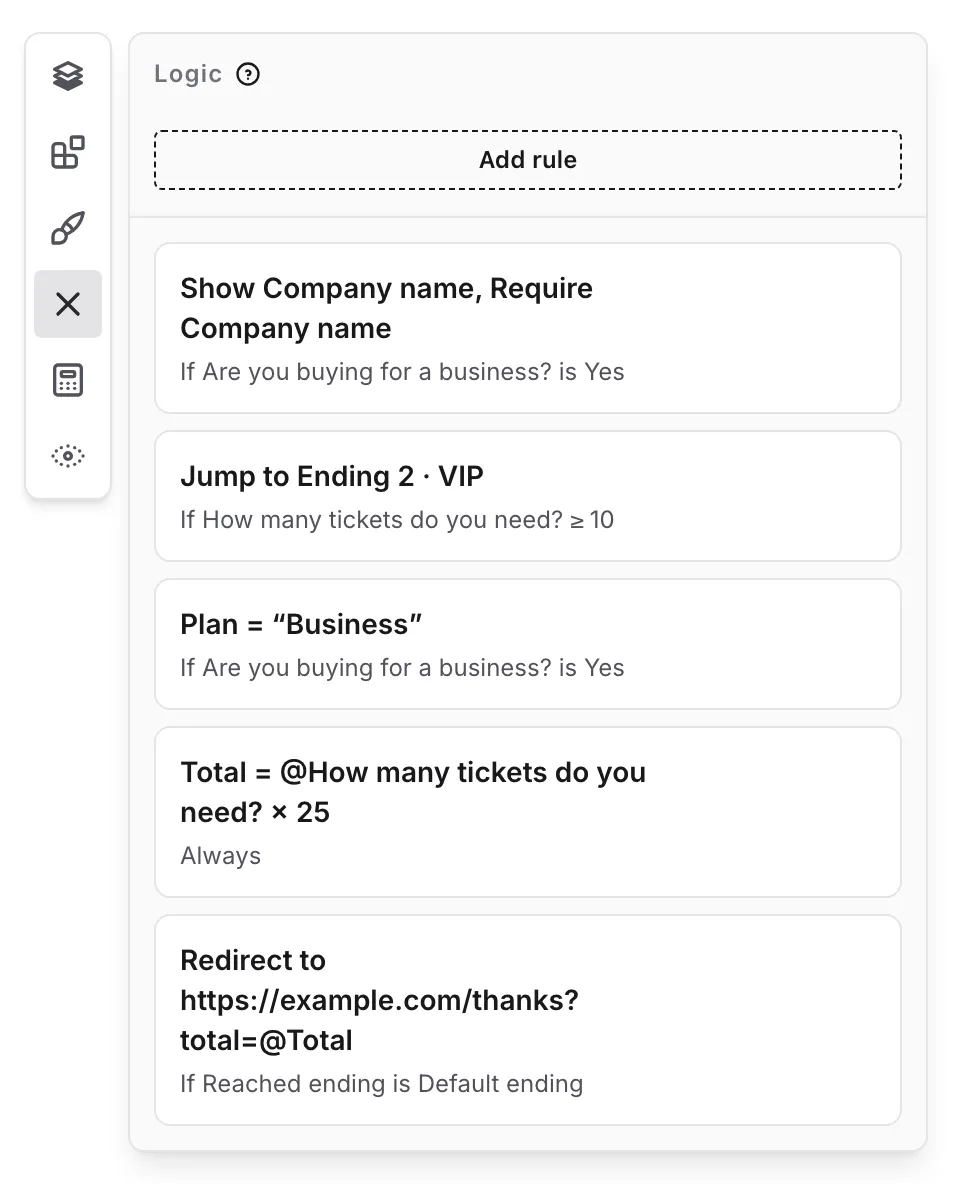
Add a logic rule
Section titled “Add a logic rule”-
Open your form in the editor and go to the Build tab
-
Click Logic in the editor dock on the left of the canvas
-
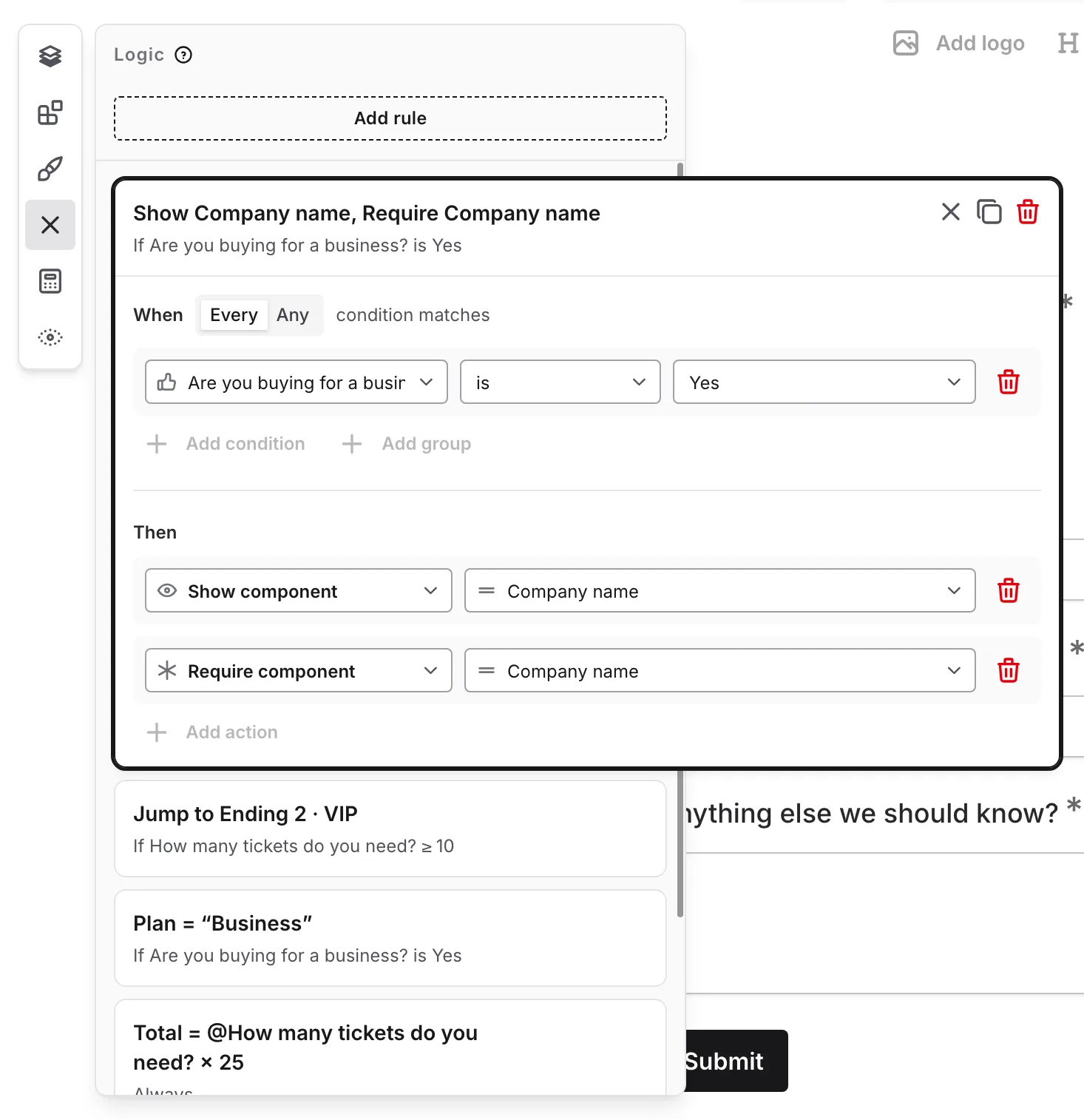
Click Add rule. The new rule opens in the panel with a starter condition and action
-
Under When, choose Every or Any, then set up the conditions that should trigger the rule. Click Add condition for more
-
Under Then, set up what should happen. Click Add action to add an action, and remove the starter action with its trash icon if you don’t need it
-
Close the rule with the × icon on its card
Your changes save automatically, and you can undo them like any other edit.
The Logic panel lists your rules in the order they run. Each rule shows a short summary of what it does, such as “Show Company name”, above what it checks, such as “If Are you buying for a business? is Yes”, or “Always” for a rule without conditions. Click a rule, or its pencil icon, to open it right in the panel, and drag it to change the order. Hover a rule for its Duplicate and Delete icons.
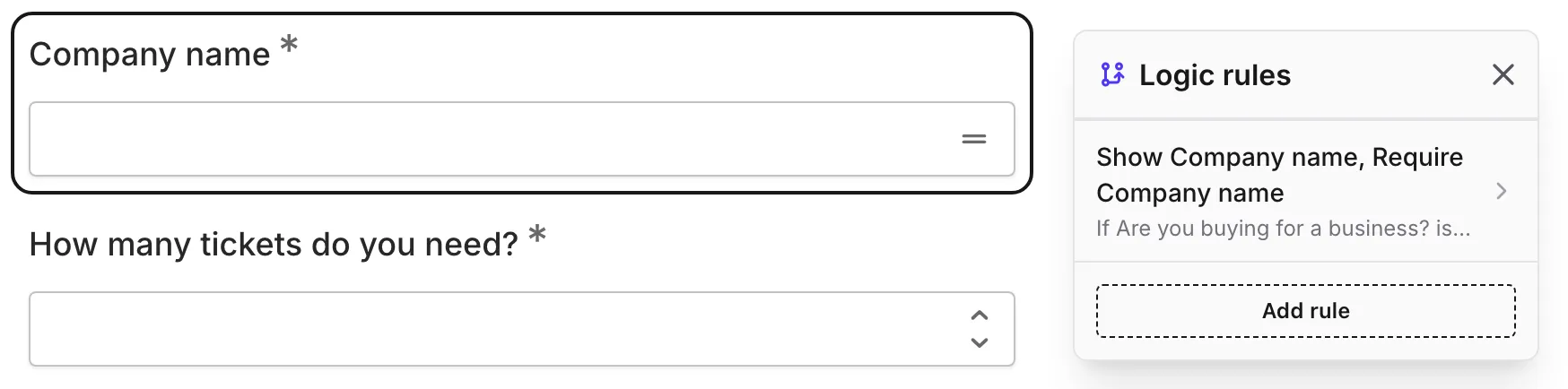
Logic from the canvas
Section titled “Logic from the canvas”When you select a component that rules can work with, its toolbar shows a logic icon. The icon is grey when no rules use the component, and indigo when some do. Click it to open the Logic rules popup, which lists the rules that use the component, and click a rule to open it in the Logic panel. If no rules use the component yet, the popup says “No logic rules use this component yet.”
Click Add rule in the popup to create a rule for that component. For a question, the new rule starts with a condition on that question. For other components, such as text or an image, it starts with a Show component action for that component. The new rule opens in the Logic panel, ready to finish.

Conditions
Section titled “Conditions”A condition compares something in the form with a value you enter. It can check:
- An answer to any question in the form
- A Hidden value, such as a campaign tag passed in the form link
- A Calculated value, such as a running quiz score
- A page, to check whether the respondent has reached it
- The ending the respondent reaches, for redirect rules
The picker groups questions by page and lists Hidden values, Calculated values, Pages, and Form in their own groups. Reached ending is in the Form group. Start typing to search. The Pages group lists your question pages, and the intro page if your form has one.
Operators
Section titled “Operators”The operators you can choose depend on the kind of answer:
| Question or value | Operators |
|---|---|
| Short Answer, Long Answer, Email, Link, Phone, and Hidden values | is, is not, contains, does not contain, starts with, ends with, is empty, is not empty |
| Number, Slider, Rating, Linear Scale, and NPS | =, ≠, >, ≥, <, ≤, is empty, is not empty |
| Dropdown, Yes/No, and Multi Choice or Checkboxes that allow one option | is, is not, is any of, is none of, is empty, is not empty |
| Multiselect, and Multi Choice or Checkboxes that allow multiple options | contains, does not contain, is any of, is none of, includes all of, is empty, is not empty |
| Checkbox and Switch | is on, is off |
| Date, Date & Time, and Time | is, is not, is before, is after, is empty, is not empty |
| File Upload, Ranking, Matrix, and Date Range | is empty, is not empty |
| Number Calculated values | =, ≠, >, ≥, <, ≤ |
| Text Calculated values | The same operators as text answers |
| Pages | was visited, was not visited |
| Ending | is, is not, followed by an ending page |
A few details help conditions behave the way you expect:
- Text comparisons ignore capitalization and any spaces at the start or end of the answer. For example, an answer of “YES” matches “is yes”.
- Choice conditions compare the options a respondent selects. Pick the options from the question’s list.
- Date & Time answers are compared by calendar date. Time answers are compared by time of day.
- Empty answers match “is not”, “does not contain”, “is none of”, and ”≠”. For example, “Country is not Canada” also matches when the question is unanswered. To check only answered questions, add an “is not empty” condition to the same rule.
- An unanswered Checkbox or Switch counts as off.
- A page was visited once the respondent has reached it, including the page they’re on now. Pages they skipped, or haven’t reached yet, count as not visited.
Combine conditions
Section titled “Combine conditions”The Every / Any switch at the top of a rule decides how its conditions combine:
- Every — the rule applies when every condition matches
- Any — the rule applies when at least one condition matches
Click Add group to combine a few conditions with their own Every or Any. For example, a rule set to Any can match when “Plan is Enterprise”, or when a group set to Every matches both “Team size ≥ 50” and “Country is any of United States, Canada”. Groups can’t contain other groups.
A rule with no conditions always applies. That’s handy for a calculation that should always run, such as adding up an order total. A rule with a Jump to page action needs at least one condition, so the jump knows when to happen.
Each rule can have up to 20 conditions and 20 actions, and a form can have up to 100 rules.
Actions
Section titled “Actions”| Action | What it does |
|---|---|
| Show component | Shows a component that starts hidden |
| Hide component | Hides a component |
| Show page | Shows a whole question page that starts hidden |
| Hide page | Hides a whole question page |
| Require component | Makes a question required |
| Make component optional | Lets respondents skip a question that’s required in its settings |
| Jump to page | Sends respondents ahead to a later page or to an ending |
| Calculate | Sets a Number Calculated value with a formula, or replaces, appends to, or prepends to a Text value |
| Redirect to URL | Sends respondents who reach an ending to a web address instead of the ending page (Pro) |
A single rule can run several actions. For example, one rule can show a follow-up question and make it required at the same time.
Show and hide
Section titled “Show and hide”Pick Show component or Hide component to target a component, and Show page or Hide page to target a page:
- A component is any question or content on a page: text, an image, a divider, or a whole row. You can also target an item inside a row or a question’s supporting content on its own.
- A page is a whole question page. Intro pages and endings can’t be shown or hidden.
Anything a Show component or Show page action targets is conditionally shown: it starts hidden and appears only while a rule shows it. These pages carry a Shown by logic badge in the Pages panel. Targets of Hide component and Hide page actions start visible.
Components appear and disappear as respondents answer, so a follow-up question on the same page shows up right away. When a page is hidden by logic, or every component on it is hidden, respondents skip that page.
For example, to ask for a company name only from business buyers:
-
Add a Yes/No question, “Are you buying for a business?”, and a Short Answer question, “Company name”
-
Click Logic, then Add rule
-
Under When, choose “Are you buying for a business?”, is, and Yes
-
Under Then, choose Show component and pick “Company name”
-
Add a Require component action for “Company name” if everyone who sees it should answer
-
Close the rule, then open Preview and answer Yes to see the question appear
Require and make optional
Section titled “Require and make optional”Require component makes a question required while its rule applies. Use it when an answer only matters in some cases, such as requiring a phone number when someone picks “Call me back” as their contact method.
Make component optional does the opposite for a question that’s required in its settings. While its rule applies, respondents can skip the question, and the response is accepted without it. For example, a required “Company name” question can become optional when someone says they aren’t buying for a business. The Logic panel summarizes this action as “Make Company name optional”.
A question hidden by logic is never required. If one matching rule requires a question and another makes it optional, the rule higher in the list wins. The Logic panel marks both rules with a conflict badge, explaining that they disagree on whether the question is required.
Jump to page
Section titled “Jump to page”A jump sends respondents ahead to the page you choose: any question page or any ending. A jump happens as soon as its rule matches. Each time a respondent clicks Next or Submit, or the form advances automatically, Fomr checks your jumps:
- The topmost matching rule with a jump wins.
- A jump only applies when its page comes after the page the respondent is on. Jumps never go backward, so a form can never loop.
When a jump applies, the pages in between are skipped. Going to an ending submits the response. If no jump applies, respondents continue to the next page. Pages follow their order in the Pages panel unless your rules change it, with jumps skipping ahead and Hide page actions hiding pages, until the respondent reaches an ending. Respondents who continue past the last question page reach the Default ending.
A jump needs at least one condition. A rule that jumps without conditions is flagged with “Add a condition so the jump knows when to happen.” Until you add one, the rule is skipped in Preview and on the published form.
The Back button returns along the pages each respondent actually visited, so it never lands them on a page they skipped.
For example, to skip a page of questions about children when they don’t apply:
-
Put “Do you have children?” on a page named “About you”, the questions about children on the next page, “Children”, and the rest of the form on the page after that, “Household”
-
Add a rule: when “Do you have children?” is No
-
Add a Jump to page action and choose “Household”
-
Preview the form and answer No to check that the “Children” page is skipped
A Hide page action that targets the “Children” page gives the same result. Use a jump when you want to skip several pages or go to a specific ending.
Jump after a specific page
Section titled “Jump after a specific page”A condition on an answer only matches once the respondent has answered, so the jump happens when they leave that question’s page. To jump after a particular page instead, add a Pages condition. For example, the conditions “Plan is Enterprise” and “Page 3 · Details was visited”, with a jump to “Page 6”, send Enterprise customers from page 3 straight to page 6, even when they picked their plan on page 1.
Add a was visited condition whenever the jump depends on something that can match from the very first page:
- Calculated values and Hidden values can match before the respondent answers anything. For a quiz, pair the score with your last quiz page, such as “Score < 2” and “Page 2 · Questions was visited”, with a jump to a “Try again” ending. Without the page condition, the jump would happen on the first click of Next, before the quiz is done.
- Conditions that match empty answers, such as “is not” or “is none of”, match before the question is answered.
Branches that rejoin
Section titled “Branches that rejoin”When respondents take one of two branches and then continue on shared pages, keep each branch from running into the other. Either hide the other branch’s pages with Hide page actions, or add a jump with a was visited condition on the last page of the first branch that sends respondents to the first shared page.
Calculate
Section titled “Calculate”Calculate changes a Calculated value:
- For a Number value, it sets the value to the result of a formula, such as
@Score + 1to add a point to a quiz score for each correct answer. - For a Text value, choose Replace with, Append, or Prepend, and type the text, such as
Thanks, @First name!.
See Calculated values for everything formulas and text can do.
Redirect to URL
Section titled “Redirect to URL”Redirect to URL sends respondents to a page of your own after they submit, such as your website, a booking page, or a download, instead of showing them the ending page.
Enter a full address that starts with http:// or https://. Type @ to insert an answer, a Hidden value, or a Calculated value, such as https://example.com/thanks?email=@Email. Fomr encodes inserted values for the address automatically, so spaces and characters like & are safe. The Logic panel summarizes the action as “Redirect to https://example.com/thanks?email=@Email”.
A redirect follows an ending, so a rule that redirects needs a Reached ending condition. For example:
-
Click Logic, then Add rule
-
Under When, choose Reached ending, is, and Default ending
-
Under Then, choose Redirect to URL and enter the address, such as
https://example.com/thanks -
Publish the form, then submit a test response from the published form
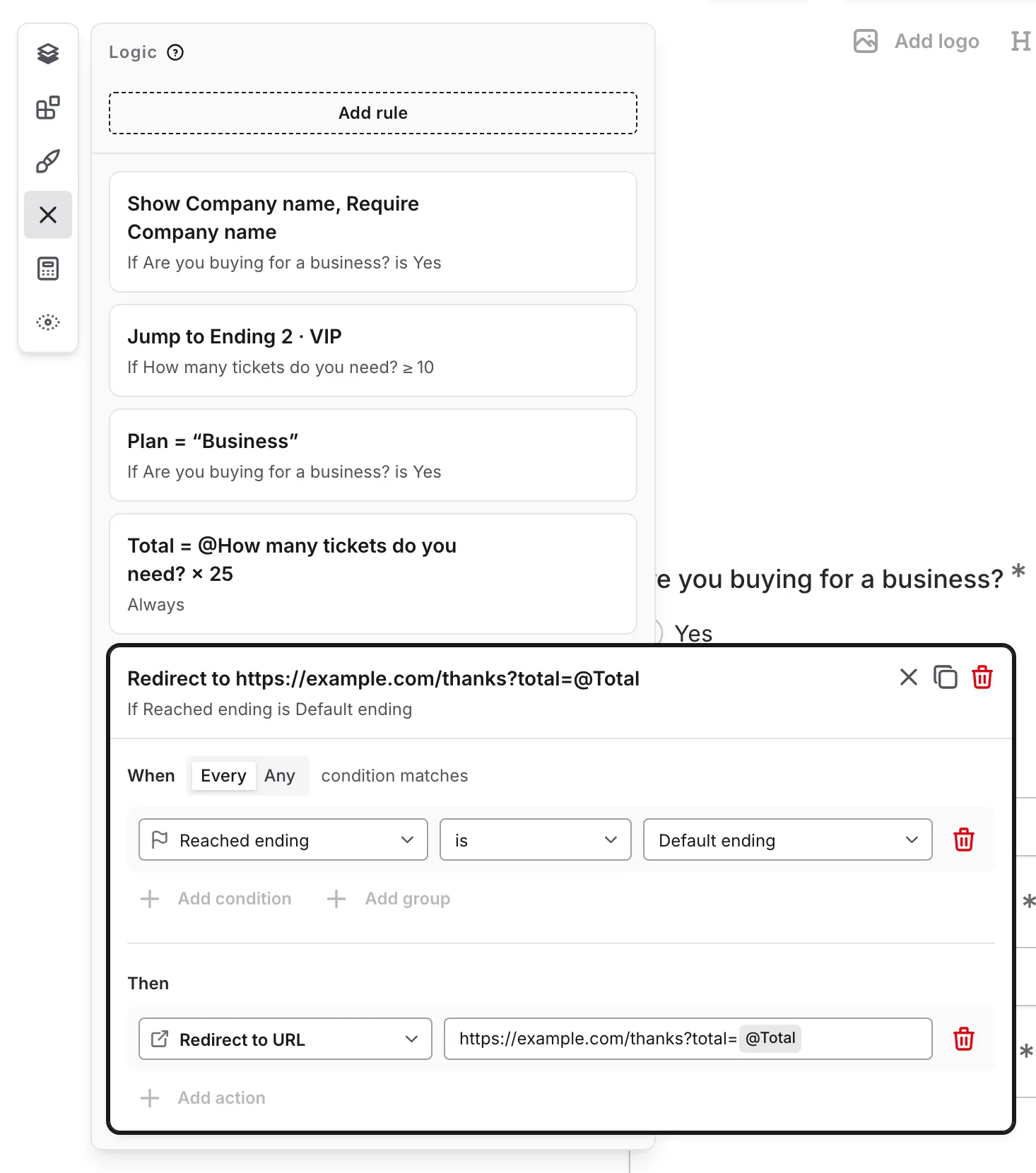
When a respondent reaches an ending and a matching rule redirects from it, they go straight to the address. See Redirect after submission for examples and tips. With several endings, each ending can redirect somewhere else. You can combine the Reached ending condition with others, for example “Reached ending is Default ending” and “Plan is Enterprise”, with a redirect to your sales booking page.
In Preview, Fomr doesn’t leave the editor. You see “Redirect to” and the address instead.
If two matching rules redirect to different addresses, the rule higher in the list wins, and the Logic panel marks both with a conflict badge.
Send respondents to different endings
Section titled “Send respondents to different endings”A form can have up to 10 endings. An ending is a final page with its own Thank You title, message, icon, and confetti. On Pro, a redirect rule can send respondents from any ending to a page of your own.
The first ending in the Pages panel is the Default ending. Respondents see it when no jump sends them anywhere else. Every other ending is reached only through a Jump to page action.
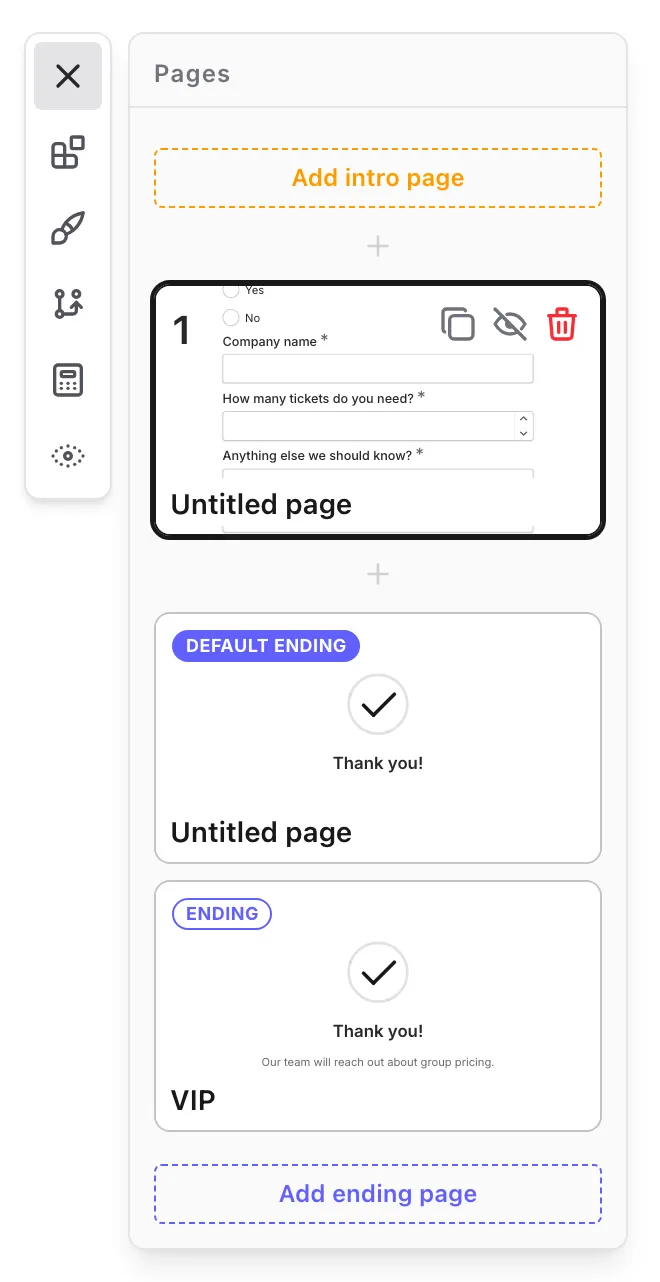
To add an ending, open Pages and click Add ending page. On the Free plan, the button shows a Pro badge and opens the upgrade screen instead. The new ending starts with a Thank You component you can edit. You can delete any ending as long as the form keeps at least one. Endings can’t be hidden. Drag an ending to reorder it; the ending at the top is the Default ending.
For example, to send qualified leads to an ending with a booking link:
-
On your last question page, “Your company”, add a Dropdown question, “How many employees work at your company?”, with the options “1–50”, “51–200”, and “200+”, and a Number question, “What’s your monthly budget?”
-
Open Pages, click Add ending page, and rename the new ending “Book a call”
-
Edit its Thank You message to invite the respondent to book a call, with a link to your calendar
-
Click Logic, then Add rule, and set When to Every
-
Add the conditions “How many employees work at your company?” is any of “51–200” and “200+”, and “What’s your monthly budget?” ≥ 5000
-
Add a Jump to page action and choose “Book a call”
-
Preview the form twice, once as a qualified lead and once as anyone else
Everyone who doesn’t match the rule reaches the Default ending.
On the Free plan, endings other than the Default ending show a Pro badge in Jump to page actions, and picking one opens the upgrade screen. Publishing a form with more than one ending opens the upgrade screen too, and if you downgrade to Free, forms with more than one ending are unpublished. See form publishing. Name your endings clearly, such as “Book a call” or “Not a fit yet”, so they’re easy to pick in your rules.
Rule order
Section titled “Rule order”Fomr runs your rules from top to bottom, in the order shown in the Logic panel, and runs them again every time an answer changes. Show, hide, require, make optional, and calculate actions update the page right away. Jumps apply when the respondent clicks Next or Submit, or the form advances automatically.
When rules overlap:
- Show and hide — if two matching rules show and hide the same component or page, the rule higher in the list wins. The Logic panel marks these rules with a yellow conflict badge, such as 1 conflict.
- Require and make optional — if one matching rule requires a question and another makes it optional, the rule higher in the list wins. The Logic panel marks these rules with a conflict badge.
- Jump to page — the topmost matching rule with a jump to a page ahead of the respondent wins. If two rules jump to different pages, the Logic panel marks both with a conflict badge.
- Calculate — every matching rule’s calculation applies, in order, so a later calculation works with the result of an earlier one.
- Redirect to URL — if matching rules redirect to different addresses, the rule higher in the list wins. The Logic panel marks these rules with a conflict badge.
A condition that checks a Calculated value sees the value as it stands at that point in the list. Put rules that check a value, such as “Score ≥ 8”, below the rules that change it.
What gets saved
Section titled “What gets saved”Logic affects which answers are saved with each response:
- Answers to questions hidden by logic aren’t saved. If a respondent answers a question and a rule hides it, their answer comes back if the question is shown again before they submit.
- Answers on pages a respondent skipped aren’t saved. This includes pages they filled in before going back and changing an answer that now skips those pages.
- Default values of hidden or skipped questions aren’t saved either.
On the Responses page and in exports, these answers are blank, just like unanswered questions. Answer pipes that point to a hidden or skipped question show their fallback text.
Fix a flagged rule
Section titled “Fix a flagged rule”The Logic panel flags a rule with a red border and an issue count, such as 1 issue, when it no longer makes sense. For example, when:
- A question, page, Hidden value, or Calculated value it uses was deleted, or hidden with the eye toggle
- A question changed type, or switched between one and multiple options, and the operator no longer fits
- A choice option the condition uses was removed from the question
- A condition is missing the value to compare with
- A rule jumps without any conditions
- A formula has a mistake, or uses a Text value. Formulas only work with numbers
- A Calculated value changed between Number and Text, and its Calculate action no longer fits
- A rule redirects without a Reached ending condition: “Add a Reached ending condition so the redirect knows which ending it follows.”
- A redirect address isn’t a full web address: “Enter a full http:// or https:// address.”
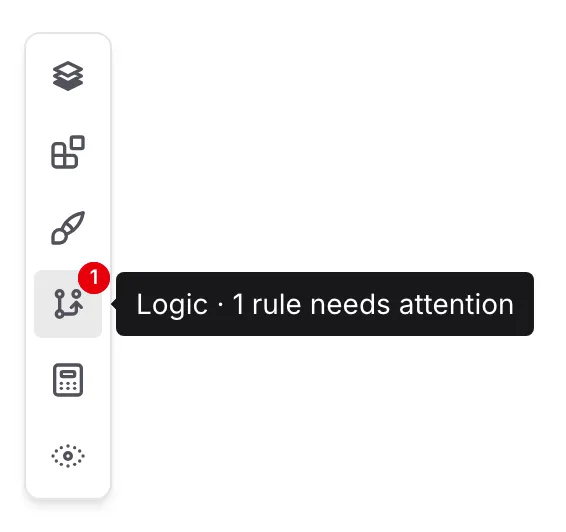
When any rule has an issue or a conflict, the Logic button in the editor dock shows a badge with the number of rules that need attention. The badge is red when at least one rule has an issue, and yellow when there are only conflicts. Hover the button to see the count, such as “Logic · 2 rules need attention”.
Open the rule to see what needs fixing: the rule editor lists each problem at the top and highlights the affected condition or action. Fomr never deletes a flagged rule for you.
A flagged rule doesn’t block publishing, but it’s skipped entirely in Preview and on the published form, as if it weren’t there. Its Show targets stay visible, and its jumps, redirects, calculations, and requirements don’t happen. Fix the rule and publish again to make it work. Conflicts aren’t issues, so rules with only a yellow conflict badge still run.
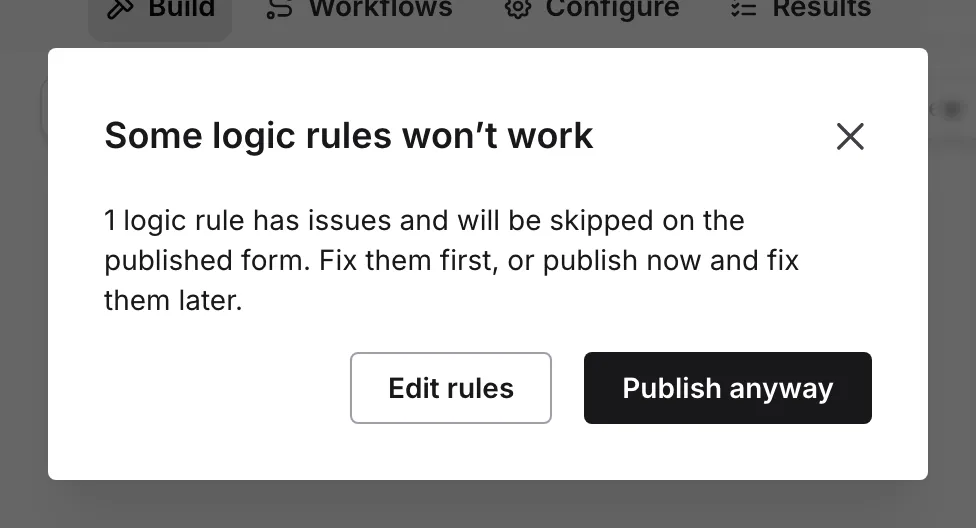
When you click Publish while any rule has issues, Fomr asks you to confirm with “Some logic rules won’t work”, along with how many rules have issues and will be skipped. Click Edit rules to open the Logic panel and fix them, or Publish anyway to publish now and fix them later.
Troubleshooting
Section titled “Troubleshooting”A question doesn’t appear
Section titled “A question doesn’t appear”- A Show component action targets it, so it stays hidden until a rule shows it. Check that your answers match the rule’s conditions.
- A rule higher in the list might hide it first. Look for a yellow conflict badge in the Logic panel.
- Make sure the form was published after you changed the rules.
A jump doesn’t happen
Section titled “A jump doesn’t happen”- Jumps only go forward. If the respondent is already on or past the jump’s page, the jump is ignored.
- Another matching rule higher in the list may jump first.
- If the jump checks a Calculated value, move the rule below the rules that change that value.
A jump happens too early
Section titled “A jump happens too early”Calculated values, Hidden values, and conditions such as “is not” can match before the respondent reaches the relevant questions. Add a was visited condition for the page after which the jump should happen. See Jump after a specific page.
A condition matches when a question is left blank
Section titled “A condition matches when a question is left blank”“is not”, “does not contain”, “is none of”, and ”≠” match empty answers. Add an “is not empty” condition to the same rule, or make the question required.
A question or page is missing from the rule pickers
Section titled “A question or page is missing from the rule pickers”Components hidden with the eye toggle still appear in the component and question lists, marked with a crossed-out eye, and a rule that uses one shows a warning until you unhide it. Pages hidden with the eye toggle aren’t available in rules. Show page and Hide page only list question pages. Jump to page lists question pages and endings, but not the intro page or your first question page, since jumps only go forward.
Read the conditional logic and Calculated values announcement on the Fomr blog.