Fomr now has conditional logic and calculated values, the biggest release we’ve shipped in a while.
Until today, every respondent saw every question in the same order, whatever they’d already told you. A ticket form asked solo buyers for a company name. A quiz couldn’t keep score, so someone graded it in a spreadsheet afterwards.
Now a form can ask for a company name only when someone is booking for one, and a quiz can keep its own score. Both features are on every plan, Free included. A couple of things built on top of them need Pro, and we’ll point those out as we go.
How conditional logic works: rules that read like sentences
Open the new Logic panel in the editor’s left dock and click Add rule. Every rule has two halves. Under When, you add conditions and choose whether every one has to match or any one will do. Under Then, you list what should happen.
To show how the pieces fit, we built a small ticket form. It asks for a number of tickets, then “Are you booking for a company?” Only company bookings should see the third question, Company name, and this rule takes care of that:
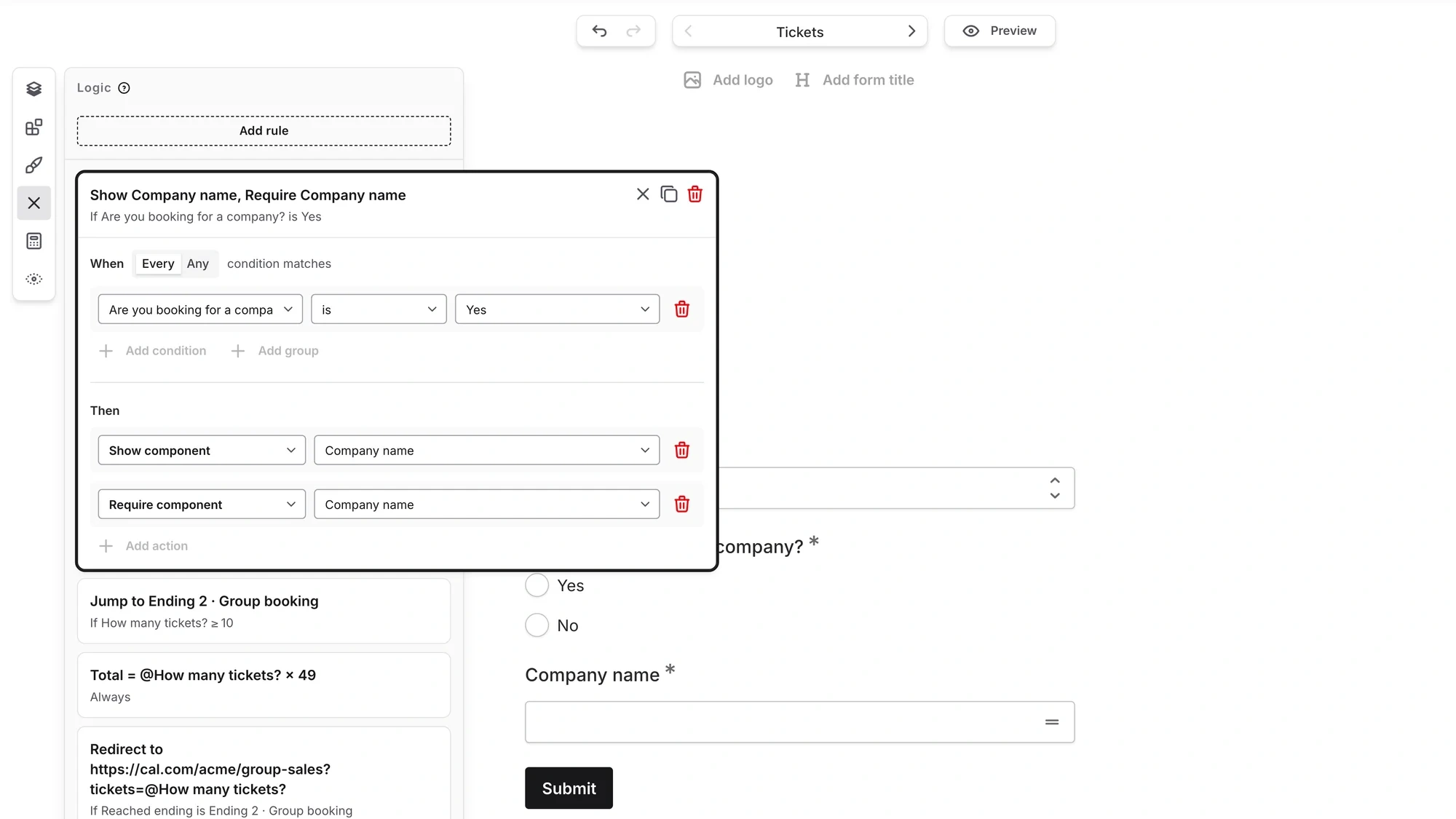
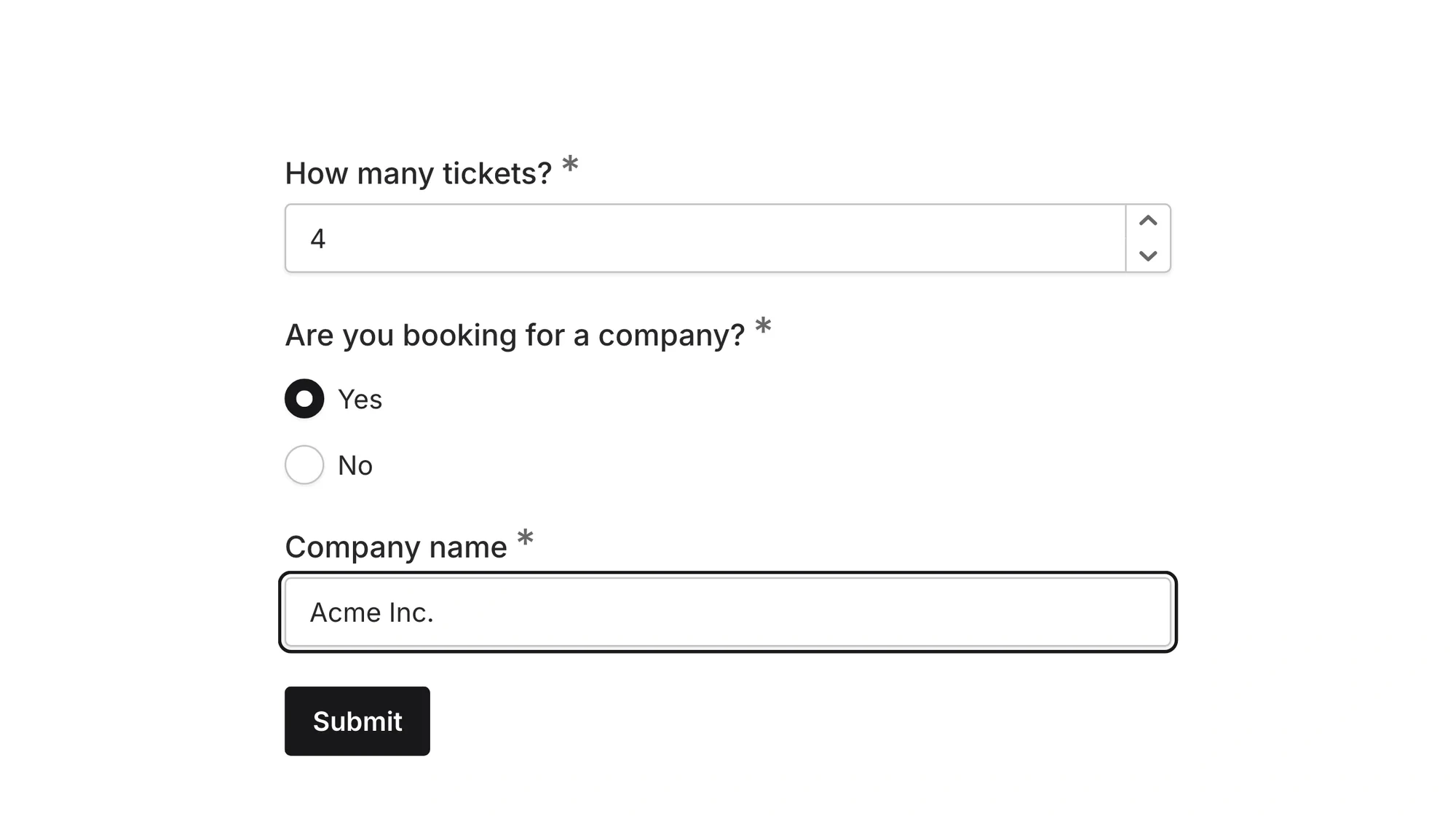
Read it out loud and it makes sense: when “Are you booking for a company?” is Yes, show Company name and make it required. Until someone picks Yes, the question stays out of sight. Pick Yes and it shows up.
Conditions can check more than answers. A rule can look at a Hidden value passed in through the form link, a calculated value, whether someone visited a particular page, or which ending they reached. The operators follow the question type: ≥ for the ticket count, “is” for the company question.
On the Then side, you can show or hide a component or a whole page, make a question required or optional, jump ahead, update a calculated value, or redirect to a URL. One rule can do several at once, like the show-and-require pair above.
Rules run from top to bottom. When two matching rules disagree, say one shows a question and another hides it, the one higher in the list wins. Our advice: keep each rule to one job, so your form logic stays easy to scan.
Each component on the canvas has a logic button too. Click it to see the rules that use that component, or to add a new one with the component already filled in. It’s the quickest answer to “why did this question disappear?”
New to the idea? Our guide to form conditional logic covers the patterns that work.
Skip pages, or send people to a different ending
Jump to page moves people ahead as soon as the rule matches, skipping pages that don’t apply to them. Point it at an ending and it sends them straight there.
Our ticket form does that for big groups. Anyone asking for 10 or more tickets jumps to a second ending called Group booking, which explains that groups get a custom quote.
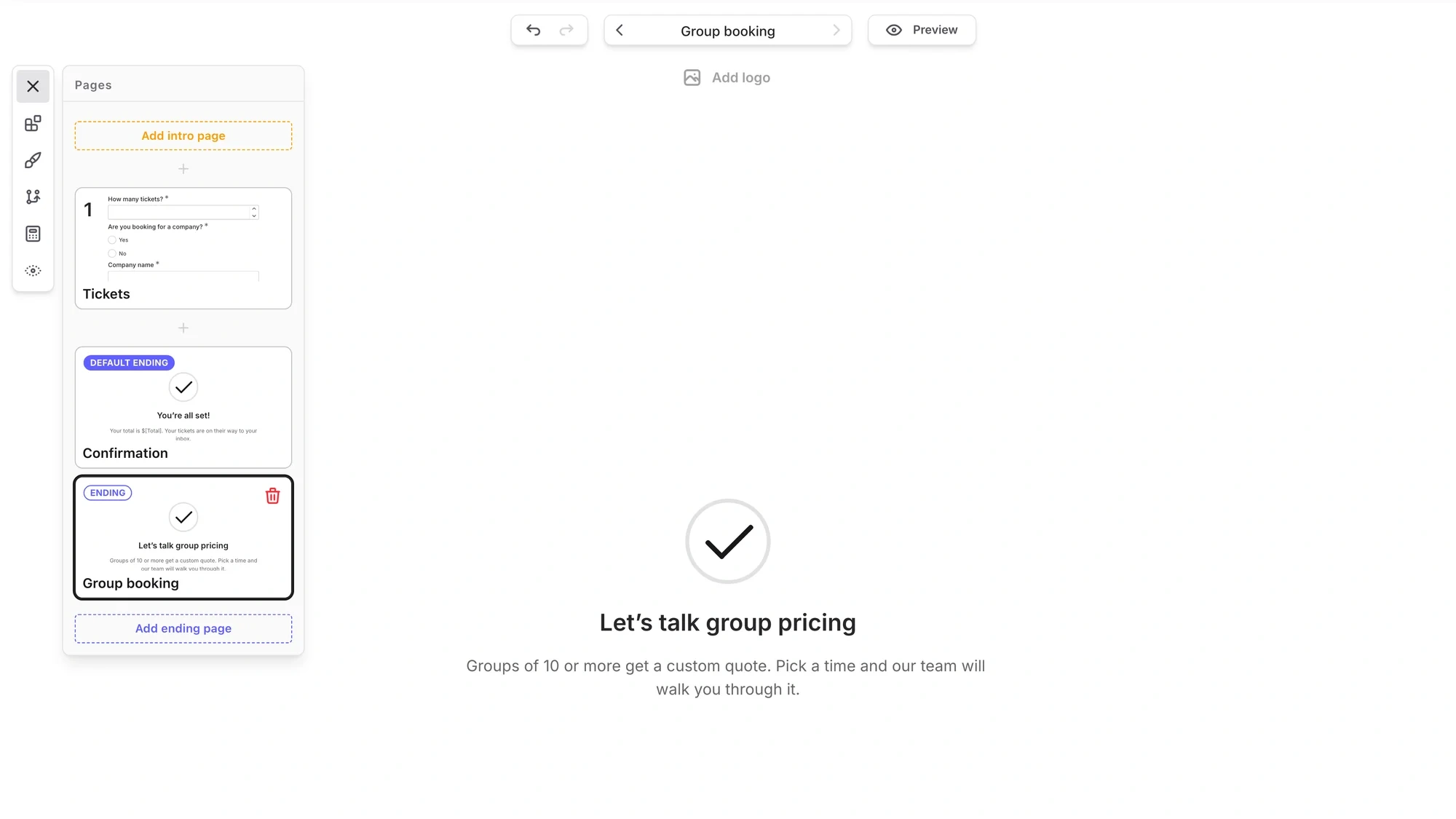
A form can have up to 10 endings, each with its own title, message, icon and confetti. We expect quiz makers to like this part most: a result page for each score band instead of one generic “thanks”.
Multiple endings are a Pro feature. On Free, every form has one ending, the Default ending, and Jump to page still skips ahead to later pages.
Calculated values: scores and totals that update as people answer
The second half of this release lives in the Calculated values panel, also in the left dock. A calculated value is a number or a piece of text that your form keeps up to date while someone fills it in. Think quiz scores, lead scores, order totals, price quotes, or the name of the plan you’d recommend.
Number values use formulas with +, −, × and ÷, plus parentheses. Type @ to pull in an answer, a Hidden value, or another number value. In the ticket form, a rule with no conditions keeps the total current:
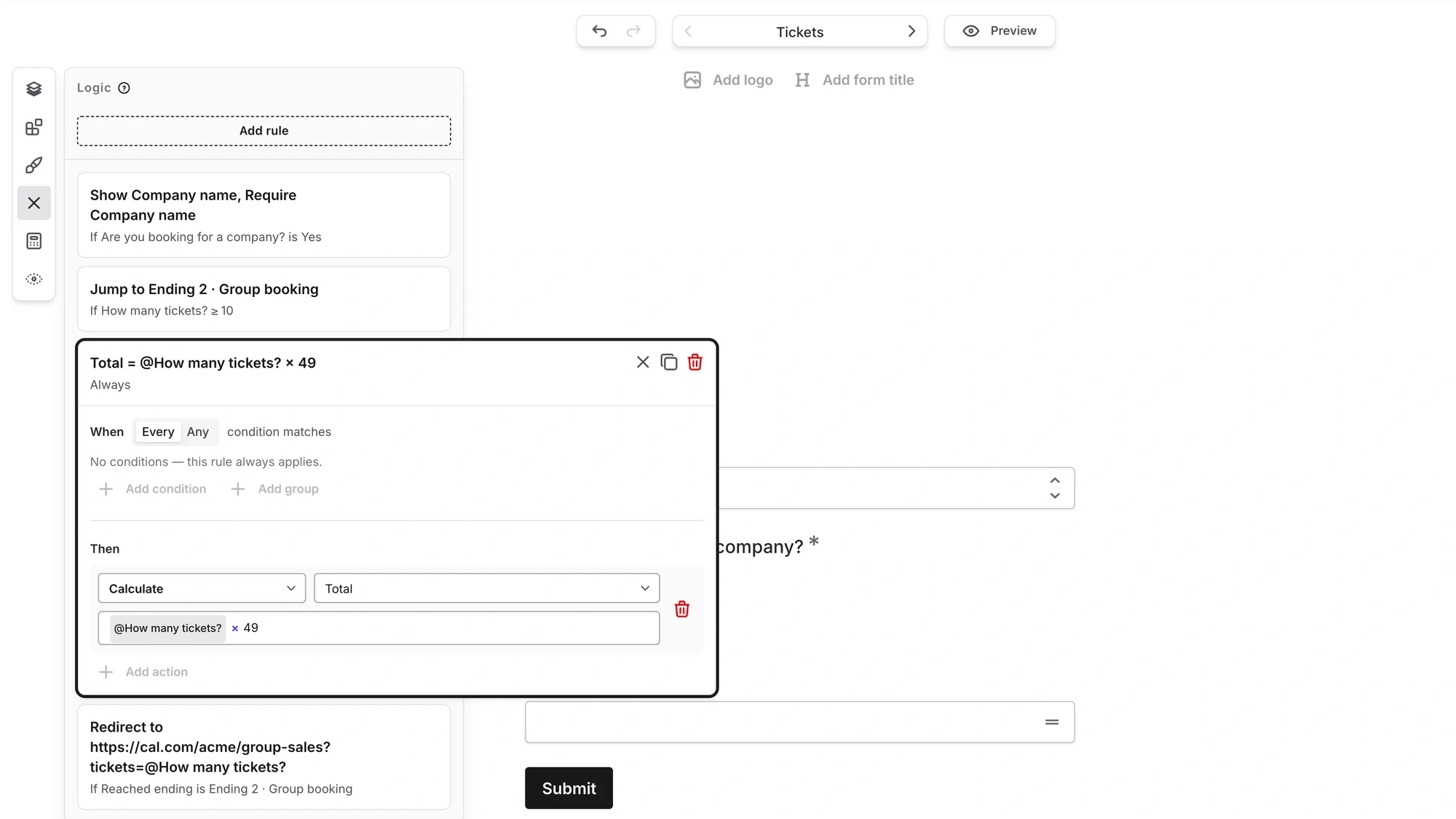
No conditions means the rule always applies, so the total follows the ticket count as it changes. Then we put the total on the confirmation ending, the same way you’d pipe an answer.

Four tickets at $49 each comes to $196. The respondent sees the number, never the formula.
Text values work differently: a rule replaces the text or adds to either end of it. That’s how a pricing quiz can finish with “We recommend our Business plan.”
You can pipe a value anywhere you can pipe an answer: question titles, descriptions, endings, and on Pro, notification emails. Rules can check values too, so the numbers can steer the form. Show a free-shipping note once an order total passes $100, or send high scorers to their own ending.
Every response keeps the final values. In Results they appear after your questions and before your Hidden values, and they come along in CSV exports and Google Sheets. The score you used to work out by hand is already a column.
A lot of this builds on July’s hidden values and answer piping update: a Hidden value from the form link can drive a rule or feed a formula, just like an answer can.
Send people to your calendar or checkout with a redirect
The last action is Redirect to URL, a Pro feature. Choose an ending, and anyone who reaches it goes to an address you pick, like a booking calendar or a checkout page.
Type @ to put answers, Hidden values or calculated values into the link. Fomr URL-encodes them for you, so a company name with spaces or an ampersand won’t break the link. Here’s the rule that finishes the ticket form, sending group buyers to a sales calendar with their ticket count in the link:
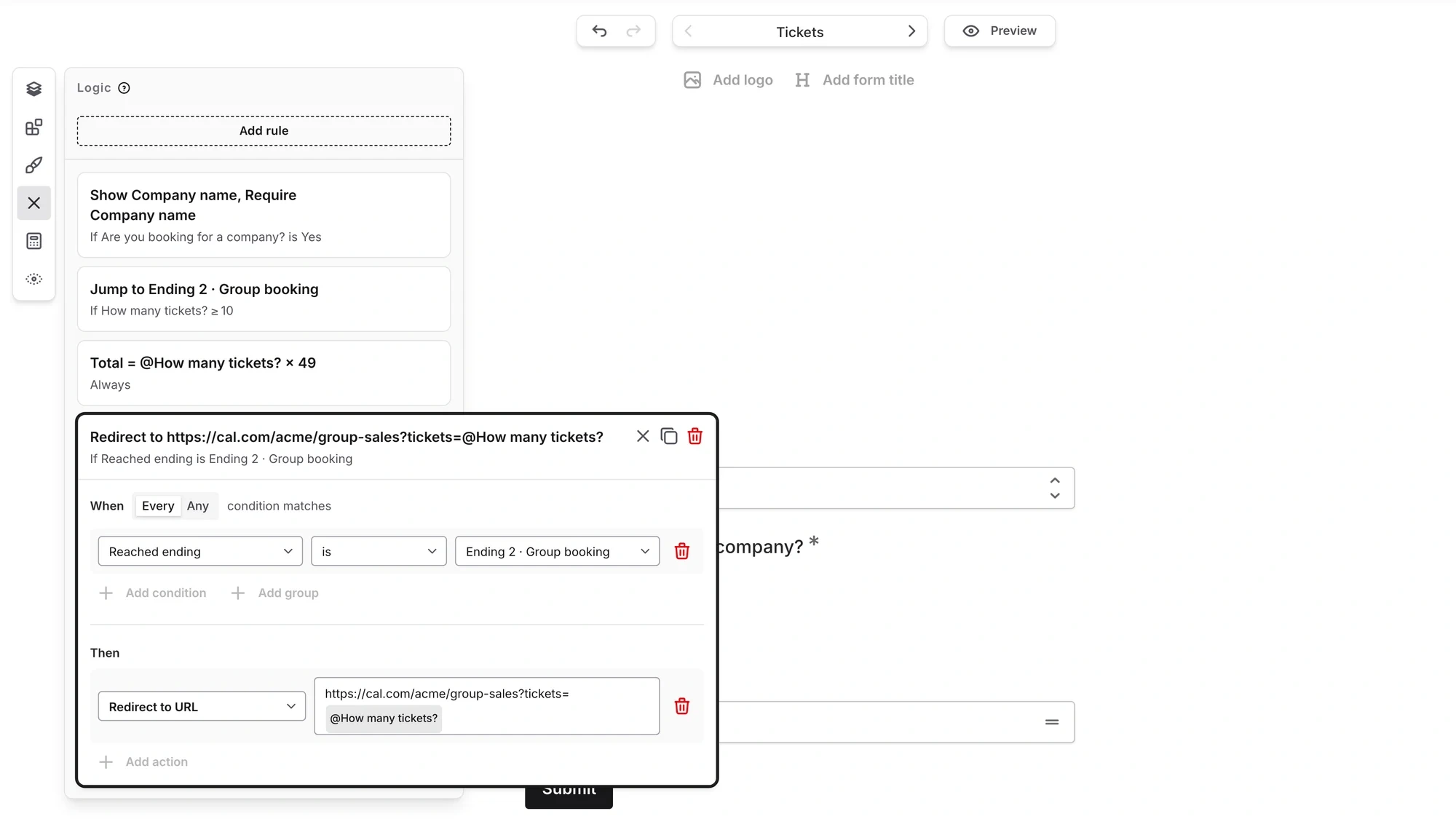
So the person asking for 25 tickets doesn’t read “pick a time” and then go hunting for a calendar. They land on it, and the group size comes with them.
Redirects used to be a setting on the Thank you page. They live in Logic now, and if you’d already set one up, we moved it into a Logic rule for you. The redirect guide shows how to add a new one.
One honest gap: Fomr doesn’t collect payments yet. We’re working on it. Until then, Redirect to URL can send buyers from an ending to the checkout you already use.
When a rule breaks, you’ll know before your respondents do
Forms change after you write the rules. Delete a question a rule depends on, and that rule stops making sense. Fomr flags rules like that, and the Logic icon in the dock shows a badge with the count.
You can still publish. If any rules are flagged when you click Publish, Fomr warns you that some logic rules won’t work and lets you choose Edit rules or Publish anyway. Flagged rules are skipped on the live form.
We picked a warning over a hard block on purpose. One broken rule shouldn’t stop you from publishing a typo fix somewhere else in the form.
Rules also travel with your work: duplicate a form or start from a template, and the logic comes along.
What’s on Free and what needs Pro
Logic rules and calculated values are on the Free plan, which still includes unlimited forms and responses. Multiple endings and Redirect to URL are part of Pro, at $34/month or $24/month billed yearly.
Each form can hold up to 100 rules and 50 calculated values, enough for a long scored quiz with a rule per correct answer.
Add conditional logic to your next form
Open a form, click Logic in the left dock, and add a rule. Then hit Preview and try each answer to watch the form change. The conditional logic guide covers every condition and action, and the calculated values guide has formula examples for quiz scores and order totals.
No account? You don’t need one. Open the guest editor and build a form that asks only what it needs to and does its own math.