A Calculated value is a named number or piece of text that your form works out while someone fills it in. Use one to add up a quiz score, total an order, score a lead, or put together a personalized recommendation.
Logic rules set and update Calculated values as respondents answer. You can show a value in your form, use it in the conditions of other rules, and see it saved with every response. Respondents never see a Calculated value unless you insert it into your form’s text.
Add a calculated value
Section titled “Add a calculated value”-
Open your form in the editor and go to the Build tab
-
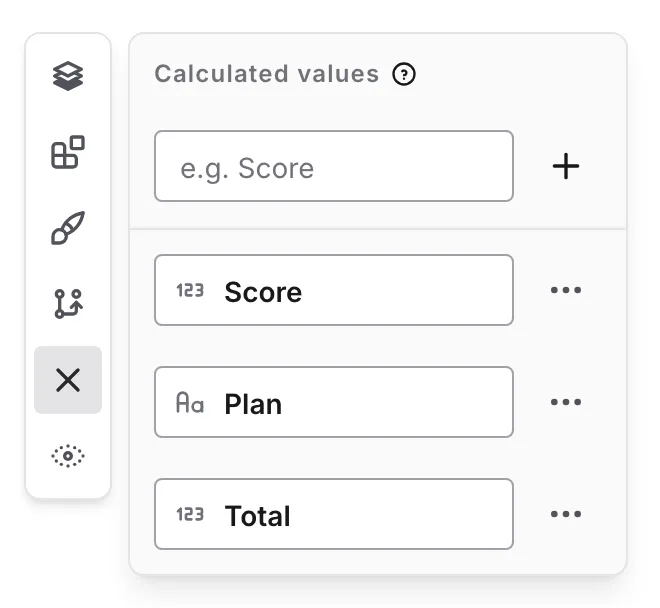
Click Calculated values in the editor dock on the left of the canvas
-
Type a name, such as
ScoreorTotal -
Click the add button, or press Enter. New values are Number values
-
To make it a Text value or set its Initial value, the value it starts with before any rule changes it, click the … button on its row
A few things to know:
- The icon in front of each name shows its type: 123 for Number values and Aa for Text values.
- Number values start at
0unless you set another initial value. Text values start empty. - Names can be up to 50 characters and must be different from each other. The name labels the value everywhere, from rule pickers to the columns of your responses, so choose one that reads well.
- You can rename a value in its row, and change its type or initial value from its … menu, at any time. Renaming is safe: rules, formulas, and pipes that use the value keep working. If you change the type, the Calculate actions that update the value are flagged until you set them up for the new type, and formulas that use a value you changed to Text are flagged too.
- To remove a value, click Delete in its … menu. If rules or pipes still use it, they’re flagged until you update them.
- A form can have up to 50 Calculated values. Text values can hold up to 500 characters.
Update a value with a logic rule
Section titled “Update a value with a logic rule”Calculated values change through the Calculate action in a Logic rule.
-
Click Logic in the editor dock, then Add rule
-
Under When, set up the conditions for when the value should change. Leave the conditions empty to apply the calculation every time
-
Under Then, click Add action and choose Calculate. Remove the starter action if you don’t need it
-
Pick the Calculated value. For a Number value, type a formula after the
=sign. For a Text value, choose how to change the text and type it, as described in Build text -
Close the rule with the × icon on its card
For a Number value, a Calculate action reads like a sentence: Calculate Total = @Tickets × 25. The formula’s result replaces the value. To change the current value instead of replacing it, insert the value itself into the formula with @:
| To | Formula |
|---|---|
| Set a number | 5 |
| Add to the current value | @Total + 60 |
| Subtract from it | @Total − 10 |
| Multiply it | @Total × 0.9 |
| Divide it | @Total ÷ 2 |
For example, to keep a quiz score:
-
Add a Number value named
Scorewith the initial value0 -
Add a rule for your first question: when “What is the capital of Australia?” is “Canberra”
-
Add a Calculate action:
Score=@Score + 1 -
Repeat for each question. To make a harder question worth more, use
@Score + 2instead
Every matching rule adds its points, so Score ends up as the respondent’s total. Duplicating a rule in the Logic panel is a quick way to create the next one.
Formulas
Section titled “Formulas”A formula is an expression for a Number value, much like a spreadsheet formula. Type @ to insert an answer, a Hidden value, or another Number value. Each one appears as a chip with its name. Text values can’t be used in a formula, so the @ menu doesn’t list them.
As you type, the formula box tidies up the formula for you:
- Spaces are left out, and operators and parentheses get their own spacing.
*shows as×,/as÷, and-as−. You can type either sign.- The box grows onto more lines for long formulas.
Rule summaries in the Logic panel use the same signs, such as Total = @Tickets × 25.
| You can use | Example |
|---|---|
| Numbers | 19.99, 0.2, 1500 |
Answers and values inserted with @ | @Tickets, @Score |
+ add, − subtract, × multiply, ÷ divide. Type -, *, and / for the last three | @Tickets × 25 |
| Parentheses | (@Subtotal + 5) × 1.2 |
round(x) rounds to a whole number. round(x, digits) keeps that many decimal places | round(@Total, 2) |
floor(x) rounds down and ceil(x) rounds up to a whole number | ceil(@Guests ÷ 8) |
abs(x) removes a minus sign | abs(@Difference) |
min(…) and max(…) return the smallest or largest of their inputs | max(@Score, 0) |
How formulas treat answers and values:
- Number, Slider, Rating, Linear Scale, and NPS answers count as numbers, and Checkbox and Switch answers count as
1or0. - Choice answers count as the number in the selected option’s label, such as an option labeled
12. When several options are selected, their numbers are added together. Labels that aren’t plain numbers count as0. - Text answers, dates and times, and Hidden values count as text, even when they contain a number. To use them as numbers, multiply by 1 first:
@quantity × 1 + 5. - Unanswered questions and missing Hidden values count as
0. - Write numbers without thousands separators:
1500, not1,500. - Results are rounded to 10 decimal places, so
0.1 + 0.2gives0.3. - If a formula divides by zero, the calculation is skipped and the value stays as it was.
Formulas can be up to 1,000 characters. They don’t include comparisons or “if” checks. Put those in the rule’s conditions instead. If a formula has a mistake, such as a missing parenthesis or a reference to a deleted question, the rule is flagged and skipped until you fix it.
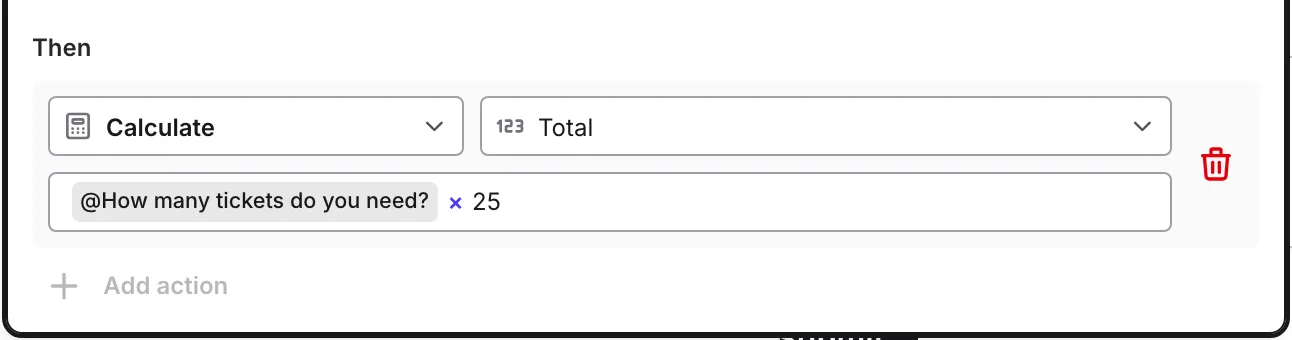
For example, to total a ticket order with a group discount:
-
Add a Number question, “Tickets”, and a Number value named
Total -
Add a rule with no conditions and a Calculate action:
Total=@Tickets × 25. Type@and choose “Tickets” to insert the answer, then type*25 -
Add a second rule below the first: when “Tickets” ≥
10, CalculateTotal=@Total × 0.9 -
Show the total with a pipe, such as “Your total is $@Total”, on the same page, a later page, or an ending
The second rule runs after the first, so its 10% discount applies to the total the first rule just set.
Build text
Section titled “Build text”Text values are useful for messages and recommendations that depend on answers. For a Text value, the Calculate action has a choice of how to change the text and a text box:
| Option | What it does | Summary in the Logic panel |
|---|---|---|
| Replace with | Replaces the current text | Plan = “Business” |
| Append | Adds the text to the end | Append “ and more” to Message |
| Prepend | Adds the text to the start | Prepend “Dear ” to Message |
Type words in the text box as you would anywhere else, including spaces. Type @ to insert an answer, a Hidden value, or another Calculated value, such as Thanks, @First name!. Choice answers use the selected option’s label, Checkbox and Switch answers become Yes or No, and numbers are written out plainly, such as 1250.5. An unanswered question adds nothing.
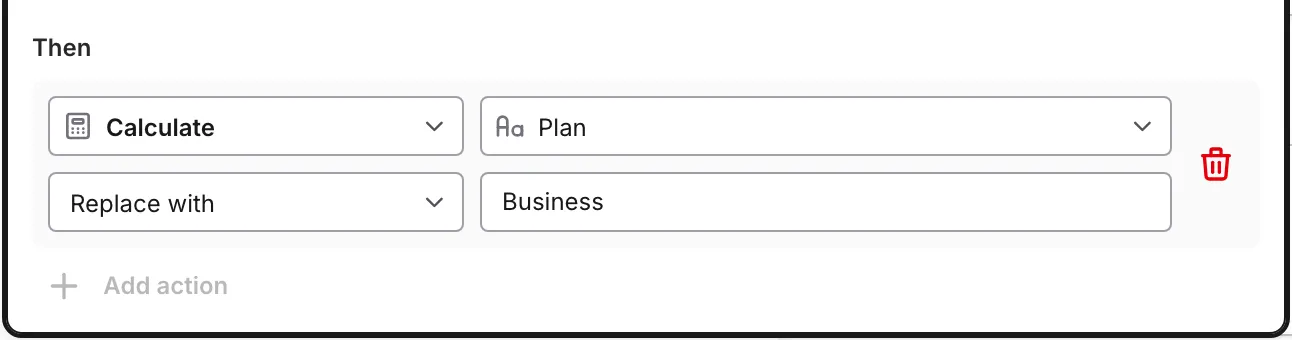
For example, to recommend a plan based on team size:
-
Add a Text value named
Planwith the initial valueStarter -
Add a rule: when “How many people are on your team?” ≥
10, CalculatePlan, Replace with,Business -
Add another rule below it: when “How many people are on your team?” ≥
100, CalculatePlan, Replace with,Enterprise -
On your ending, write “We recommend our @Plan plan”, inserting
Planwith@
A team of 150 matches both rules. The second rule runs last, so the ending recommends the Enterprise plan.
Show a value to respondents
Section titled “Show a value to respondents”Type @ in any text that supports answer pipes, then choose a value from the Calculated values group. Unlike answers, Calculated values can be used on every page, including the first page and your endings.
- Values update live as respondents answer.
- Numbers always show, including
0. They appear without thousands separators or trailing zeros, so12.50shows as12.5. Add currency symbols or units in the text around the pipe, such as$@Total. - When a Text value is empty, the pipe shows its fallback text. Click the pipe to set one.
Use a value in conditions
Section titled “Use a value in conditions”Any condition can check a Calculated value. Number values use =, ≠, >, ≥, <, and ≤. Text values use the same operators as text answers. See conditions for the full list.
A condition sees the value as it stands at that point in your list of rules. Put rules that check a value below the rules that change it.
For example, to send high scorers from the quiz above to their own ending:
-
Open Pages, click Add ending page, and name the new ending “Quiz master”. Rename the Default ending “Keep practicing”. Multiple endings are a Pro feature
-
On both endings, add “You scored @Score out of 10” to the Thank You title or message
-
Below your scoring rules, add a rule set to Every with two conditions:
Score≥8, and your last quiz page was visited -
Add a Jump to page action and choose “Quiz master”
-
Preview the form with a high score and a low score
The was visited condition makes the jump wait until the respondent finishes the quiz. Without it, a condition on a Calculated value can match on an earlier page, before every answer is in. Everyone who scores below 8 reaches the Default ending, “Keep practicing”. Learn more about endings.
How values update
Section titled “How values update”Every time an answer changes, Fomr works out each value again, starting from its initial value and running your rules from top to bottom. Because values are always recalculated from the start, going Back and changing an answer never counts it twice.
Only answers from pages the respondent actually visited count. Answers to questions hidden by logic count as empty.
When the response is submitted, the final values are saved with it.
Responses, exports, and notifications
Section titled “Responses, exports, and notifications”Each response keeps its Calculated values:
- On the Responses page, every Calculated value has its own column, labeled with the value’s name. Calculated value columns come after your questions and before your Hidden value columns. Response details list them in the same order
- CSV exports and Google Sheets include the same columns
- On Pro, custom notification emails can include Calculated values. Type
@in the email template and choose a value
Troubleshooting
Section titled “Troubleshooting”A value doesn’t change
Section titled “A value doesn’t change”- Check in Preview that your answers match the rule’s conditions.
- Answers on pages a respondent skipped, and answers to questions hidden by logic, count as empty.
- Open the Logic panel and fix any flagged rule. A flagged formula doesn’t run.
A condition on a value doesn’t match
Section titled “A condition on a value doesn’t match”Move the rule that checks the value below the rules that change it.
A text answer isn’t added as a number
Section titled “A text answer isn’t added as a number”Text answers and Hidden values count as text in formulas, even when they contain a number. Multiply them by 1 first, as in @quantity × 1 + 5.
A formula is flagged “Text values can’t be used in a formula.”
Section titled “A formula is flagged “Text values can’t be used in a formula.””The formula uses a Calculated value that’s now a Text value, for example after you changed its type. Remove it from the formula, or change the value back to Number.
A choice answer counts as 0
Section titled “A choice answer counts as 0”Choice answers count as numbers only when the option labels are plain numbers. To score options with other labels, add a rule for each option with a condition on that option and a formula such as @Score + 3.
A total shows too many decimal places
Section titled “A total shows too many decimal places”Wrap the formula in round, such as round(@Tickets × 24.99, 2).
Read the conditional logic and Calculated values announcement on the Fomr blog.