
Auto-jump automatically advances respondents to the next page when they complete all questions on the current page. This feature works well for conversational-style forms with one question per page.
New forms start with form-level auto-jump enabled by default. If you create a blank form and the starter question type is eligible, the first page is also auto-jumpable right away.
What is auto-jump?
Section titled “What is auto-jump?”Auto-jump is a navigation behavior that automatically moves respondents to the next page of your form once they’ve answered all questions on the current page. Instead of requiring users to click a “Next” button, the form advances on its own.
How it works
Section titled “How it works”- Respondent lands on a form page
- They answer the question(s) on that page
- Once all required components are complete, the form automatically advances
- The next page loads smoothly
- Process repeats until the form is complete
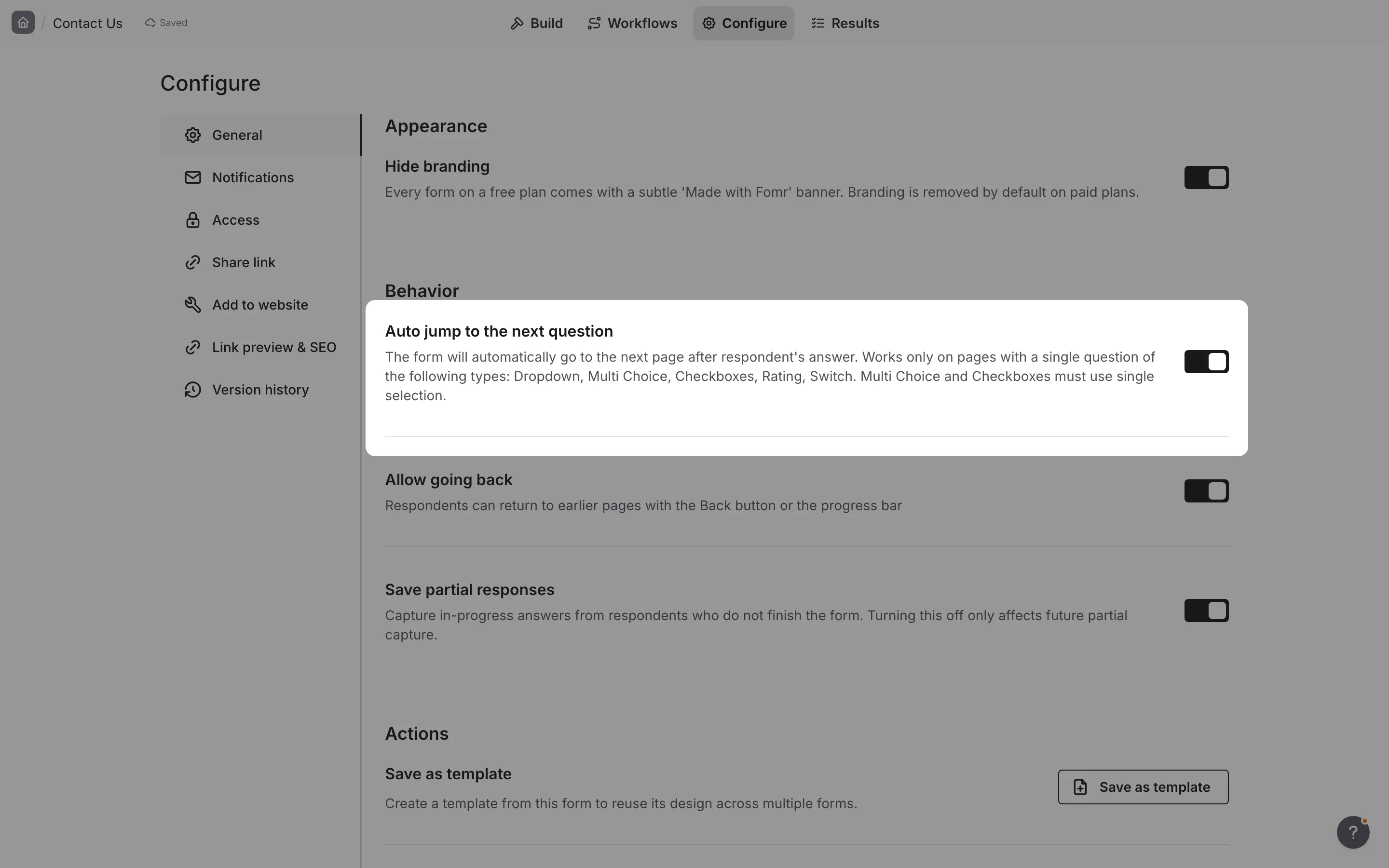
Enabling auto-jump
Section titled “Enabling auto-jump”Auto-jump lives in your form’s settings. It is enabled by default for newly created forms, but you can turn it off at any time.
-
Open your form in the editor
-
Open Configure, go to the General tab, and look under Behavior
-
Find the Auto jump to the next question toggle
-
Turn it on to enable automatic navigation
-
The setting saves automatically
When auto-jump activates
Section titled “When auto-jump activates”Auto-jump only works on a page that holds a single question, and only when that question is one of these types:
- Dropdown
- Multi Choice (single-select)
- Checkboxes (single-select)
- Rating
- Linear Scale
- NPS
- Switch
- Yes/No
These question types share a clear completion signal: the moment a respondent picks an answer, the form knows they are done and can move on.
Auto-jump does not apply to text, number, date, email, phone, or multi-select questions. On those, respondents advance by clicking the button as usual.
Even on an eligible page, auto-jump only fires when:
- The question has a valid answer
- There are more pages remaining in the form
On the final page, respondents still click Submit to finish.
When to enable auto-jump
Section titled “When to enable auto-jump”Auto-jump works best for certain types of forms:
Ideal use cases
Section titled “Ideal use cases”One question per page. Forms designed with a single question on each page benefit most from auto-jump. The experience feels natural and conversational.
Simple, linear forms. Straightforward forms where users move through questions sequentially work well with automatic navigation.
Quick surveys. Short feedback forms or polls where speed matters appreciate the reduced clicking.
Conversational forms. Forms designed to feel like a dialogue benefit from the flowing, automatic progression.
Less ideal use cases
Section titled “Less ideal use cases”Multiple questions per page. When pages have several questions, auto-jump can feel jarring if it triggers before users expect it.
Complex forms. Forms where users might want to review or reconsider answers benefit from manual navigation.
Long text responses. Forms requiring detailed written answers won’t auto-advance, since text questions aren’t eligible.
When to disable auto-jump
Section titled “When to disable auto-jump”Consider keeping auto-jump disabled when:
Users need time to think. Complex questions or important decisions benefit from a pause before moving on.
Multiple components per page. Pages with several inputs can confuse users if the form advances unexpectedly.
Review is important. When accuracy matters, letting users control navigation helps them double-check answers.
Accessibility concerns. Some users prefer explicit control over form navigation.
Mixed component types. Pages combining different input types may have unpredictable auto-jump behavior.
User experience considerations
Section titled “User experience considerations”Benefits of auto-jump
Section titled “Benefits of auto-jump”- Faster completion. Reduces the number of clicks needed to complete a form
- Better flow. Creates a more conversational experience
- App-like feel. Forms behave more like native applications
- Reduced friction. Removes the repetitive action of clicking “Next”
Potential drawbacks
Section titled “Potential drawbacks”- Less control. Users can’t pause on a page as easily
- Accidental advancement. Misclicks might advance the form unexpectedly
- Disorienting. Some users may find automatic navigation surprising
- Harder to review. Quick advancement makes it harder to reconsider answers
Best practices
Section titled “Best practices”Design for auto-jump. If you plan to use auto-jump, design your form with one question per page for the best experience.
Test thoroughly. Always test your form with auto-jump enabled to ensure the navigation feels natural.
Consider your audience. Tech-savvy users often appreciate auto-jump, while others may prefer traditional navigation.
Use clear visual feedback. Ensure page transitions are smooth so users understand what’s happening.
Provide a back button. Make sure users can easily return to previous pages if they advance accidentally.
Match form complexity. Simple forms benefit from auto-jump; complex forms often work better without it.
Combining with other features
Section titled “Combining with other features”Page navigation
Section titled “Page navigation”Auto-jump works alongside Fomr’s page navigation features. Users can still:
- Use the back button to return to previous pages
- See progress indicators showing their position in the form
- Navigate manually if they prefer
Conditional logic
Section titled “Conditional logic”Auto-jump works with conditional logic. After an automatic advance, the form follows the same rules as the Next button: it takes any jump that applies and skips pages that logic hides, so respondents land on the next page meant for them.
Required components
Section titled “Required components”Auto-jump only triggers when all required components on a page are complete. If a page has optional components, the form advances once required components are filled, even if optional components are empty.
Testing auto-jump
Section titled “Testing auto-jump”Before publishing a form with auto-jump enabled:
-
Enable auto-jump under Configure > General > Behavior
-
Click Preview to open the form preview
-
Complete the form as a respondent would
-
Pay attention to when pages advance
-
Verify the timing feels natural
-
Test on mobile devices as well
-
Adjust your form design if needed
Troubleshooting
Section titled “Troubleshooting”Form not advancing automatically
Section titled “Form not advancing automatically”- Confirm auto-jump is on under Configure > General > Behavior
- Check that the page holds a single, eligible question type (Dropdown, Multi Choice, Checkboxes, Rating, Linear Scale, NPS, Switch, or Yes/No)
- Make sure the question has a valid answer
- Ensure there are more pages after the current one
Form advancing too quickly
Section titled “Form advancing too quickly”- Add more questions to the page, so it no longer auto-advances
- Disable auto-jump if the experience feels rushed
Users complaining about navigation
Section titled “Users complaining about navigation”- Consider disabling auto-jump for that form
- Add instructions explaining the automatic navigation
- Ensure back navigation is clearly visible
