
As your form library grows, you’ll want to keep it organized. Archiving lets you hide forms you’re no longer using while preserving all their data. For forms you don’t need anymore, deleting moves them to Trash, where they stay for 30 days before they are deleted permanently.
Archiving vs. deleting
Section titled “Archiving vs. deleting”Understanding the difference between archiving and deleting helps you choose the right option:
| Action | Reversible | Data preserved | Form accessible |
|---|---|---|---|
| Archive | Yes, unarchive at any time | Yes | No |
| Move to Trash | For 30 days, by restoring from Trash | Until deleted permanently | No |
| Delete permanently (from Trash) | No | No | No |
Archive when you might need the form or its data later. Move to Trash when you no longer need the form. You can restore it from Trash for 30 days, after which it is deleted permanently. Learn more about how deletion works.
Archiving forms
Section titled “Archiving forms”Archiving hides a form from its workspace’s Forms list while preserving everything about it—responses, settings, design, and version history.
When to archive
Section titled “When to archive”Consider archiving a form when:
- A campaign or event has ended
- You’re running seasonal forms between uses
- You want to declutter your workspace’s Forms list
- The form is no longer needed but data should be kept
- You’re unsure whether you’ll need the form again
How to archive a form
Section titled “How to archive a form”You can archive a form from its workspace’s Forms list:
-
Open the workspace that contains the form
-
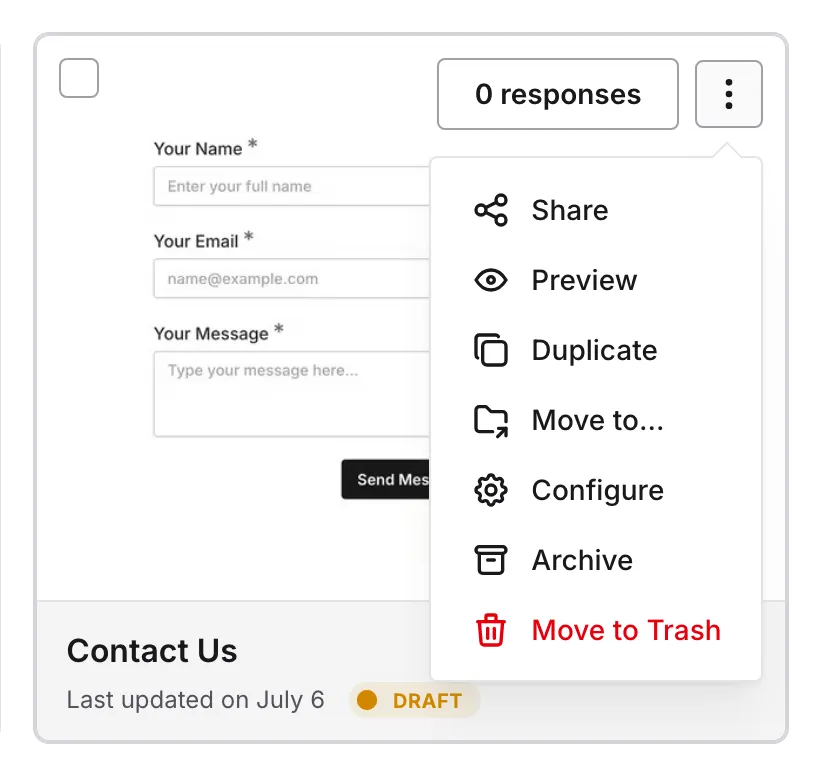
In the Forms list, open the … menu on the form’s card and choose Archive
-
Click Archive form to confirm
Or archive it from the form’s settings:
-
Open the form you want to archive
-
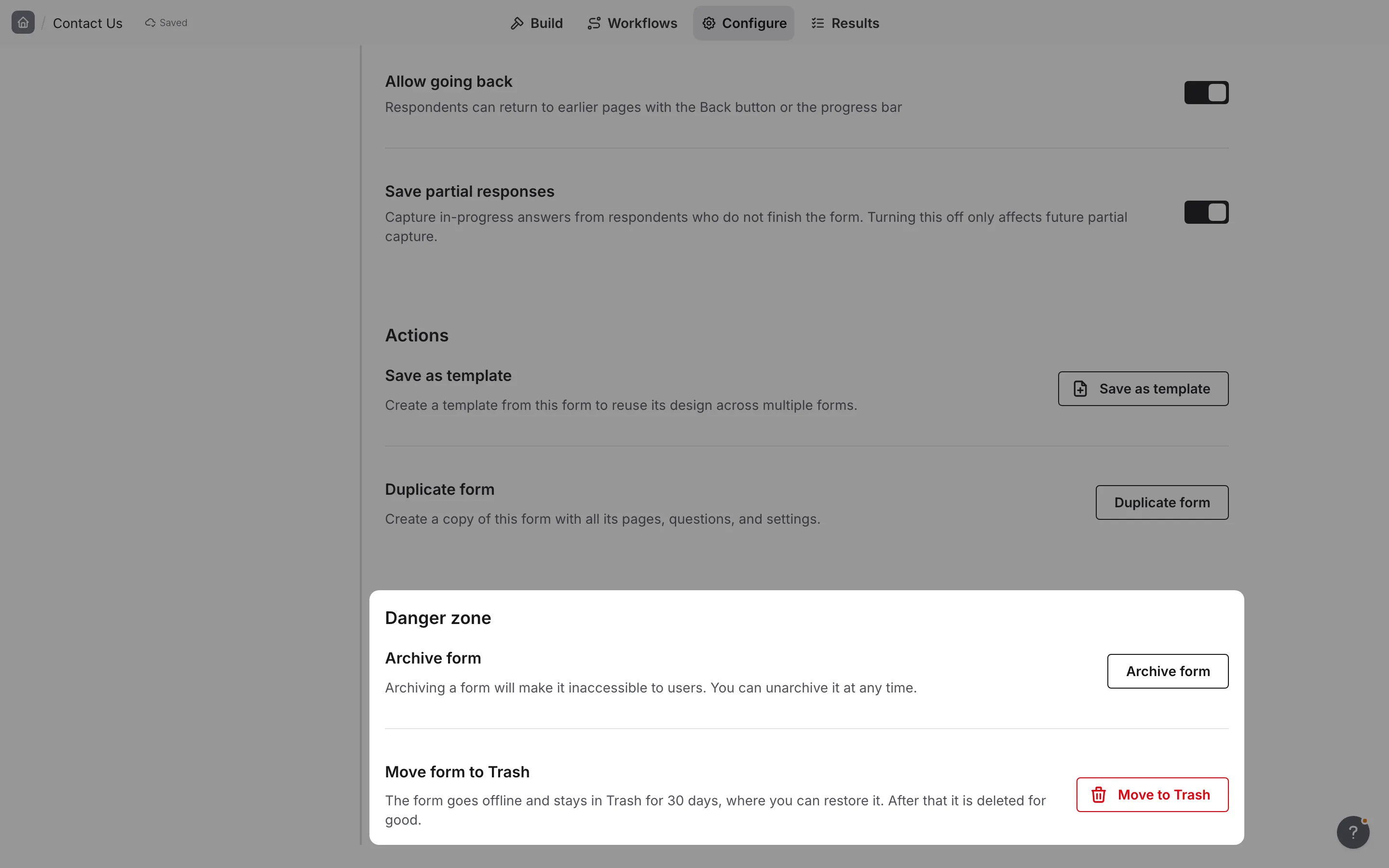
Open the Configure tab and go to the General section
-
Scroll to the Danger zone
-
Click Archive form
-
Click Archive form in the dialog to confirm
What happens when you archive
Section titled “What happens when you archive”When you archive a form:
- It stays in its workspace but is hidden from the Forms list. To see it, filter the list by Archived status.
- The public URL stops accepting responses
- Visitors see a “Form is closed” page that reads “This form does not accept responses at this time.”
- All responses remain safely stored
- All settings and design are preserved
- Version history is maintained
Archive several forms at once
Section titled “Archive several forms at once”-
Open the workspace that contains the forms
-
In the workspace’s Forms list, hover over each form you want to archive and tick its checkbox
-
Click Archive in the action bar at the bottom of the page. It appears when the selection includes forms that aren’t archived yet.
-
Click Archive in the dialog to confirm
Published forms in the selection are unpublished, and all responses are kept. Learn more about selecting several items in workspaces.
Viewing archived forms
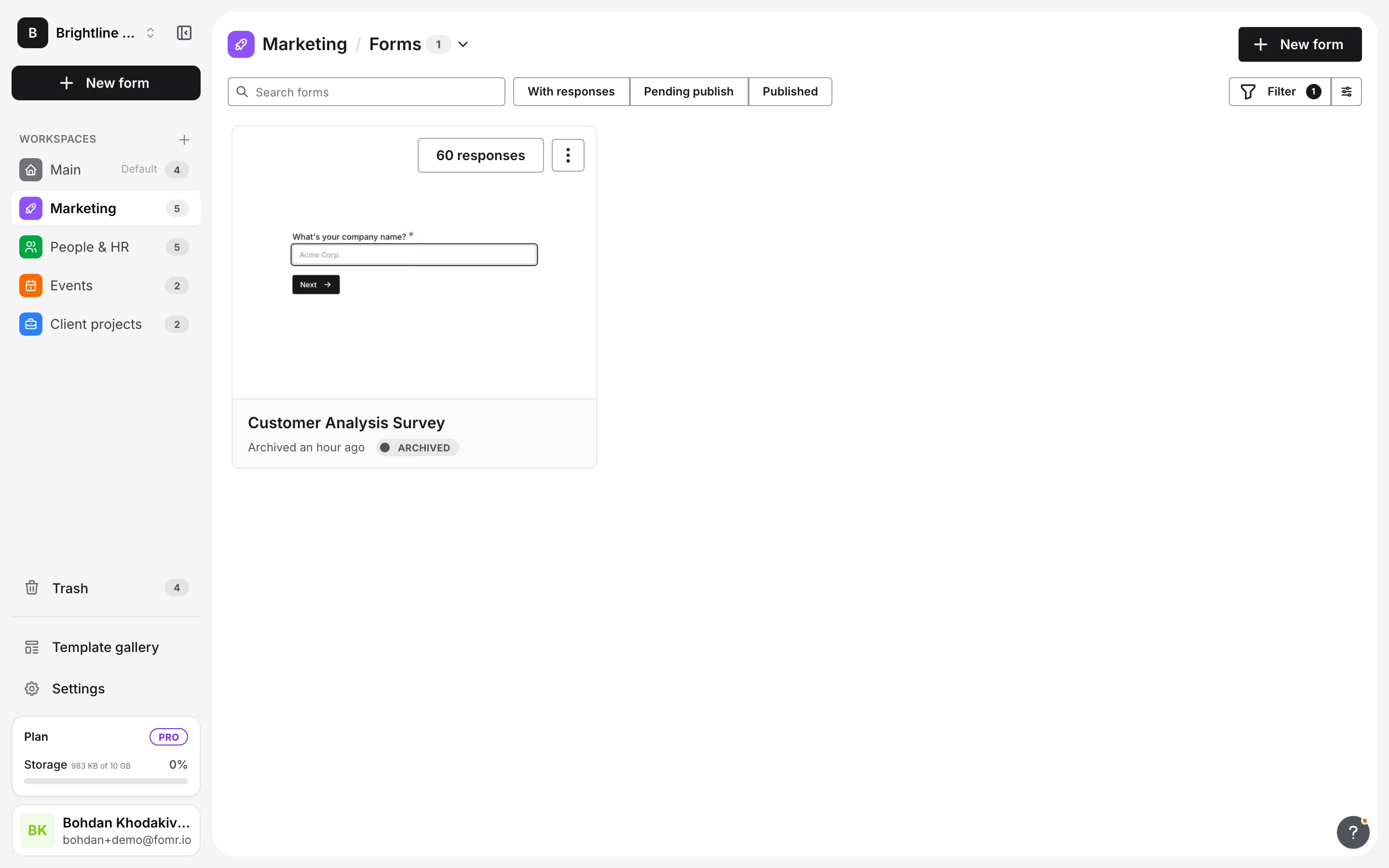
Section titled “Viewing archived forms”There’s no separate archive page. Archived forms stay in their workspace, and the Forms list hides them until you filter for them.
Find archived forms
Section titled “Find archived forms”-
Open the workspace that contains the form
-
In the workspace’s Forms list, open Filter, choose Status, and check Archived
-
Browse or search your archived forms
What you can do with archived forms
Section titled “What you can do with archived forms”While a form is archived, you can:
- View the form and its settings
- Access and export all responses
- Review version history
- Restore the form to active status
- Move the form to Trash
You cannot:
- Collect new responses (the link is closed)
- Edit the form (restore it first)
- Share the form publicly
Restoring archived forms
Section titled “Restoring archived forms”Unarchiving brings an archived form back to its workspace’s Forms list, ready to be published again.
How to restore a form
Section titled “How to restore a form”-
Open the workspace that contains the form
-
In the workspace’s Forms list, open Filter, choose Status, and check Archived
-
Find the form you want to restore
-
Open the … menu on the form’s card and choose Unarchive
-
The form returns to the Forms list
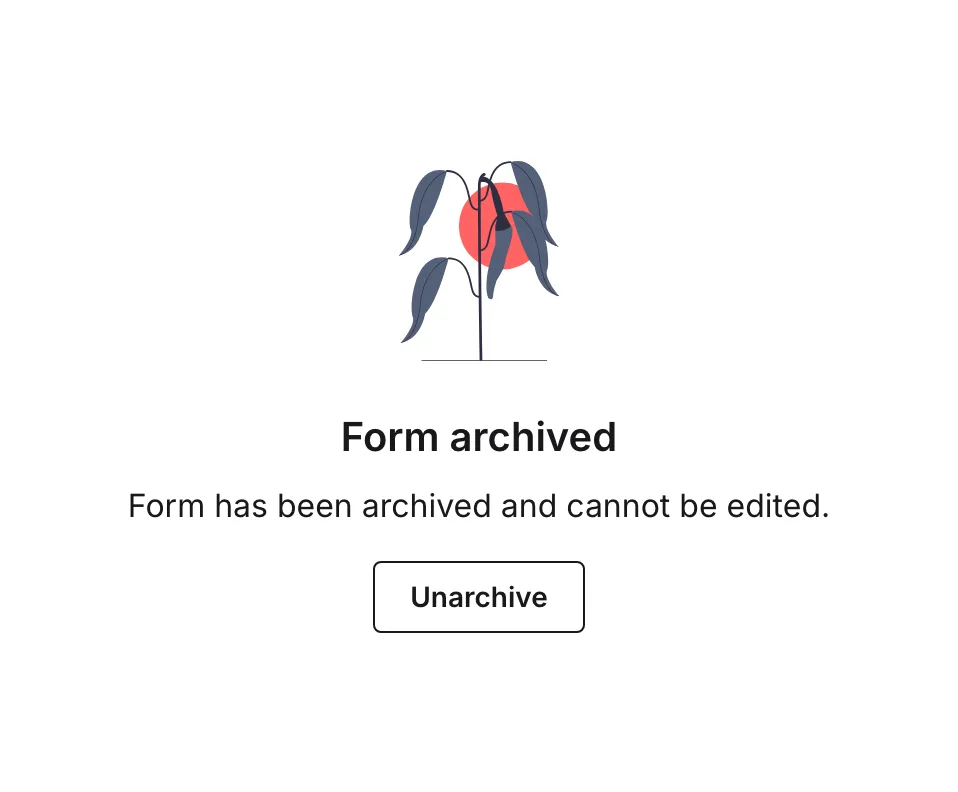
You can also open an archived form directly. The editor shows a Form archived message with an Unarchive button.
To restore several forms at once, tick their checkboxes and click Unarchive in the action bar. It appears when the selection includes archived forms.
After restoring
Section titled “After restoring”When you restore a form:
- It appears in the workspace’s Forms list again
- The form is in draft/unpublished status
- You can edit and update the form
- Publish when ready to start collecting responses
- All previous responses are still accessible
Moving forms to Trash
Section titled “Moving forms to Trash”Deleting a form doesn’t remove it right away. It moves to Trash and stays there for 30 days, so you can restore it if you change your mind. After 30 days it is deleted permanently.
How to move a form to Trash
Section titled “How to move a form to Trash”-
Open the form you want to delete
-
Open the Configure tab and go to the General section
-
Scroll to the Danger zone
-
Under Move form to Trash, click Move to Trash
You can also open the … menu on the form’s card and choose Move to Trash, or select several forms and click Move to Trash in the action bar.
Fomr asks you to confirm in a Move 1 form to Trash? dialog. Click the red Move to Trash, and the form moves to Trash. If you started from the form’s settings, Fomr takes you back to the workspace’s Forms list. You can restore the form from Trash.
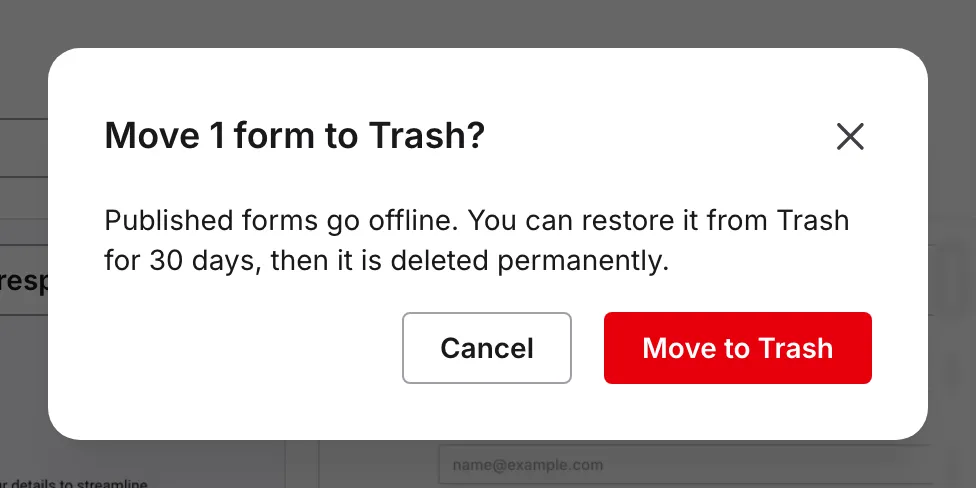
What happens when you move a form to Trash
Section titled “What happens when you move a form to Trash”When a form moves to Trash:
- It is unpublished. Its public link and any custom domain link go offline immediately.
- It disappears from its workspace.
- Its responses, workflows, settings, design, and version history are kept until it is deleted permanently.
If you restore the form from Trash, it comes back unpublished in its original workspace: as a draft, or still archived if it was archived before. Publish it again when you’re ready.
Deleting a form permanently
Section titled “Deleting a form permanently”To remove a form for good before the 30 days are up, open Trash, find the form, open the … menu on its card, and choose Delete permanently. You’ll be asked to confirm.
Best practices
Section titled “Best practices”Archive first, delete later. When in doubt, archive instead of delete. Archived forms stay available for as long as you like, while deleted forms are kept in Trash for only 30 days.
Export data before deleting. If you need to delete a form but want to keep the responses, export them first from the Responses tab. Once the form is deleted permanently, its responses can’t be recovered.
Use archiving for seasonal forms. If you run the same form annually (like a yearly survey), archive it between uses rather than creating new forms each time.
Clean up regularly. Set a reminder to review your forms periodically. Archive forms you’re done with to keep each workspace’s Forms list manageable.
Consider your team. If others have access to a form, communicate before archiving or deleting to avoid confusion.
Document important forms. Before archiving long-running forms, consider exporting responses and noting any important settings for future reference.
Managing your form library
Section titled “Managing your form library”Keeping things organized
Section titled “Keeping things organized”A well-organized form library makes your work easier:
- Active forms: Forms currently in use or being developed
- Archived forms: Completed campaigns, seasonal forms, or forms on hold
- Trash: Forms you no longer need, kept for 30 days before they are deleted permanently
Recommended workflow
Section titled “Recommended workflow”-
Create and publish forms as needed
-
When a form’s purpose is complete, archive it
-
Periodically review archived forms
-
Move to Trash only forms you’re certain about
-
Export important data before deleting anything permanently
Troubleshooting
Section titled “Troubleshooting”Can’t find an archived form
Section titled “Can’t find an archived form”- Make sure Archived is checked under Filter → Status in the workspace’s Forms list
- Check that you’re in the right workspace, since each workspace lists only its own forms
- Try searching by form name
- Check if the form was deleted instead of archived. Deleted forms appear in Trash for 30 days.
Archived form URL still works
Section titled “Archived form URL still works”- Clear your browser cache
- The cached version may still be visible temporarily
- New visitors will see the “Form is closed” page
Accidentally archived a form
Section titled “Accidentally archived a form”- Check Archived under Filter → Status in the workspace’s Forms list
- Open the form’s … menu and choose Unarchive
- The form returns to the Forms list immediately
Need data from a deleted form
Section titled “Need data from a deleted form”Open Trash and restore the form. Its responses come back with it. Forms stay in Trash for 30 days. After that, or once you delete a form permanently, it can’t be recovered. To be safe:
- Archive first if you’re unsure
- Export responses before deleting
