
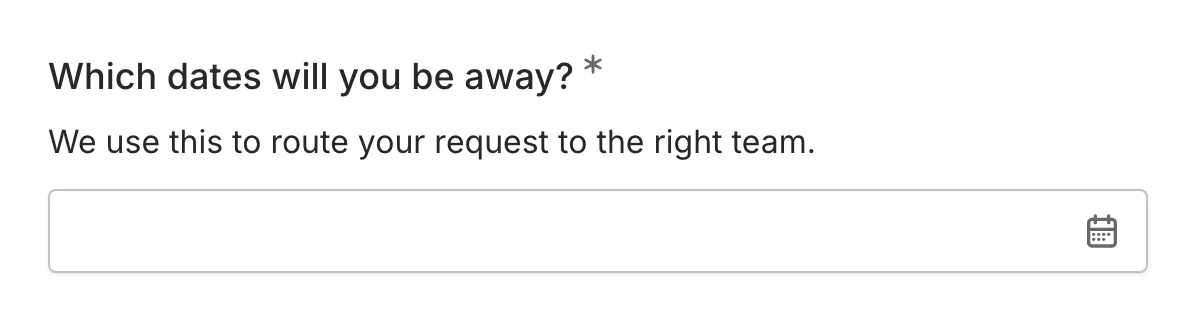
The Date Range component allows respondents to select both a start date and an end date. Use it to collect time periods, booking windows, and duration information.
When to use Date Range
Section titled “When to use Date Range”Date Range is useful for:
- Travel dates (departure and return)
- Project timelines (start and end)
- Booking periods
- Event durations
- Availability windows
- Any question requiring a period of time
Adding a Date Range component
Section titled “Adding a Date Range component”-
Open your form in the editor
-
Drag the Date Range component from the left sidebar onto your form
-
Click the component to select it and configure its settings
Configuration options
Section titled “Configuration options”Question label
Section titled “Question label”The main question or prompt displayed above the date range picker.
Examples:
- “Travel dates”
- “Project timeline”
- “When are you available?”
- “Booking period”
Supporting content
Section titled “Supporting content”Add helper text, an example image, or a divider between the question’s title and its input: drag a Text, Image, or Divider component onto the question and drop it on the line that appears under the title. Supporting text comes with full formatting and answer piping. Learn more in Supporting content.
Date format
Section titled “Date format”Choose how dates are displayed:
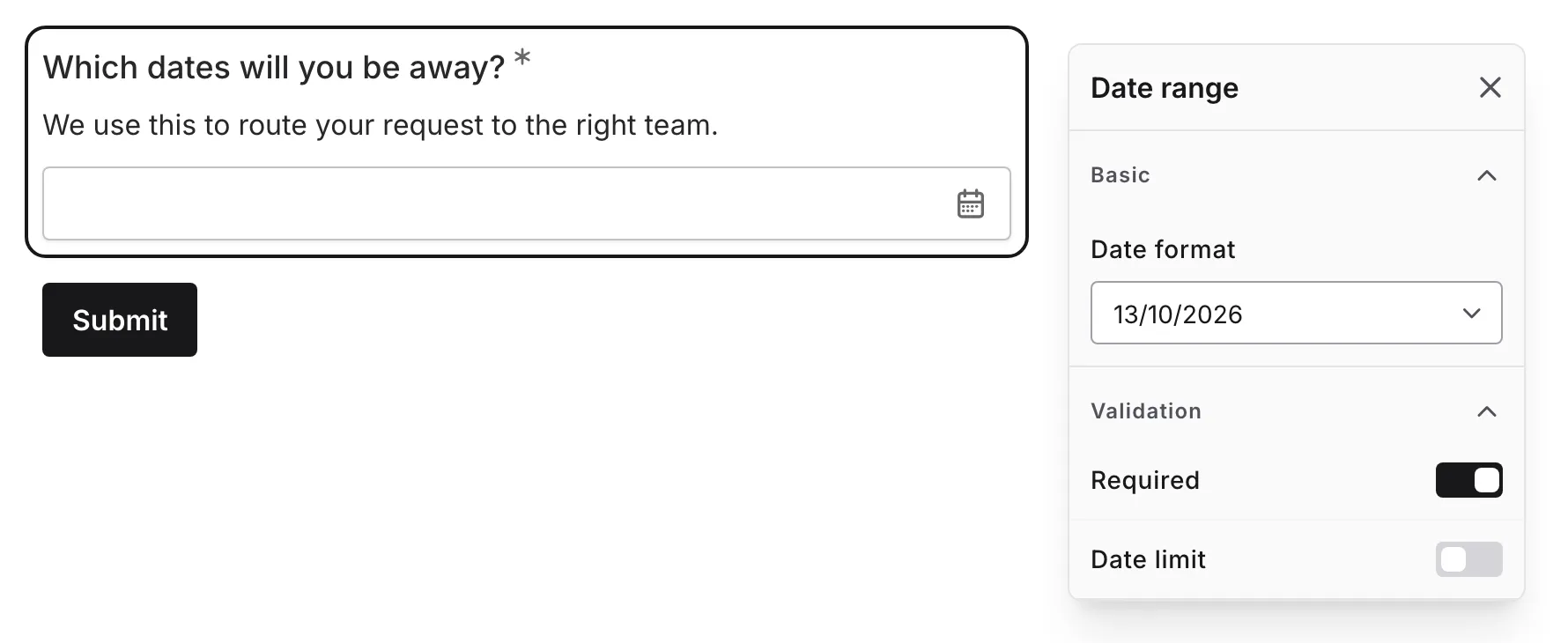
| Format | Example |
|---|---|
| MM/DD/YYYY | 01/15/2024 - 01/20/2024 |
| DD/MM/YYYY | 15/01/2024 - 20/01/2024 |
| YYYY-MM-DD | 2024-01-15 - 2024-01-20 |
Date limit
Section titled “Date limit”Set the earliest and latest dates respondents can choose.
Required
Section titled “Required”Toggle whether both dates must be selected before the form can be submitted.
When enabled:
- An asterisk (*) appears next to the question label
- Users must select both start and end dates to submit
- A validation message appears if either date is missing
Date range picker interaction
Section titled “Date range picker interaction”Selecting start date
Section titled “Selecting start date”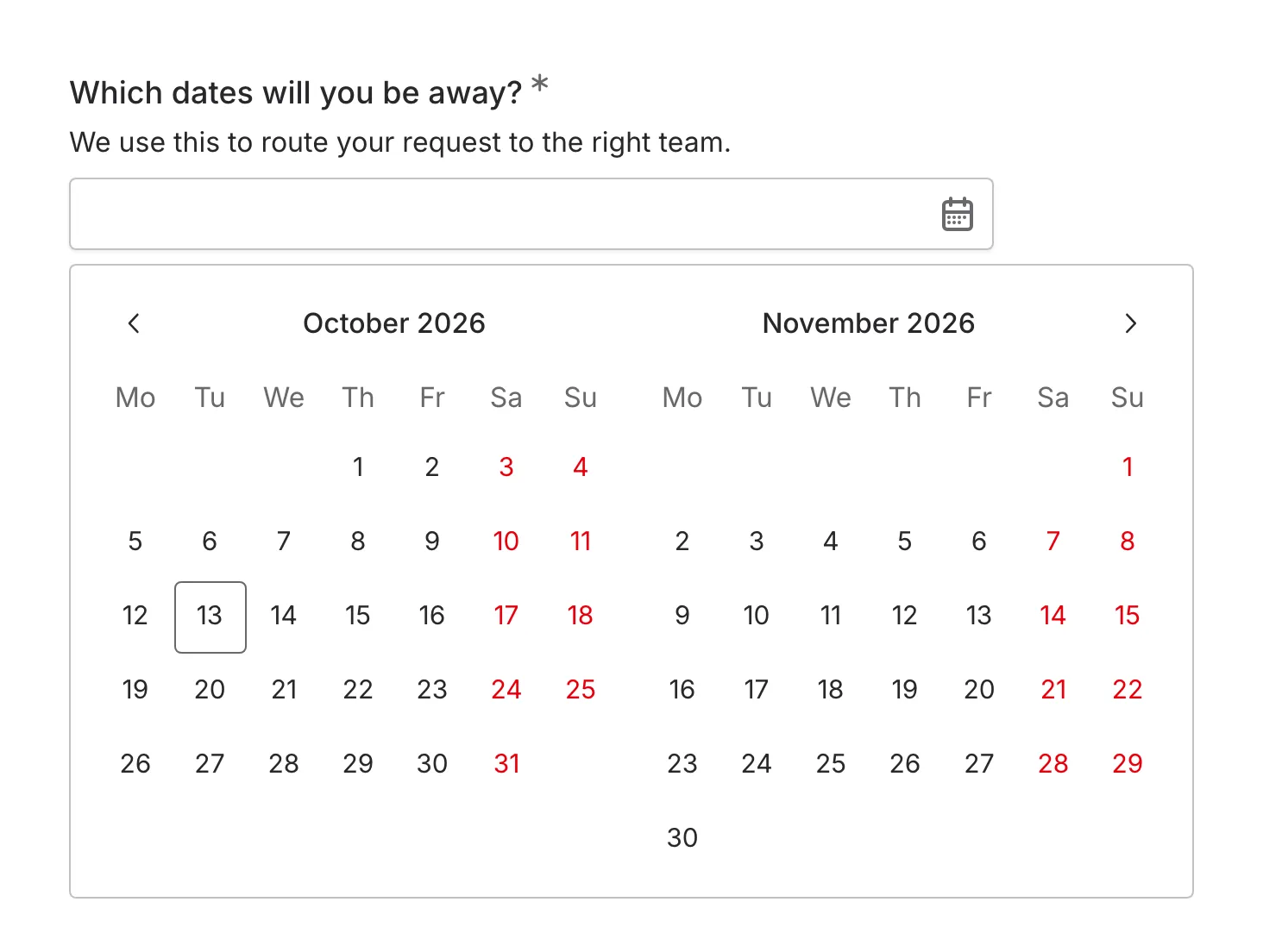
- Click the start date component or the calendar
- Navigate to the desired month
- Click to select the start date
- The picker automatically moves to end date selection
Selecting end date
Section titled “Selecting end date”- After selecting start date, choose the end date
- End date must be on or after the start date
- The range between dates is visually highlighted
Visual feedback
Section titled “Visual feedback”- Selected start date is highlighted
- Selected end date is highlighted
- Days between start and end are shaded
- Invalid dates (before start) are disabled for end selection
Changing dates
Section titled “Changing dates”- Click either date component to modify it
- Changing start date may reset end date if it becomes invalid
- Both dates can be cleared and reselected
Validation
Section titled “Validation”The Date Range component validates:
- Both start and end dates are selected (if required)
- End date is on or after start date
- Dates are valid calendar dates
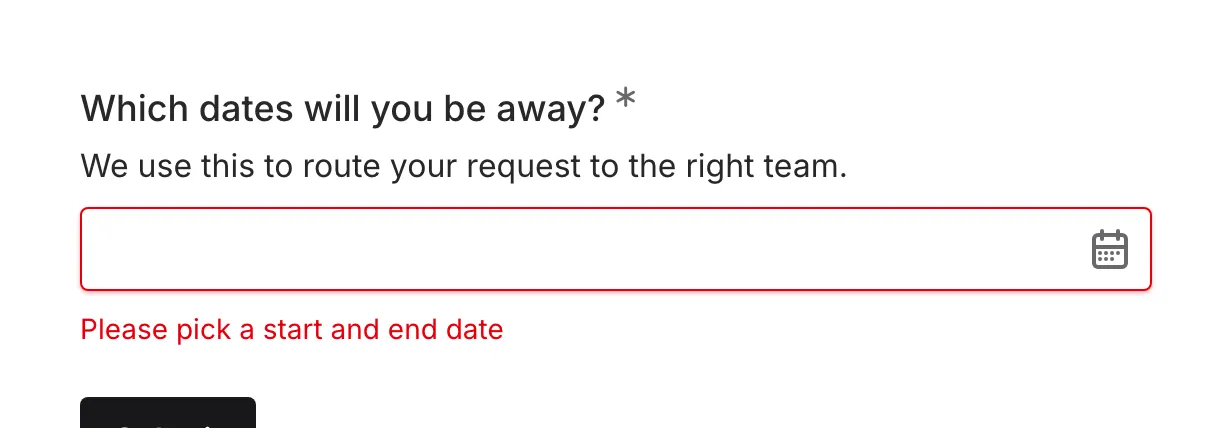
Common validation messages:
- “Please select both dates”
- “End date must be after start date”
Accessibility
Section titled “Accessibility”The Date Range component is built with accessibility in mind:
- Keyboard navigation for both date pickers
- Screen reader compatible
- Clear focus states
- Range selection is announced
- Proper ARIA labels
Handling responses
Section titled “Handling responses”Date range responses in your form results:
- Display both start and end dates
- Show the duration (number of days)
- Can be filtered by date range
- Are included in exports with both dates
Calculating duration
Section titled “Calculating duration”From a date range response, you can calculate:
- Number of days: End date - Start date + 1 (inclusive)
- Number of nights: End date - Start date (for hotel bookings)
- Weeks: Days / 7
