
The Multi Choice component displays a list of options where respondents can select exactly one answer. Using radio button-style selection, it’s designed for mutually exclusive choices where only one option can be true.
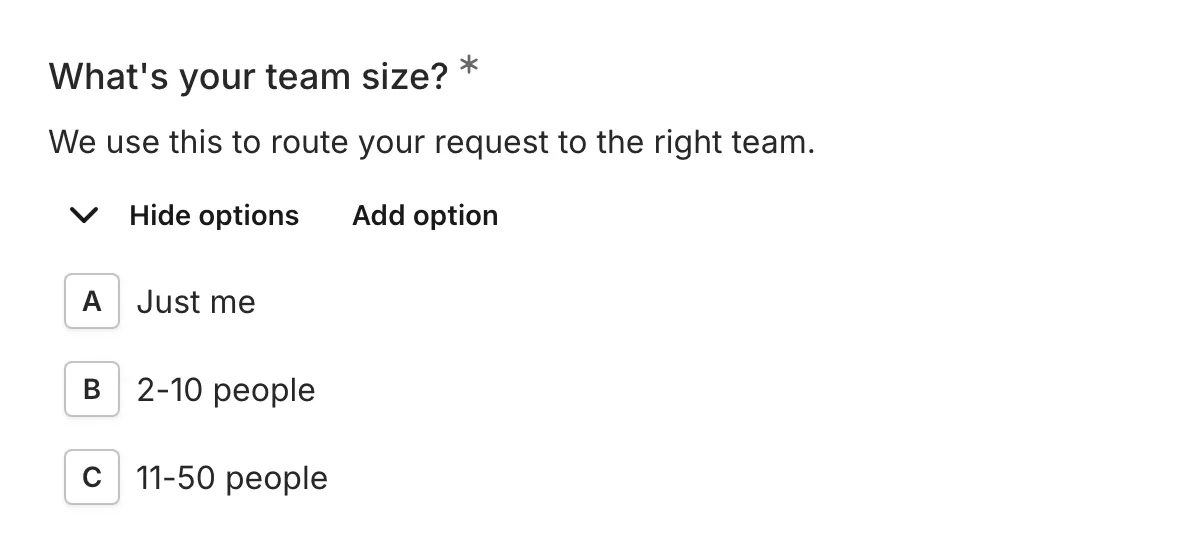
When to use Multi Choice
Section titled “When to use Multi Choice”Multi Choice is ideal for:
- Yes/No questions
- Single-answer survey questions
- Preference selection
- Rating categories (Excellent/Good/Fair/Poor)
- Any question where only one answer is valid
Adding a Multi Choice component
Section titled “Adding a Multi Choice component”-
Open your form in the editor
-
Drag the Multi Choice component from the left sidebar onto your form
-
Click the component to select it and configure its settings
-
Add your options in the settings panel
Configuration options
Section titled “Configuration options”Question label
Section titled “Question label”The main question or prompt displayed above the options.
Tips for effective labels:
- Ask a clear, specific question
- Make it obvious that only one answer is expected
Examples:
- “What is your preferred contact method?”
- “How satisfied are you with our service?”
- “Which plan best fits your needs?”
Supporting content
Section titled “Supporting content”Add helper text, an example image, or a divider between the question’s title and its input: drag a Text, Image, or Divider component onto the question and drop it on the line that appears under the title. Supporting text comes with full formatting and answer piping. Learn more in Supporting content.
Options list
Section titled “Options list”The list of choices available for selection.
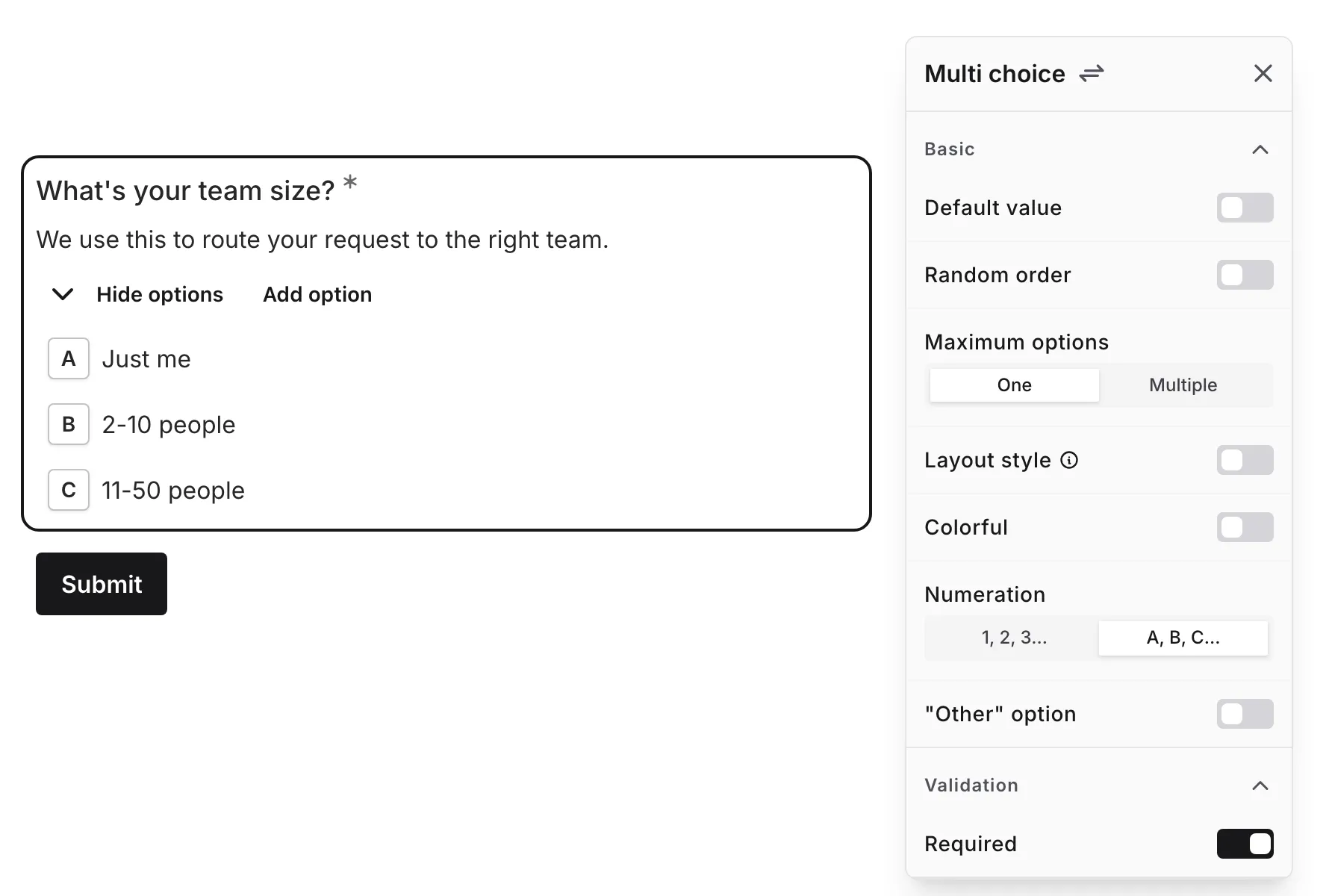
To manage options:
- Click to add new options
- Drag to reorder options
- Click the delete icon to remove options
- Edit option text directly
- Paste multiple lines of text to add several options at once — each line becomes its own option, blank lines are skipped, and supported text formatting is preserved
Tips for options:
- Keep options mutually exclusive
- Use parallel structure in option text
- Order logically (best to worst, most to least, etc.)
- Limit to 5-7 options for best usability
Numeration
Section titled “Numeration”Choose how options are labeled:
| Numeration | Display | Best For |
|---|---|---|
| Number | 1, 2, 3, 4… | Ordered lists, rankings |
| Alphabet | A, B, C, D… | Quiz-style questions |
Random order
Section titled “Random order”Toggle to display options in a random order each time the form is loaded.
When to use randomization:
- To prevent order bias in surveys
- For research where response patterns matter
- When no logical ordering exists
When NOT to use randomization:
- When options have a natural order (e.g., satisfaction scales)
- When users expect a specific sequence
- For Yes/No questions
Maximum options
Section titled “Maximum options”Choose whether respondents can pick just one option (One) or several (Multiple).
Layout style
Section titled “Layout style”By default, the question follows the option layout set for the whole form in the Design panel — see Option layout. Turn on Layout style to give this question a layout of its own:
| Layout | Description |
|---|---|
| List | Full-width options stacked in a vertical list |
| Bordered | Compact outlined options that hug their text, stacked and left-aligned |
| Inline | Bordered options that flow side by side and wrap onto new lines — great for many short options |
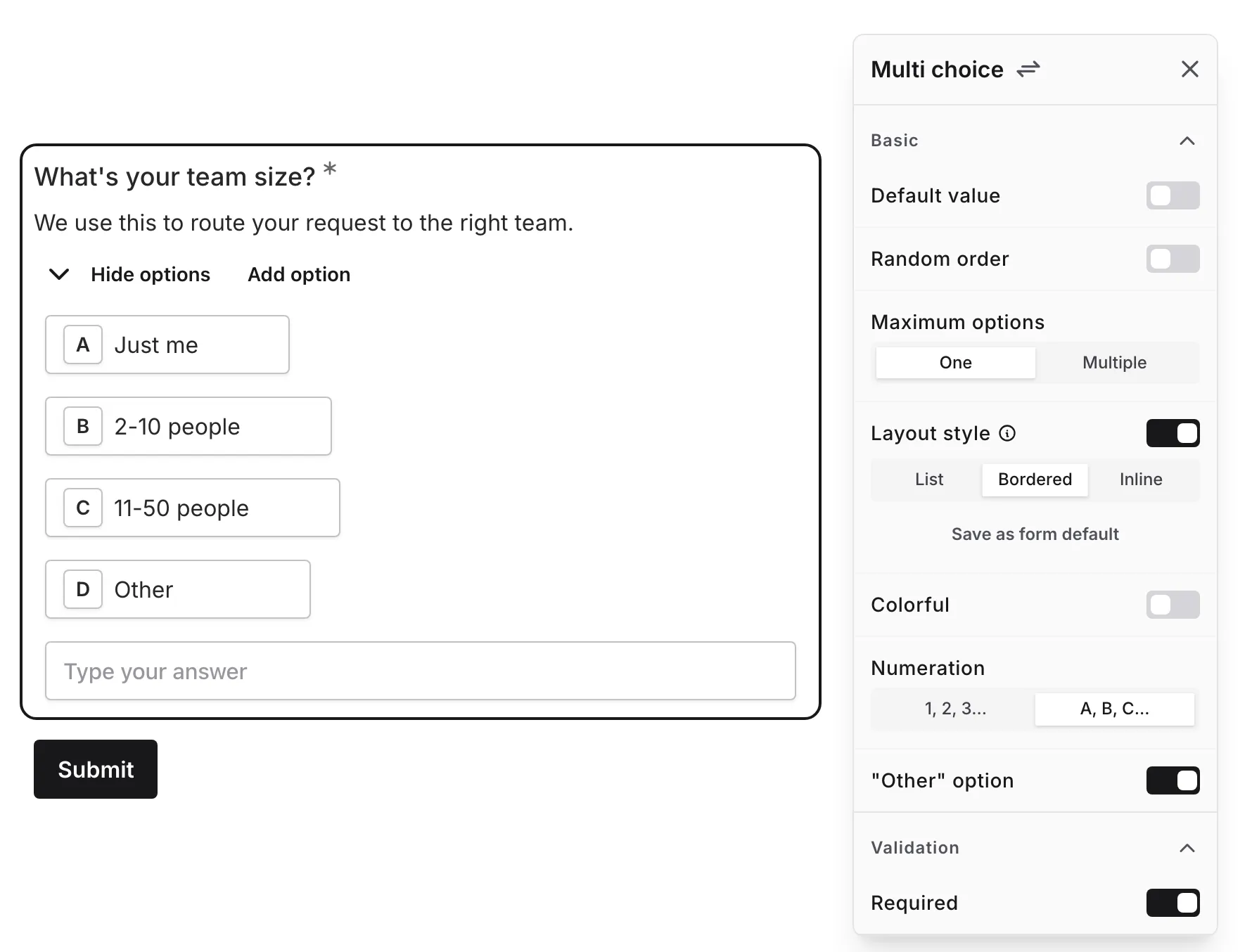
The layouts change only how options are arranged:
- The numeration badges (letters or numbers) appear in every layout
- The “Other” option works in every layout — in Inline, its text input appears as a full-width row below the options
- You can drag options to reorder them in every layout, including Inline
Save as form default applies this question’s layout to the whole form and turns the override off. Turning Layout style off returns the question to the form’s layout.
Colorful
Section titled “Colorful”Turn on Colorful to give each option its own color. Fomr derives ten distinct hues — the form’s option colors — from the theme’s primary color and hands them out by position: the first option gets the first hue, the second option the second, and so on. After ten options the sequence starts again from the first hue.
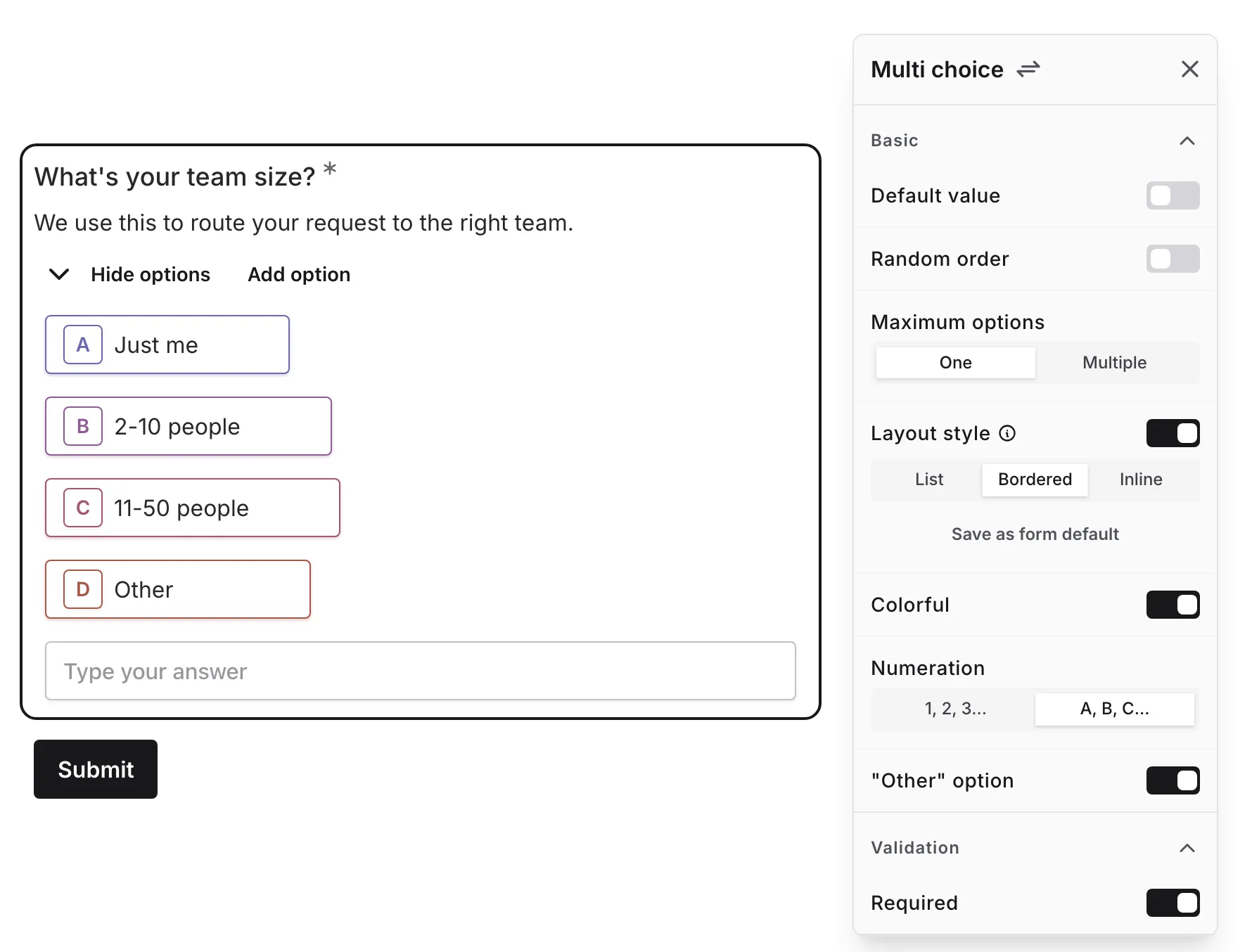
How the colors show up:
- An unselected option shows its hue on the numeration badge — its border and letter or number. In the Bordered and Inline layouts the option’s outline takes the hue as well.
- The selected option fills its badge with the hue and flips the badge text to a contrasting color so it stays readable.
- The “Other” option is colored like any other option.
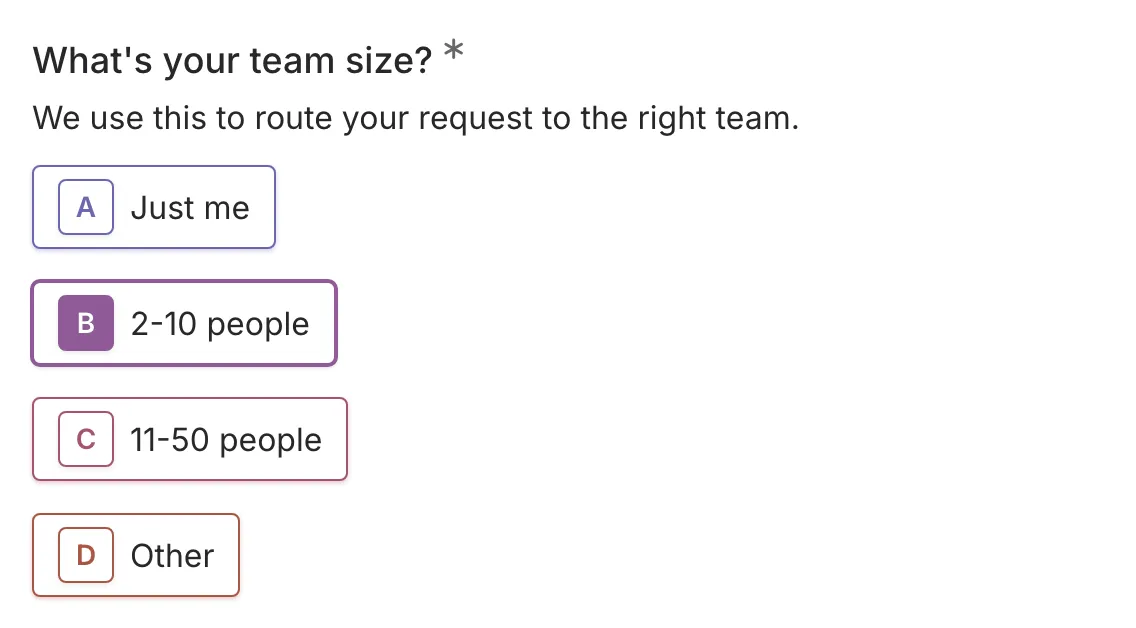
Colors belong to positions, not to specific options. With Random order on, the same option can appear in a different color for different respondents, and reordering options in the editor recolors them. Changing the theme’s primary color regenerates all ten hues, so recoloring a form is a single change in the Design panel.
Required
Section titled “Required”Toggle whether a selection must be made before the form can be submitted.
When enabled:
- An asterisk (*) appears next to the question label
- Users must select an option to submit
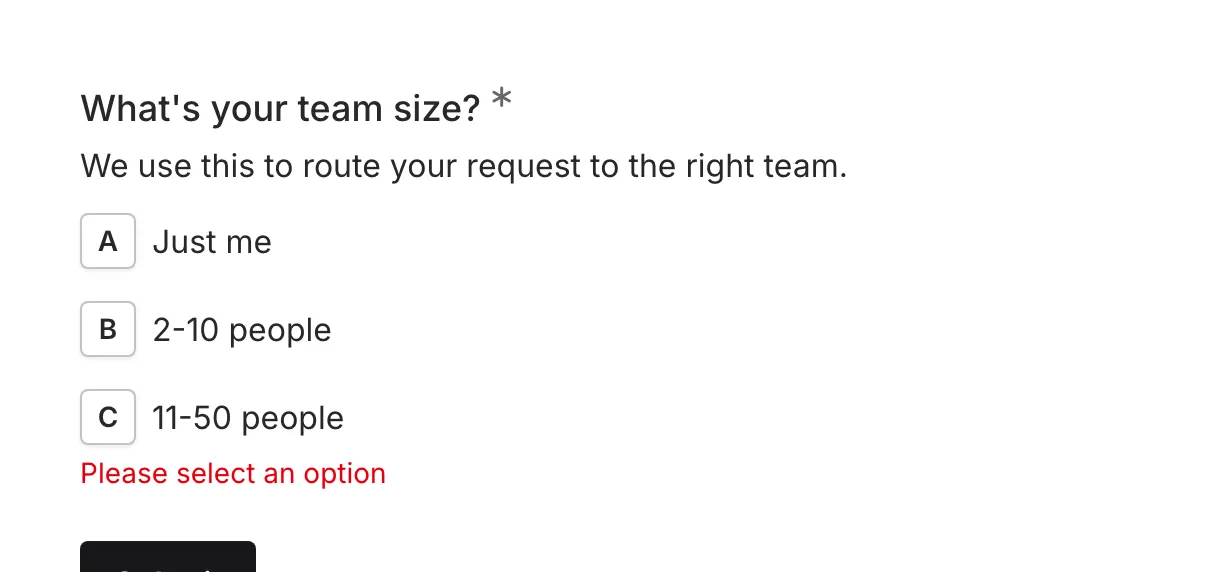
- A validation message appears if no selection is made
”Other” option
Section titled “”Other” option”Turn on “Other” option to let respondents give an answer that isn’t in your list. This adds an “Other” choice as the last option in the list.
When a respondent selects it, a text input appears below the question where they type their answer. Typing an answer is required — to submit without one, they need to pick a different option instead.
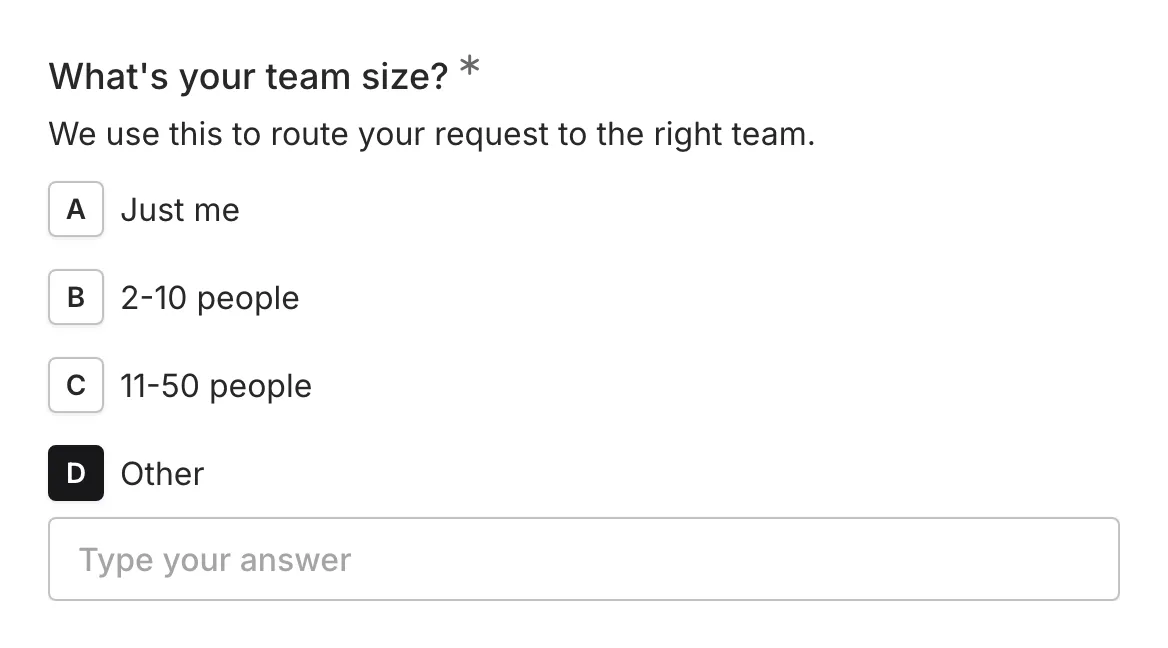
On the editor canvas you can:
- Edit the option’s label directly (the default is “Other”)
- Edit the text input’s placeholder inline (the default is “Type your answer”)
- Delete the option to turn the setting off
The “Other” choice always stays at the end of the list, even when Random order is on. It can also be preselected as a default value — respondents still type their answer before submitting.
Multi choice vs. dropdown
Section titled “Multi choice vs. dropdown”| Aspect | Multi Choice | Dropdown |
|---|---|---|
| Visibility | All options visible | Options hidden until clicked |
| Best for | 2-5 options | 5+ options |
| Interaction | Single click to select | Click to open, then select |
| Space | Takes more vertical space | Compact |
| Scanning | Easy to compare options | Must open to see options |
Validation
Section titled “Validation”When multi choice is marked as required:
- One option must be selected before submission
- A validation message appears if submitted without selection
- The field is highlighted to draw attention
Accessibility
Section titled “Accessibility”The Multi Choice component is built with accessibility in mind:
- Proper radio button group semantics
- Keyboard navigation (Tab to move between options, Space or Enter to select)
- Screen reader compatible with proper labeling
- Focus states are clearly visible
- Labels are clickable to select options
Handling responses
Section titled “Handling responses”Multi choice responses in your form results:
- Show the selected option text
- Show the typed answer when the “Other” option was selected — in results, CSV exports, and Google Sheets
- Can be filtered by selection
- Are included in exports
- Allow analysis of response distribution
