
The Number component gives respondents a field for entering numeric values. It validates that entries are actually numbers and, on mobile, brings up a numeric keyboard for faster input.
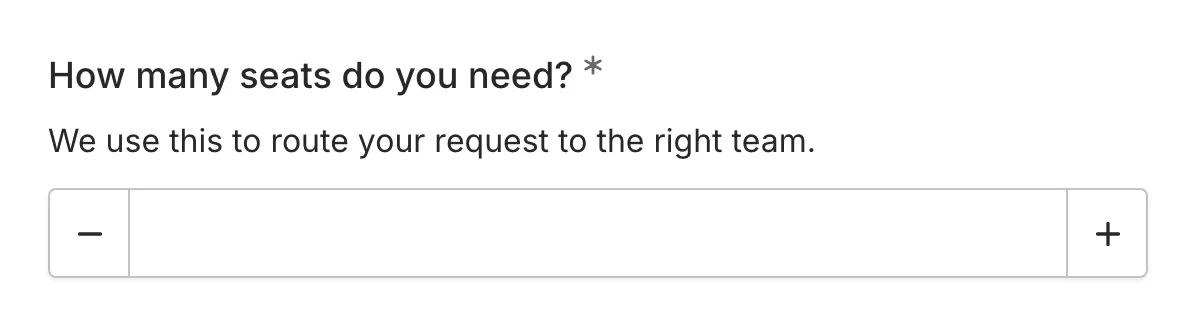
When to use Number
Section titled “When to use Number”Number is ideal for collecting:
- Ages
- Quantities or counts
- Prices or budgets
- Years
- Scores or ratings
- Measurements
- Any numeric value
Adding a Number component
Section titled “Adding a Number component”-
Open your form in the editor
-
On the Build tab, open the Components panel and drag the Number component onto your form
-
Click the component on the canvas to select it and configure its settings
Configuration options
Section titled “Configuration options”Select the component on the canvas to see its settings. They are grouped into Style, Basic, and Validation.
Question label
Section titled “Question label”The main question or prompt displayed above the field. If the number has a unit, put it in the label, because the field itself shows only the number.
Examples:
- “Age (years)”
- “How many attendees?”
- “Budget (USD)”
- “Weight (kg)“
Supporting content
Section titled “Supporting content”Add helper text, an example image, or a divider between the question’s title and its input: drag a Text, Image, or Divider component onto the question and drop it on the line that appears under the title. Supporting text comes with full formatting and answer piping. Learn more in Supporting content.
Placeholder
Section titled “Placeholder”Ghost text that appears inside the field when it’s empty.
Examples:
- “25”
- “Enter amount”
- “0”
Style settings
Section titled “Style settings”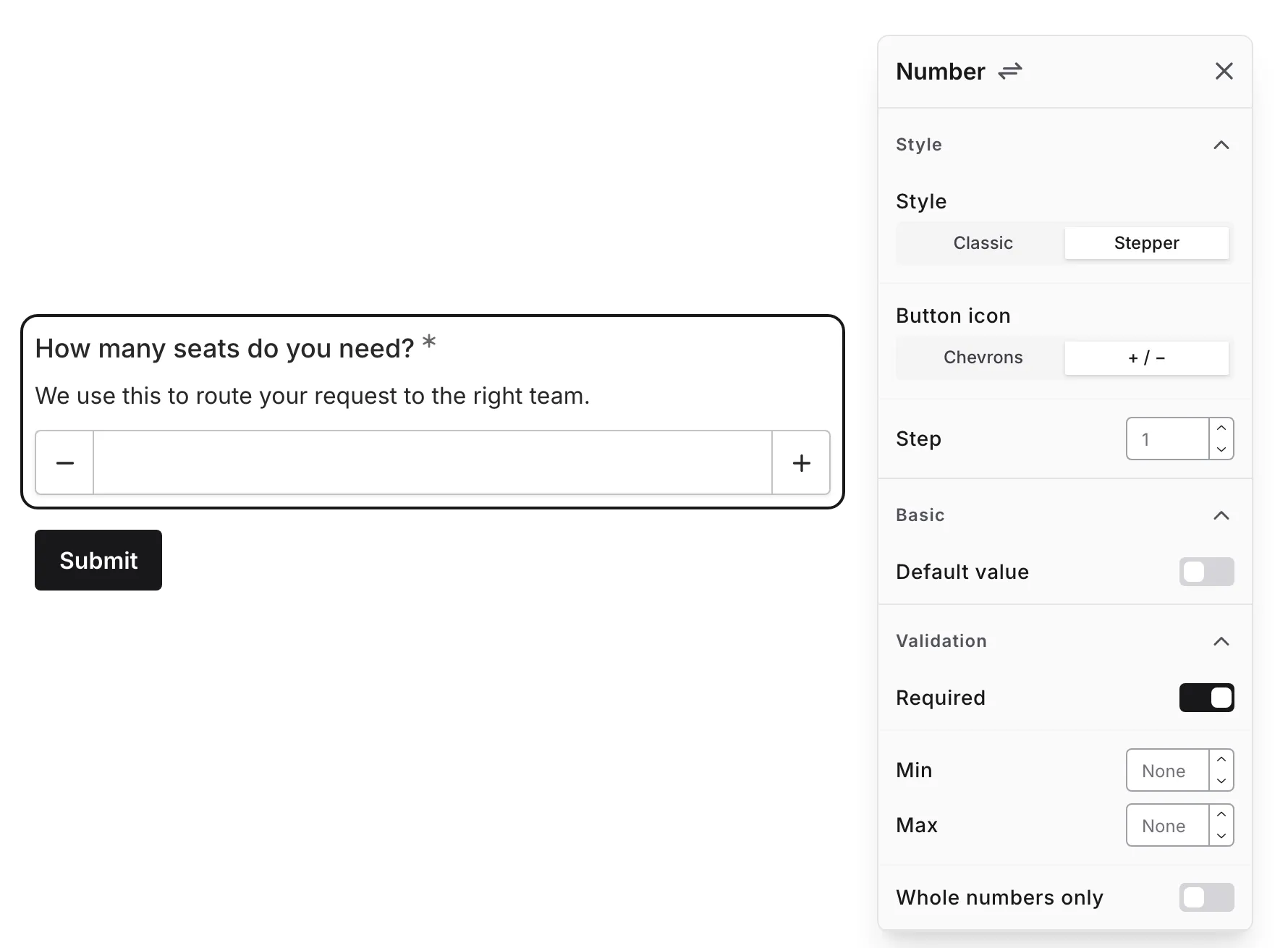
Number style
Section titled “Number style”Choose how the field looks in the Style group:
| Style | What respondents see |
|---|---|
| Stepper | The number sits in the middle, with a full-height − button on the left and a + button on the right |
| Classic | A standard input field with two small step buttons stacked on its right edge |
New Number components use Stepper by default. Number components added before Stepper was available keep the Classic style until you change it.
In both styles, respondents can type a number directly or use the step buttons. Each press changes the value by one step. In the Stepper style, holding a button down keeps changing the value until it is released.
Button icon
Section titled “Button icon”Choose the icons on the step buttons:
| Icon | Looks like |
|---|---|
| Chevrons | Up and down arrows |
| + / − | Plus and minus signs |
Both icons work with either style. If you don’t pick one, Stepper shows + / − and Classic shows Chevrons.
How much the value goes up or down with each press of a step button. The default is 1.
For example, set the step to 5 for a question about minutes, or 0.5 for half sizes. Respondents can still type any value that passes validation; the step only affects the buttons.
Default value
Section titled “Default value”In the Basic group, turn on Default value to pre-fill the field with a number. Respondents can change it before submitting.
The default value must fit the rest of your settings:
- It must be between Min and Max, if you set them
- It must be a whole number when Whole numbers only is on
If it doesn’t fit, the editor shows an error on the setting and you can’t publish the form until you fix it.
Validation settings
Section titled “Validation settings”Required
Section titled “Required”Toggle whether this field must be filled out before the form can be submitted.
When enabled:
- An asterisk (*) appears next to the question label
- Respondents cannot submit without providing a valid number
- A validation error appears if the field is left empty
Min and Max
Section titled “Min and Max”Set the smallest and largest number respondents can enter. You can set one, both, or neither. Min must be less than or equal to Max.
With a range in place:
- The step buttons stop at the limits: the − (or down) button is disabled at the minimum and the + (or up) button at the maximum
- If the field is empty, the first press of a step button starts at the minimum, or at 0 when no minimum is set
- If a respondent types a number outside the range, they see an error and can’t submit the form until they fix it
Whole numbers only
Section titled “Whole numbers only”Turn this on to accept only whole numbers, such as 3 or 42. If a respondent types a decimal like 3.5, they see an error and can’t submit until they change it.
When it’s off, the field accepts decimals such as 3.5 or 10.99.
Validation
Section titled “Validation”The Number field checks that:
- The input is a valid number
- The field isn’t empty (if required)
- The number is within the Min and Max range (if set)
- The number is whole (if Whole numbers only is on)
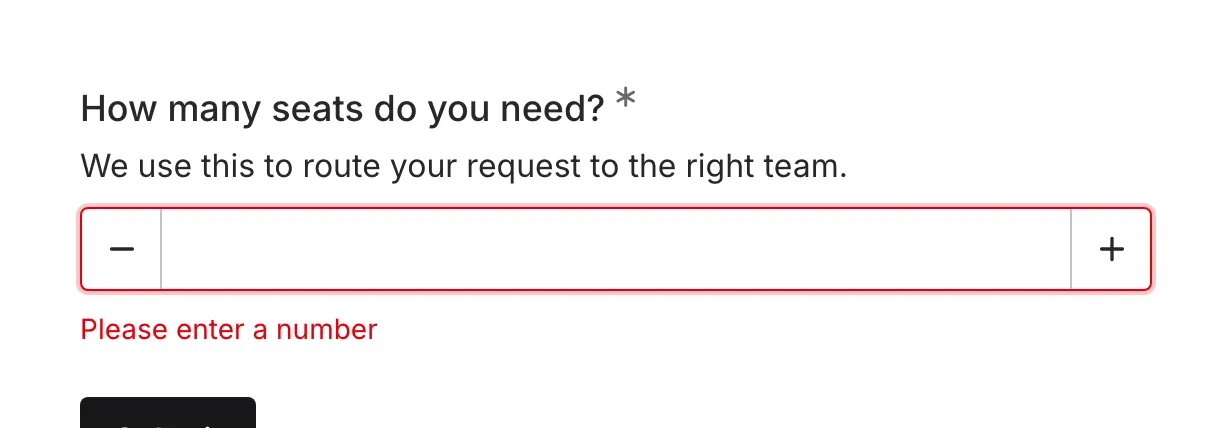
Validation messages:
- “Please enter a number” - when the field is required and empty, or the value isn’t a number
- “Enter a number between 1 and 10” - when the value is outside a range with both limits set
- “Enter a number of at least 1” - when only a minimum is set and the value is lower
- “Enter a number of at most 10” - when only a maximum is set and the value is higher
- “Enter a whole number” - when Whole numbers only is on and the value has decimals
Mobile optimization
Section titled “Mobile optimization”The Number field is optimized for mobile devices:
- Triggers the numeric keyboard on mobile devices
- The Stepper style’s large buttons are easy to tap
- Supports decimal input unless Whole numbers only is on
Accessibility
Section titled “Accessibility”The Number field is built with accessibility in mind:
- Screen readers announce it as a number field, along with its current value and any minimum or maximum
- In the Stepper style, each step button has a clear label, such as “Increase” or “Decrease”
- Labels are properly associated with the input
- Validation errors are announced to screen readers
- Keyboard navigation is fully supported
