
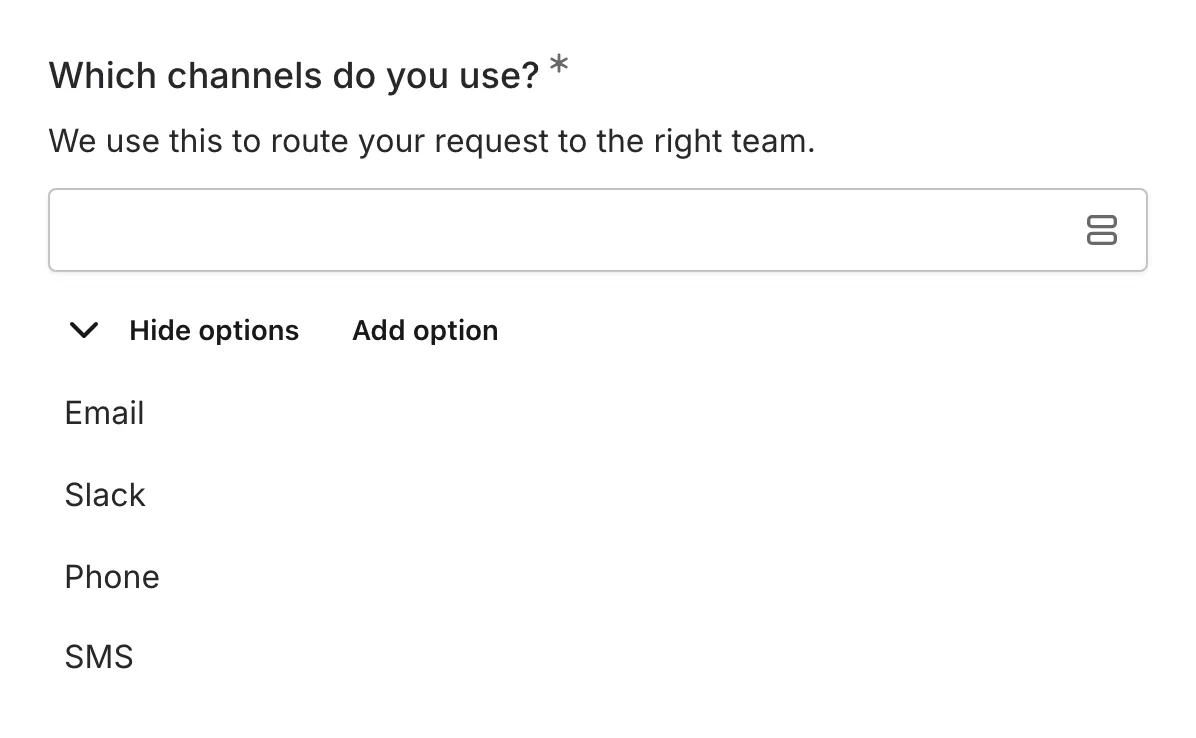
The Multiselect component combines the space efficiency of a dropdown with the ability to select multiple options. Use it for “select all that apply” questions when you have many options to choose from.
When to use Multiselect
Section titled “When to use Multiselect”Multiselect is useful for:
- Selecting multiple items from long lists
- Skills or technology selection
- Multiple category tagging
- Interest selection with many options
- Any multi-select question with 5+ options
Adding a Multiselect component
Section titled “Adding a Multiselect component”-
Open your form in the editor
-
Drag the Multiselect component from the left sidebar onto your form
-
Click the component to select it and configure its settings
-
Add your options in the settings panel
Configuration options
Section titled “Configuration options”Question label
Section titled “Question label”The main question or prompt displayed above the multiselect.
Tips for effective labels:
- Indicate that multiple selections are allowed
- Be clear about what you’re asking for
Examples:
- “Select all technologies you’re proficient in”
- “Which topics interest you? (Select all that apply)”
- “Choose your preferred communication channels”
Supporting content
Section titled “Supporting content”Add helper text, an example image, or a divider between the question’s title and its input: drag a Text, Image, or Divider component onto the question and drop it on the line that appears under the title. Supporting text comes with full formatting and answer piping. Learn more in Supporting content.
Placeholder
Section titled “Placeholder”Text displayed before any selections are made.
Examples:
- “Select options”
- “Choose all that apply”
- “Click to select”
Options list
Section titled “Options list”The list of choices available for selection.
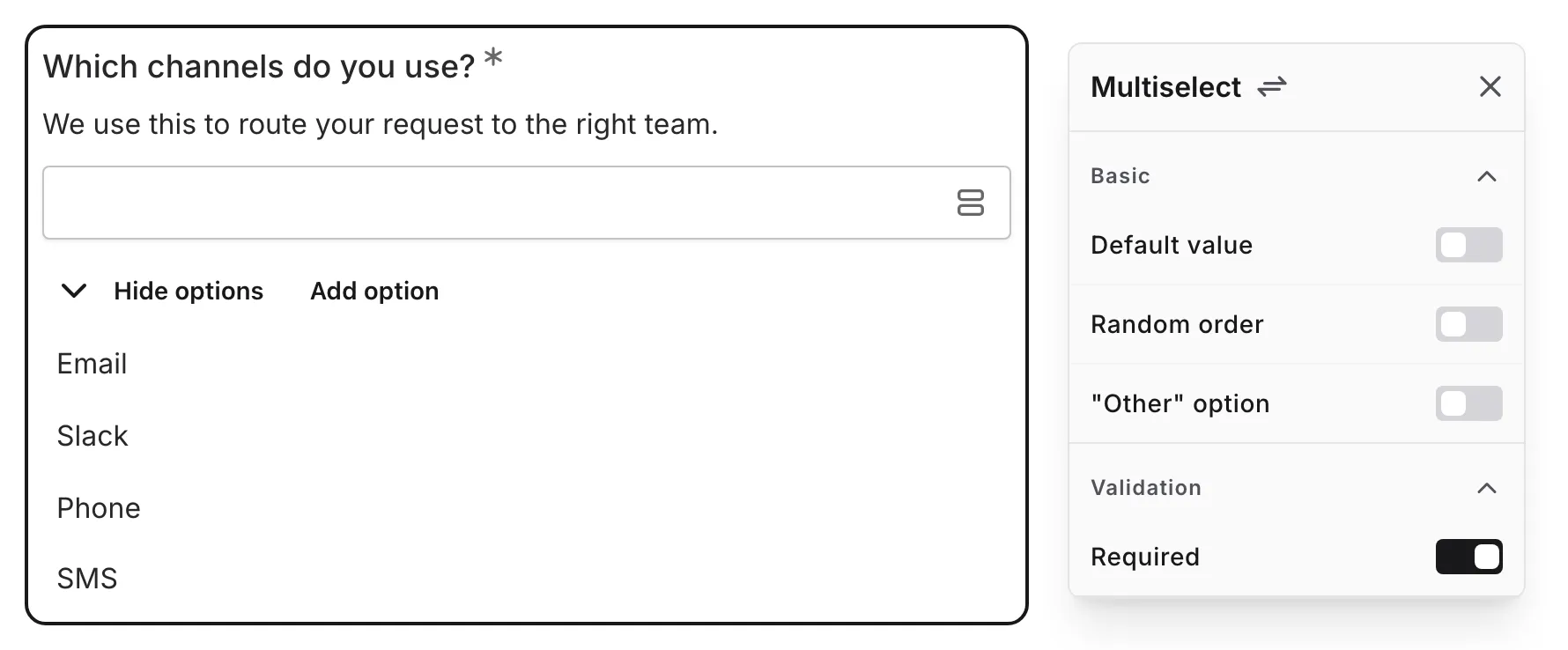
To manage options:
- Click to add new options
- Drag to reorder options
- Click the delete icon to remove options
- Edit option text directly
- Paste multiple lines of text to add several options at once — each line becomes its own option, blank lines are skipped, and supported text formatting is preserved
Tips for options:
- Keep option text concise for better display
- Order logically or alphabetically
- Use consistent formatting
Random order
Section titled “Random order”Turn on Random order to shuffle the selectable options each time the form loads, so their order doesn’t influence responses.
Required
Section titled “Required”Toggle whether at least one option must be selected before the form can be submitted.
When enabled:
- An asterisk (*) appears next to the question label
- At least one option must be selected to submit
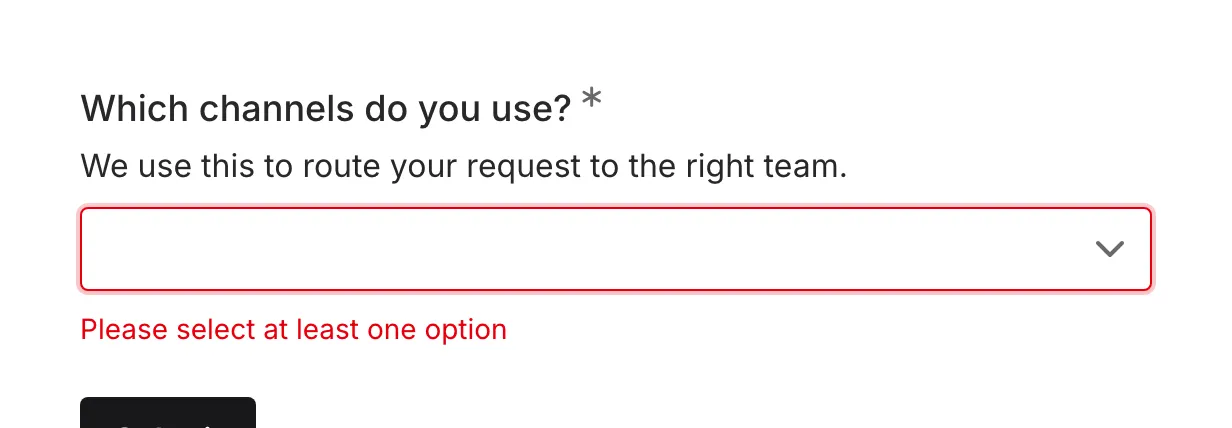
- A validation message appears if no selections are made
”Other” option
Section titled “”Other” option”Turn on “Other” option to let respondents give an answer that isn’t in your list. This adds an “Other” choice as the last item in the dropdown, alongside the options they can already pick.
When a respondent selects it, a text input appears below the question where they type their answer. Typing an answer is required whenever “Other” is selected — to submit without one, they need to deselect it.
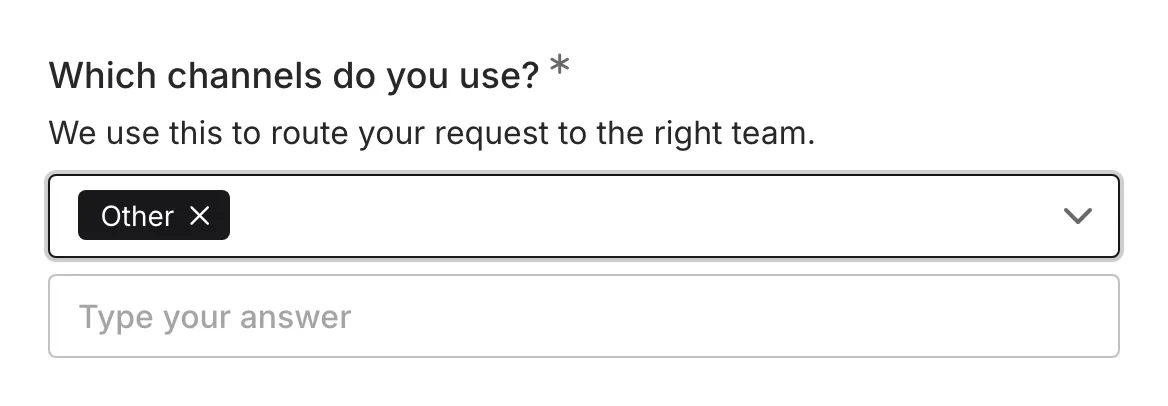
On the editor canvas you can:
- Edit the option’s label directly (the default is “Other”)
- Edit the text input’s placeholder inline (the default is “Type your answer”)
- Delete the option to turn the setting off
The “Other” choice always stays at the end of the list, even when Random order is on. It can also be preselected as a default value — respondents still type their answer before submitting.
How multiselect works
Section titled “How multiselect works”Selecting options
Section titled “Selecting options”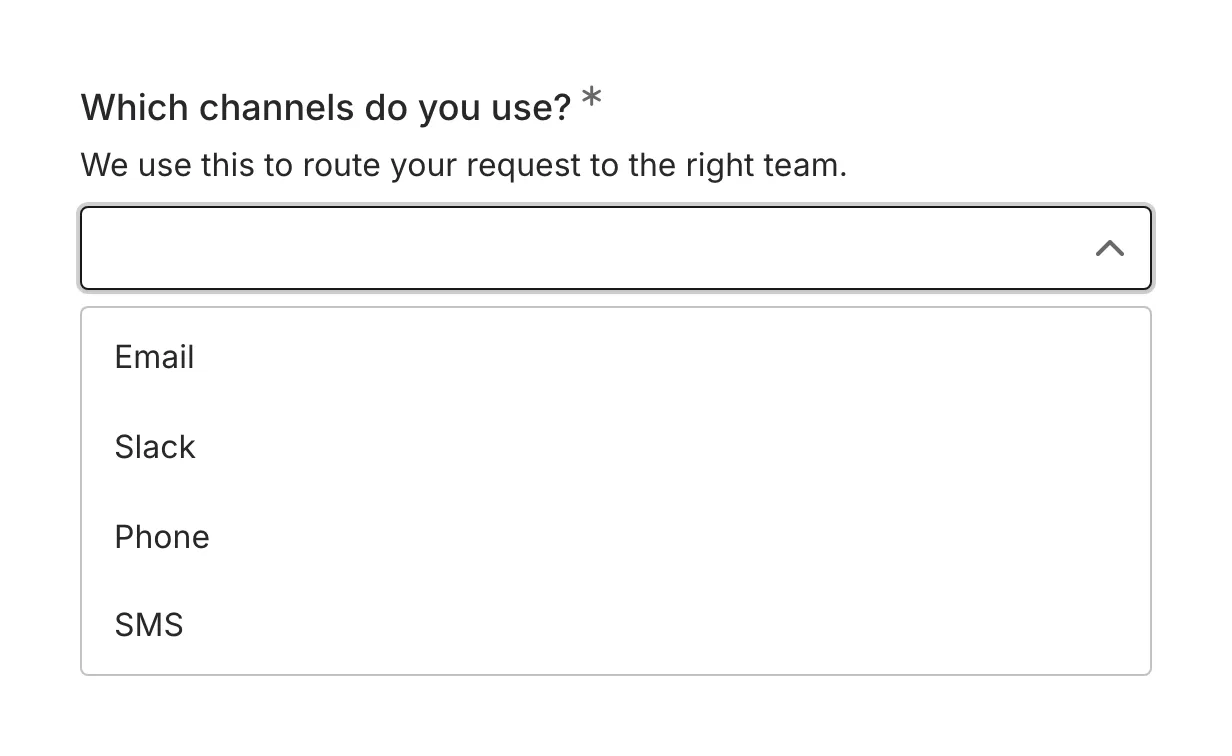
- Click the multiselect component to open the dropdown
- Click options to select them (they get checked)
- Click again to deselect
- Selected options appear as tags/chips in the component
- Click outside or press Escape to close
Viewing selections
Section titled “Viewing selections”Selected options are displayed as tags within the component:
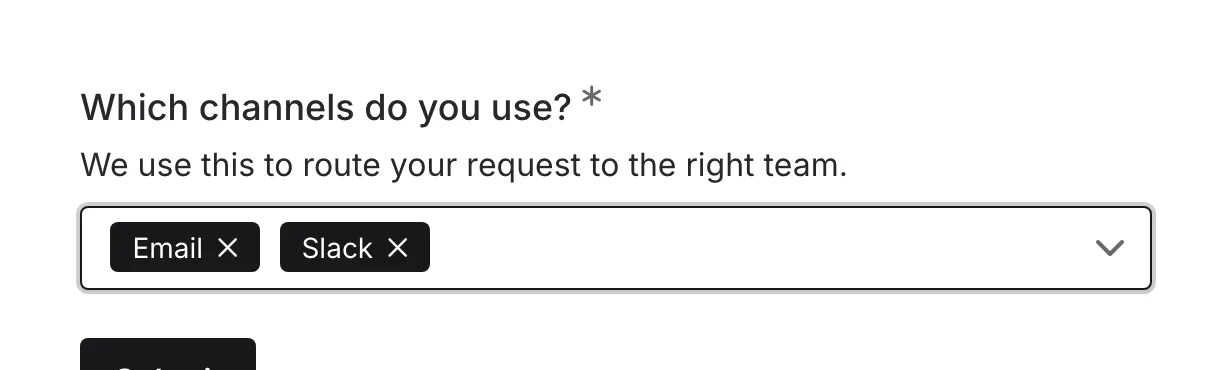
- Each selection appears as a removable tag
- Click the X on a tag to remove that selection
- Tags wrap to multiple lines if needed
Searching options
Section titled “Searching options”For long lists, users can type to filter options:
- Start typing to filter the options list
- Only matching options are shown
- Makes finding specific options faster
Multiselect vs. Checkboxes
Section titled “Multiselect vs. Checkboxes”| Aspect | Multiselect | Checkboxes |
|---|---|---|
| Space | Compact dropdown | Shows all options |
| Best for | 5+ options | 2-7 options |
| Visibility | Options hidden until clicked | All options visible |
| Selection display | Tags in component | Checked boxes |
| Search | Built-in filtering | No filtering |
Use Multiselect when:
- You have many options (5+)
- Space is limited
- Options are easily searchable by name
Use Checkboxes when:
- You have fewer options
- You want all options visible at once
- Users benefit from seeing all choices
Validation
Section titled “Validation”When multiselect is marked as required:
- At least one option must be selected
- A validation message appears if submitted without selections
- The component is highlighted to draw attention
Accessibility
Section titled “Accessibility”The Multiselect component is built with accessibility in mind:
- Proper listbox/combobox semantics
- Keyboard navigation support
- Screen reader compatible
- Selected items announced
- Focus management within the dropdown
Handling responses
Section titled “Handling responses”Multiselect responses in your form results:
- Show all selected options as a list
- Show the typed answer when the “Other” option was selected — in results, CSV exports, and Google Sheets
- Can be filtered by specific selections
- Are included in exports as comma-separated values
- Allow analysis of selection patterns
