
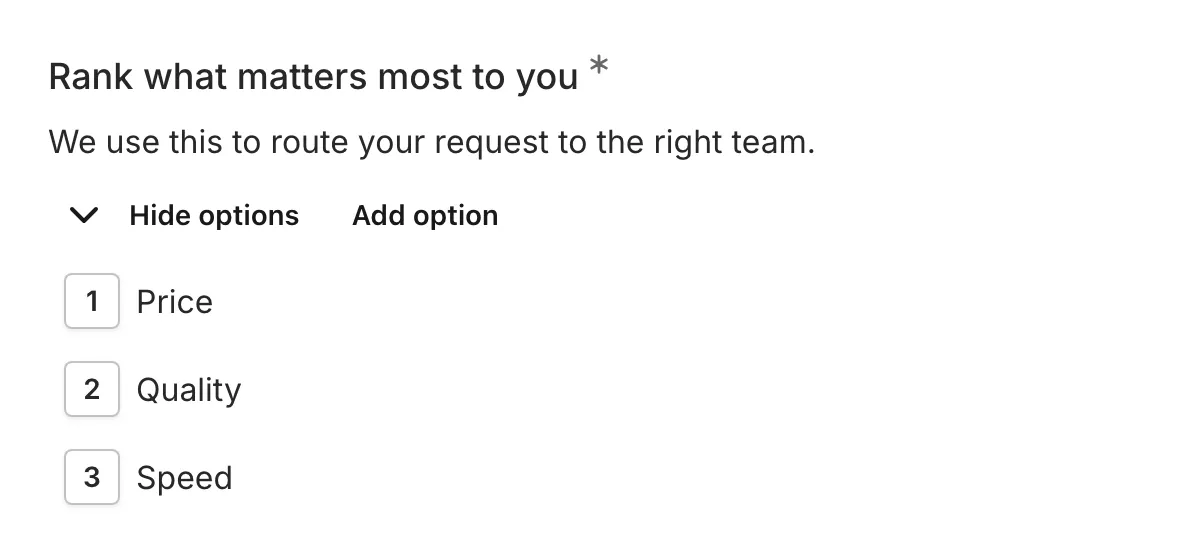
The Ranking component allows respondents to order a list of items by dragging and dropping them into their preferred sequence. This format works well for understanding priorities, preferences, and relative importance.
When to use Ranking
Section titled “When to use Ranking”Ranking is ideal for:
- Priority ordering (most to least important)
- Preference ranking
- Feature prioritization
- Task ordering
- Comparative evaluation
- Any question where relative order matters
Adding a Ranking component
Section titled “Adding a Ranking component”-
Open your form in the editor
-
Drag the Ranking component from the left sidebar onto your form
-
Click the component to select it and configure its settings
-
Add your items in the settings panel
Configuration options
Section titled “Configuration options”Question label
Section titled “Question label”The main question or prompt displayed above the ranking items.
Tips for effective labels:
- Clearly state what should be ranked
- Indicate the ranking direction (most to least, first to last)
Examples:
- “Rank these features from most to least important”
- “Order these tasks by priority (highest first)”
- “Rank your preferences from favorite to least favorite”
Supporting content
Section titled “Supporting content”Add helper text, an example image, or a divider between the question’s title and its input: drag a Text, Image, or Divider component onto the question and drop it on the line that appears under the title. Supporting text comes with full formatting and answer piping. Learn more in Supporting content.
Items list
Section titled “Items list”The list of items to be ranked by respondents.
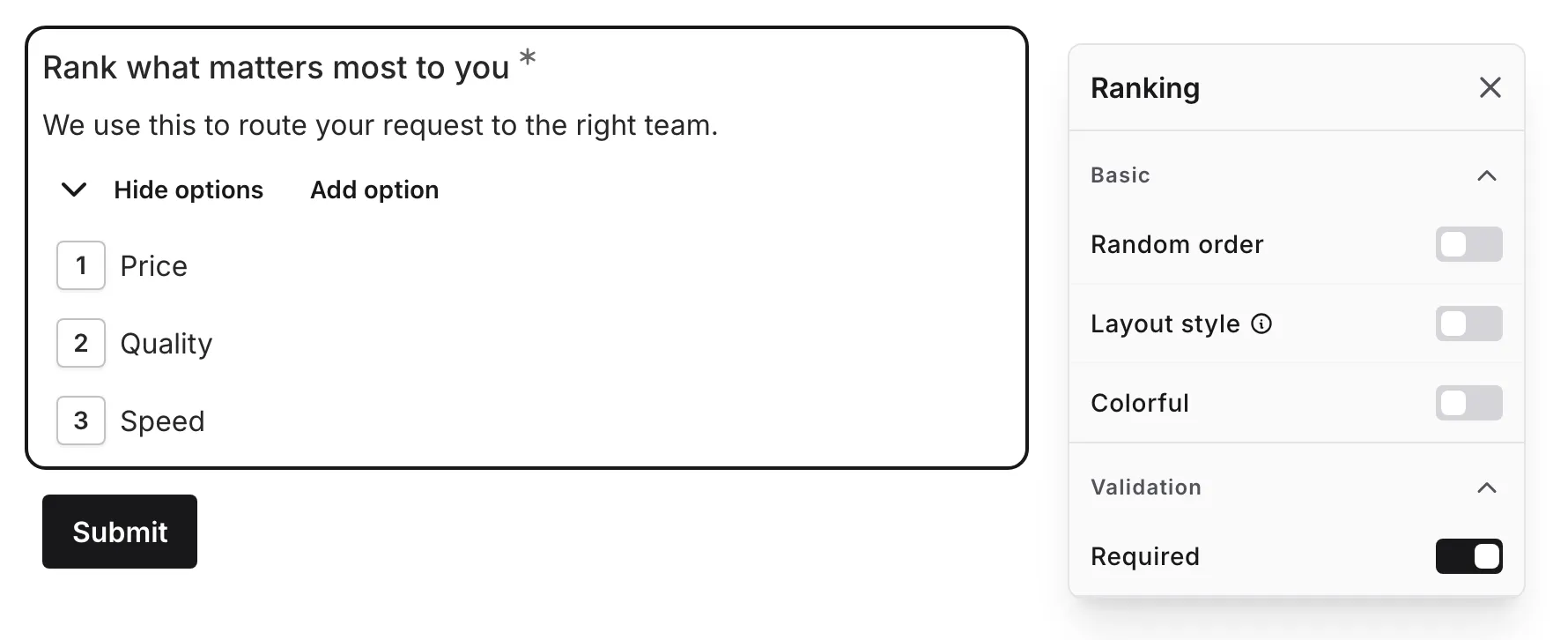
To manage items:
- Click to add new items
- Drag to set the starting order — the order respondents see when the question loads
- Click the delete icon to remove items
- Edit item text directly
- Paste multiple lines of text to add several items at once — each line becomes its own item, blank lines are skipped, and supported text formatting is preserved
Tips for items:
- Keep item text concise and clear
- Use parallel structure (all nouns, all phrases, etc.)
- Ensure items are comparable
- Limit to 3-7 items for best usability
Random order
Section titled “Random order”Toggle Random order to shuffle the items each time the form is loaded. This counters the pull of the starting order: without it, the first items you listed tend to be left near the top.
Because every item always holds a position, a respondent who submits without dragging anything submits the shuffled order they were shown. Use random order when items have no natural sequence; leave it off when the starting order is meaningful.
Layout style
Section titled “Layout style”By default, the question follows the option layout set for the whole form in the Design panel — see Option layout. Turn on Layout style to give this question a layout of its own:
| Layout | Description |
|---|---|
| List | Full-width items stacked in a vertical list |
| Bordered | Compact outlined items that hug their text, stacked and left-aligned |
| Inline | Bordered items that flow side by side and wrap onto new lines |
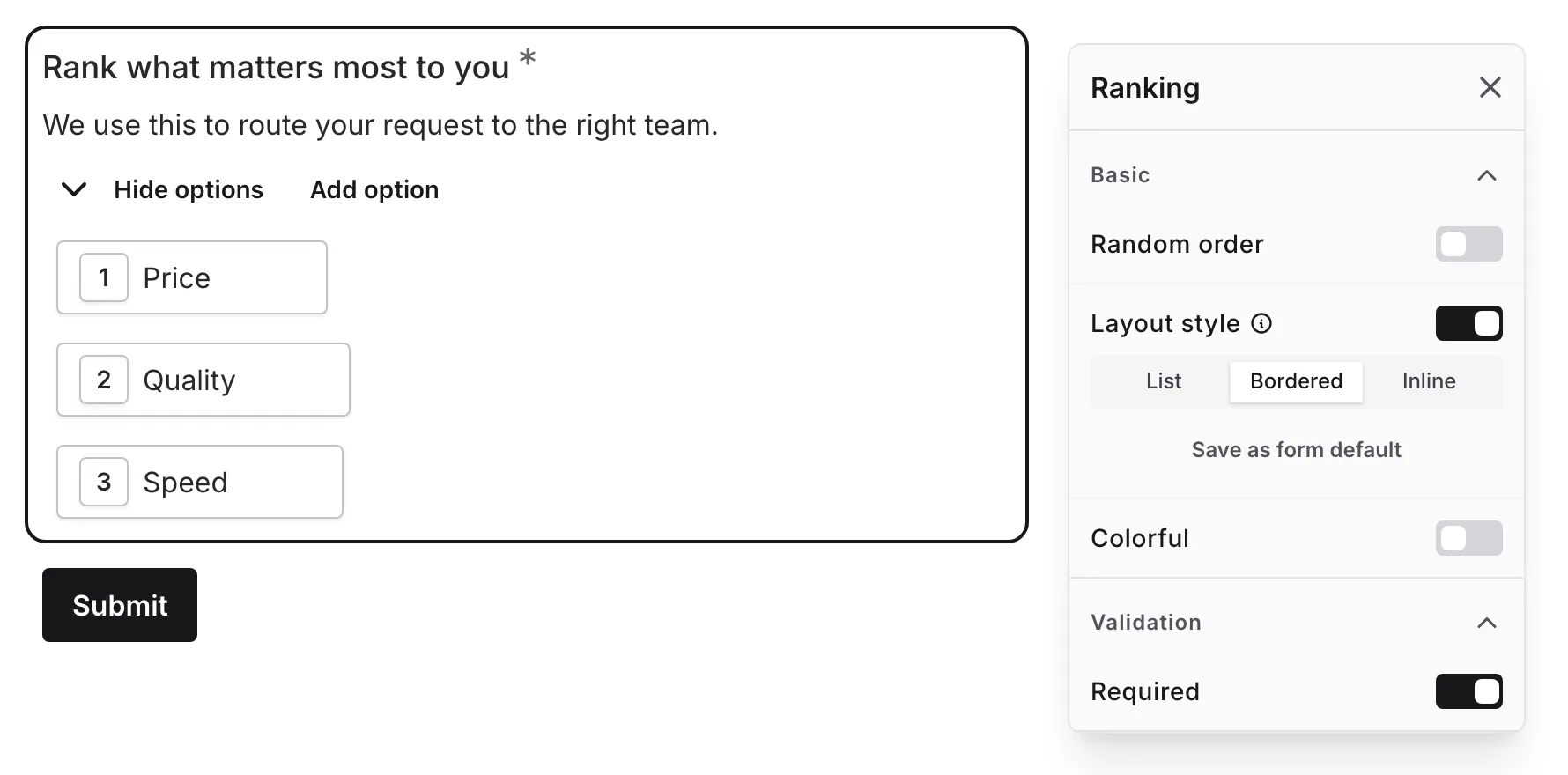
The layouts change only how items are arranged:
- Position numbers appear next to every item in every layout
- Dragging to reorder works in every layout — in Inline, the ranked order reads left to right, wrapping onto the next line
Save as form default applies this question’s layout to the whole form and turns the override off. Turning Layout style off returns the question to the form’s layout.
Colorful
Section titled “Colorful”Turn on Colorful to give each item its own color. Fomr derives ten distinct hues — the form’s option colors — from the theme’s primary color and hands them out by position: first place gets the first hue, second place the second, and so on. After ten items the sequence starts again from the first hue.
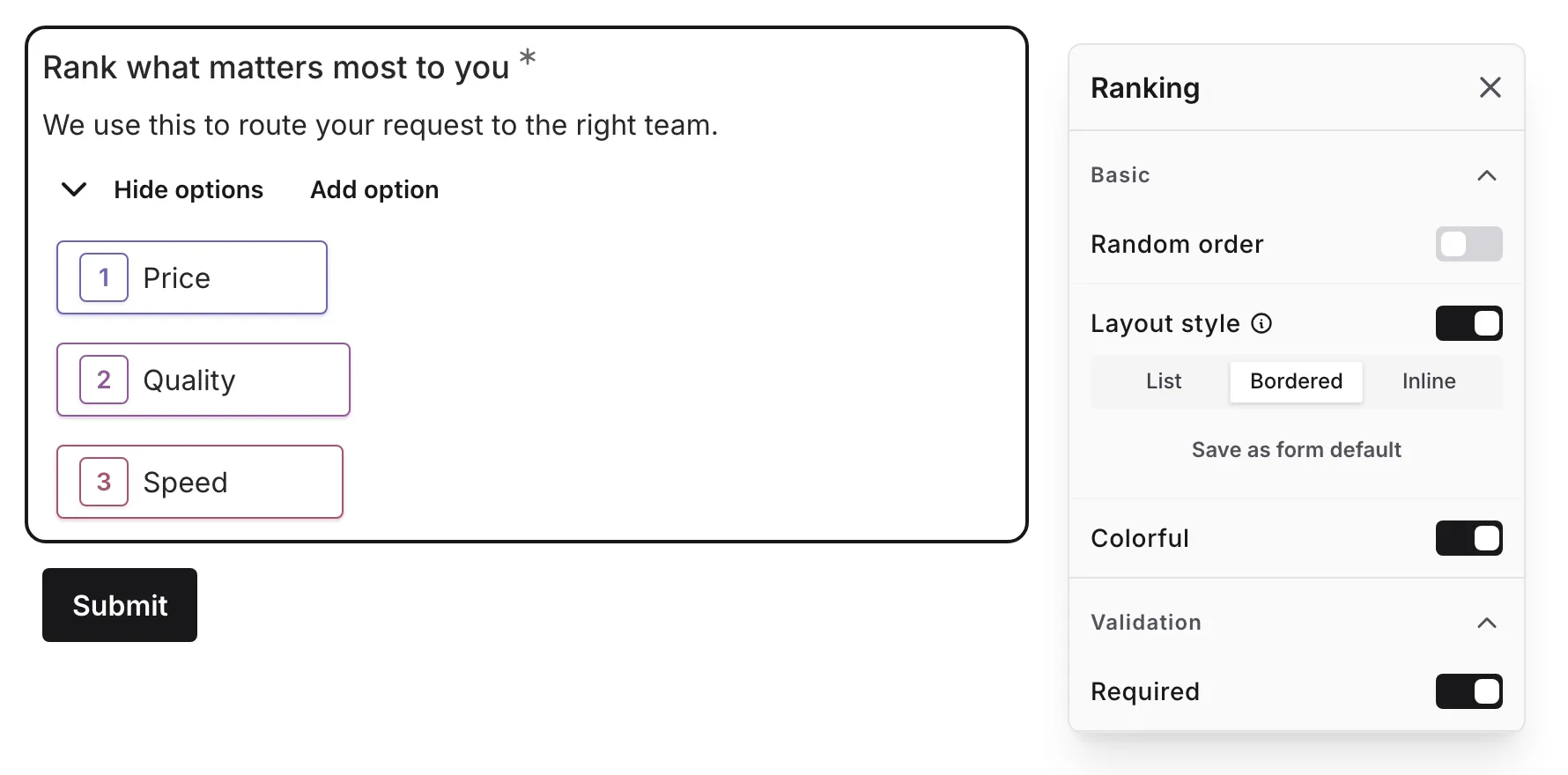
The hue appears on each item’s position badge, and in the Bordered and Inline layouts on the item’s outline as well. Colors stay with positions as items move: whichever item a respondent drags into first place takes on the first hue. Changing the theme’s primary color regenerates all ten hues.
Required
Section titled “Required”Toggle whether the question is marked as required.
When enabled, an asterisk (*) appears next to the question label. Every item always has a position, so there is no incomplete state — respondents who leave the list untouched submit the items in the order they were shown, and a required ranking never blocks submission.
How ranking works
Section titled “How ranking works”One ordered list
Section titled “One ordered list”The items are always shown as a single ordered list with a position number next to each one. There is no separate pile of unranked items to pick from: every item holds a position from the moment the question loads, and the list respondents see is already a complete answer. They reorder it until it matches their preference, or submit it as is.
Drag and drop
Section titled “Drag and drop”Respondents rank items by:
- Clicking and holding anywhere on an item
- Dragging it to the desired position
- Releasing to drop it in place
- Repeating until satisfied with the order
Visual feedback
Section titled “Visual feedback”- Every item shows its current position number
- The dragged item is visually highlighted
- The other items shift to show where the dragged item will land
- Position numbers update in real-time
Mobile support
Section titled “Mobile support”On touch devices:
- Touch and hold to start dragging
- Drag to reposition
- Release to drop
- Works smoothly on phones and tablets
Ranking vs. Rating
Section titled “Ranking vs. Rating”| Aspect | Ranking | Rating |
|---|---|---|
| Output | Ordered list | Individual scores |
| Comparison | Forces relative comparison | Items rated independently |
| Ties | Not possible | Possible (same rating) |
| Best for | Understanding priorities | Measuring absolute preference |
| Cognitive load | Higher (must compare all) | Lower (evaluate one at a time) |
Use Ranking when:
- You need to understand relative priorities
- Ties aren’t meaningful
- You have a manageable number of items
Use Rating when:
- Items should be evaluated independently
- Ties are acceptable
- You have many items to evaluate
Accessibility
Section titled “Accessibility”The Ranking component is built with accessibility in mind:
- Keyboard navigation support
- Screen reader compatible
- Clear visual feedback during drag
- Touch-friendly on mobile devices
- Focus states are clearly visible
Handling responses
Section titled “Handling responses”Ranking responses in your form results:
- Show the full ordered list as submitted by the respondent — every item, in the order it was left
- Include position numbers (1st, 2nd, 3rd, etc.)
- Can be analyzed for aggregate preferences
- Are included in exports with position data
Responses collected before drag-to-reorder ranking may list only the items the respondent ranked at the time. They keep displaying in results and exports as they were recorded.
Analyzing ranking data
Section titled “Analyzing ranking data”Common ways to analyze ranking responses:
- Average position: Calculate the average rank for each item
- First place votes: Count how often each item was ranked #1
- Top 3 frequency: How often each item appears in top 3
- Comparison matrices: How often item A was ranked above item B
