
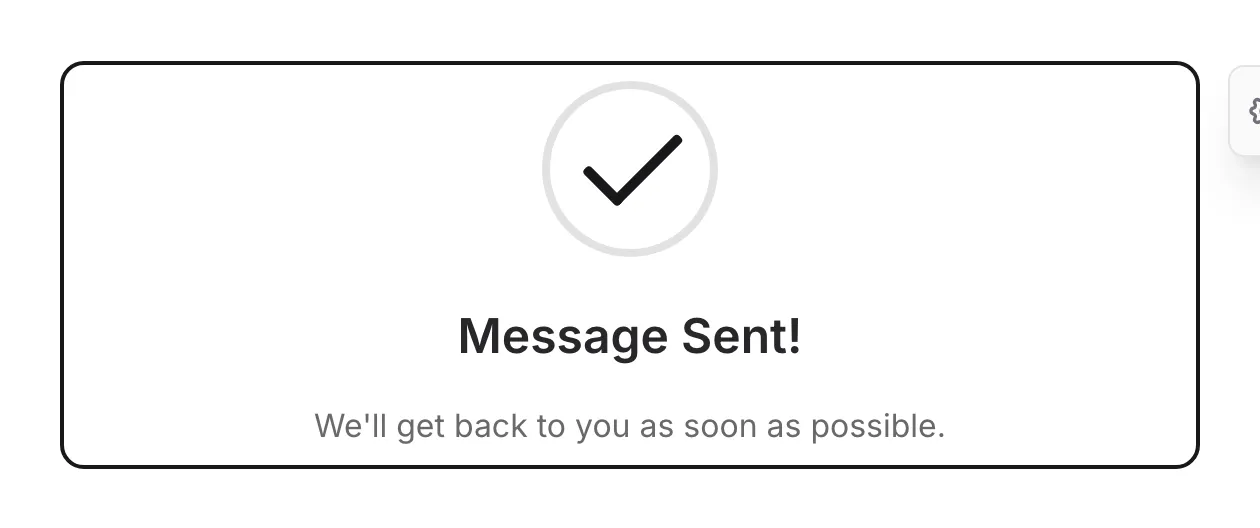
The Thank You component creates the completion screen that respondents see after successfully submitting your form. It’s your opportunity to confirm the submission, express gratitude, and guide users on next steps.

When to use Thank You
Section titled “When to use Thank You”Every form should have a Thank You page to:
- Confirm successful submission
- Thank respondents for their time
- Provide next steps or expectations
- Create a positive final impression
- Optionally send users to your own page instead, with a redirect rule
Endings
Section titled “Endings”Every form starts with one ending page that holds a Thank You component. Select the ending in the Pages panel to edit its title, message, and settings.
A form can have up to 10 endings, each with its own Thank You component, so every ending can have a different title, message, icon, and confetti effect. On Pro, a redirect rule can also send respondents from any ending to a page of your own. The first ending in the Pages panel is the Default ending: respondents see it unless a conditional logic rule sends them to another one. Use several endings to show quiz results, or to send qualified leads to a booking page and everyone else to a standard thank you.
-
Open your form in the editor and open the Pages panel
-
Click Add ending page. The new ending starts with its own Thank You component
-
Select the new ending and customize its message and settings
-
Add a rule in Logic with the conditions for this ending and a Jump to page action that sends respondents to it. See Send respondents to different endings
You can delete an ending as long as the form keeps at least one. Endings can’t be hidden. To show a respondent’s score or total on an ending, insert a Calculated value with @.
Customize an ending
Section titled “Customize an ending”On Pro, an ending can hold more than the Thank You component. Select an ending and open Components to add text, images, media, and dividers above or below it, such as a booking link, a photo of your team, or next steps. Drag them to reorder.
You can also delete the Thank You component and build the whole ending from your own content. To bring it back, select the ending and add Thank you from Components. Each ending can hold one Thank You component, and questions can’t be added to endings.
Every ending needs at least one component before you can publish.
Configuration options
Section titled “Configuration options”The main heading displayed on the thank you page.
Examples:
- “Thank you!”
- “Submission received”
- “You’re all set!”
- “Thanks for your feedback”
Message
Section titled “Message”The body text that appears below the title. Use this to provide additional information or next steps.
Examples:
- “We’ve received your submission and will be in touch soon.”
- “Your response has been recorded. Thank you for your time!”
- “We appreciate your feedback. It helps us improve.”
Choose an icon to display on the thank you page:
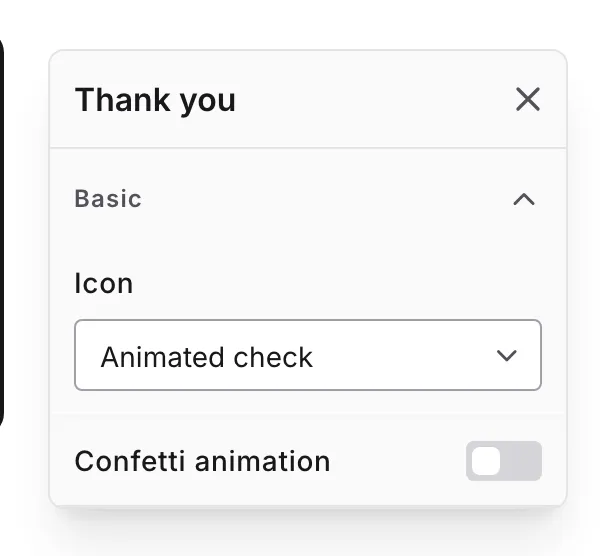
| Option | Description |
|---|---|
| None | No icon displayed |
| Check | Static checkmark icon |
| Animated | Animated checkmark with motion |
The animated option adds a celebratory feel to the completion experience.
Confetti effect
Section titled “Confetti effect”Toggle a confetti animation that plays when the thank you page is displayed.
When to use confetti:
- Celebratory forms (registrations, signups)
- Contest entries
- Achievement completions
- Fun, casual forms
When to skip confetti:
- Professional or formal forms
- Serious topics (complaints, support requests)
- Simple contact forms
Thank you page best practices
Section titled “Thank you page best practices”Always include one. Never leave users wondering if their submission went through.
Provide next steps. Tell users what happens next or what they should do.
Follow up by email. On Pro, pair the thank you page with a respondent confirmation email so people also get a copy of the confirmation in their inbox.
Include contact info. For support forms, remind users how to reach you if needed.
Test the experience. Submit a test response to see exactly what users experience.
Accessibility
Section titled “Accessibility”The Thank You component is built with accessibility in mind:
- Proper heading structure
- Screen reader announces completion
- Animations respect reduced motion preferences
- Clear, readable text
