
Assets are the images you upload to use in your forms. Logos, backgrounds, Open Graph images, and other media are stored in your workspaces, and assets in the Default Workspace are shared with every workspace in your organization.
Where to find your assets
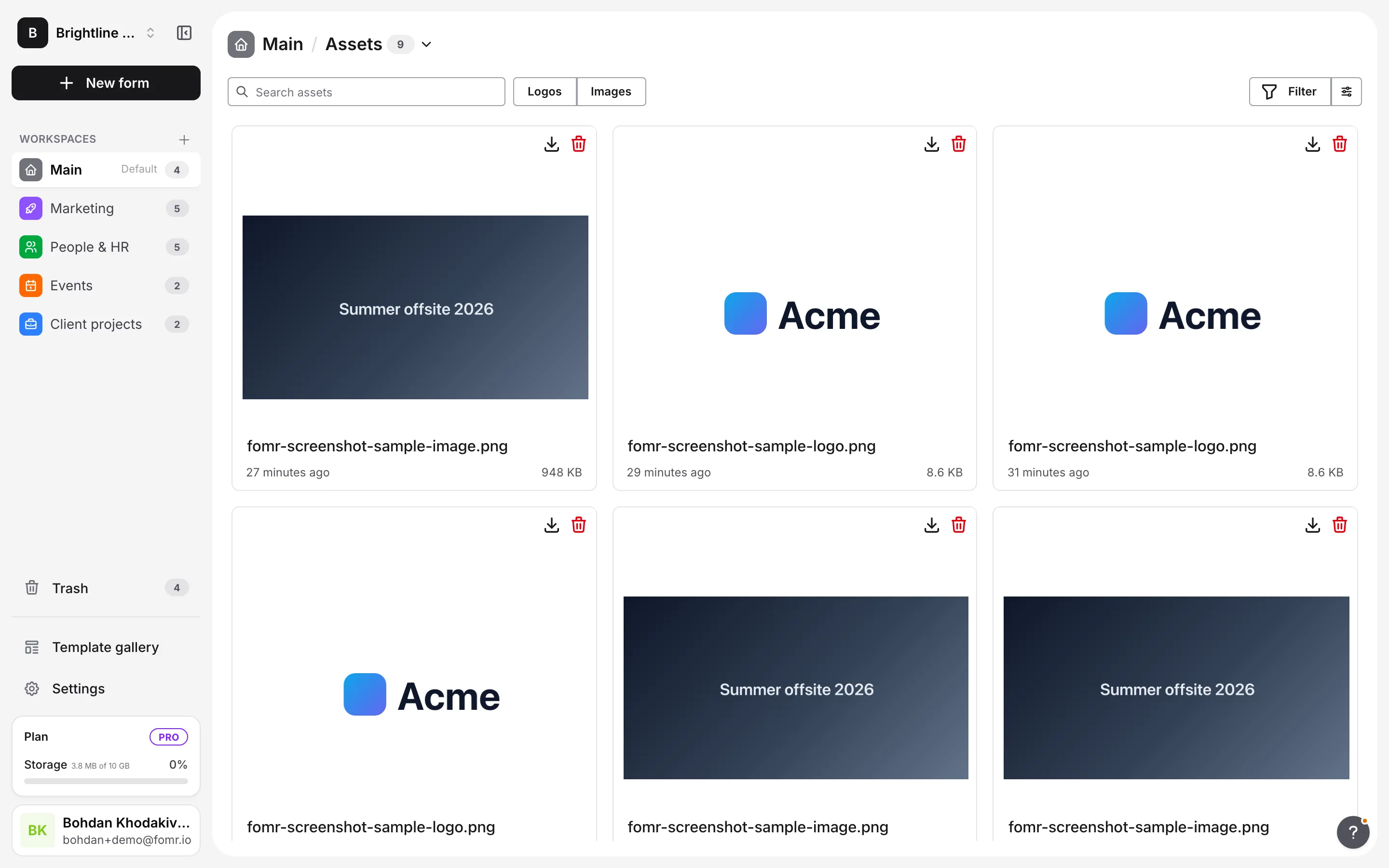
Section titled “Where to find your assets”You see your assets in two places.
In a workspace
Section titled “In a workspace”-
Click a workspace in the sidebar
-
Click the section name in the page title (for example Forms) and choose Assets
-
Browse, search, filter, or manage your assets
The Assets list shows the workspace’s own assets plus the shared assets from the Default Workspace, which carry a Shared badge. There’s no upload button here: you add assets by uploading images while editing a form.
While editing a form
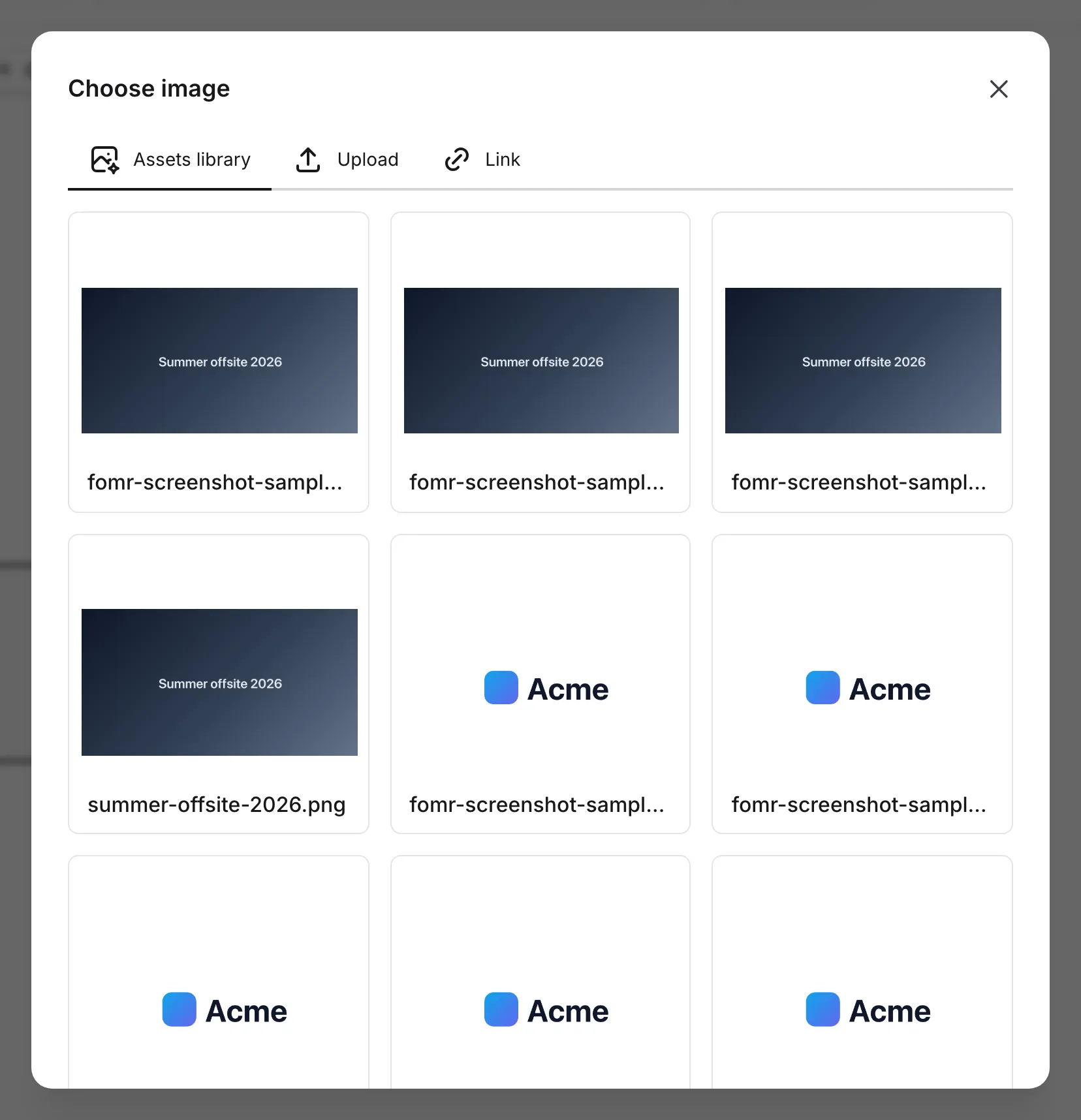
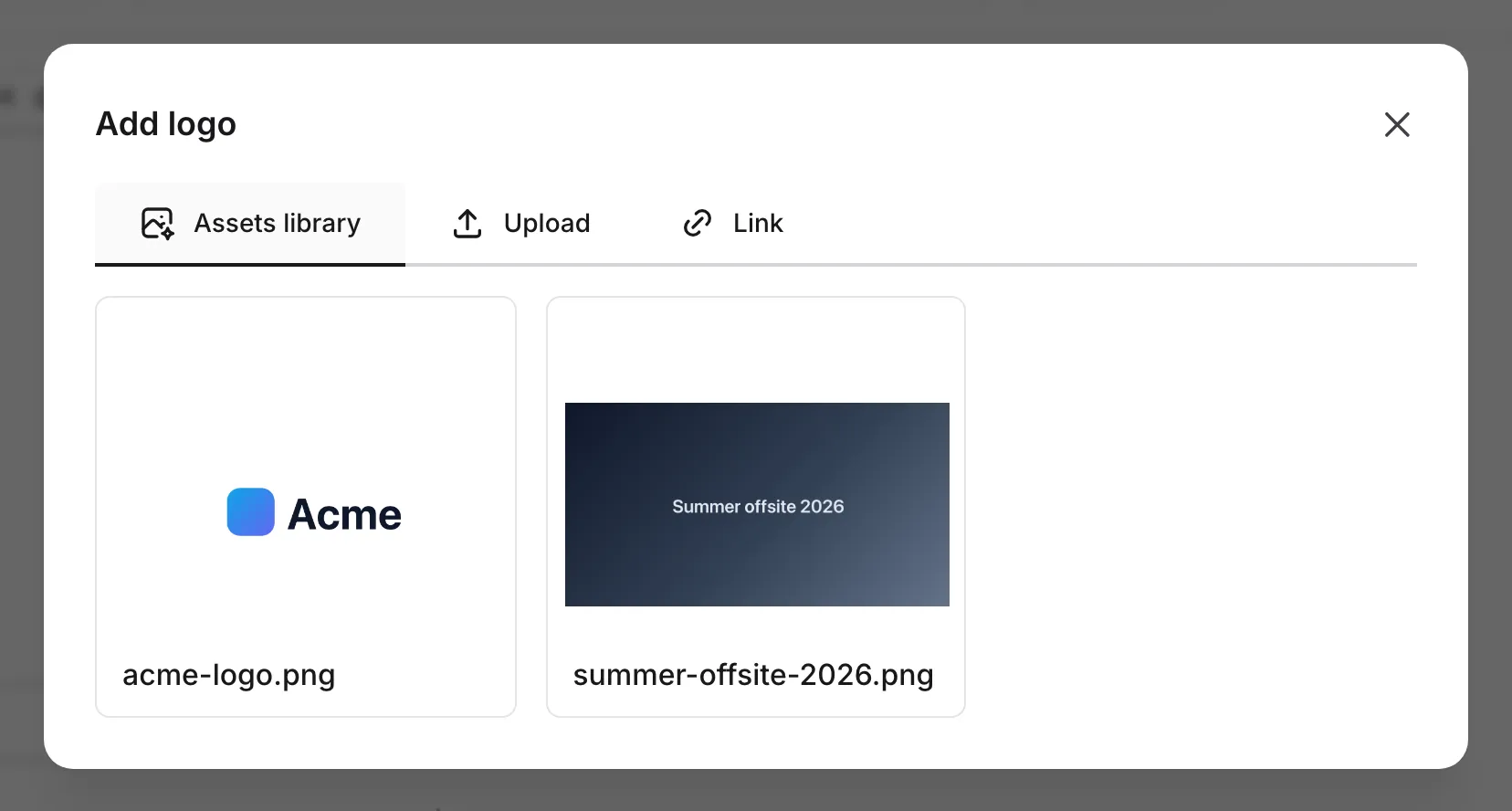
Section titled “While editing a form”Whenever you choose an image in the editor, such as for an Image component, the form logo, the background, the favicon, or the link preview image, an image picker opens. The Assets library tab shows the assets in the form’s workspace plus the shared assets from the Default Workspace. Assets that suit the spot you’re filling, such as logos when you pick a logo, are listed first. Click an asset to use it.
Adding images
Section titled “Adding images”Supported file types
Section titled “Supported file types”Fomr supports common static image formats:
- JPG/JPEG - Best for photographs
- PNG - Best for graphics with transparency
- WebP - Modern format with excellent compression
- SVG - Vector graphics (for logos and icons)
- ICO - Icon format (for favicons)
Unsupported files, including GIFs and non-image files, are rejected during upload.
Image picker tabs
Section titled “Image picker tabs”The image picker in the editor has these tabs:
| Tab | What it does | Added to your assets |
|---|---|---|
| Assets library | Reuse an image you’ve already uploaded | Already there |
| Upload | Upload an image from your computer | Yes |
| Link | Use an image hosted somewhere else by its URL | No |
| Unsplash | Search free Unsplash photos (background picker only) | No |
Upload
Section titled “Upload”-
Open the image picker and choose the Upload tab
-
Drag and drop your image onto the upload area, or click Browse to pick a file
-
Wait for the upload to complete
The uploaded image is saved to the form’s workspace, so it appears in that workspace’s Assets list and in the Assets library tab for every form in the workspace. Fomr sets the asset’s type from where you uploaded it, so an image uploaded in the logo picker becomes a logo, and one uploaded for the link preview becomes a social image.
-
Open the image picker and choose the Link tab
-
Paste the direct URL of the image. A preview appears below.
-
Click Save
The form uses the image from its original address. It isn’t copied to Fomr and isn’t added to your assets.
Unsplash
Section titled “Unsplash”The background image picker also has an Unsplash tab. Fomr integrates with Unsplash to give you access to millions of free, high-quality photos.
-
Open the background image picker and choose the Unsplash tab
-
Enter keywords describing what you’re looking for
-
Click an image to use it as the background
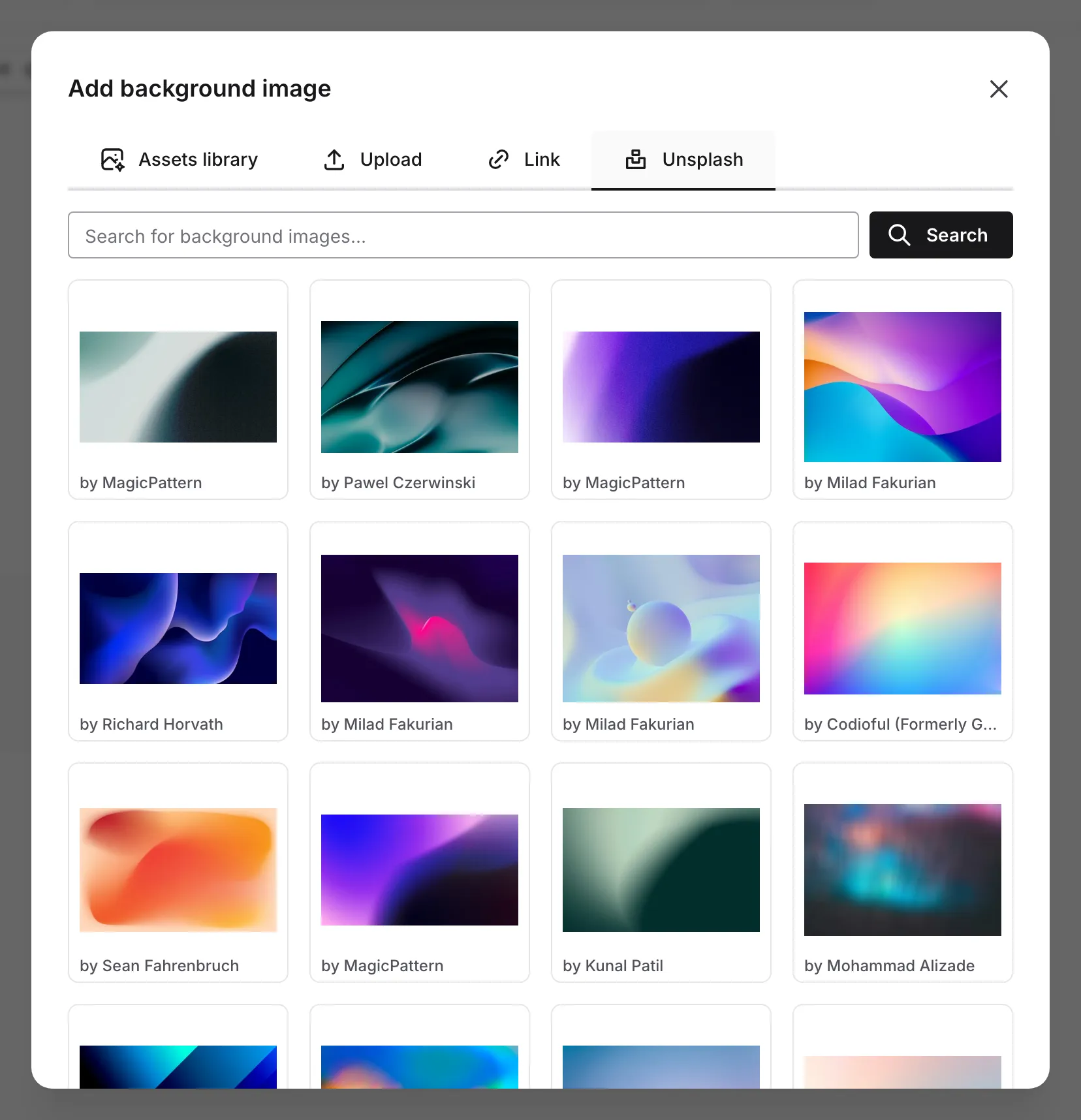
Unsplash images are used directly from Unsplash and aren’t added to your assets.
Unsplash image rights
Section titled “Unsplash image rights”All Unsplash images are free to use under the Unsplash License:
- Free for commercial and personal use
- No attribution required (but appreciated)
- Cannot be sold without modification
- Cannot be used to create a competing service
Asset types
Section titled “Asset types”Each asset has a type, which Fomr sets from the picker you uploaded it in:
| Type | Uploaded from | Used for |
|---|---|---|
| Logos | The logo picker | Form header logos |
| Backgrounds | The background picker | Form backgrounds |
| Images | The Image component picker | Images on form pages |
| Favicons | The favicon picker | Browser tabs |
| Social | The link preview image picker | Link previews |
You can filter the Assets list by type. There’s no way to change an asset’s type by hand.
Managing assets
Section titled “Managing assets”Viewing assets
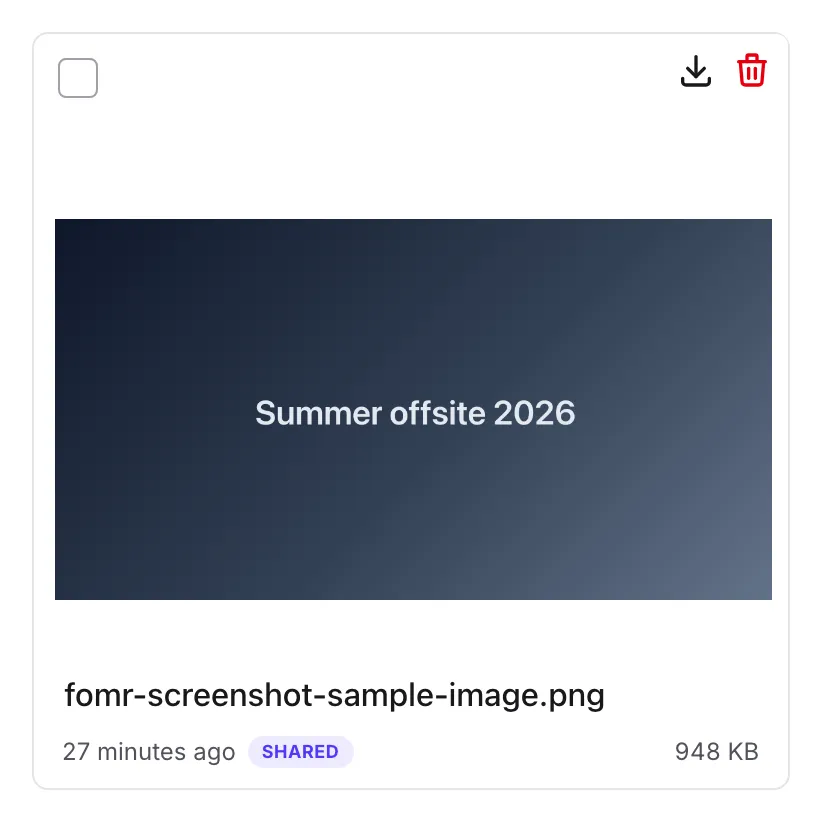
Section titled “Viewing assets”The Assets list shows each asset as a card with:
- A thumbnail preview
- The asset’s name
- When it was added
- A Shared badge for assets from the Default Workspace
- Its file size
- Download and trash icons
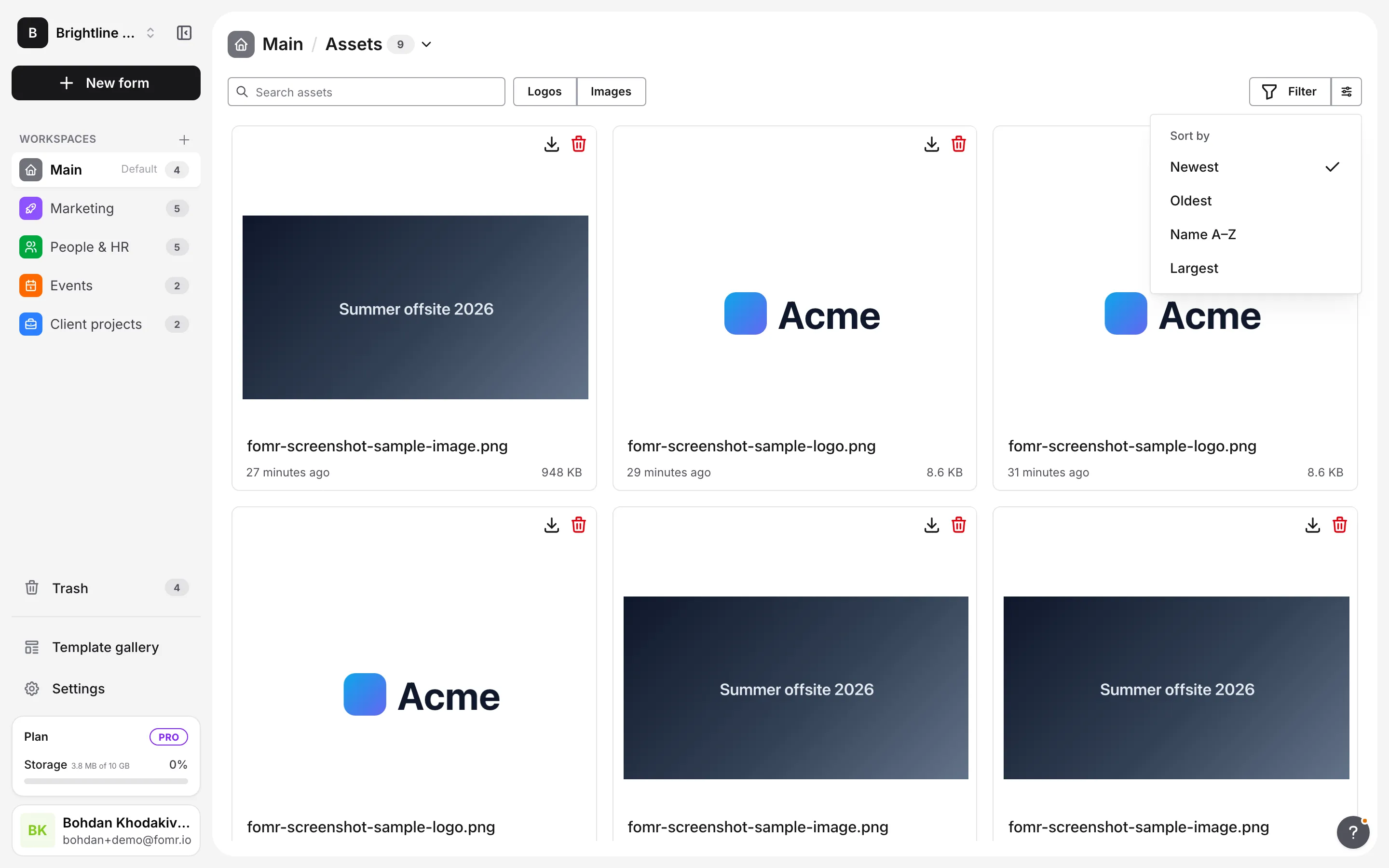
Scroll to browse the list, or use search to find an asset by name. The toolbar above the assets also lets you:
- Use the Logos, Images, or Shared presets
- Click Filter to filter by Type (Logos, Backgrounds, Images, Favicons, Social), Source (This workspace or Shared, not shown in the Default Workspace), or Added (last 7, 30, or 90 days)
- Click the Display button (the sliders icon) to sort by Newest, Oldest, Name A–Z, or Largest. Assets always show as a grid, so there’s no layout option.
Renaming assets
Section titled “Renaming assets”Click an asset’s name on its card, type the new name, and press Enter or click away. The new name is saved right away. Press Esc to cancel.
Downloading assets
Section titled “Downloading assets”Click the download icon on an asset’s card to save the file to your computer.
Deleting assets
Section titled “Deleting assets”-
Find the asset in the workspace’s Assets list
-
Click the trash icon on the asset’s card
-
In the Move 1 asset to Trash? dialog, click Move to Trash
To delete several assets, select them and click Move to Trash in the action bar.
Deleted assets stay in Trash for 30 days, where you can restore them. While an asset is in Trash, it keeps working in any form that already uses it. After 30 days, or once you delete it permanently from Trash, it is removed for good.
Moving and sharing assets
Section titled “Moving and sharing assets”On Pro, you can move assets between workspaces:
-
In the workspace’s Assets list, hover over each asset you want to move and tick its checkbox
-
Click Move to… in the action bar at the bottom of the page
-
Pick the workspace to move the assets to
To share an asset with every workspace, move it to the Default Workspace. Moving an asset out of the Default Workspace stops sharing it with other workspaces. Learn more about moving items between workspaces.
Storage and limits
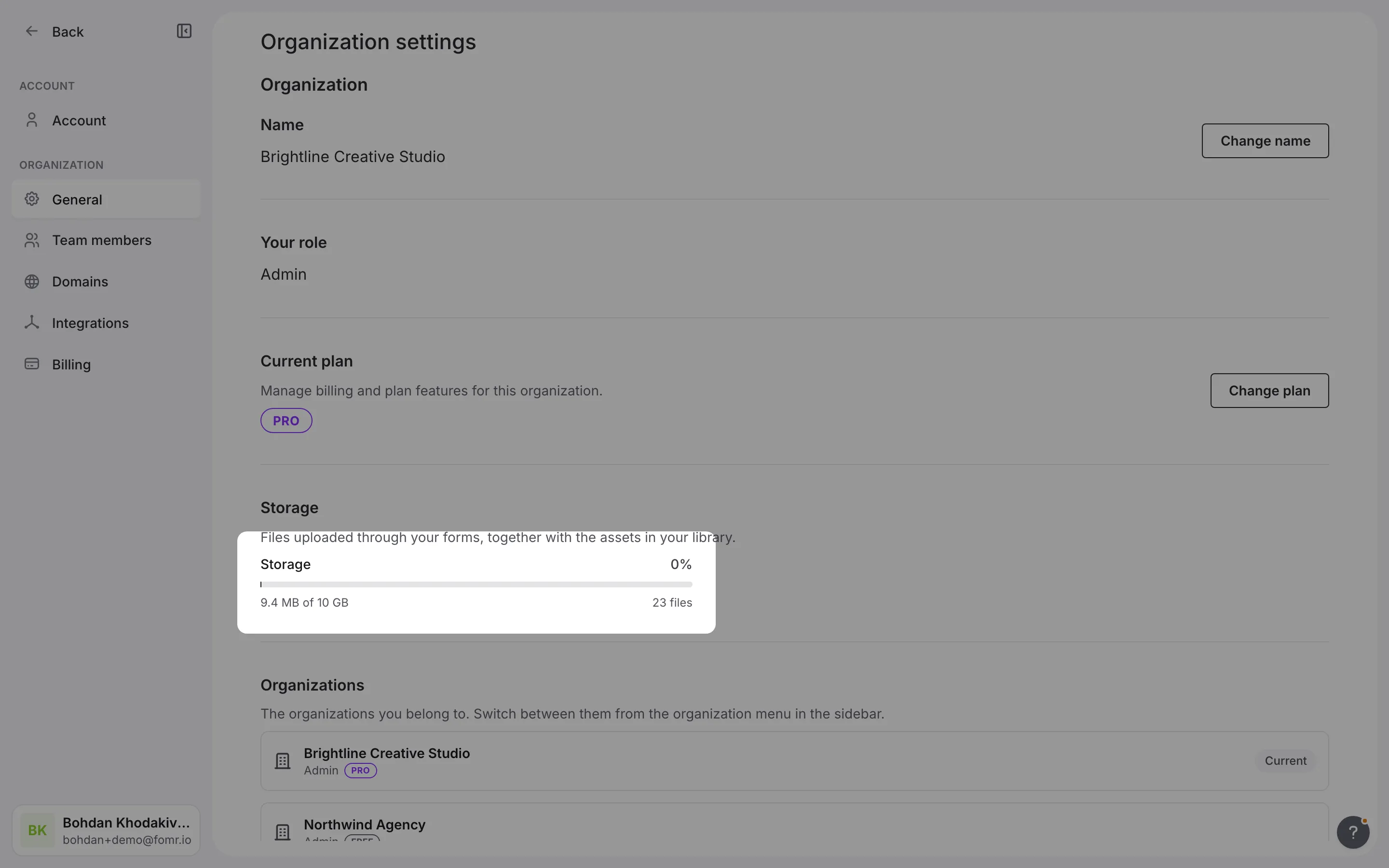
Section titled “Storage and limits”Storage belongs to your organization, not to individual workspaces. All workspaces share it, and it covers both files collected through File Upload questions and your assets. Assets in Trash keep counting toward your storage until they are deleted permanently. Limits depend on your Fomr plan:
| Plan | Storage Limit |
|---|---|
| Free | 100 MB |
| Pro | 10 GB |
Checking your usage
Section titled “Checking your usage”Your current storage usage is always visible in the usage card at the bottom of the sidebar, which shows how much of your organization’s storage is used.
Optimizing storage
Section titled “Optimizing storage”To make the most of your storage:
Compress images before uploading. Use tools like TinyPNG or Squoosh to reduce file sizes without losing quality.
Use appropriate formats. Choose JPG for photos, PNG for graphics with transparency, and WebP for the best compression.
Remove unused assets. Regularly move assets you no longer need to Trash, then delete them permanently to free up space.
Use Unsplash for backgrounds. Instead of uploading large background images, pick one from the Unsplash tab in the background picker.
Reusing assets across forms
Section titled “Reusing assets across forms”Asset management lets you reuse images across multiple forms:
- Upload your logo once to the Default Workspace, and use it in forms in every workspace
- Add the same visual to multiple Image components
- Create a library of brand-approved images
- Maintain consistency across your forms
When choosing an image in any form, pick it from the Assets library tab, which lists the assets in that form’s workspace and the shared assets in the Default Workspace, rather than uploading the same file multiple times.
Best practices
Section titled “Best practices”Organize from the start. Use clear, descriptive names when uploading assets.
Maintain brand consistency. Keep approved logos and brand images in the Default Workspace so every workspace can use them.
Optimize file sizes. Smaller files load faster, improving the experience for form respondents.
Use appropriate dimensions. Upload images at the size they’ll be displayed to avoid unnecessary file sizes.
Regular cleanup. Periodically review and remove assets you no longer use.
Back up important assets. Keep copies of critical brand assets outside of Fomr as well.
Troubleshooting
Section titled “Troubleshooting”Upload failing
Section titled “Upload failing”- Check that the file type is supported
- Verify the file isn’t corrupted
- Ensure you have available storage space
- Try a smaller file size
- Check your internet connection
Image not displaying in form
Section titled “Image not displaying in form”- Verify the asset wasn’t deleted permanently. Check Trash to restore recently deleted assets.
- Check that the form is using the correct asset
- Clear your browser cache and refresh
- Try re-selecting the asset in the form editor
Storage limit reached
Section titled “Storage limit reached”- Delete unused assets, then delete them permanently from Trash to free up space. Assets in Trash still count toward your storage.
- Compress existing images to reduce their size
- Consider upgrading to Pro for more storage
- Use Unsplash images for backgrounds instead of uploading large files
Unsplash search not working
Section titled “Unsplash search not working”- Check your internet connection
- Try different search terms
- Refresh the page and try again
- Contact support if the issue persists
