
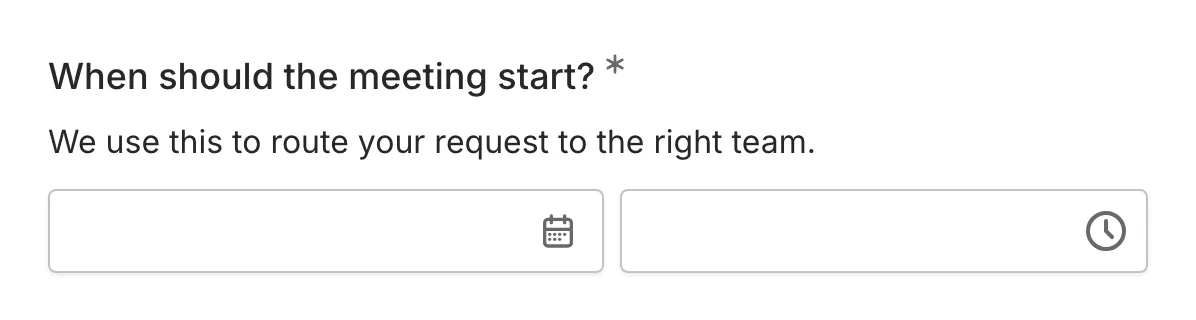
The Date & Time component combines date and time selection into a single input. Use it when you need to collect both a specific date and time together, such as for scheduling appointments or events.
When to use Date & Time
Section titled “When to use Date & Time”Date & Time is useful for:
- Appointment scheduling
- Event start/end times
- Meeting requests
- Deadline timestamps
- Reservation times
- Any question requiring both date and time
Adding a Date & Time component
Section titled “Adding a Date & Time component”-
Open your form in the editor
-
Drag the Date & Time component from the left sidebar onto your form
-
Click the component to select it and configure its settings
Configuration options
Section titled “Configuration options”Question label
Section titled “Question label”The main question or prompt displayed above the picker.
Examples:
- “Appointment date and time”
- “When would you like to schedule the meeting?”
- “Event start”
- “Preferred pickup time”
Supporting content
Section titled “Supporting content”Add helper text, an example image, or a divider between the question’s title and its input: drag a Text, Image, or Divider component onto the question and drop it on the line that appears under the title. Supporting text comes with full formatting and answer piping. Learn more in Supporting content.
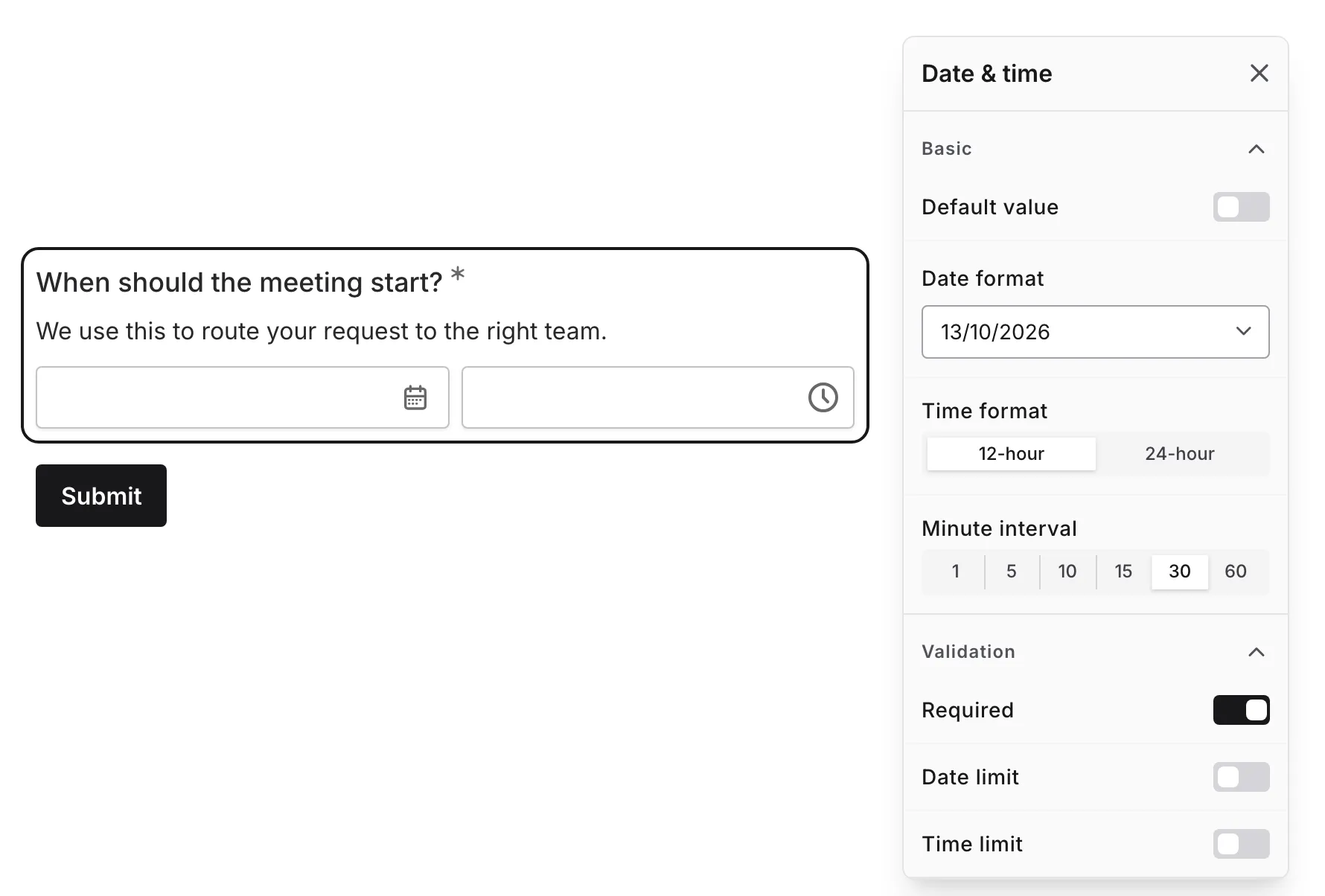
Date format
Section titled “Date format”Choose how dates are displayed:
| Format | Example |
|---|---|
| MM/DD/YYYY | 01/15/2024 |
| DD/MM/YYYY | 15/01/2024 |
| YYYY-MM-DD | 2024-01-15 |
Date limit
Section titled “Date limit”Set the earliest and latest selectable dates.
Time format
Section titled “Time format”Choose how times are displayed:
| Format | Example |
|---|---|
| 12-hour | 2:30 PM |
| 24-hour | 14:30 |
Time limit
Section titled “Time limit”Restrict the selectable times to a range.
Minute step
Section titled “Minute step”Control the granularity of minute selection:
| Step | Available Minutes |
|---|---|
| 1 | Every minute |
| 5 | 00, 05, 10… 55 |
| 10 | 00, 10, 20… 50 |
| 15 | 00, 15, 30, 45 |
| 30 | 00, 30 |
| 60 | 00 (hour only) |
Required
Section titled “Required”Toggle whether a date and time must be selected before the form can be submitted.
When enabled:
- An asterisk (*) appears next to the question label
- Users must select both date and time to submit
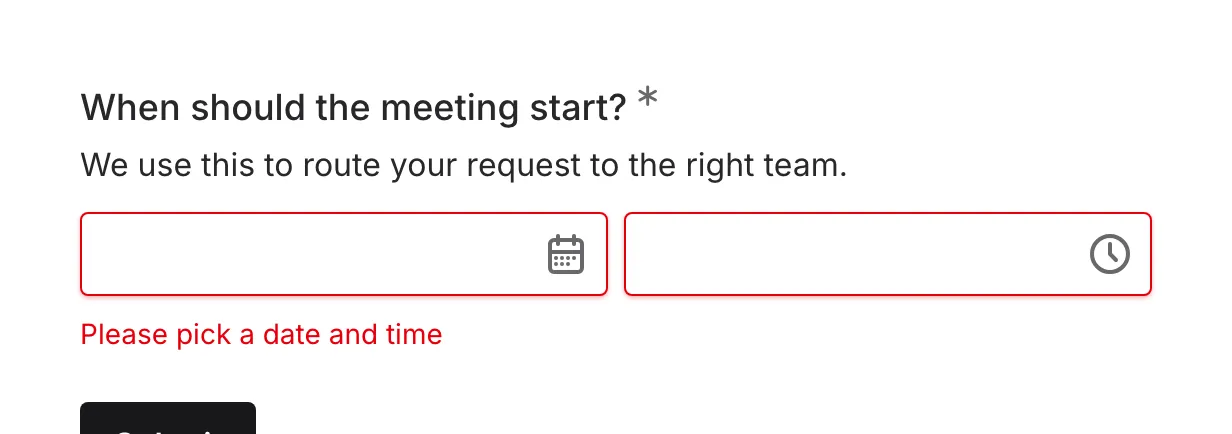
- A validation message appears if incomplete
Date and time picker interaction
Section titled “Date and time picker interaction”Selecting date
Section titled “Selecting date”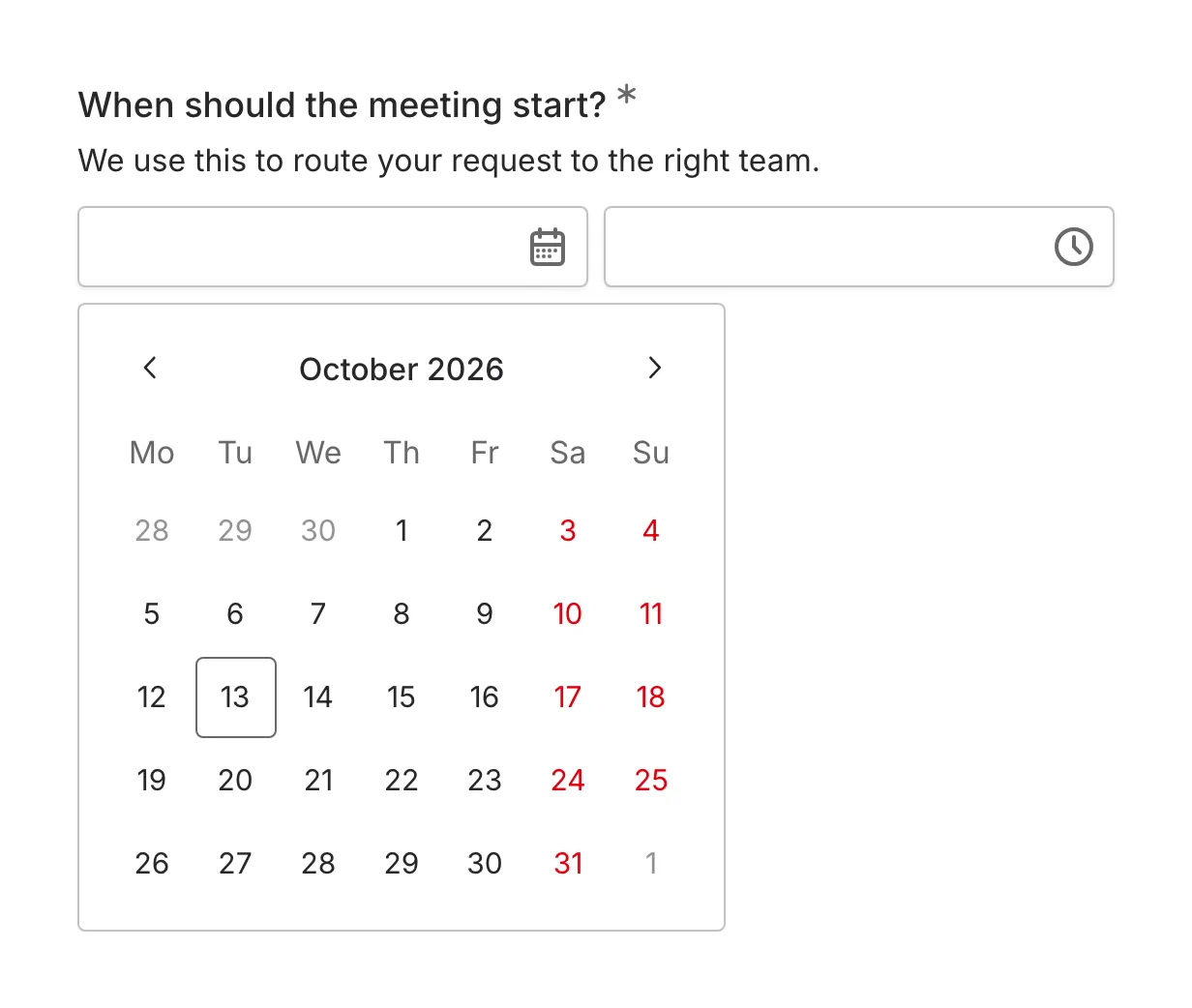
- Click the date component to open the calendar
- Navigate to the desired month
- Click the date to select it
Selecting time
Section titled “Selecting time”- Select the hour
- Select the minutes (based on step setting)
- Choose AM/PM (for 12-hour format)
Combined selection
Section titled “Combined selection”The component may display:
- Side-by-side date and time components
- Sequential selection (date first, then time)
- Combined picker interface
Validation
Section titled “Validation”The Date & Time component validates:
- Both date and time are selected
- Date is valid
- Time is valid
- Component is not empty (if required)
Accessibility
Section titled “Accessibility”The Date & Time component is built with accessibility in mind:
- Keyboard navigation for both date and time
- Screen reader compatible
- Clear focus states
- Proper ARIA labels
- Formats are announced
Handling responses
Section titled “Handling responses”Date & Time responses in your form results:
- Display both date and time together
- Can be sorted chronologically
- Are included in exports as timestamps
- Allow filtering by date or time
Time zone considerations
Section titled “Time zone considerations”The Date & Time component collects a timestamp without explicit timezone information. Best practices:
- Specify timezone in the supporting text: “All times are in Pacific Time (PT)”
- Ask for timezone separately: Add a dropdown if respondents are in different zones
- Use UTC for storage: Convert to UTC in your backend for consistency
- Clarify local vs. specific: State whether times are in respondent’s local time or a specific zone
