
The Short Answer component provides a single-line text field for collecting brief responses from your form respondents. It’s one of the most commonly used form components.
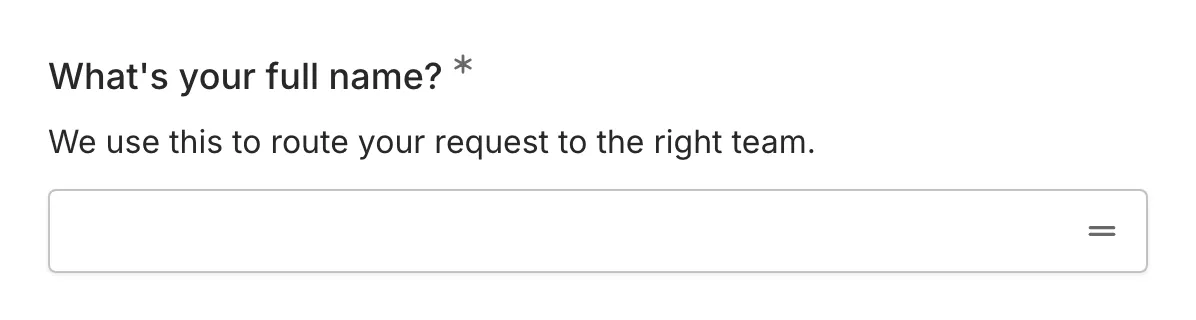
When to use Short Answer
Section titled “When to use Short Answer”Short Answer is ideal for collecting:
- Names (first name, last name, full name)
- Job titles or roles
- Company or organization names
- Brief descriptions or summaries
- Single-word or short phrase responses
- Any text that fits on one line
Adding a Short Answer component
Section titled “Adding a Short Answer component”-
Open your form in the editor
-
Drag the Short Answer component from the left sidebar onto your form
-
Click the component to select it and configure its settings
Configuration options
Section titled “Configuration options”Question label
Section titled “Question label”The main question or prompt displayed above the input field. This tells respondents what information you’re asking for.
Tips for effective labels:
- Be clear and specific about what you’re asking
- Keep it concise but descriptive
- Use sentence case for readability
Examples:
- “What is your full name?”
- “Job title”
- “Company name”
Supporting content
Section titled “Supporting content”Add helper text, an example image, or a divider between the question’s title and its input: drag a Text, Image, or Divider component onto the question and drop it on the line that appears under the title. Supporting text comes with full formatting and answer piping. Learn more in Supporting content.
Placeholder
Section titled “Placeholder”Ghost text that appears inside the input field when it’s empty. Placeholders disappear when the user starts typing.
Best practices for placeholders:
- Show an example of the expected format
- Keep it short and helpful
- Don’t use placeholders as a replacement for labels
Examples:
- “John Smith”
- “Enter your company name”
- “e.g., Product Designer”
Required
Section titled “Required”Toggle whether this field must be filled out before the form can be submitted.
When enabled:
- An asterisk (*) appears next to the question label
- Users cannot submit the form without providing a response
- A validation message appears if they try to skip the field
Validation
Section titled “Validation”Short Answer provides basic text validation:
- Required validation: Ensures the component isn’t empty when marked as required
- Text input: Accepts any text characters
For specialized validation (email format, URLs, numbers), use the dedicated components:
Accessibility
Section titled “Accessibility”The Short Answer component is built with accessibility in mind:
- Labels are properly associated with input fields
- Required fields are indicated both visually and to screen readers
- Error messages are announced to assistive technologies
- Keyboard navigation is fully supported
