
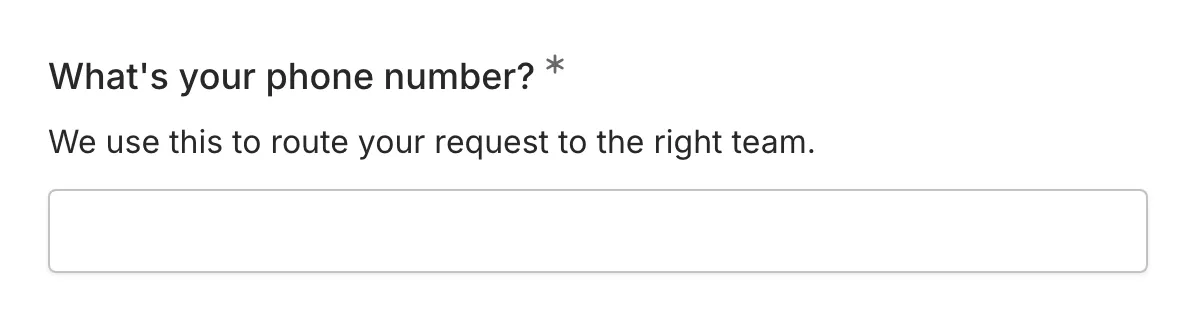
The Phone component provides a specialized input component for collecting phone numbers with international format support. It includes a country code selector to ensure properly formatted phone numbers from respondents worldwide.
When to use Phone
Section titled “When to use Phone”Phone is useful for:
- Contact forms requiring phone numbers
- Customer support request forms
- Event registration with SMS notifications
- Sales inquiry forms
- Any form where phone contact may be needed
- International audience forms
Adding a Phone component
Section titled “Adding a Phone component”-
Open your form in the editor
-
Drag the Phone component from the left sidebar onto your form
-
Click the component to select it and configure its settings
Configuration options
Section titled “Configuration options”Question label
Section titled “Question label”The main question or prompt displayed above the input component.
Examples:
- “Phone number”
- “Mobile number”
- “Contact phone”
- “Best number to reach you”
Supporting content
Section titled “Supporting content”Add helper text, an example image, or a divider between the question’s title and its input: drag a Text, Image, or Divider component onto the question and drop it on the line that appears under the title. Supporting text comes with full formatting and answer piping. Learn more in Supporting content.
Required
Section titled “Required”Toggle whether this component must be filled out before the form can be submitted.
When enabled:
- An asterisk (*) appears next to the question label
- Users cannot submit without providing a phone number
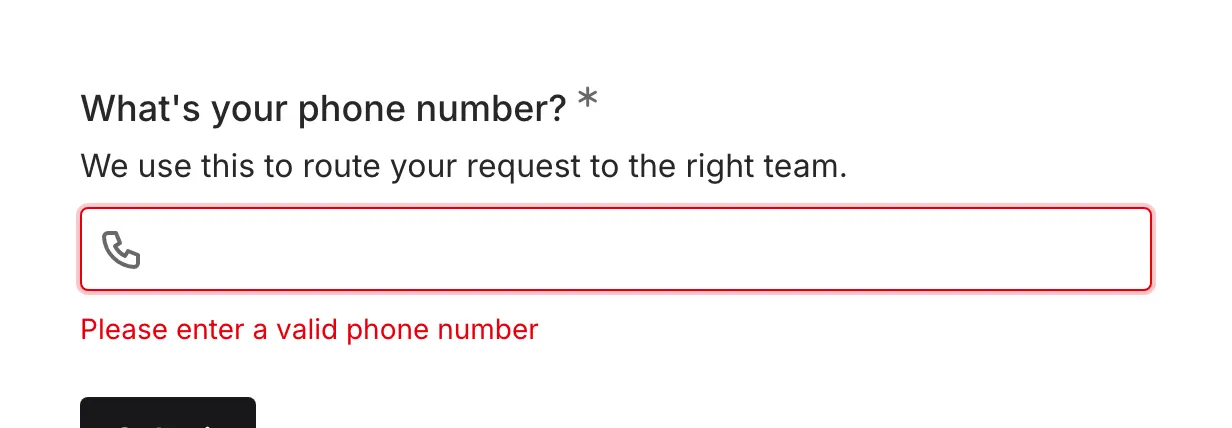
- Validation errors appear for empty or invalid entries
Country code selector
Section titled “Country code selector”The Phone component includes a dropdown to select the country code:
- Flag icons: Visual country identification
- Country codes: Shows the dial code (e.g., +1, +44, +91)
- Searchable: Users can type to filter countries
- Comprehensive: Includes all international country codes
Phone number formatting
Section titled “Phone number formatting”The component automatically formats phone numbers based on the selected country:
- Numbers are formatted as users type
- Invalid formats show validation errors
- The stored value includes the country code
Example formats:
- US: +1 (555) 123-4567
- UK: +44 20 7123 4567
- Germany: +49 30 12345678
Mobile optimization
Section titled “Mobile optimization”The Phone component is optimized for mobile devices:
- Triggers the phone number keyboard on mobile devices
- Shows number keys and phone-specific characters
- Country selector is touch-friendly
- Auto-formatting works on mobile
Validation
Section titled “Validation”The Phone component validates entries to ensure:
- The number follows the format for the selected country
- Required length requirements are met
- The component isn’t empty (if required)
Accessibility
Section titled “Accessibility”The Phone component is built with accessibility in mind:
- Input type is set to “tel” for proper semantics
- Labels are properly associated with input components
- Country selector is keyboard navigable
- Validation errors are announced to screen readers
Handling responses
Section titled “Handling responses”Phone responses in your form results:
- Include the full international format with country code
- Are displayed in a readable format
- Can be exported for use in CRM or calling systems
- Are clickable on mobile devices to initiate calls
