
The Rating component provides a star-based rating system for collecting satisfaction scores, quality ratings, and feedback. The star format is familiar to most users and works well across different contexts.

When to use Rating
Section titled “When to use Rating”Rating is ideal for:
- Product or service reviews
- Customer satisfaction surveys
- Quality assessments
- Experience ratings
- Any feedback where stars feel natural
Adding a Rating component
Section titled “Adding a Rating component”-
Open your form in the editor
-
Drag the Rating component from the left sidebar onto your form
-
Click the component to select it and configure its settings
Configuration options
Section titled “Configuration options”Question label
Section titled “Question label”The main question or prompt displayed above the stars.
Examples:
- “How would you rate your experience?”
- “Rate our customer service”
- “How satisfied are you with this product?”
Supporting content
Section titled “Supporting content”Add helper text, an example image, or a divider between the question’s title and its input: drag a Text, Image, or Divider component onto the question and drop it on the line that appears under the title. Supporting text comes with full formatting and answer piping. Learn more in Supporting content.
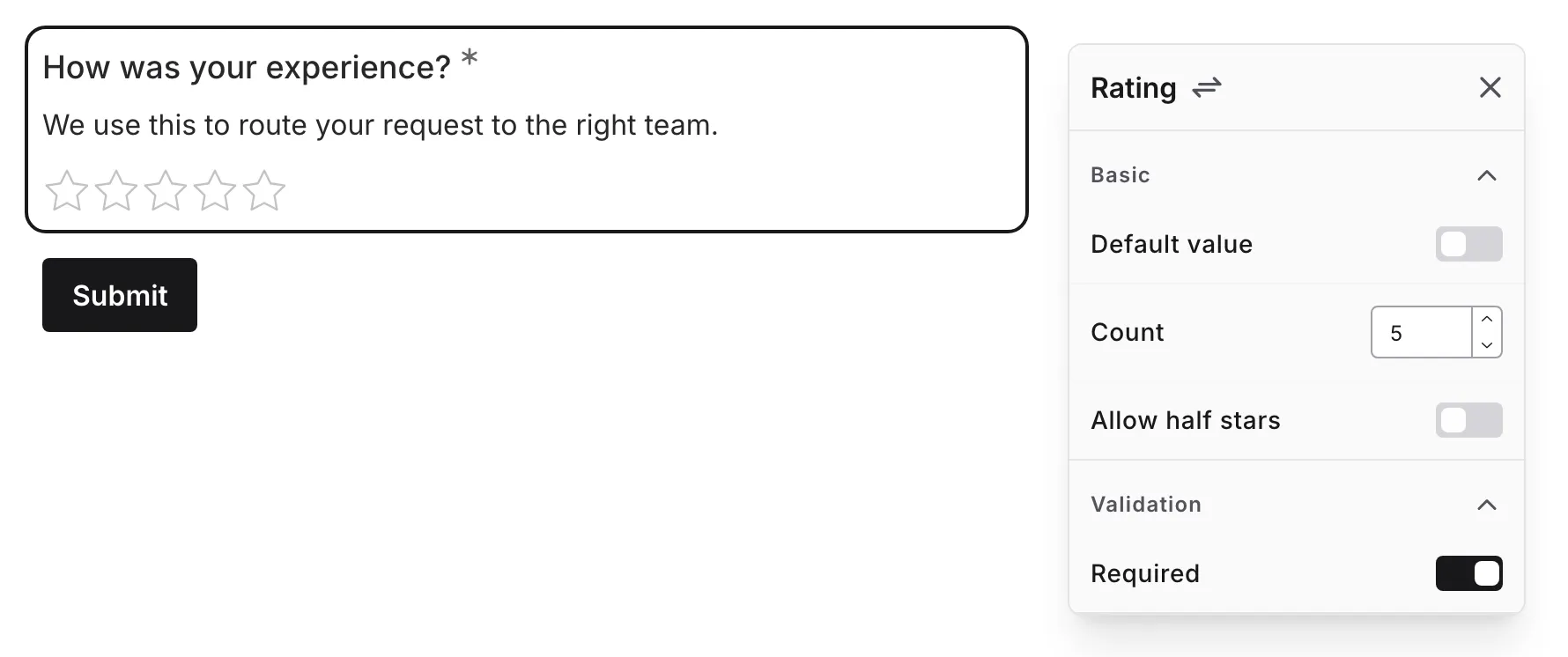
Set the number of stars in the rating scale (1-10).
| Stars | Common Use |
|---|---|
| 3 | Simple good/neutral/bad |
| 5 | Standard rating (most common) |
| 10 | Detailed rating scale |
Allow half stars
Section titled “Allow half stars”Turn on the Allow half stars switch to let respondents pick half-star ratings, such as 3.5 out of 5.
With the switch off, only whole stars can be selected (1, 2, 3, and so on). With it on, respondents can land on half-star values (1, 1.5, 2, 2.5, and so on), which gives you finer distinctions when whole stars feel too coarse.
Required
Section titled “Required”Toggle whether a rating must be given before the form can be submitted.
When enabled:
- An asterisk (*) appears next to the question label
- Users must select a rating to submit
- A validation message appears if no rating is given
Rating interaction
Section titled “Rating interaction”Selecting a rating
Section titled “Selecting a rating”
- Click on a star to select that rating
- Stars up to and including the clicked star fill in
- Click a different star to change the rating
- Click the same star again to deselect (if not required)
Hover preview
Section titled “Hover preview”When hovering over stars:
- Stars preview the potential selection
- Visual feedback shows what clicking would select
- Makes it easy to choose the right rating
Half stars
Section titled “Half stars”When Allow half stars is on:
- Click the left half of a star for a half-star rating
- Click the right half for a full star
- Provides more precise ratings
Rating scale meanings
Section titled “Rating scale meanings”Common interpretations of a 5-star scale:
| Rating | Typical Meaning |
|---|---|
| 1 star | Poor / Very dissatisfied |
| 2 stars | Below average / Dissatisfied |
| 3 stars | Average / Neutral |
| 4 stars | Good / Satisfied |
| 5 stars | Excellent / Very satisfied |
Rating vs. other components
Section titled “Rating vs. other components”| Component | Best For |
|---|---|
| Rating | Subjective quality, familiar star format |
| Linear Scale | Numeric scales with labels |
| Slider | Continuous ranges |
| Multi Choice | Categorical satisfaction levels |
Accessibility
Section titled “Accessibility”The Rating component is built with accessibility in mind:
- Proper radio group semantics
- Keyboard navigation (Arrow keys)
- Screen reader announces star values
- Clear visual feedback
- Focus states are visible
Handling responses
Section titled “Handling responses”Rating responses in your form results:
- Show the numeric rating (e.g., 4 out of 5)
- Display visual star representation
- Can be averaged across responses
- Are included in exports as numbers
Analyzing rating data
Section titled “Analyzing rating data”Common ways to analyze rating responses:
- Average rating: Mean score across all responses
- Distribution: How many 1-star, 2-star, etc.
- Trends over time: How ratings change
For true Net Promoter Score tracking, use the NPS component instead — it uses the standard 0-10 scale and buckets.
