
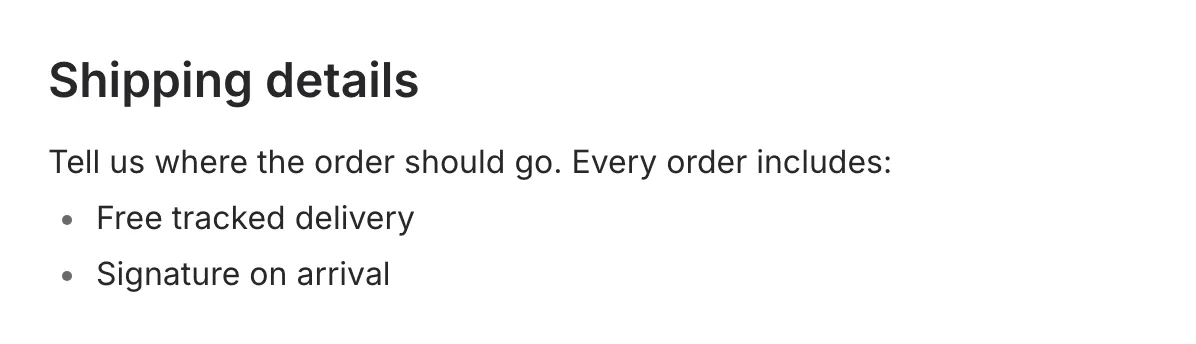
The Text component adds written content to your form. Unlike question components, it doesn’t collect responses—it displays information, instructions, or context that helps people answer the questions around it.
One text block holds a whole passage. A single block can contain several paragraphs, headings, bulleted and numbered lists, links, and fine print. You format everything from a toolbar that appears when you select text.
When to use Text
Section titled “When to use Text”Text works well for:
- Section introductions
- Instructions and guidance
- Legal disclaimers and fine print
- Context before a group of questions
- Lists of requirements, steps, or what to bring
- Any informational content
Adding a text block
Section titled “Adding a text block”-
Open your form in the editor
-
Open the Components panel in the left sidebar and click Text, or drag it onto the canvas
-
Click the block and start typing
-
Select any text to open the formatting toolbar
Writing in a text block
Section titled “Writing in a text block”Paragraphs and line breaks
Section titled “Paragraphs and line breaks”- Enter starts a new paragraph, with the usual spacing between paragraphs.
- Shift+Enter adds a line break without that spacing. Use it for addresses, short lines that belong together, or anywhere the next line is part of the same paragraph.
One block or several
Section titled “One block or several”A block is the unit you move around the canvas. Everything inside it travels together when you drag it, and it’s hidden, duplicated, or deleted as a whole.
- Keep it in one block when the parts belong together—an introduction and the bullet list that explains it, for example.
- Split it into separate blocks when you want to reorder the pieces independently, or hide one part of the copy without hiding the rest.
The formatting toolbar
Section titled “The formatting toolbar”Select some text and a toolbar appears above it. Everything you can change about a text block lives here—there’s no separate settings panel to open.
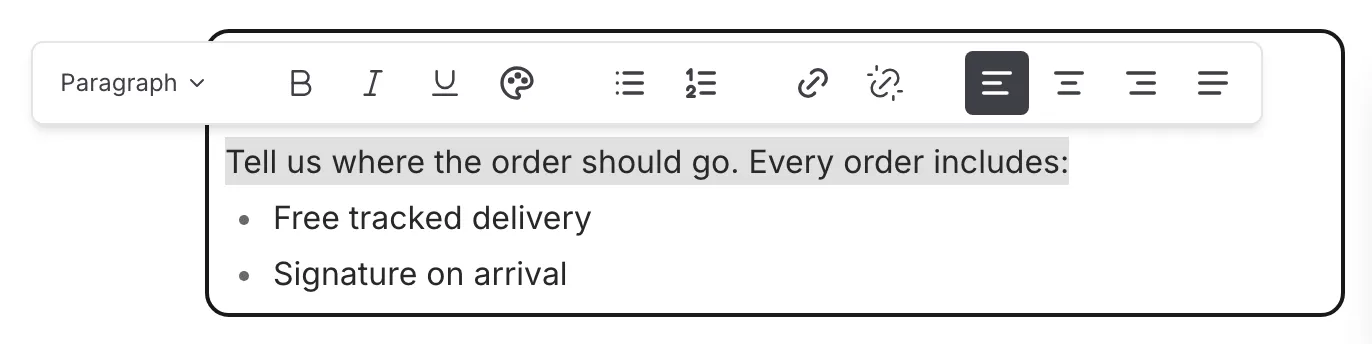
| Control | What it does |
|---|---|
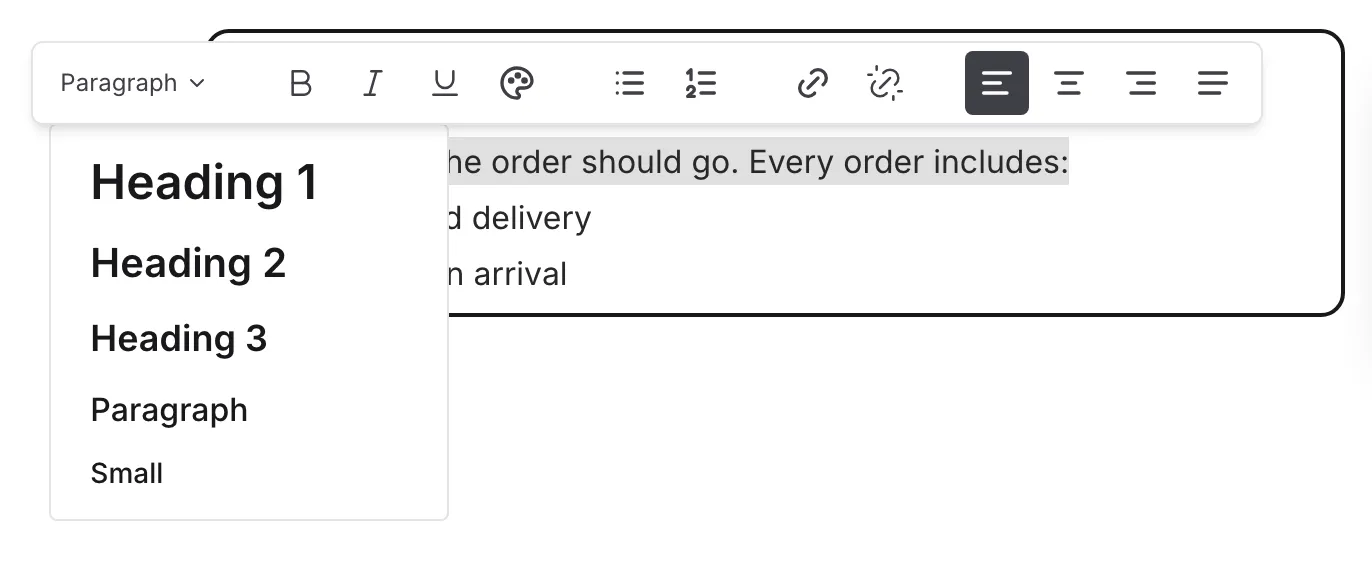
| Text style | Switches between Heading 1, Heading 2, Heading 3, Paragraph, and Small |
| Bold, Italic, Underline | Emphasizes the selected words |
| Text color | Applies a theme color or a custom color |
| Bulleted list, Numbered list | Turns the selected lines into a list |
| Link | Adds or edits a link, and sets whether it opens in a new tab |
| Alignment | Left, center, right, or justify |
Text style and alignment apply to whole blocks—every paragraph, heading, or list your selection touches. To change one line, select part of that line; to change several at once, drag across them. Bold, italic, underline, color, and links apply to exactly the characters you selected.
Text styles
Section titled “Text styles”| Style | Best for |
|---|---|
| Heading 1 | The title of a section |
| Heading 2 | Sub-sections inside a longer passage |
| Heading 3 | A short label above a paragraph or list |
| Paragraph | Body text (the default) |
| Small | Fine print such as disclaimers, footnotes, and legal notes |
Sizes and fonts come from your form’s theme, so headings stay consistent with the rest of the form.
Text color
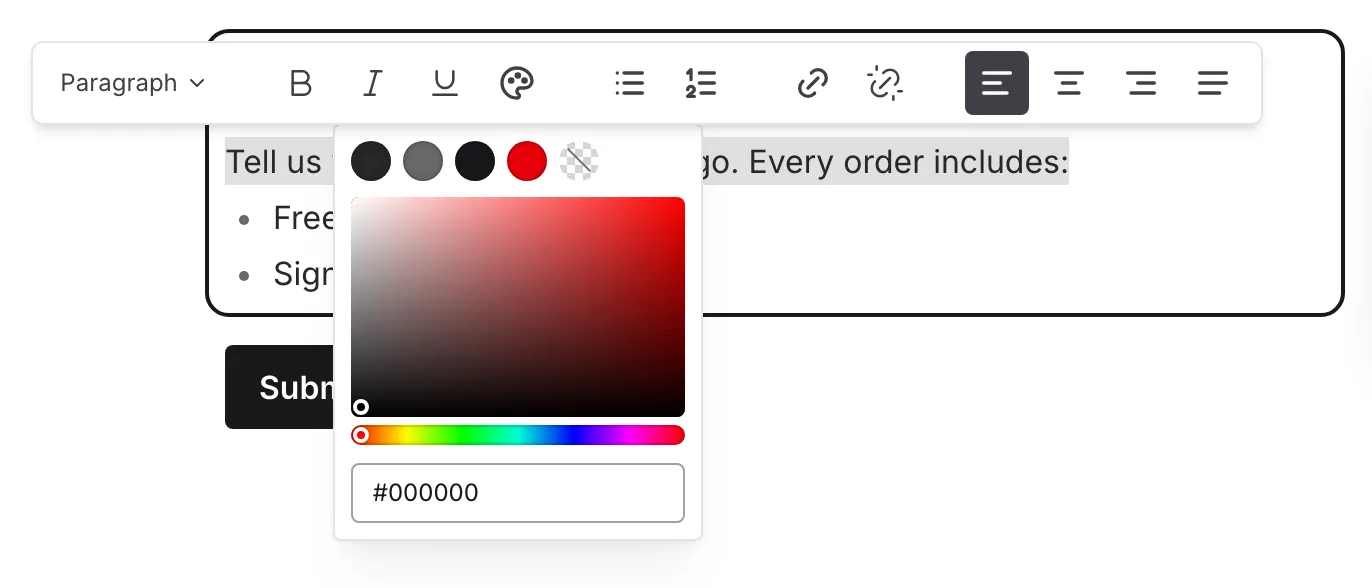
Section titled “Text color”The color menu offers a row of swatches drawn from your form’s theme—text, secondary text, primary, and error—plus a crossed-out swatch that clears the color back to the default.
Theme swatches follow the theme. If you switch themes or adjust your colors later, text using a theme swatch updates with it.
Below the swatches, a color picker lets you choose any custom color. Custom colors are fixed: they stay exactly as you set them when the theme changes.
Use the bulleted or numbered list buttons, or type - or 1. at the start of a line.
- Enter starts the next item.
- Enter on an empty item leaves the list.
- Tab indents an item into a sub-list, and Shift+Tab moves it back out.
While your selection is inside a list, the text style dropdown is hidden. Turn the list off first if you want to convert those lines to a heading or paragraph.
Select the text you want to link, click the link button, and enter a URL. Use the icon inside the link field to choose whether the link opens in a new tab, then save.
To remove a link, select the linked text and click the unlink button.
Formatting shortcuts
Section titled “Formatting shortcuts”Type these at the start of a line and the line converts as you type:
| Type this | You get |
|---|---|
# | Heading 1 |
## | Heading 2 |
### | Heading 3 |
- | Bulleted list |
1. | Numbered list |
These keyboard shortcuts also work while you type:
| Shortcut | Result |
|---|---|
| Enter | New paragraph |
| Shift+Enter | Line break inside the current paragraph |
| Ctrl/Cmd+B | Bold |
| Ctrl/Cmd+I | Italic |
| Ctrl/Cmd+U | Underline |
| Tab / Shift+Tab | Indent or outdent a list item |
Editor undo and redo covers text edits too, so you can always step back.
Pasting text
Section titled “Pasting text”Paste a passage from a document or web page and it stays in one text block, with its paragraphs, headings, and lists intact. Formatting Fomr doesn’t support is dropped, so pasted content picks up your form’s fonts and sizes.
A text block holds up to 10,000 characters. If a paste would push the block past that, Fomr refuses it and shows a message—split the content across several text blocks instead.
Personalizing with answer piping
Section titled “Personalizing with answer piping”Type @ inside a text block to insert an answer from an earlier page, so the passage can greet someone by name or repeat a detail they already gave you. See Answer piping for the full setup.
Text blocks vs. supporting content
Section titled “Text blocks vs. supporting content”A Text component can stand on its own between questions, or live inside a question as supporting content. When to use which:
| Use a standalone text block when | Use supporting content when |
|---|---|
| Introducing a section or page | Explaining one specific question |
| The information relates to several questions | The helper text belongs right under one title |
| You want a visual break in the form | The reader needs context at the moment of answering |
Accessibility
Section titled “Accessibility”The Text component is built with accessibility in mind:
- Headings create real structure that screen readers can navigate
- Text respects user font size preferences
- Links are announced as links
A few things that help:
- Use headings in order—start a section with Heading 1 or Heading 2, then go down a level—rather than picking a style purely for its size.
- Don’t rely on color alone to carry meaning. Pair a colored warning with wording that says the same thing.
- Check contrast when you use custom colors, especially against a colored or image background.
Handling in responses
Section titled “Handling in responses”Since text blocks don’t collect data:
- They don’t appear in form responses
- They’re not included in exports
- They’re purely for display purposes
