
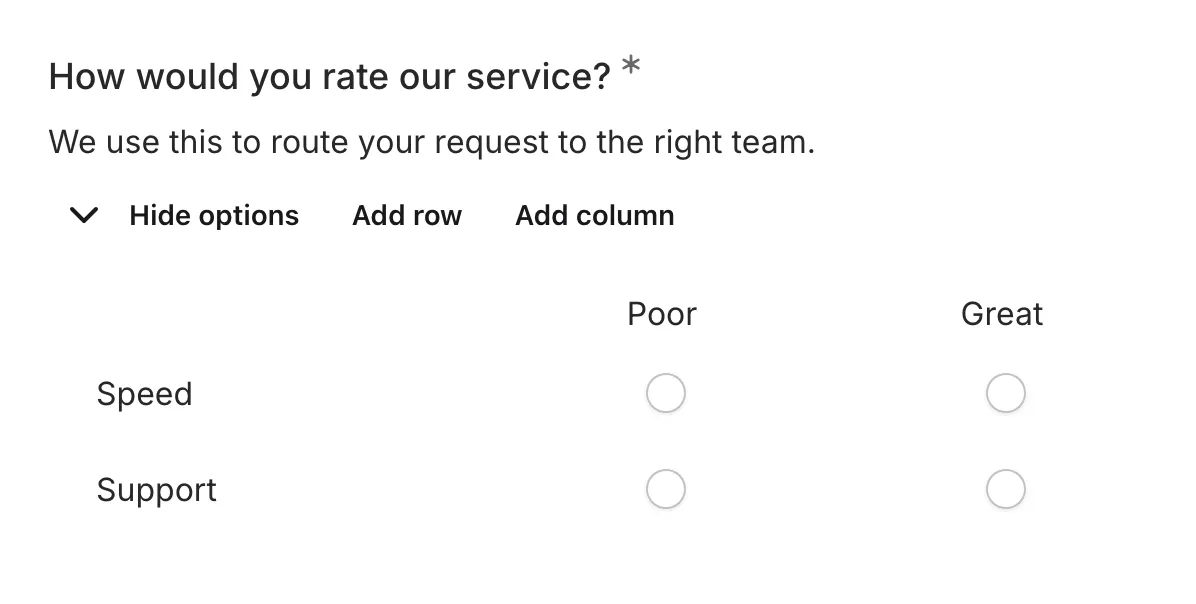
The Matrix component displays a grid where respondents can rate multiple items using the same scale. This format is useful for collecting comparative feedback on several related items without repeating the same question multiple times.
When to use Matrix
Section titled “When to use Matrix”Matrix is ideal for:
- Rating multiple features or attributes
- Comparing satisfaction across categories
- Evaluating multiple aspects of a service
- Survey questions with repeated scales
- Any situation where multiple items need the same rating scale
Adding a Matrix component
Section titled “Adding a Matrix component”-
Open your form in the editor
-
Drag the Matrix component from the left sidebar onto your form
-
Click it on the canvas to open its settings
-
Add your rows (items to rate) and columns (rating scale)
Configuration options
Section titled “Configuration options”Question label
Section titled “Question label”The main question or prompt displayed above the matrix.
Examples:
- “Please rate the following aspects of our service”
- “How important are these features to you?”
- “Rate your satisfaction with each area”
Supporting content
Section titled “Supporting content”Add helper text, an example image, or a divider between the question’s title and its input: drag a Text, Image, or Divider component onto the question and drop it on the line that appears under the title. Supporting text comes with full formatting and answer piping. Learn more in Supporting content.
The items or statements to be rated. Each row represents one thing being evaluated.
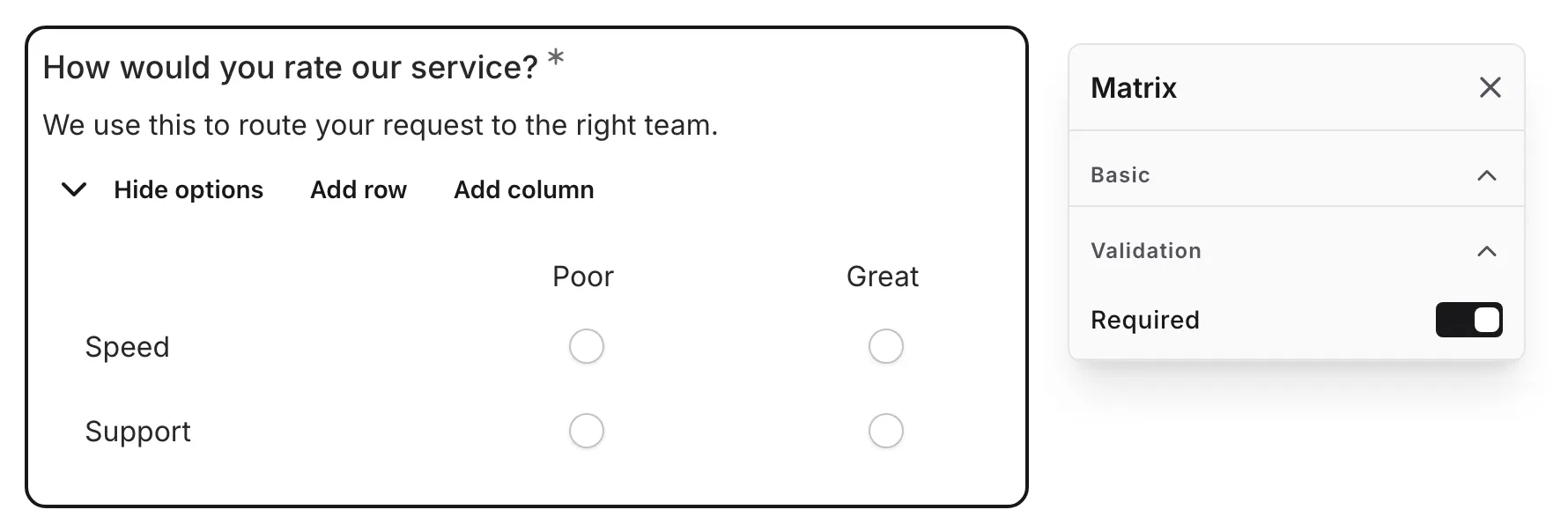
To manage rows:
- Click to add new rows
- Drag to reorder rows
- Click delete to remove rows
- Edit row text directly
- Paste multiple lines of text to add several rows at once — each line becomes its own row, blank lines are skipped, and supported text formatting is preserved
Tips for rows:
- Keep row text concise
- Use parallel structure
- Limit to 5-7 rows for usability
- Order logically or by importance
Columns
Section titled “Columns”The rating scale options. Each column represents one possible rating.
To manage columns:
- Click to add new columns
- Drag to reorder columns
- Click delete to remove columns
- Edit column headers directly
- Paste multiple lines of text to add several columns at once — each line becomes its own column, blank lines are skipped, and supported text formatting is preserved
Common column scales:
- Very Poor / Poor / Average / Good / Excellent
- Strongly Disagree / Disagree / Neutral / Agree / Strongly Agree
- 1 / 2 / 3 / 4 / 5
- Not Important / Somewhat Important / Very Important
Required
Section titled “Required”Toggle whether all rows must be rated before the form can be submitted.
When enabled:
- An asterisk (*) appears next to the question label
- Users must select a rating for every row
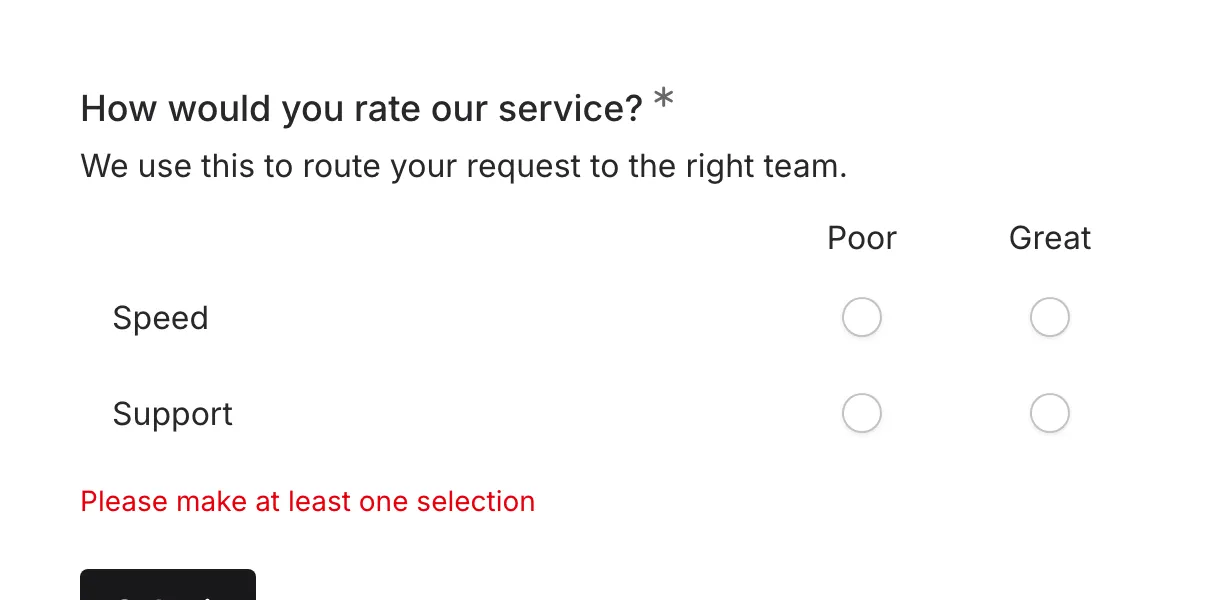
- A validation message appears if any row is incomplete
Matrix interaction
Section titled “Matrix interaction”Selecting ratings
Section titled “Selecting ratings”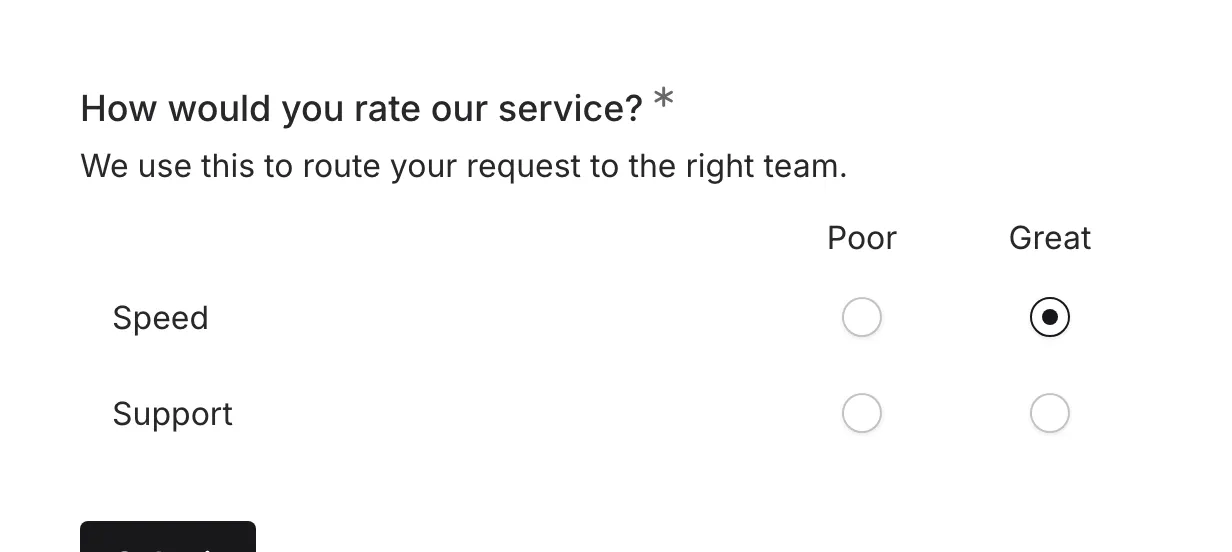
- Click any cell to select that rating for that row
- Only one selection per row is allowed
- Selected cells are highlighted
- Click a different column to change the rating
Visual feedback
Section titled “Visual feedback”- Selected cells are clearly highlighted
- Rows with missing selections are indicated (when required)
- Hover states show which cell will be selected
Mobile behavior
Section titled “Mobile behavior”On smaller screens the matrix stays usable:
- It scrolls horizontally so every column stays reachable
- Selection areas are sized for touch
Matrix vs. individual questions
Section titled “Matrix vs. individual questions”| Aspect | Matrix | Individual Questions |
|---|---|---|
| Efficiency | Rate many items quickly | One question at a time |
| Comparison | Easy to compare across items | Items rated independently |
| Cognitive load | Higher (many choices visible) | Lower (focused on one item) |
| Mobile UX | Can be challenging | Generally better |
| Completion rate | May be lower for large matrices | Generally higher |
Validation
Section titled “Validation”When matrix is marked as required:
- Every row must have a selection
- Incomplete rows are highlighted
- A validation message indicates which rows need attention
Accessibility
Section titled “Accessibility”The Matrix component is built with accessibility in mind:
- Proper table semantics
- Keyboard navigation (Arrow keys, Tab)
- Screen reader compatible with row/column headers
- Clear focus states
- Radio button semantics for each row
Handling responses
Section titled “Handling responses”Matrix responses in your form results:
- Show each row with its selected rating
- Can be analyzed row by row
- Allow comparison across rows
- Are included in exports with row-column pairs
Analyzing matrix data
Section titled “Analyzing matrix data”Common ways to analyze matrix responses:
- Average per row: Mean rating for each item
- Distribution per row: How ratings spread for each item
- Cross-row comparison: Which items rated highest/lowest
- Pattern analysis: Identify respondents who rate everything the same
