
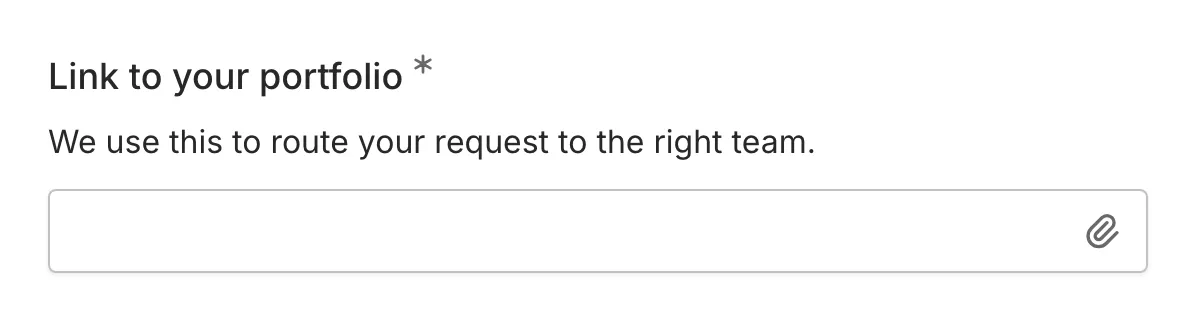
The Link component provides a specialized input component for collecting URLs and web addresses. It includes built-in validation to ensure respondents enter properly formatted links.
When to use Link
Section titled “When to use Link”Link is useful for collecting:
- Website URLs
- Portfolio links
- Social media profiles
- LinkedIn profiles
- GitHub repositories
- Reference links or sources
- Any web address
Adding a Link component
Section titled “Adding a Link component”-
Open your form in the editor
-
Drag the Link component from the left sidebar onto your form
-
Click the component to select it and configure its settings
Configuration options
Section titled “Configuration options”Question label
Section titled “Question label”The main question or prompt displayed above the input component.
Examples:
- “Website URL”
- “Portfolio link”
- “LinkedIn profile”
- “Link to your work”
Supporting content
Section titled “Supporting content”Add helper text, an example image, or a divider between the question’s title and its input: drag a Text, Image, or Divider component onto the question and drop it on the line that appears under the title. Supporting text comes with full formatting and answer piping. Learn more in Supporting content.
Placeholder
Section titled “Placeholder”Ghost text that appears inside the input component when it’s empty.
Examples:
- “https://example.com”
- “https://linkedin.com/in/yourprofile”
- “https://github.com/username”
- “Enter URL”
Required
Section titled “Required”Toggle whether this component must be filled out before the form can be submitted.
When enabled:
- An asterisk (*) appears next to the question label
- Users cannot submit without providing a valid URL
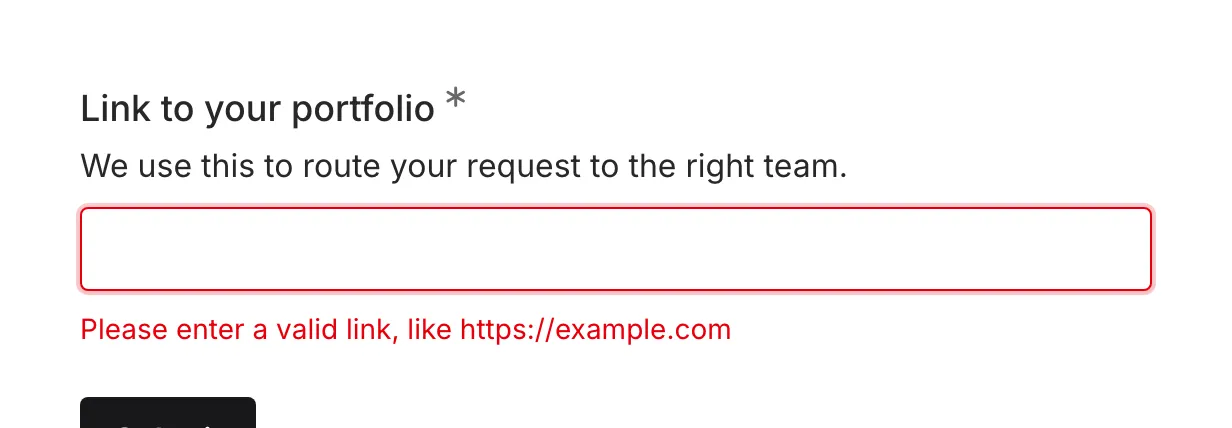
- Validation errors appear for empty or invalid entries
URL validation
Section titled “URL validation”The Link component validates entries to ensure they follow standard URL format:
Valid formats:
https://example.comhttp://www.example.comhttps://example.com/page/subpagehttps://example.com?param=value
Invalid formats (will show error):
example.com(missing protocol)not a urlwww.example(incomplete domain)
Mobile optimization
Section titled “Mobile optimization”The Link component is optimized for mobile devices:
- Triggers the URL-specific keyboard on mobile devices
- Shows .com and / keys for faster entry
- Auto-capitalization is disabled
- Spell-check is disabled
Accessibility
Section titled “Accessibility”The Link component is built with accessibility in mind:
- Input type is set to “url” for proper semantics
- Labels are properly associated with input components
- Validation errors are announced to screen readers
- Keyboard navigation is fully supported
Handling responses
Section titled “Handling responses”Link responses in your form results:
- Are displayed as clickable hyperlinks
- Open in a new tab when clicked
- Can be exported for further processing
- Are searchable in your responses list
