
You can control when your forms accept responses by closing them manually or setting scheduled open and close times. This is useful for deadlines, limited-time surveys, or when you need to temporarily stop collecting responses.
Accessing form access settings
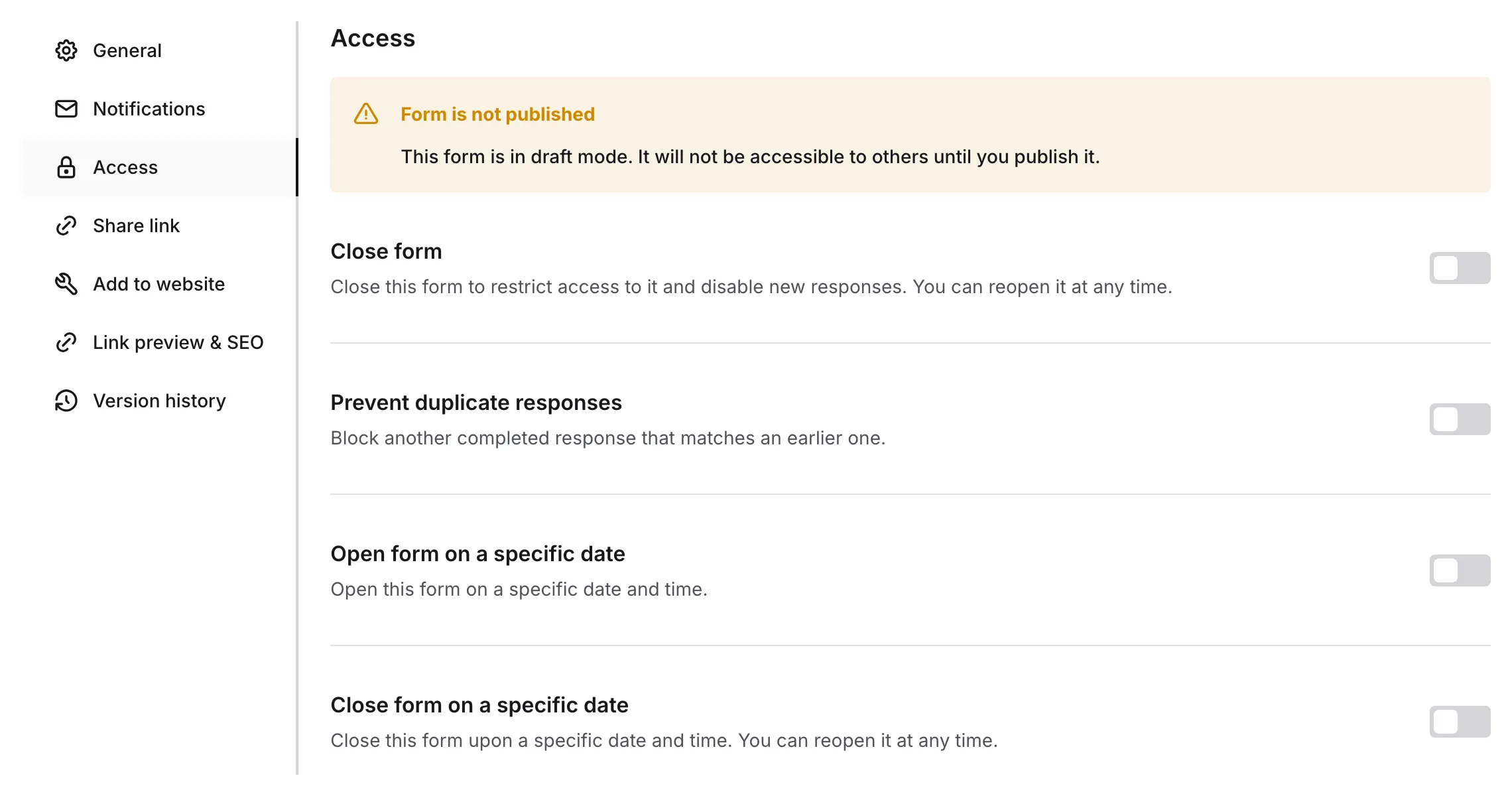
Section titled “Accessing form access settings”To configure access settings for your form:
-
Open your form in the editor
-
Open the Configure tab
-
Go to the Access section
-
Configure your availability preferences
Closing forms manually
Section titled “Closing forms manually”Sometimes you need to stop accepting responses immediately. Manual closing gives you instant control over form availability.
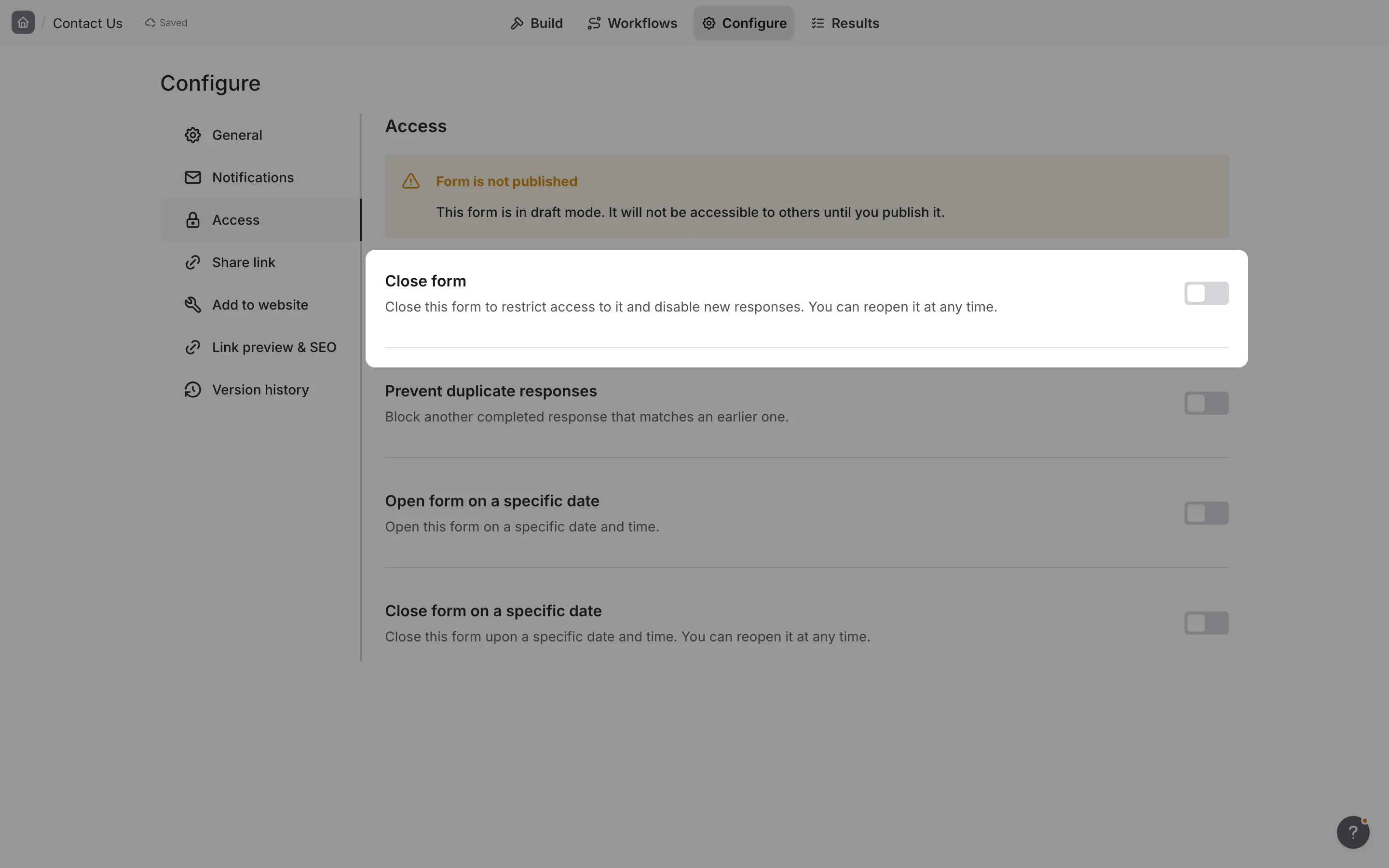
How to close a form
Section titled “How to close a form”-
Open the Configure tab and go to Access
-
Toggle the close setting on
-
The form immediately stops accepting new responses
How to reopen a form
Section titled “How to reopen a form”-
Open the Configure tab and go to Access
-
Toggle the close setting off
-
The form immediately starts accepting responses again
Scheduled access
Section titled “Scheduled access”For time-sensitive forms like event registrations, limited-time surveys, or seasonal campaigns, scheduled access automatically opens and closes your form at specified times.
Open form on a specific date
Section titled “Open form on a specific date”Set a future date and time when your form should start accepting responses. Until that time, visitors see the standard closed message.
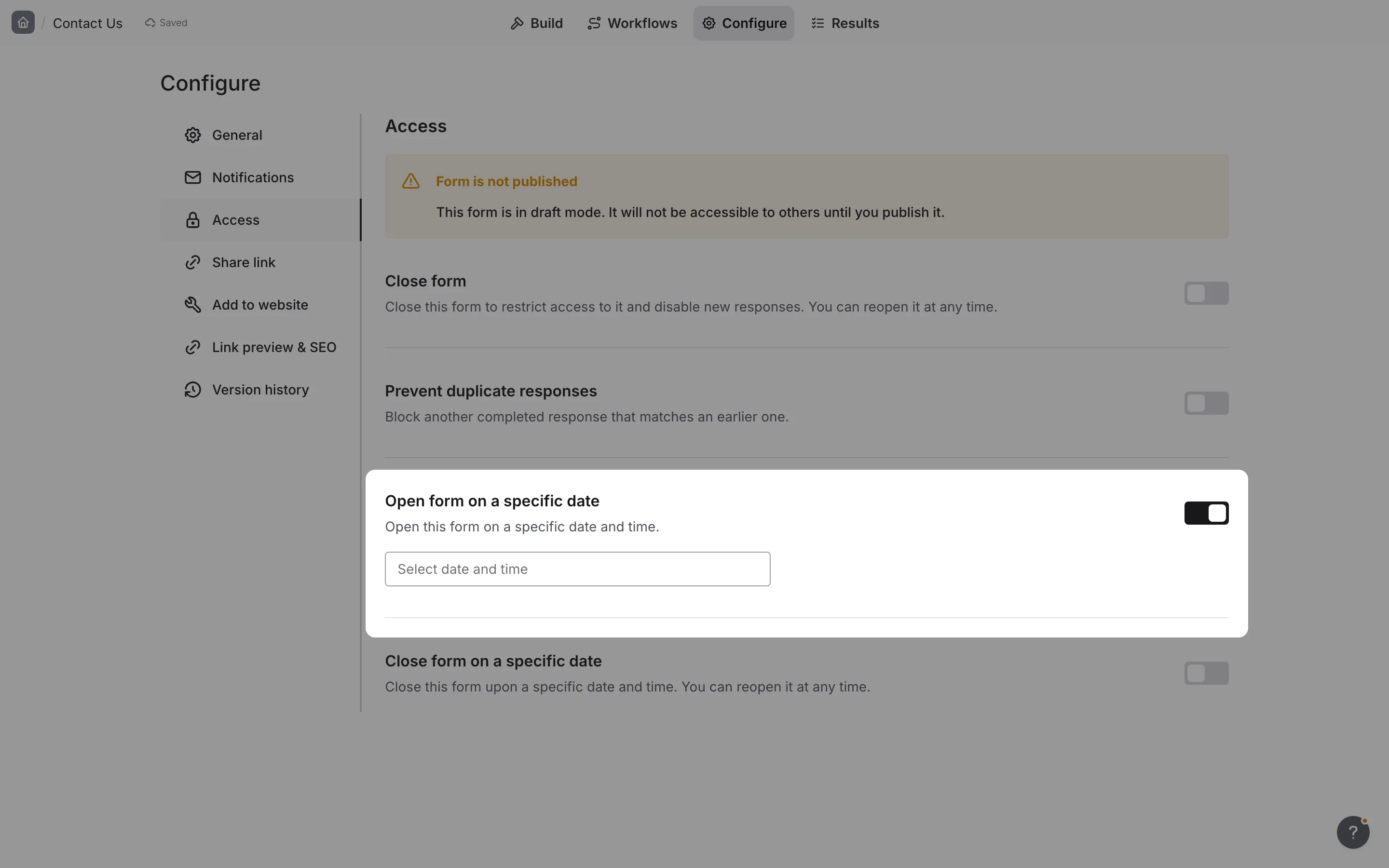
To open a form on a specific date:
-
Open the Configure tab and go to Access
-
Enable Open form on a specific date
-
Select the date and time when the form should open
-
Save your settings
Close form on a specific date
Section titled “Close form on a specific date”Set a date and time when your form should automatically stop accepting responses. After this time, visitors see the standard closed message.
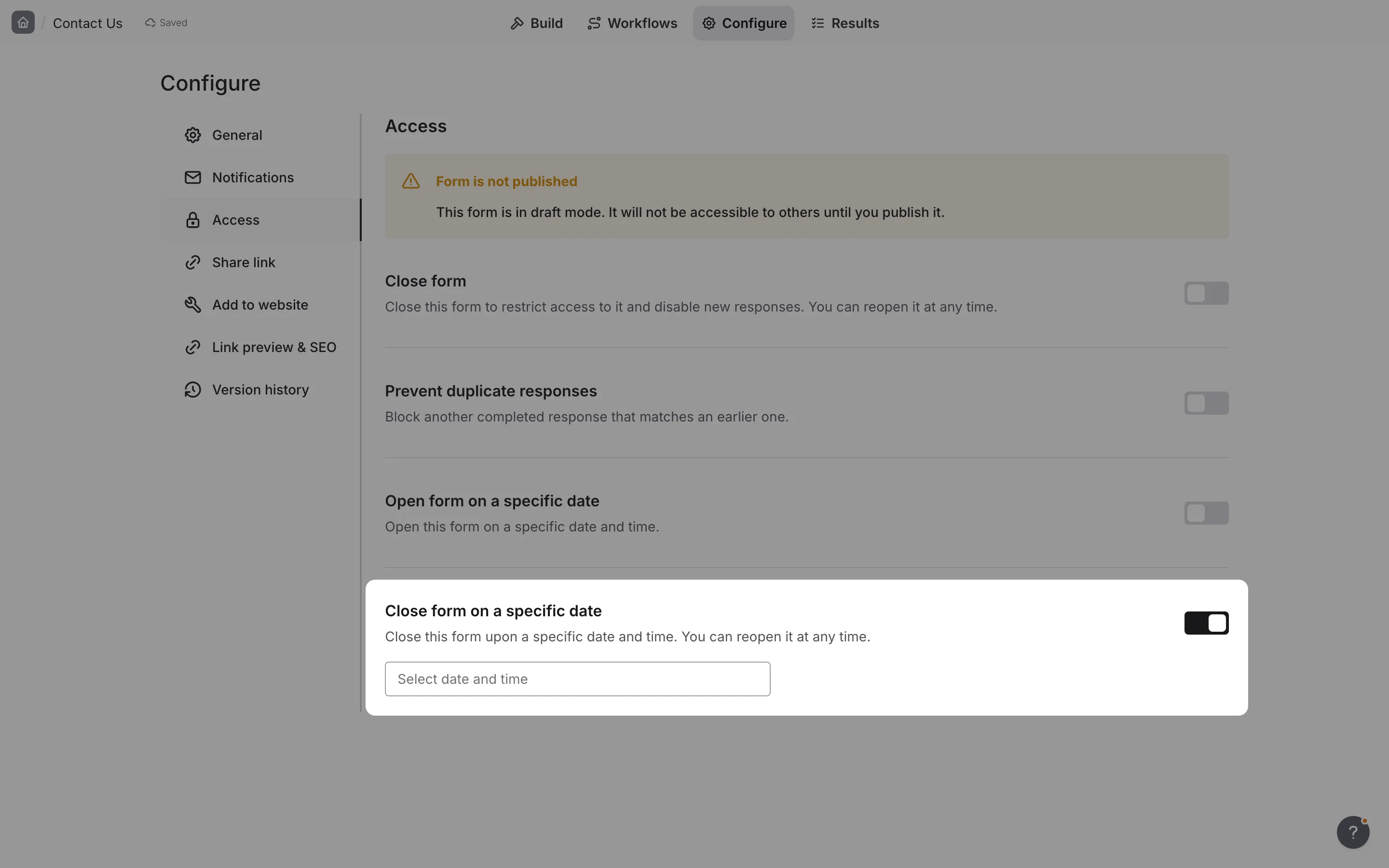
To close a form on a specific date:
-
Open the Configure tab and go to Access
-
Enable Close form on a specific date
-
Select the date and time when the form should close
-
Save your settings
Combining open and close schedules
Section titled “Combining open and close schedules”You can use both scheduled open and close times together to create a specific availability window.
Example scenarios:
| Scenario | Open | Close |
|---|---|---|
| Weekend survey | Friday 5:00 PM | Monday 9:00 AM |
| Event registration | 2 weeks before event | Day before event |
| Flash feedback | Product launch time | 24 hours later |
| Application period | January 1st | January 31st |
Prevent duplicate responses
Section titled “Prevent duplicate responses”Duplicate response prevention is included in every plan and is Off by default.
In Configure → Access, turn on Prevent duplicate responses, then choose one Matching method:
- Respondent IP address — block another completed response from the same IP address.
- Submission ID — use browser storage to remember a completed response.
- A question’s answer — match an Email, Phone, Short answer, Link, or Number answer.
The setting takes effect when syncing finishes; you do not need to republish. Blank optional answers and partial responses do not block another submission.
Checks use completed responses collected since the feature was introduced. Older responses remain unchanged. See Prevent duplicate responses for matching rules, deletion behavior, and the limits of each method.
What users see when form is closed
Section titled “What users see when form is closed”Whenever a form isn’t accepting responses — whether you closed it manually, it hasn’t reached its open date, or it has passed its close date — visitors see the same simple message:

Form is closed
This form does not accept responses at this time.
Best practices
Section titled “Best practices”Plan ahead for deadlines. Set up scheduled closing well in advance of important deadlines to avoid last-minute issues.
Communicate availability. Let your audience know when forms will be available, especially for time-sensitive submissions.
Test scheduled forms. For critical forms, test the scheduling by setting a close time a few minutes in the future, then verify it works correctly.
Consider time zones. If your audience spans multiple time zones, clearly communicate the deadline in a specific timezone (e.g., “Closes January 15th at 11:59 PM EST”).
Use manual close for emergencies. If you need to stop accepting responses immediately (e.g., you’ve reached capacity), use manual close rather than waiting for a scheduled close.
Keep forms accessible. Avoid unnecessarily restrictive access windows. Give respondents reasonable time to complete your forms.
Common scenarios
Section titled “Common scenarios”Event registration with deadline
Section titled “Event registration with deadline”-
Create your registration form
-
Enable Close form on a specific date and set it to the registration deadline
-
Publish the form
-
Share with potential attendees
Limited-time survey
Section titled “Limited-time survey”-
Create your survey
-
Enable Open form on a specific date and set it to your launch date
-
Enable Close form on a specific date and set it to your end date
-
Publish the form (it won’t be accessible until the open date)
Pause for maintenance
Section titled “Pause for maintenance”-
Turn on the close setting in Configure → Access
-
Make your updates
-
Test thoroughly
-
Turn the close setting off when ready
Troubleshooting
Section titled “Troubleshooting”Form closed unexpectedly
Section titled “Form closed unexpectedly”- Check if a scheduled close time has passed
- Verify no one else with access manually closed the form
- Review the access settings for any misconfiguration
Scheduled open/close not working
Section titled “Scheduled open/close not working”- Confirm the date and time are set correctly
- Check your account timezone settings
- Ensure the form is published (scheduling only works on published forms)
Users can still access closed form
Section titled “Users can still access closed form”- Clear any cached versions of the form
- Verify the close setting saved correctly
- Check if users have a direct link to a cached version
