
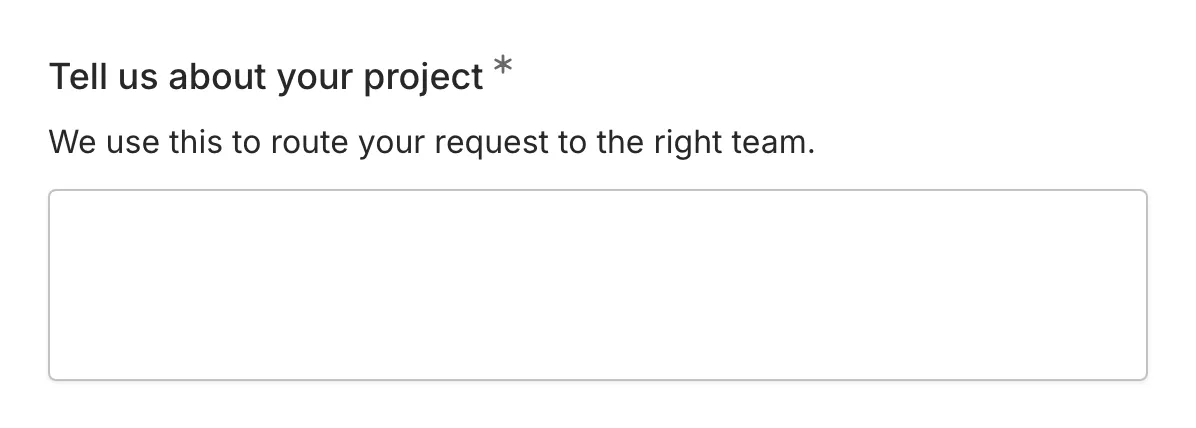
The Long Answer component provides a multi-line text area for collecting detailed, extended responses from your form respondents. Use it when you need more than a brief, single-line answer.
When to use Long Answer
Section titled “When to use Long Answer”Long Answer is ideal for collecting:
- Detailed feedback and comments
- Descriptions and explanations
- Open-ended survey responses
- Message content in contact forms
- Cover letters or personal statements
- Any response that may span multiple lines
Adding a Long Answer component
Section titled “Adding a Long Answer component”-
Open your form in the editor
-
Drag the Long Answer component from the left sidebar onto your form
-
Click the component to select it and configure its settings
Configuration options
Section titled “Configuration options”Question label
Section titled “Question label”The main question or prompt displayed above the text area. This tells respondents what information you’re asking for.
Tips for effective labels:
- Be clear about what kind of response you’re looking for
- Indicate the level of detail expected
- Use open-ended phrasing to encourage detailed responses
Examples:
- “Please describe your experience with our product”
- “Tell us about yourself”
- “What feedback do you have for us?”
Supporting content
Section titled “Supporting content”Add helper text, an example image, or a divider between the question’s title and its input: drag a Text, Image, or Divider component onto the question and drop it on the line that appears under the title. Supporting text comes with full formatting and answer piping. Learn more in Supporting content.
Placeholder
Section titled “Placeholder”Ghost text that appears inside the text area when it’s empty. Placeholders disappear when the user starts typing.
Best practices for placeholders:
- Provide a starting prompt or example
- Keep it helpful but not too long
- Don’t rely on placeholders for critical instructions
Examples:
- “Share your thoughts here…”
- “Describe the issue you experienced…”
- “Tell us what you liked and what could be improved”
Required
Section titled “Required”Toggle whether this component must be filled out before the form can be submitted.
When enabled:
- An asterisk (*) appears next to the question label
- Users cannot submit the form without providing a response
- A validation message appears if they try to skip the component
Text area behavior
Section titled “Text area behavior”The Long Answer text area:
- Expands as needed: The text area grows to accommodate longer responses
- Supports line breaks: Users can press Enter to create new paragraphs
- Allows copy/paste: Users can paste text from other sources
- Preserves formatting: Line breaks and spacing are maintained in responses
Accessibility
Section titled “Accessibility”The Long Answer component is built with accessibility in mind:
- Labels are properly associated with text areas
- Required components are indicated both visually and to screen readers
- Error messages are announced to assistive technologies
- Keyboard navigation is fully supported
- Text areas are resizable for user comfort
Viewing responses
Section titled “Viewing responses”Long answer responses in your form results:
- Display the full text submitted
- Preserve line breaks and formatting
- Can be expanded for easier reading
- Are included in exports (CSV, etc.)
