
Publishing is how you make your form available to the world. Until a form is published, it exists only as a draft that you can edit and refine. Once published, your form gets a unique URL where respondents can access and submit their answers.
Understanding form status
Section titled “Understanding form status”Every form in Fomr has a status that indicates its current state:
| Status | Description |
|---|---|
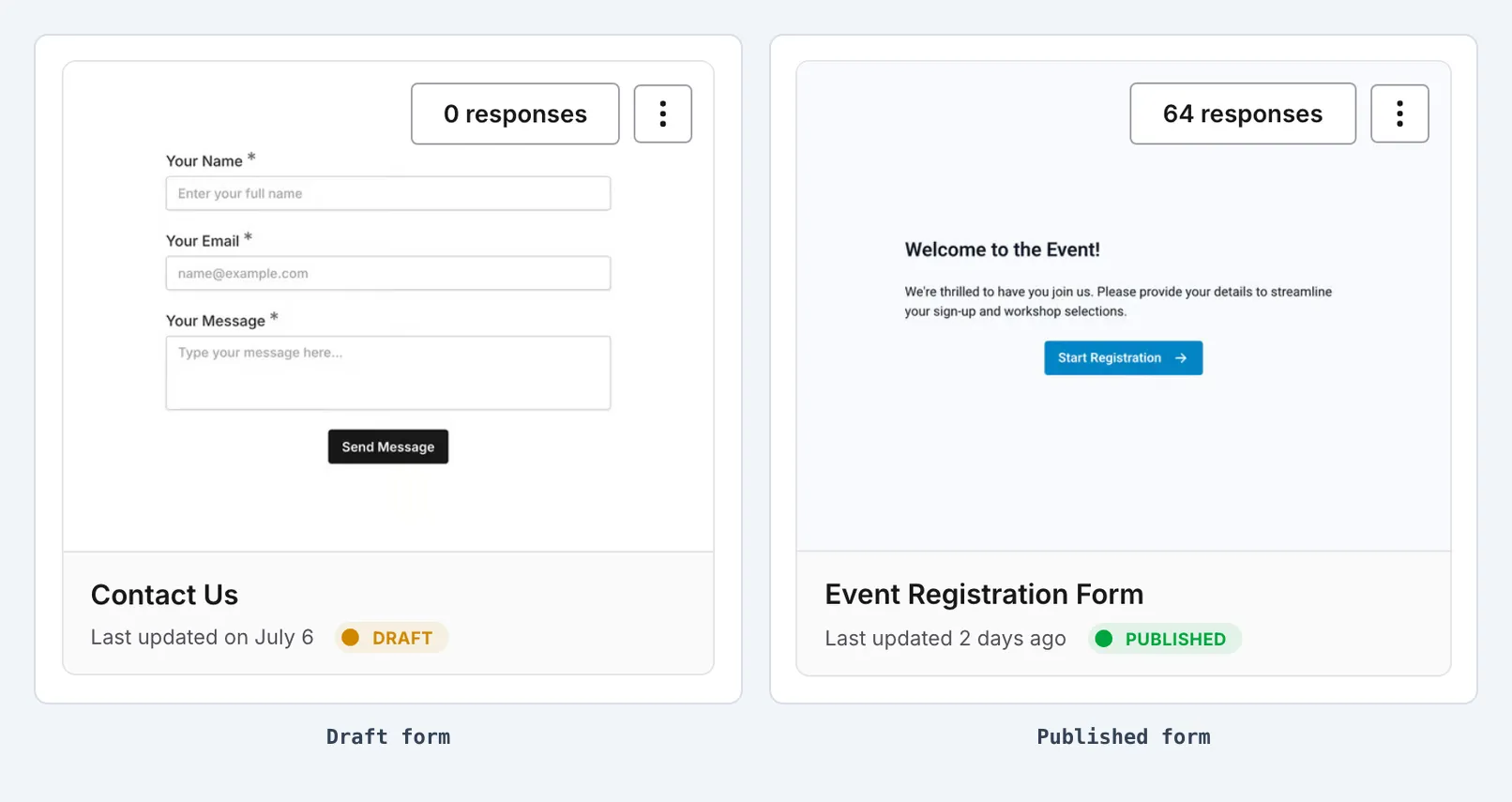
| Draft | Form has unpublished changes and is not publicly accessible |
| Published | Form is live and accepting responses at its public URL |
| Closed | Form is published but not accepting new responses |
| Archived | Form is inactive and hidden from your main forms list |
The status is always visible in your form editor and on each form card in your workspace’s Forms list, so you know exactly where each form stands.

Working with drafts
Section titled “Working with drafts”When you create a new form or make changes to an existing one, those changes are saved as a draft. Drafts are automatically saved as you work, so you never lose your progress.
Drafts can stay incomplete while you work. You can save and return to a form even if some pages, questions, or settings are not finished. Fomr checks the form when you publish it.
What makes a form a draft
Section titled “What makes a form a draft”A form enters draft status when:
- You create a new form (it starts as a draft)
- You make changes to a published form
- You add, remove, or modify any components
- You change form settings, design, or configuration
Draft indicator
Section titled “Draft indicator”When your form has unpublished changes, you’ll see a visual indicator in the editor. This reminds you that your latest changes aren’t yet visible to respondents.

Publishing your form
Section titled “Publishing your form”Publishing makes your form live and accessible via its unique URL. Once published, anyone with the link can view and submit responses to your form.
How to publish
Section titled “How to publish”While the editor is saving your latest changes, the Saving indicator remains visible and Publish remains visible but temporarily disabled. Wait for Saving to clear before publishing.
-
Open your form in the editor
-
Review your form to ensure everything is correct
-
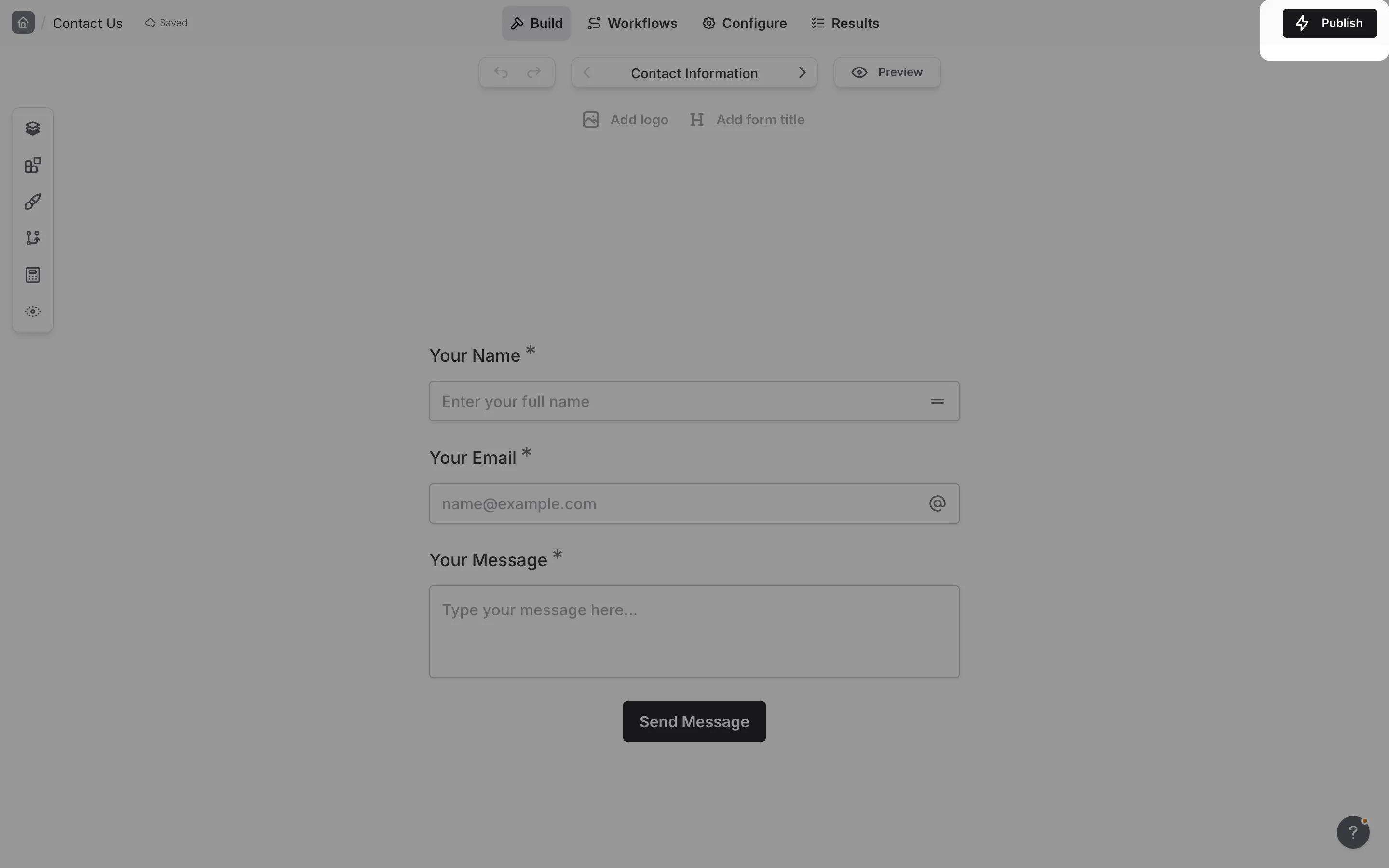
Click the Publish button in the top-right of the Build tab
-
Your form is now live and accessible
When you click Publish, Fomr validates your draft against the structure used for live forms. If anything is missing, invalid, or over a supported limit, publishing is blocked until you fix it. Logic rules with issues are the exception.
For multi-page forms, every normal page must include at least one question component. Intro pages can contain welcome text, images, dividers, and page actions, but they cannot contain questions. Each ending page can only contain the thank-you component.
Before you publish
Section titled “Before you publish”Take a moment to verify these items before publishing:
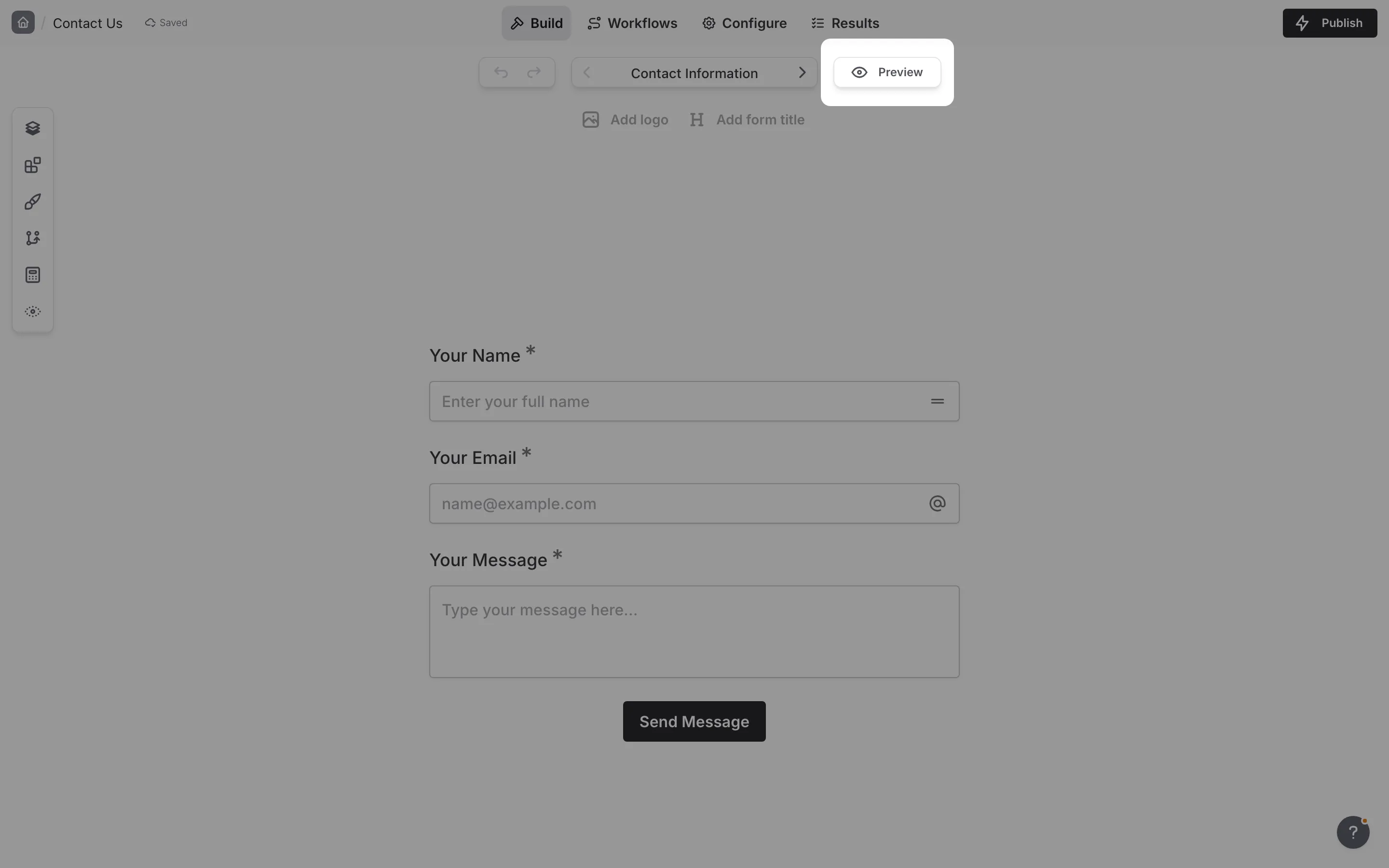
Preview your form. Use the Preview button to see exactly what respondents will experience. Test the form flow, check for typos, and ensure all questions make sense.
Check your settings. Review notification settings, access controls, and other configurations to ensure they match your requirements.
Test on mobile. If possible, preview your form on a mobile device to ensure it looks good on smaller screens.
Verify required components. Make sure you’ve marked the right questions as required and that the form can be completed successfully.
If publishing finds issues
Section titled “If publishing finds issues”If Fomr finds problems during publishing, a modal lists the issues that need attention. These publish issues explain what to fix so you can update the affected page, component, or setting and try again.
Common publish issues include:
- Incomplete or invalid draft content
- A normal page that does not contain a question component
- An intro page that contains a question component
- Content that exceeds supported authoring limits
- Invalid component configuration
Logic rules with issues
Section titled “Logic rules with issues”Logic rules with issues, such as a rule that uses a deleted question or has an incomplete condition, don’t block publishing. When you click Publish while any rule has issues, a confirmation titled “Some logic rules won’t work” tells you how many rules will be skipped on the published form:
- Edit rules opens the Logic panel so you can fix them first
- Publish anyway publishes the form now. Rules with issues are skipped until you fix them and publish again
Rules that only have a conflict don’t trigger this confirmation.
Pro features on the Free plan
Section titled “Pro features on the Free plan”On the Free plan, publishing a form that uses Fomr Pro features opens the upgrade screen instead of publishing. These features are:
- A custom domain
- A redirect after submission Logic rule
- More than one ending
- Link preview and SEO settings
Upgrade to publish the form as it is, or remove those features and publish again. If you downgrade from Pro to Free, published forms that use any of these features are unpublished.
What happens when you publish
Section titled “What happens when you publish”When you publish a form:
- The form becomes accessible at its public URL
- Any previous draft changes become the live version
- Respondents can start submitting answers immediately
- The form status changes from “Draft” to “Published”
Hidden pages and components
Section titled “Hidden pages and components”Pages or components you hide in the editor stay in your draft but are left out of the published version respondents see. Hiding is non-destructive: answers you have already collected are untouched, and showing the item again and republishing brings it back. This lets you stage content or temporarily remove a question without deleting it.
Because publishing checks only your visible content, an unfinished hidden page or component will not block publishing.
Previewing before publishing
Section titled “Previewing before publishing”Always preview your form before making it public. The preview shows exactly what respondents will see, including all styling, logic, and navigation.
-
Click the Preview button in the editor toolbar
-
The preview opens right in the editor, showing the form as respondents will see it
-
Fill out the form as a respondent would
-
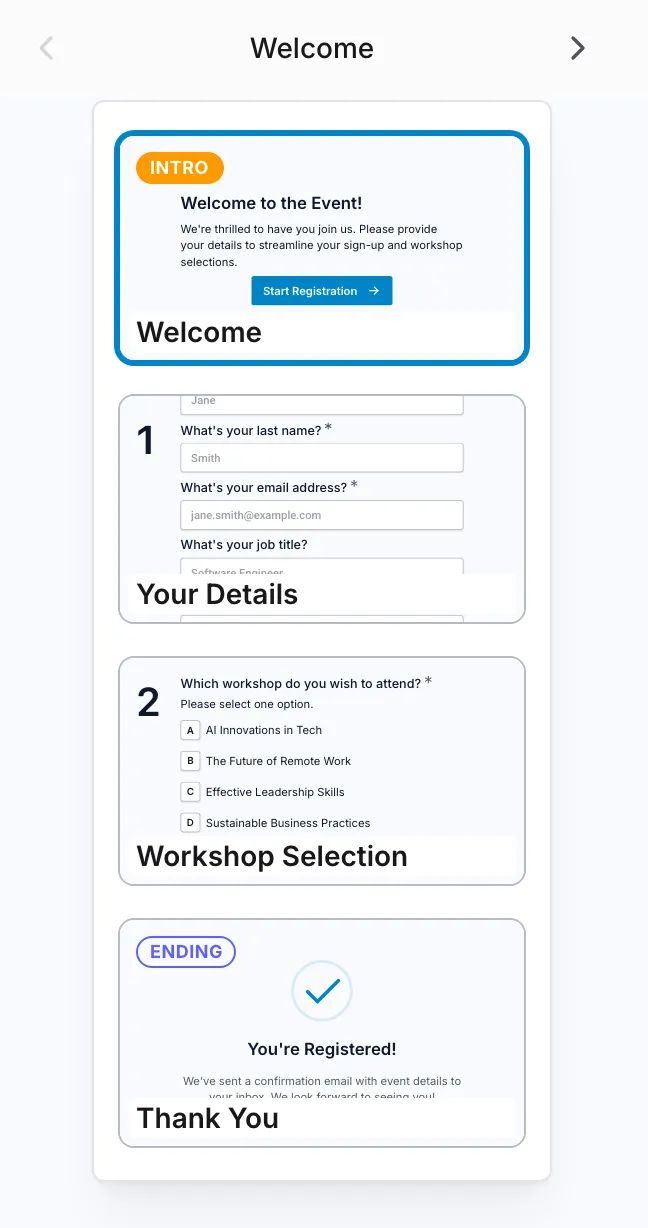
Use the page navigation at the top left to jump between pages and check each one
-
Check that everything works as expected
-
Click Exit preview to return to the Build tab and make any needed adjustments
While previewing, the control at the top left shows the name of the page you’re on, with arrows to step to the previous or next page respondents can see. Click the page name to open a dropdown of all pages and jump straight to any of them—handy for checking a later page without filling out everything before it. The name stays in sync as you move through the form with its own Next and Back buttons.
Updating a published form
Section titled “Updating a published form”After publishing, you can continue making changes to your form. These changes are saved as a new draft until you publish again.
Making updates
Section titled “Making updates”-
Open your published form in the editor
-
Make your desired changes
-
The form status changes to “Draft” (indicating unpublished changes)
-
Click Publish to make your changes live
Live vs. draft versions
Section titled “Live vs. draft versions”While you’re editing a published form:
- Live version: What respondents currently see (your last published version)
- Draft version: Your work-in-progress changes (visible only to you in the editor)
This separation means you can take your time perfecting updates without affecting the live form until you’re ready.
Find forms with unpublished edits
Section titled “Find forms with unpublished edits”In your workspace’s Forms list, a published form with edits that aren’t published yet keeps its Published badge and gets an amber outline. To list only these forms, click the Pending publish preset next to the search box, or open Filter, choose Status, and check Pending publish. Learn more about filtering forms in a workspace.
Unpublishing a form
Section titled “Unpublishing a form”Unpublishing removes your form from public access while keeping it in its workspace’s Forms list. This is useful when you need to temporarily take a form offline.
How to unpublish
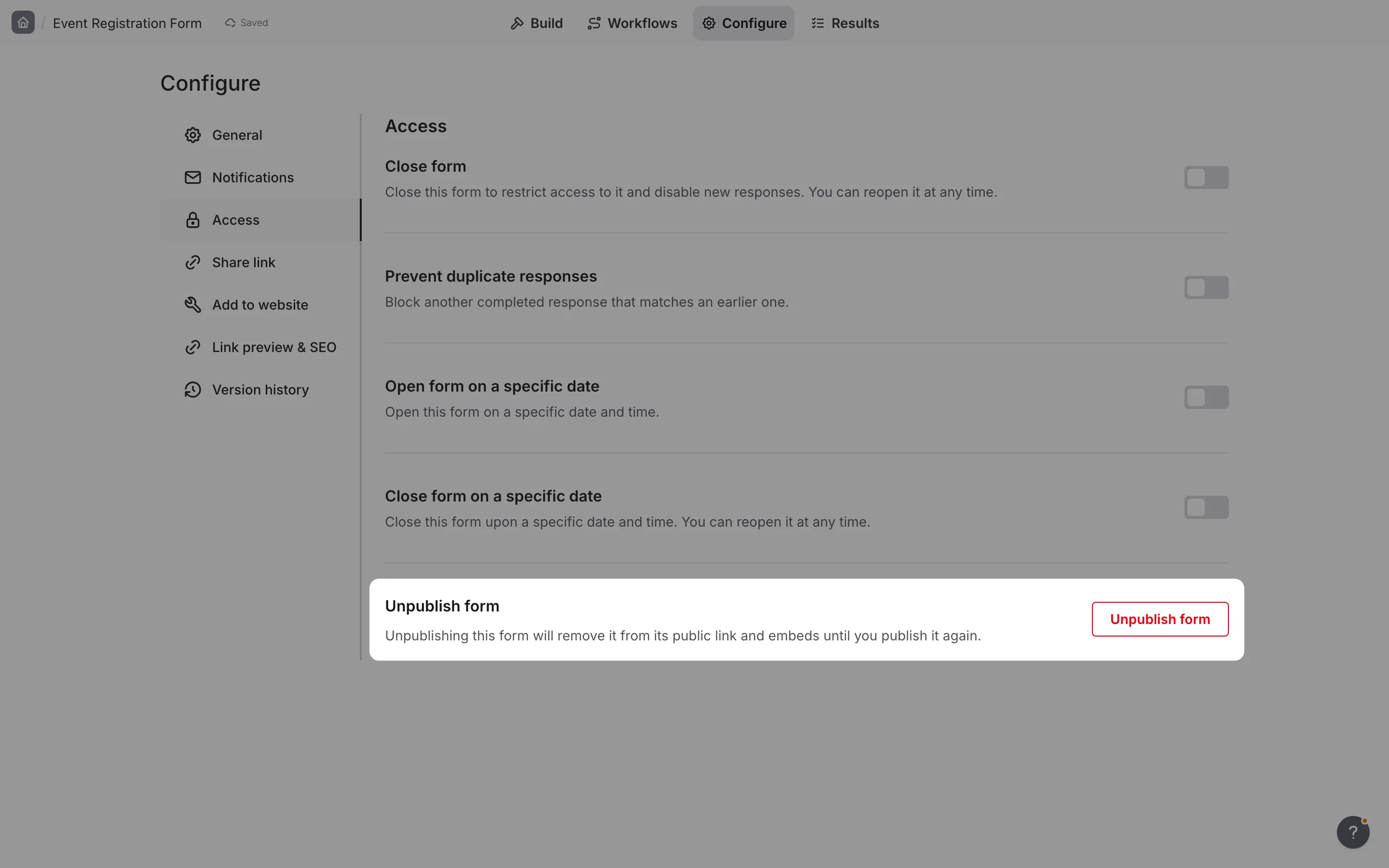
Section titled “How to unpublish”-
Open your form and click the Configure tab
-
Go to the Access section
-
Click the red Unpublish form button
-
Confirm the action
What happens when you unpublish
Section titled “What happens when you unpublish”When you unpublish a form:
- The form URL stops accepting responses
- Visitors see a “Form is closed” message that reads “This form does not accept responses at this time.”
- All existing responses are preserved
- The form remains in its workspace’s Forms list as a draft
- You can republish at any time
Publishing best practices
Section titled “Publishing best practices”Always preview first. Never publish without previewing. A quick review can catch embarrassing typos or broken logic.
Publish during low-traffic times. If updating a high-traffic form, consider publishing during off-peak hours to minimize disruption.
Communicate changes. If you make significant changes to a form people are actively using, consider notifying them about the updates.
Keep a publishing schedule. For forms that need regular updates, establish a routine for reviewing and publishing changes.
Test after publishing. After publishing, visit your live form URL to confirm everything looks correct in the production environment.
Form URLs
Section titled “Form URLs”Every published form gets a unique URL where respondents can access it.
Default URL structure
Section titled “Default URL structure”Your form URL follows this pattern:
https://fomr.io/s/[form-id]You can find and copy this link any time from Configure > Share link. The same section provides a branded QR code you can download for posters, packaging, slides, or other places where scanning is easier than typing a URL.
Custom domains
Section titled “Custom domains”With Fomr Pro, you can use your own domain for form URLs, creating a more branded experience. Custom-domain forms use your domain plus a slug you choose:
forms.yourcompany.com/contact-usLearn more about setting up custom domains.
Embed your form
Section titled “Embed your form”Rather than share a link, you can embed the form directly on your own website. Once your form is published, open the Configure tab and go to Add to website to grab the embed code. You can choose from a Standard, Popup, or Fullscreen embed and paste the snippet into your page.
Troubleshooting
Section titled “Troubleshooting”Publish is blocked
Section titled “Publish is blocked”- Review the publish issues shown in the modal
- Fix any incomplete, invalid, or over-limit content
- Check recently edited pages, options, matrix components, and long text content
- Try publishing again after saving your changes
Form not accessible after publishing
Section titled “Form not accessible after publishing”- Verify the form status shows “Published” in the editor
- Check that you’re using the correct form URL
- Ensure the form isn’t closed or scheduled to open later
- Clear your browser cache and try again
Changes not appearing on live form
Section titled “Changes not appearing on live form”- Confirm you clicked the Publish button after making changes
- Check that the form status changed from “Draft” to “Published”
- Clear your browser cache or try an incognito window
- Wait a few moments for changes to propagate
Can’t find the Publish button
Section titled “Can’t find the Publish button”- Ensure you have edit permissions for the form
- Check that you’re on the Build tab (not the Results view)
- The Publish button is in the top-right of the Build tab. Once a form is published, it becomes Share
