
Page navigation controls how users move through your form and submit their responses. Whether you have a single-page form or a multi-page survey, navigation buttons guide users through the process.
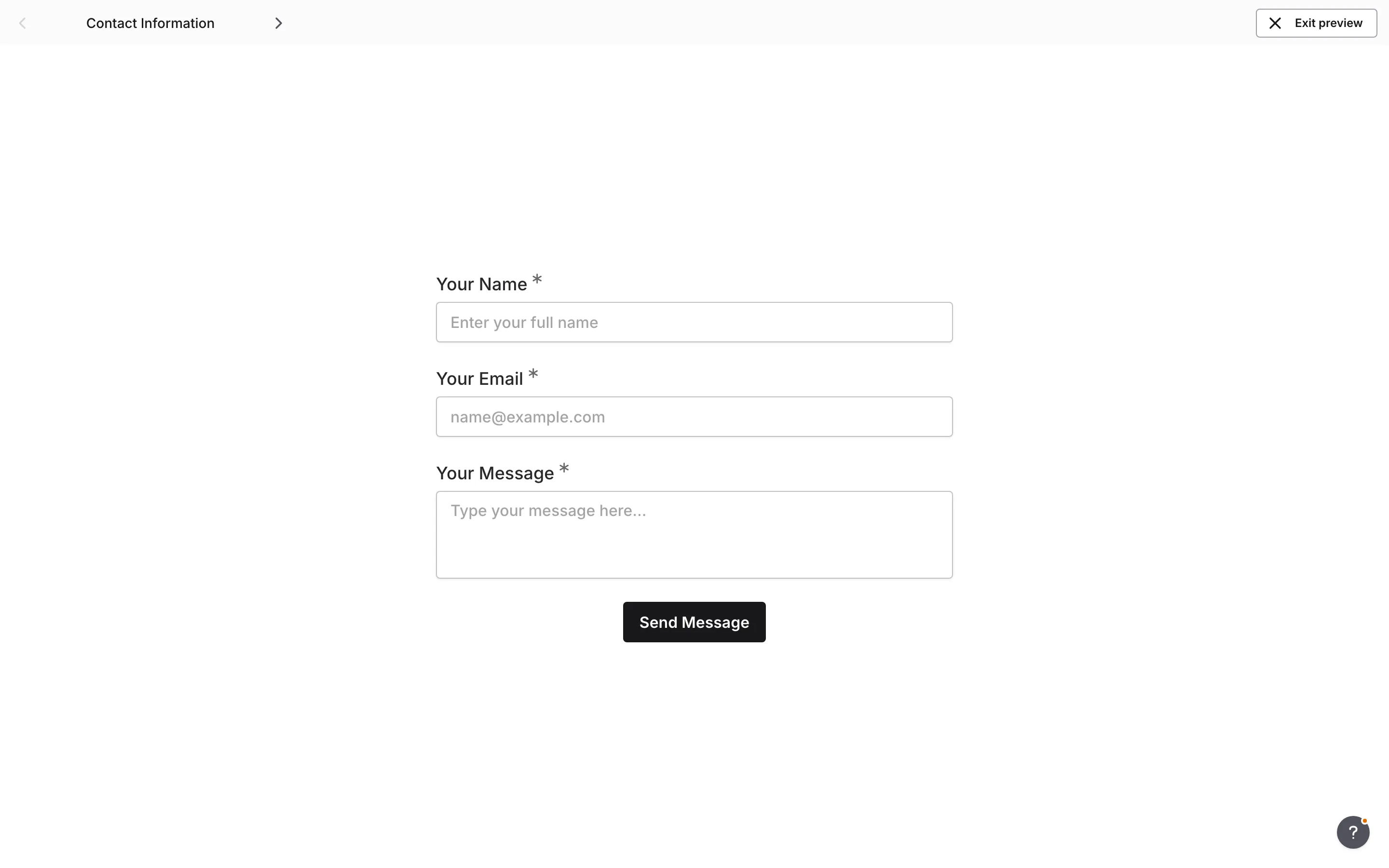
How navigation works
Section titled “How navigation works”Every form needs navigation elements to guide users through the form and submit their responses:
- Single-page forms: A submit button at the bottom
- Multi-page forms: A next or submit button at the bottom, with an optional back button on later pages
Fomr automatically determines the main action label based on the page position in your form. Back buttons, arrows, and alignment can be controlled from the Design panel or overridden on individual pages. Whether respondents can go back at all is controlled by the Allow going back form setting.
Button types
Section titled “Button types”Next button
Section titled “Next button”Appears on pages that have more pages following. Advances the user to the next page.
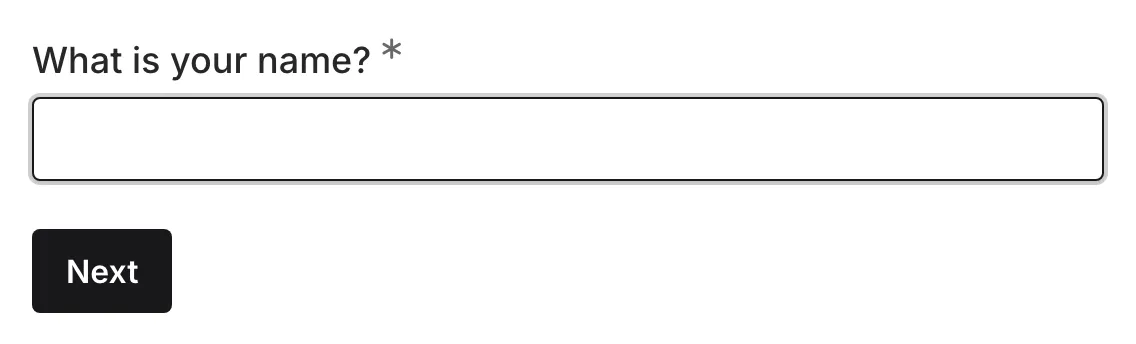
Behavior:
- Validates required components on the current page
- Shows errors if validation fails
- Advances to the next page if validation passes
Back button
Section titled “Back button”When enabled, the back button appears on eligible pages after the first page in the respondent’s flow. It lets users go back and review or edit previous answers.
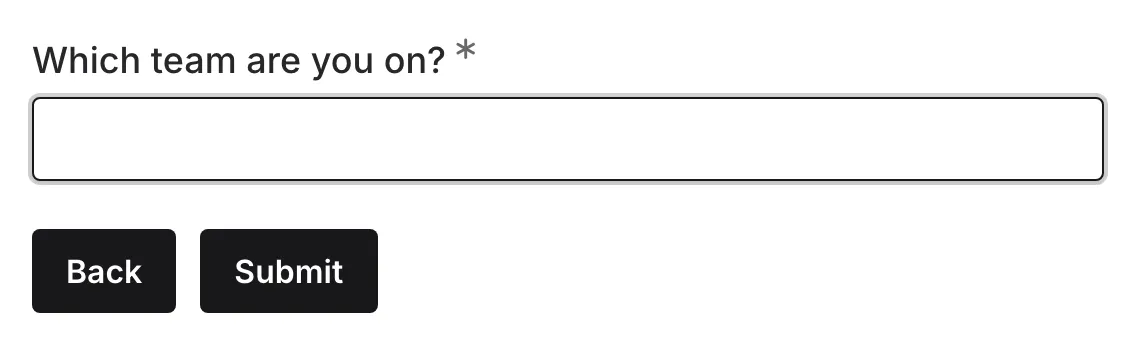
Behavior:
- Does not validate the current page
- Preserves entered values when users move back and forward in the same tab
- Returns along the pages the respondent actually visited, so pages that conditional logic jumped over are skipped on the way back too
- Does not appear on the first respondent page or final pages
- Only appears while Allow going back is turned on
Submit button
Section titled “Submit button”Appears on the final page. Submits the form and shows the thank you page.
Behavior:
- Validates all required components
- Submits the form if validation passes
- Redirects to the Thank You page
Allow going back
Section titled “Allow going back”The Allow going back setting decides whether respondents can return to earlier pages at all. It’s on by default. To change it:
-
Open the Configure tab and select General
-
In the Behavior group, turn Allow going back on or off
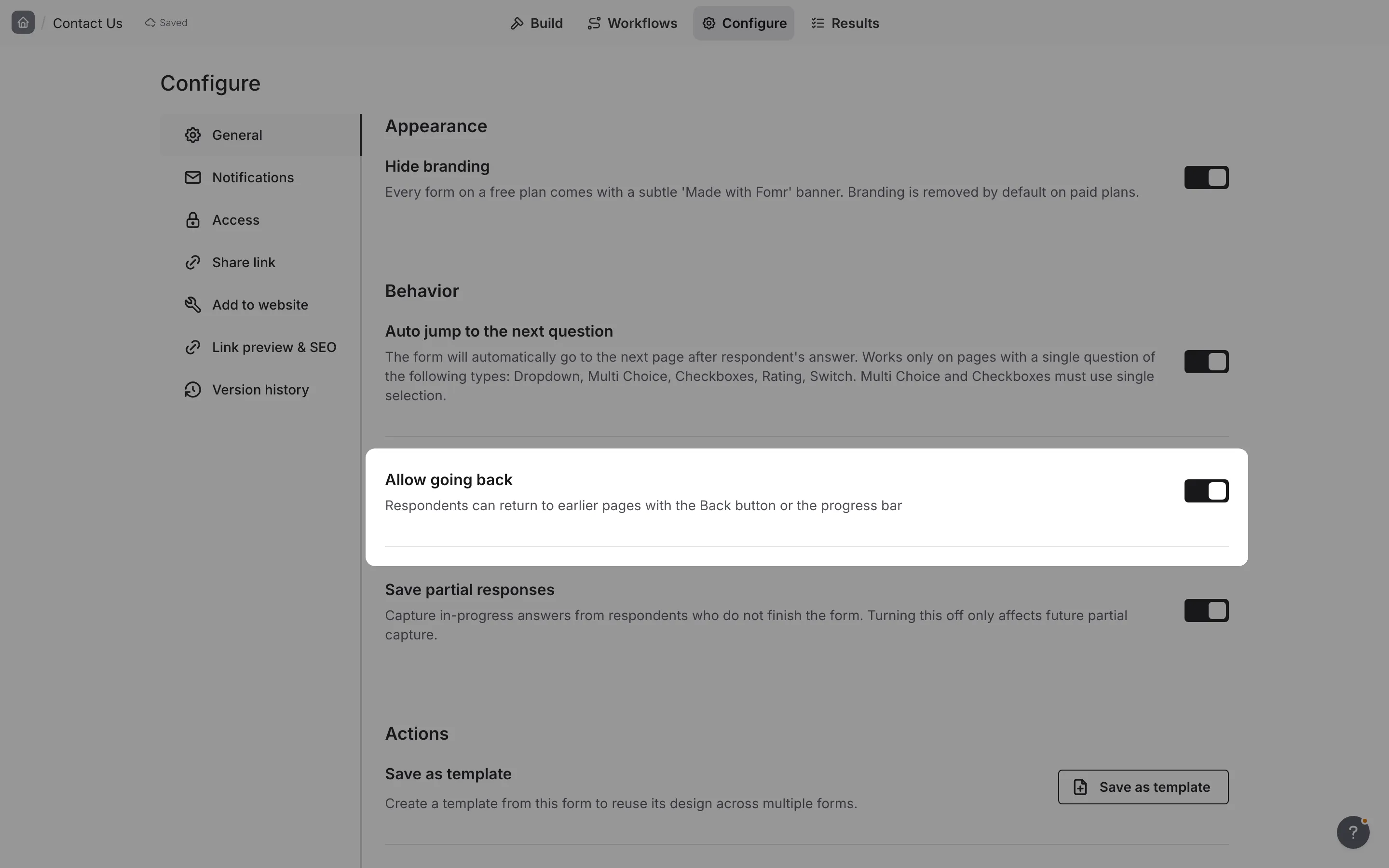
This one setting controls both ways of going back:
- The Back button — while the setting is off, no page shows a Back button.
- Progress bar step clicks — with the Segments or Bullets style, respondents can click an earlier step they’ve visited to go back to it, but only while the setting is on.
Showing the Back button is still a separate choice in Design → Buttons (and in page-level overrides). With Allow going back on, you can hide the Back button and still let respondents go back by clicking progress bar steps. While Allow going back is off, the Show back button switches in the Design panel and in page settings are shown off and can’t be changed, with a link back to Form Settings. Your saved Back button choices are kept and apply again when you turn the setting back on.
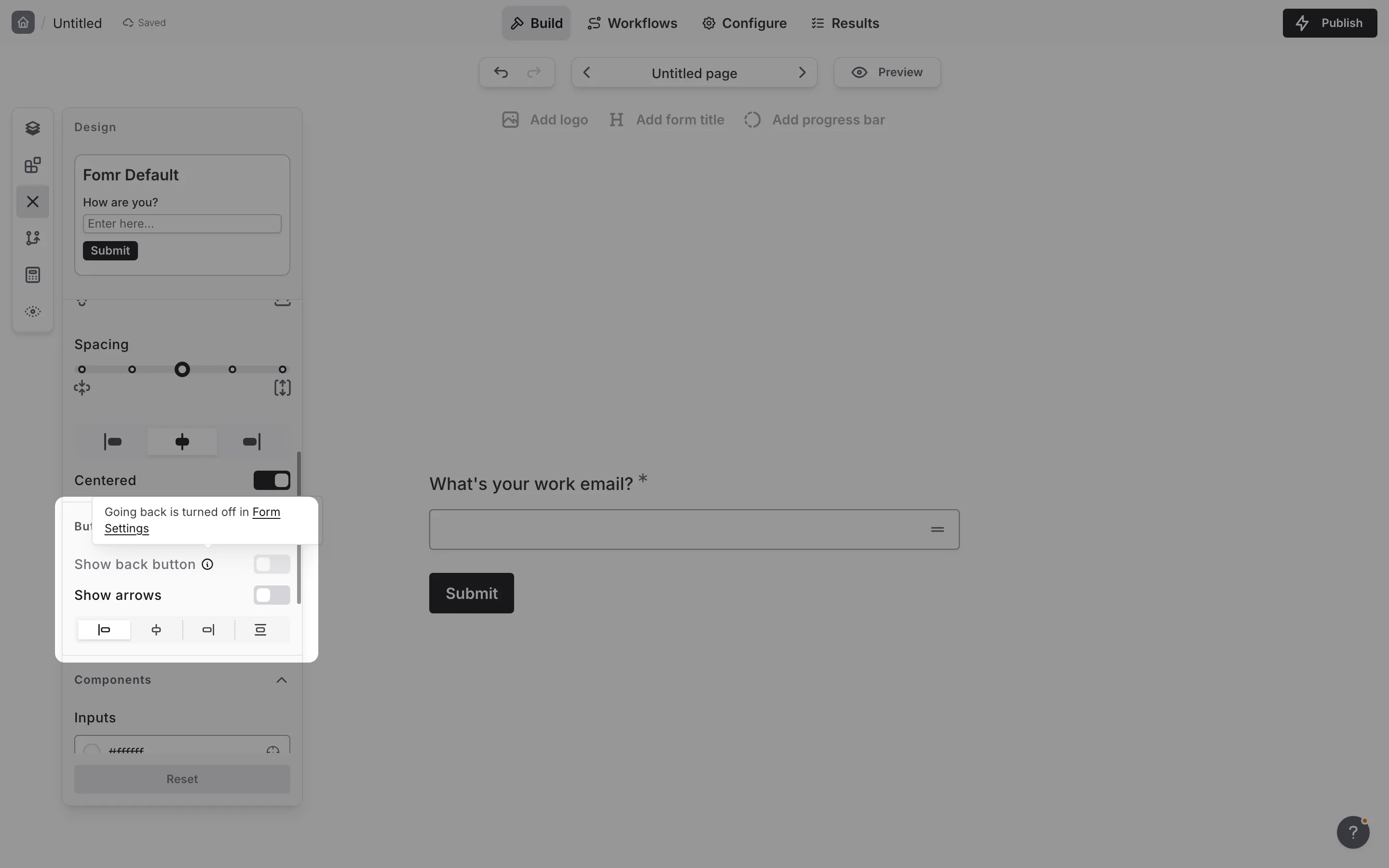
The setting takes effect on your published form right away—you don’t need to republish.
Navigation flow example
Section titled “Navigation flow example”For a 4-page form with back buttons enabled, the navigation flow looks like this:
Page 1: [Next →]Page 2: [← Back] [Next →]Page 3: [← Back] [Next →]Page 4: [Submit →]Hidden pages
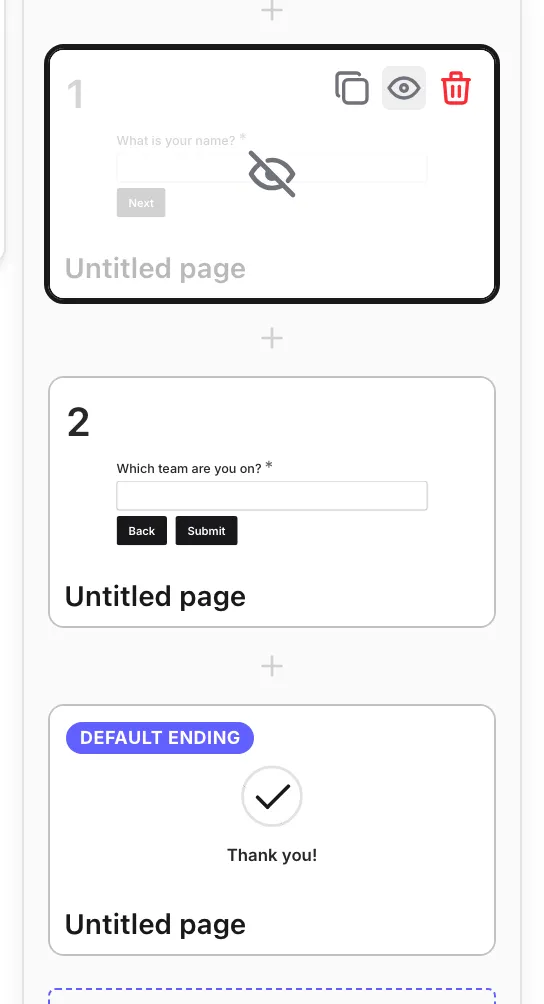
Section titled “Hidden pages”Pages you hide in the editor are excluded from the published form, and the navigation flow automatically closes the gap. The Next and Back buttons route respondents from the last visible page straight to the next visible one.
The hidden page and its content are preserved in your draft—nothing is deleted—and it reappears in the flow the moment you show it again and republish.
Conditional logic
Section titled “Conditional logic”Conditional logic can change where Next goes. A rule can skip pages that don’t apply to a respondent, hide a page based on earlier answers, or, on Pro, send respondents to one of several endings. Unlike hiding a page in the editor, which removes it for everyone, a rule hides a page only while its conditions match. When a jump’s conditions match, Next takes respondents ahead to the jump’s page instead of the following one, and Back returns along the pages they actually visited.
Configuring navigation buttons
Section titled “Configuring navigation buttons”Button labels
Section titled “Button labels”Click a button label in the Page Actions component to edit it. Type @ in the label to insert an earlier answer or hidden value. Learn more about answer piping.
Theme defaults
Section titled “Theme defaults”Open the Design panel, then use the Buttons group to set form-wide defaults for:
- Showing the back button
- Showing arrow icons
- Button alignment
These defaults apply to all Page Actions components unless you override a specific page.
Button alignment
Section titled “Button alignment”Control how buttons are positioned on the page:
| Alignment | Description |
|---|---|
| Left | Buttons aligned to the left edge |
| Center | Buttons centered on the page |
| Right | Buttons aligned to the right edge |
| Justify | Buttons spread across full width |
Recommendations:
- Right: Most common, follows natural reading flow
- Center: Good for single-page forms with only a submit button
- Justify: Works well with back/next button pairs on multi-page forms
Arrow icons
Section titled “Arrow icons”Add arrow icons to navigation buttons for extra visual clarity:
When arrows are enabled, Fomr adds a left arrow to the back button and a right arrow to the next or submit button.
Page-level overrides
Section titled “Page-level overrides”If one page needs different navigation settings:
-
Select that page’s Page Actions component
-
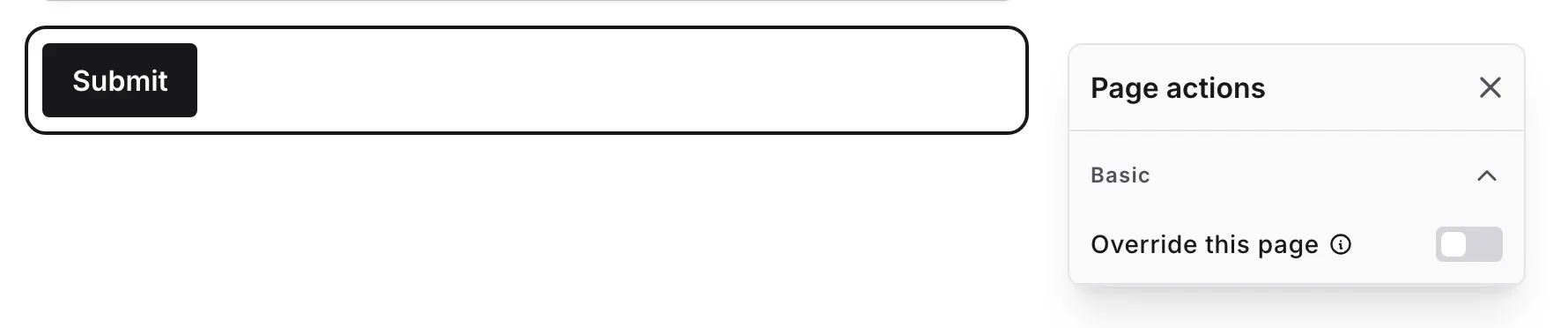
Turn on Override this page
-
Change the back button, arrows, or alignment for that page
-
Use Save as default if you want those settings to become the new theme default for the whole form
If you turn the override off again, the page goes back to using the Design panel defaults.
Setting up multi-page navigation
Section titled “Setting up multi-page navigation”-
Create your form with multiple pages
-
Add form components to each page
-
Add a Page Actions component to each page where users should continue or submit
-
Set form-wide button defaults in Design → Buttons
-
Override individual pages only when needed
-
Test the navigation flow in preview mode
Validation and navigation
Section titled “Validation and navigation”When users click Next or Submit, Fomr validates the form:
-
Required component check: All required components on the current page are validated
-
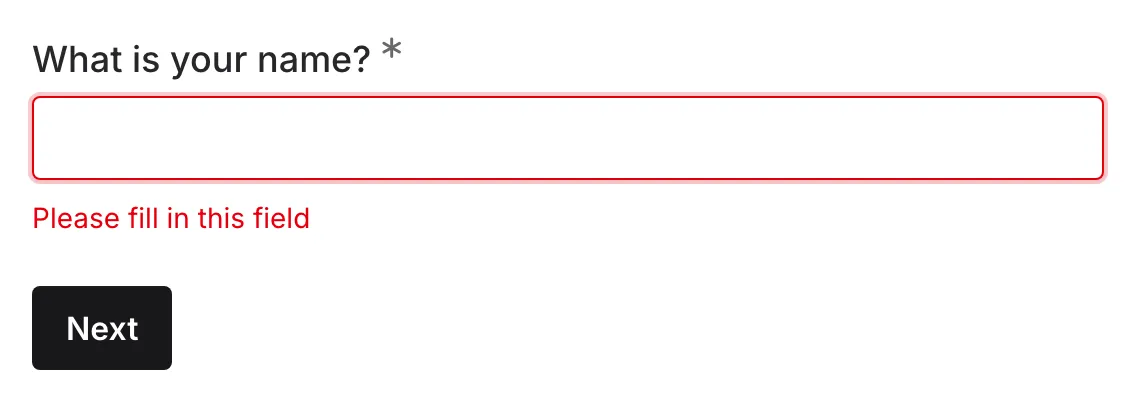
Error display: If validation fails, errors appear on the relevant components
-
Scroll to error: The page automatically scrolls to the first error
-
Block or proceed: Navigation only continues if all validation passes
Auto-jump behavior
Section titled “Auto-jump behavior”Fomr offers an auto-jump feature that automatically advances to the next page as soon as an eligible question is answered. This creates a faster, more fluid form experience.
Learn more about auto-jump navigation.
When auto-jump is enabled:
- It works only on a page with a single question of one of these types: Dropdown, single-select Multi Choice, single-select Checkboxes, Rating, or Switch
- It does not apply to text, number, date, email, phone, or multi-select questions—those still require clicking Next
- Users can always use the navigation buttons manually
Button states
Section titled “Button states”Navigation buttons give respondents visual feedback as they interact with them—hovering, clicking, and a loading indicator while the form is submitting. This is handled for you automatically, so there’s nothing to configure.
Customization through design
Section titled “Customization through design”Navigation button appearance is controlled by your form’s design settings:
- Primary color: Affects button background color
- Border radius: Affects button corner rounding
- Font: Affects button text styling
Accessibility
Section titled “Accessibility”Form navigation is built with accessibility in mind. Respondents can move through your form with the keyboard and screen readers, so the flow works well for everyone who fills it out.
Best practices
Section titled “Best practices”Position buttons consistently. Place navigation at the bottom of each page in a predictable location.
Use clear button labels. “Next” and “Submit” are clear and widely understood. Avoid ambiguous labels.
Consider button pairs. On middle pages, justify alignment works well for back/next button pairs.
Use theme defaults first. Set your standard button style once in the Design panel, then keep page-level overrides for exceptions.
Add arrows when they help. Arrow icons can make direction clearer, especially on multi-page forms.
Test thoroughly. Navigate through your entire form to ensure the flow makes sense and validation works correctly.
Keep forms focused. If your form has many pages, consider whether all questions are necessary. Shorter forms have higher completion rates.
Troubleshooting
Section titled “Troubleshooting”Users can’t proceed to the next page
Section titled “Users can’t proceed to the next page”- Check if there are required components that haven’t been filled
- Look for validation errors on the current page
- Ensure the form is properly published
- If a page seems missing from the live form, check whether it was hidden in the editor
Submit button not appearing
Section titled “Submit button not appearing”- Verify this is the last page in your form
- Check that the page type is set correctly
- Ensure page order is configured properly
Navigation buttons look different than expected
Section titled “Navigation buttons look different than expected”- Review your design settings for primary color and border radius
- Check if custom themes are affecting button styles
- Preview the form to see the actual appearance
Back button not appearing
Section titled “Back button not appearing”- Check that Allow going back is on in Configure → General → Behavior
- Turn on Show back button in Design → Buttons, or enable a page override
- Back buttons never appear on the first respondent page or final pages
- The back button only appears on eligible pages after the first page in the flow
