
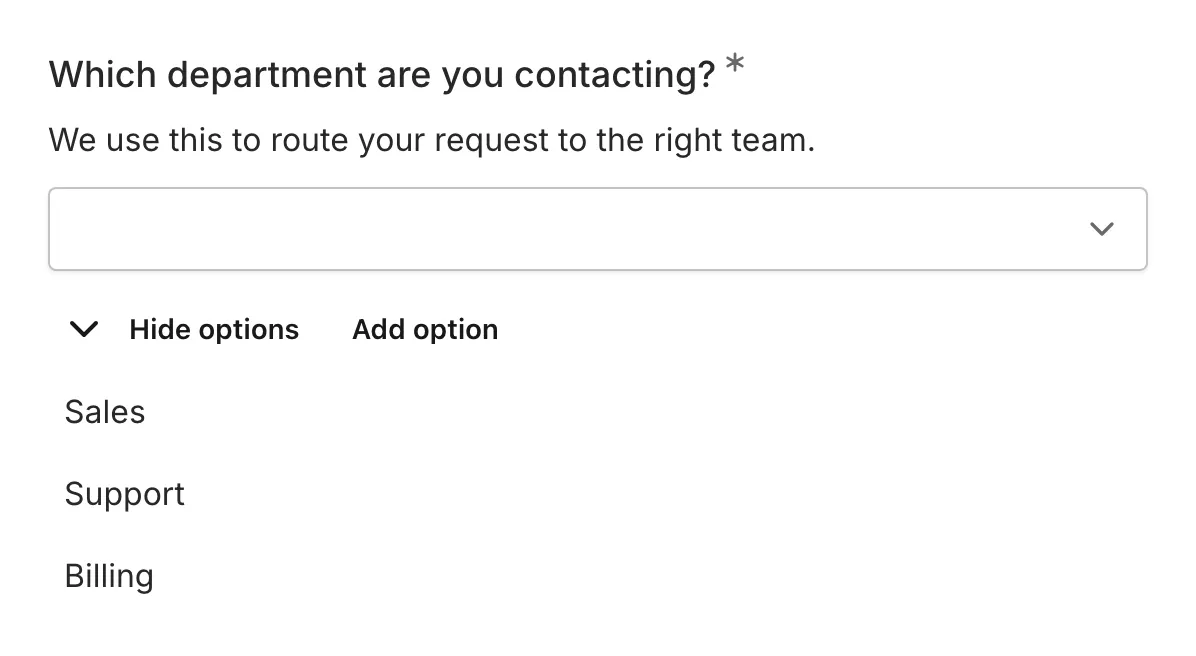
The Dropdown component provides a compact single-selection menu that expands when clicked. It works well for questions with many options where displaying all choices at once would take too much space.
When to use Dropdown
Section titled “When to use Dropdown”Dropdown is ideal for:
- Country or region selection
- Category selection from long lists
- Year or date selection
- Department or team selection
- Any single-choice question with 5+ options
Adding a Dropdown component
Section titled “Adding a Dropdown component”-
Open your form in the editor
-
Drag the Dropdown component from the left sidebar onto your form
-
Click the component to select it and configure its settings
-
Add your options in the settings panel
Configuration options
Section titled “Configuration options”Question label
Section titled “Question label”The main question or prompt displayed above the dropdown.
Examples:
- “Country”
- “Select your department”
- “How did you hear about us?”
- “Preferred contact method”
Supporting content
Section titled “Supporting content”Add helper text, an example image, or a divider between the question’s title and its input: drag a Text, Image, or Divider component onto the question and drop it on the line that appears under the title. Supporting text comes with full formatting and answer piping. Learn more in Supporting content.
Placeholder
Section titled “Placeholder”Text displayed in the dropdown before a selection is made.
Examples:
- “Select an option”
- “Choose a country”
- “Pick one”
- ”— Please select —“
Options list
Section titled “Options list”The list of choices available in the dropdown menu.
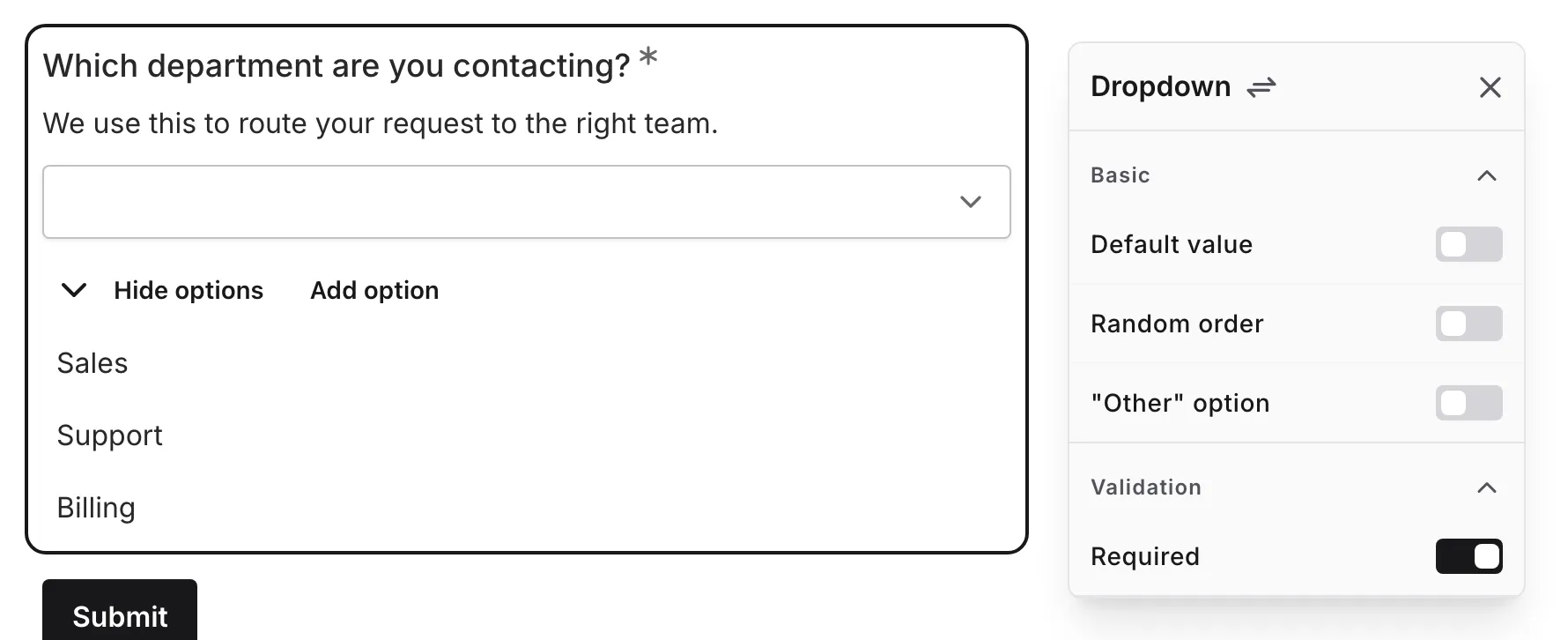
To manage options:
- Click to add new options
- Drag to reorder options
- Click the delete icon to remove options
- Edit option text directly
- Paste multiple lines of text to add several options at once — each line becomes its own option, blank lines are skipped, and supported text formatting is preserved
Tips for options:
- Order logically (alphabetically for long lists, by frequency for shorter ones)
- Keep option text concise
- Use consistent formatting across all options
- Consider grouping related options together
Random order
Section titled “Random order”Turn on Random order to shuffle the answer options each time the form loads, so their order doesn’t influence responses.
Required
Section titled “Required”Toggle whether a selection must be made before the form can be submitted.
When enabled:
- An asterisk (*) appears next to the question label
- Users must select an option to submit
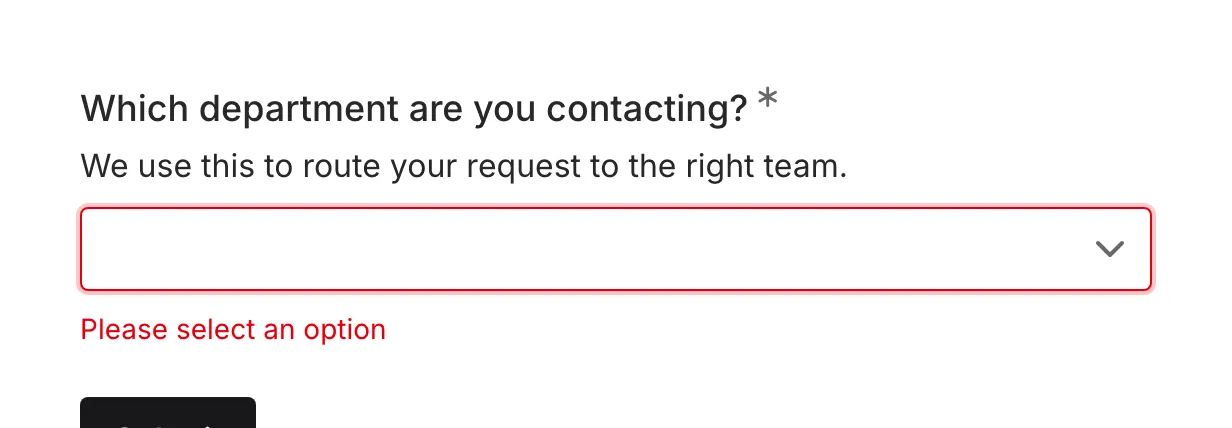
- A validation message appears if no selection is made
”Other” option
Section titled “”Other” option”Turn on “Other” option to let respondents give an answer that isn’t in your list. This adds an “Other” choice as the last item in the dropdown menu.
When a respondent selects it, a text input appears below the question where they type their answer. Typing an answer is required — to submit without one, they need to pick a different option instead.
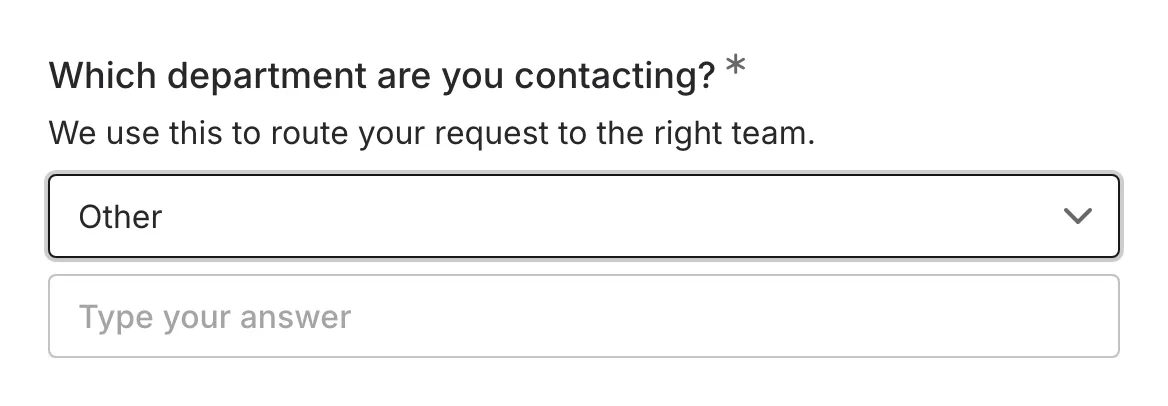
On the editor canvas you can:
- Edit the option’s label directly (the default is “Other”)
- Edit the text input’s placeholder inline (the default is “Type your answer”)
- Delete the option to turn the setting off
The “Other” choice always stays at the end of the list, even when Random order is on. It can also be preselected as a default value — respondents still type their answer before submitting.
Dropdown vs. Multi Choice
Section titled “Dropdown vs. Multi Choice”| Aspect | Dropdown | Multi Choice |
|---|---|---|
| Space | Compact, expands on click | Shows all options |
| Best for | 5+ options | 2-5 options |
| Interaction | Click to open, then select | Click directly on option |
| Visibility | Options hidden until clicked | All options visible |
| Mobile | Works well | Works well |
Validation
Section titled “Validation”When a dropdown is marked as required:
- A selection must be made before submission
- The placeholder doesn’t count as a valid selection
- A validation message appears if submitted without selection
Accessibility
Section titled “Accessibility”The Dropdown component is built with accessibility in mind:
- Proper select/combobox semantics
- Keyboard navigation (Arrow keys, Enter, Escape)
- Screen reader compatible
- Focus states are clearly visible
Handling responses
Section titled “Handling responses”Dropdown responses in your form results:
- Show the selected option text
- Show the typed answer when the “Other” option was selected — in results, CSV exports, and Google Sheets
- Can be filtered by selection
- Are included in exports
- Allow analysis of selection distribution
