
Fomr gives you control over how your forms look. You can start with a large library of built-in themes or customize individual elements like colors, fonts, backgrounds, and layout to match your brand.
Accessing design settings
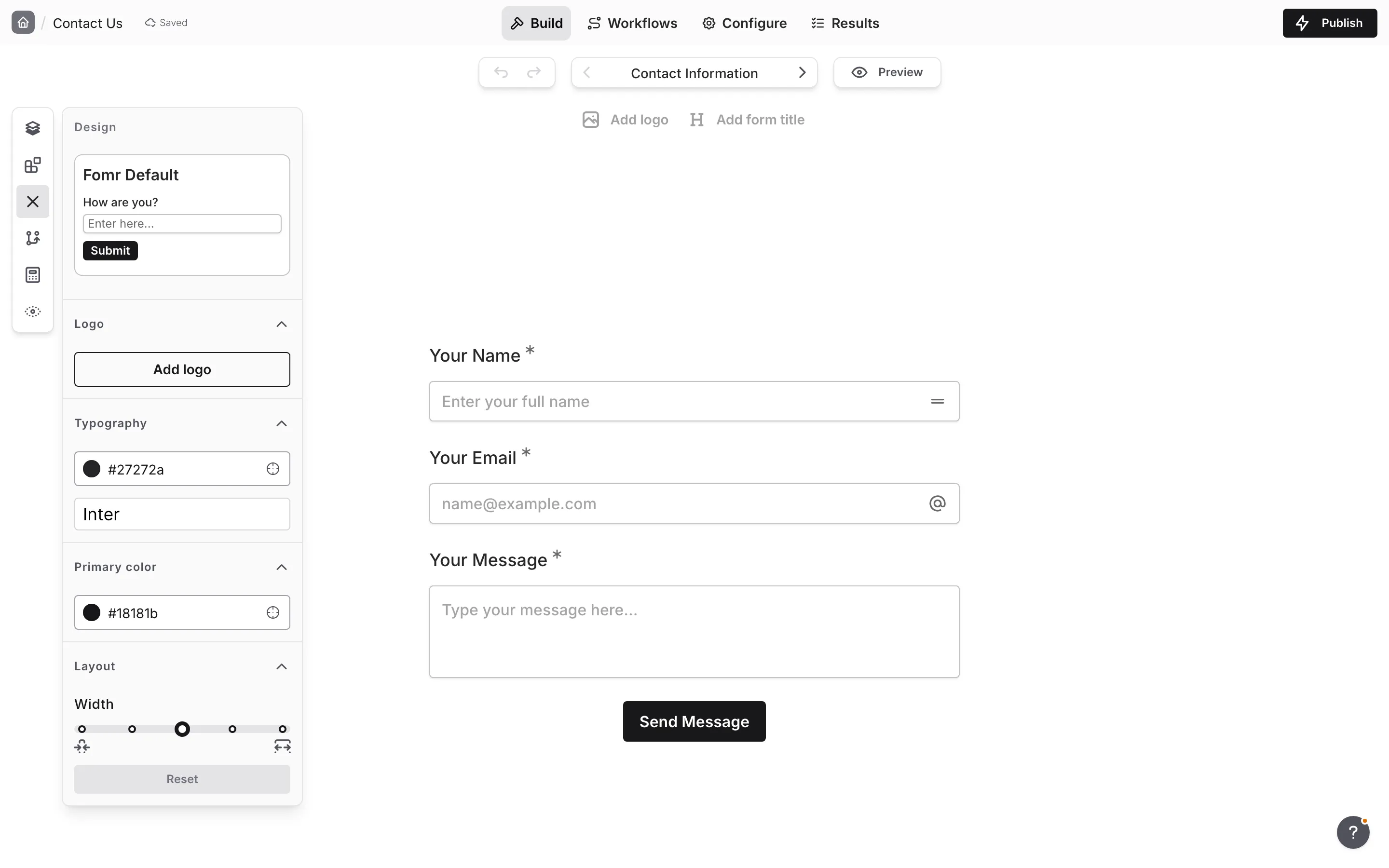
Section titled “Accessing design settings”To customize your form’s appearance:
-
Open your form in the editor
-
On the Build tab, open the Design panel
-
Adjust settings to match your desired look
-
Preview changes in real-time on the canvas
Color pickers (Background, Text, Primary color, and Inputs) and the Width and Spacing sliders update the canvas instantly while you drag, so you can see the result before you commit to it. The change is saved when you release the mouse, or when you type a valid hex code or pick a color with the eyedropper. Each release is a single step you can reverse with undo.
Theme picker
Section titled “Theme picker”Preset themes give you a quick starting point. Fomr includes a large library of built-in themes, each with coordinated colors, fonts, and styling that you can use as-is or customize further.
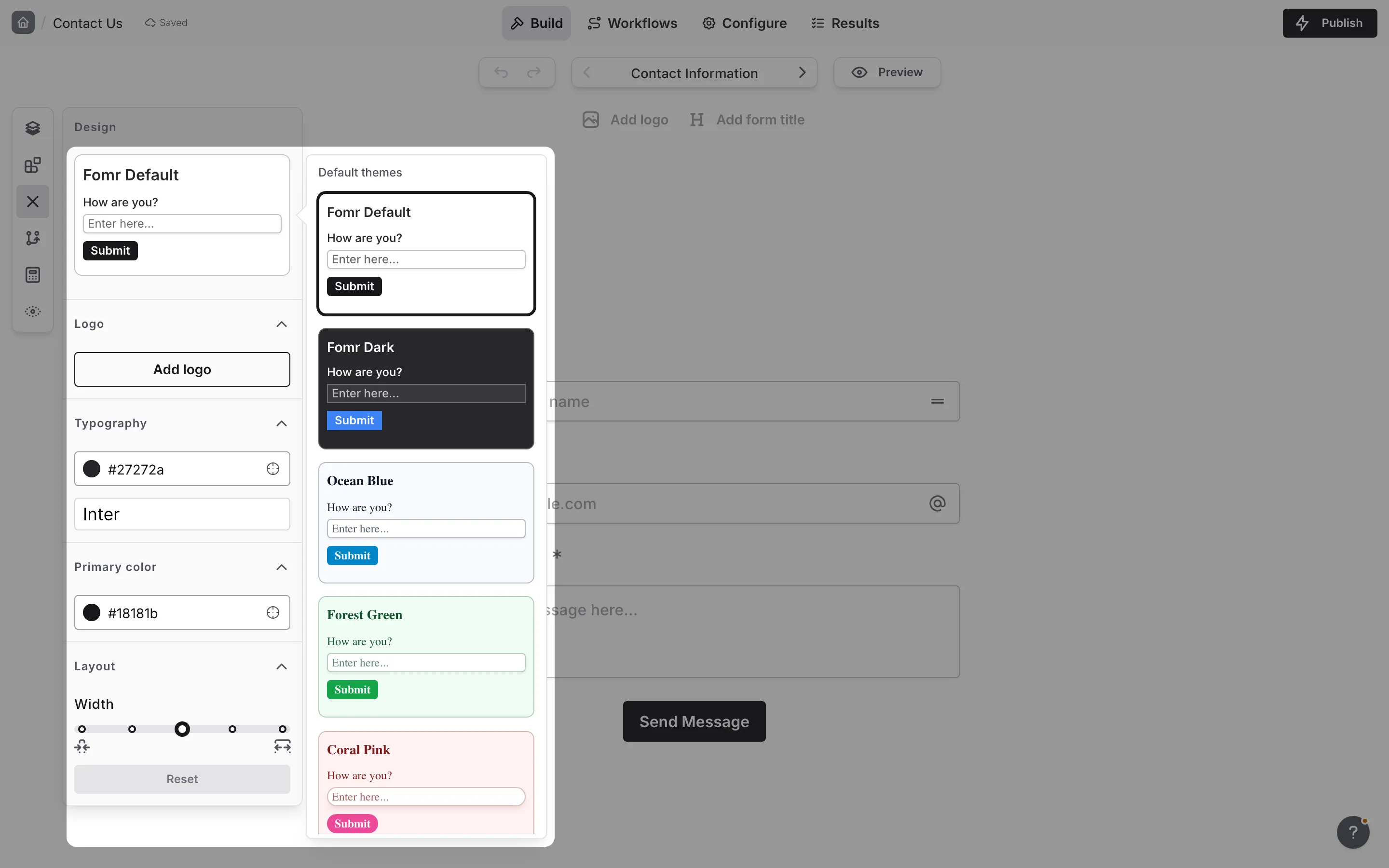
To apply a theme:
-
Click the Theme dropdown in the Design panel
-
Browse available themes
-
Click a theme to apply it instantly
-
Customize individual settings if needed
Logo settings
Section titled “Logo settings”Add your brand logo to create a professional, branded experience for your form respondents.
Adding a logo
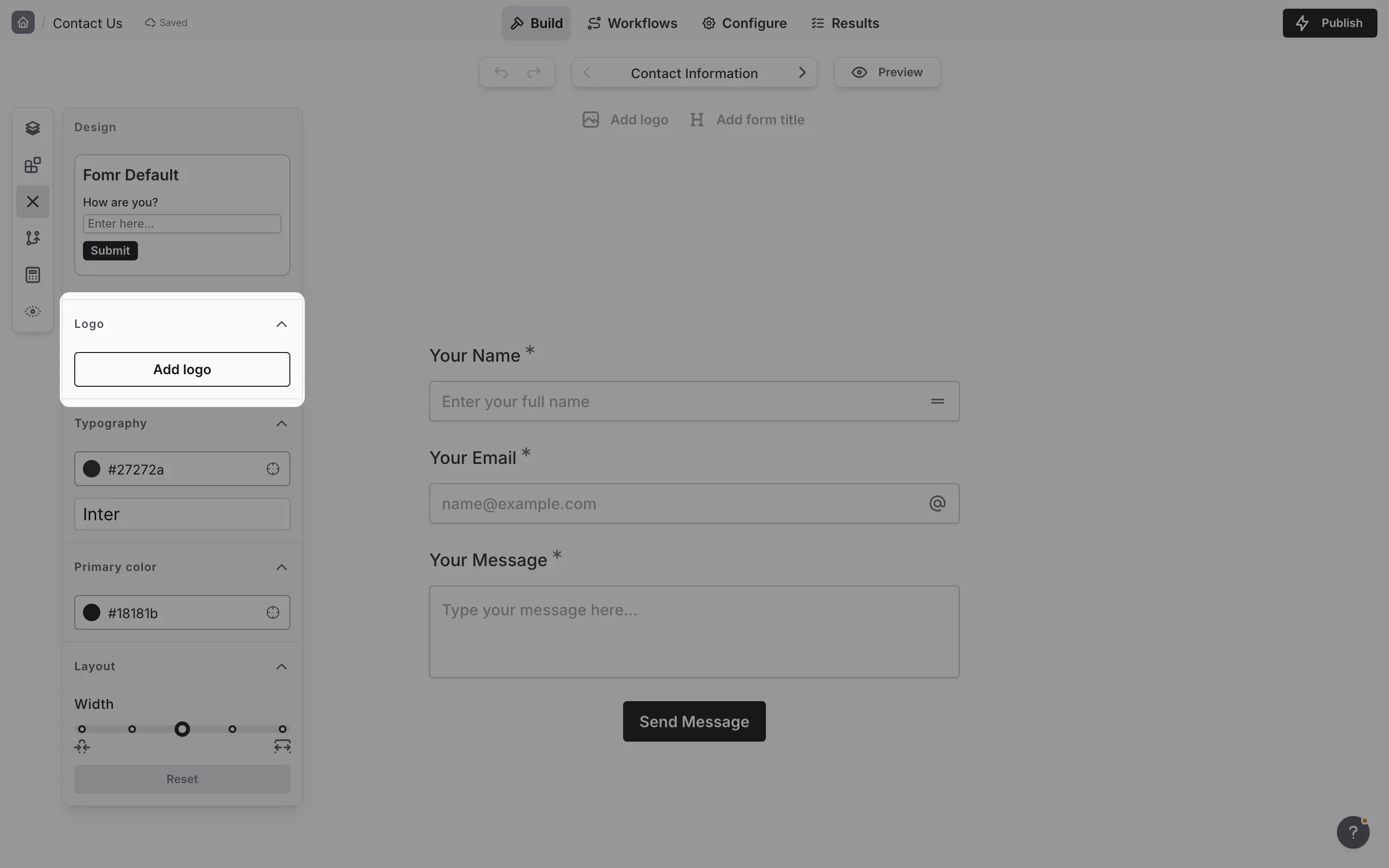
Section titled “Adding a logo”You can add a logo in two ways:
- Upload: Click the upload area to select an image from your computer
- URL: Enter a direct HTTPS URL to your logo image
If your form doesn’t have a logo yet, you can also click Add logo in the Quick-add bar at the top of the canvas on the Build tab. It opens the same logo picker as the Design panel.
Logo alignment
Section titled “Logo alignment”Control where your logo appears on the form:
- Left - Aligns the logo to the left side
- Center - Centers the logo above your form
- Right - Aligns the logo to the right side
You can also choose the vertical placement, so the logo sits at the very top of the form or just above the first field.
Logo size
Section titled “Logo size”Your logo can be any size up to the full width of the form, and Fomr never crops it. Set the size in the Logo section of the Design panel:
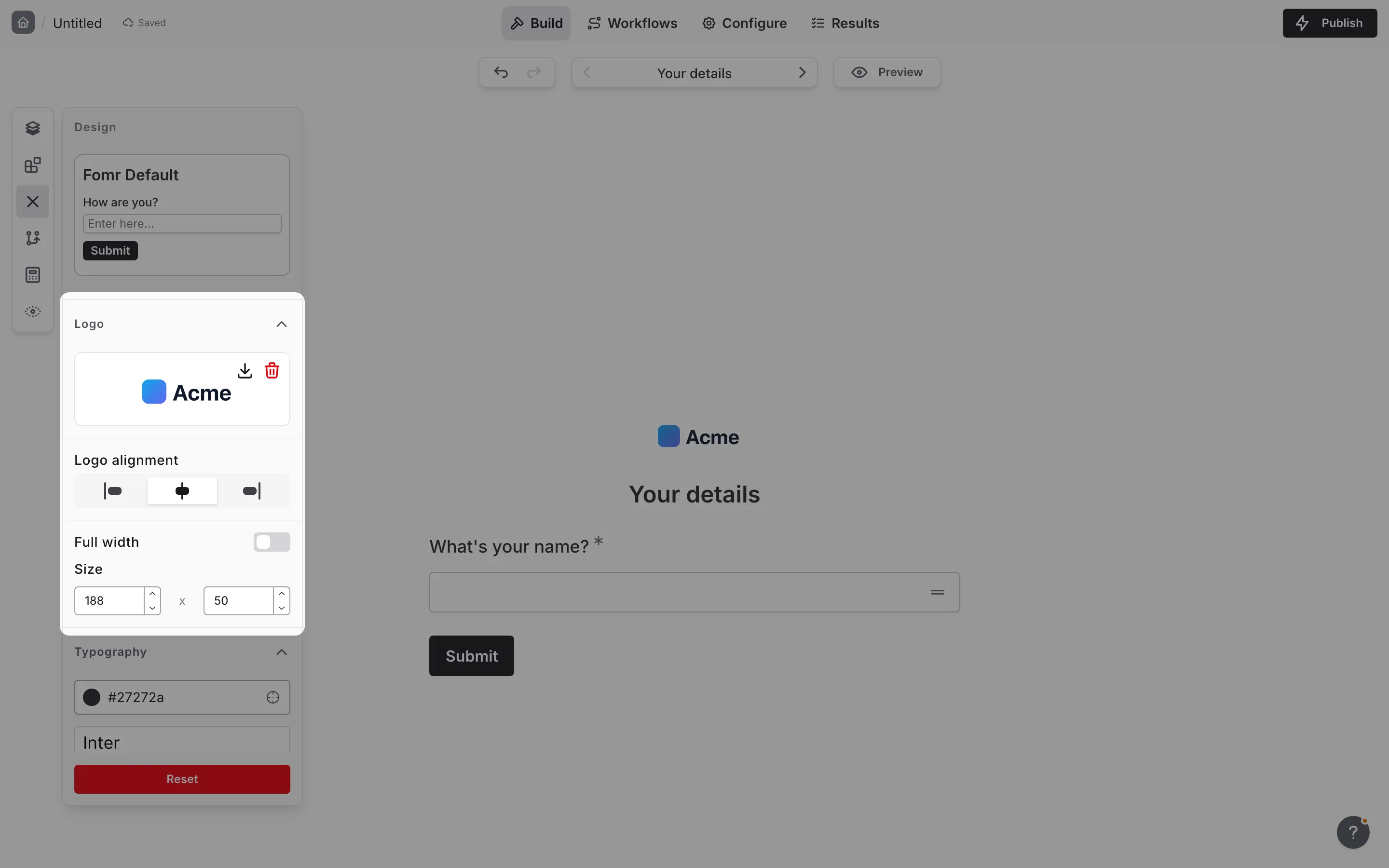
- Full width — Make the logo span the available form width
- Size — When full width is off, set the logo width and height. Fomr keeps the logo proportions in sync while you adjust either value.
When no size is set, the logo shows at its default height. The logo is the same size on every page of your form, including intro and final pages. You can also resize the logo on the canvas by dragging its corner handles.
Switching to a different theme keeps your logo size.
Adjusting the logo on the canvas
Section titled “Adjusting the logo on the canvas”You don’t need to open the Design panel to adjust the logo. Click the logo on the canvas to select it. A small menu appears above it, and a resize handle appears on each of its four corners:
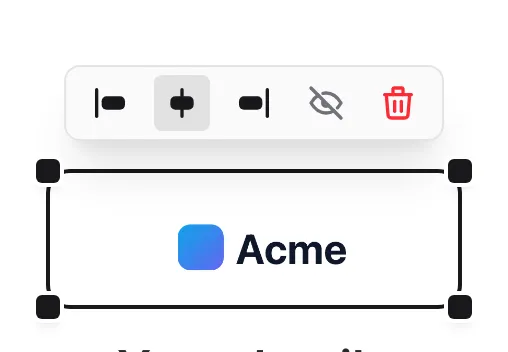
- Left / Center / Right — change the logo alignment
- Hide — hide the logo without removing it
- Remove — delete the logo from the form
To resize the logo, drag any corner handle. The logo keeps its proportions, and a label below it shows the current size, such as 370 × 194, while you drag:
- A centered logo grows on both sides. A left- or right-aligned logo grows away from the side it is aligned to.
- Drag to the edge of the available space to make the logo full width. The label shows Full width.
- Press Escape while dragging to cancel the resize.
- Each resize is a single step you can reverse with undo.
Resizing works with a mouse, a pen, or touch.
On intro and final pages the logo is always centered, so the menu there offers the hide and remove options but no alignment buttons. Changes you make on the canvas and in the Design panel stay in sync.
Typography
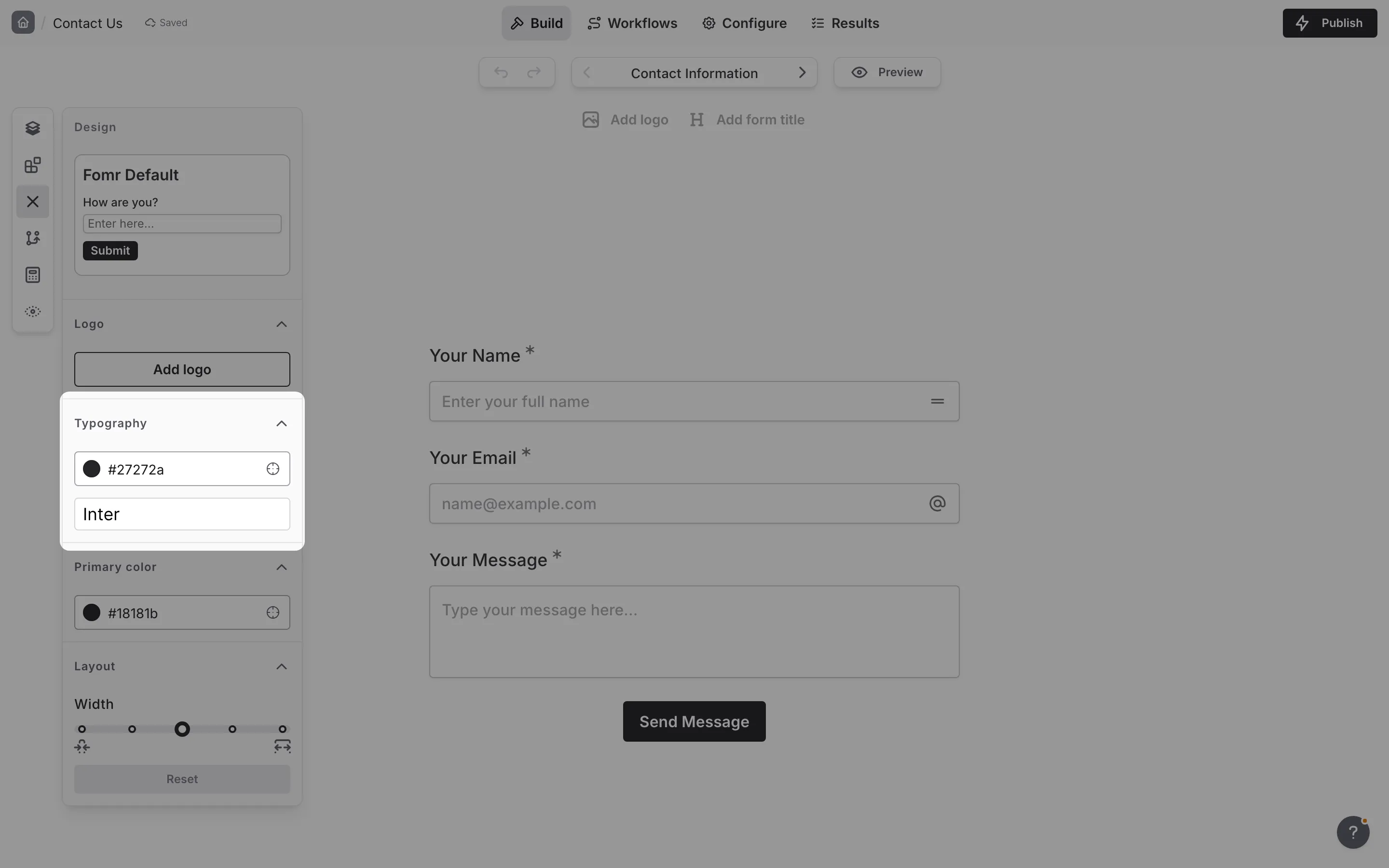
Section titled “Typography”Customize the text appearance throughout your form with font and color settings.
Font selection
Section titled “Font selection”Choose from a curated selection of web-safe fonts that render beautifully across all devices and browsers. The font you select applies to all text in your form, including questions, supporting text, and button labels.
Text color
Section titled “Text color”Set the main text color used for questions, labels, and other text content. Fomr doesn’t adjust this color to suit your background, so choose one that’s easy to read against it.
Colors
Section titled “Colors”Set the colors used throughout your form.
Primary color
Section titled “Primary color”The primary color is used for interactive elements like buttons, focus states, and selected options throughout your form. It is also the source of the form’s option colors. Fomr fine-tunes these elements where needed so they stay easy to see, as described in Readability and accessibility.
Input color
Section titled “Input color”Form fields have their own color, separate from the page background. Set it with the Inputs picker in the Components group of the Design panel. See Inputs for what it covers and how it behaves.
Layout settings
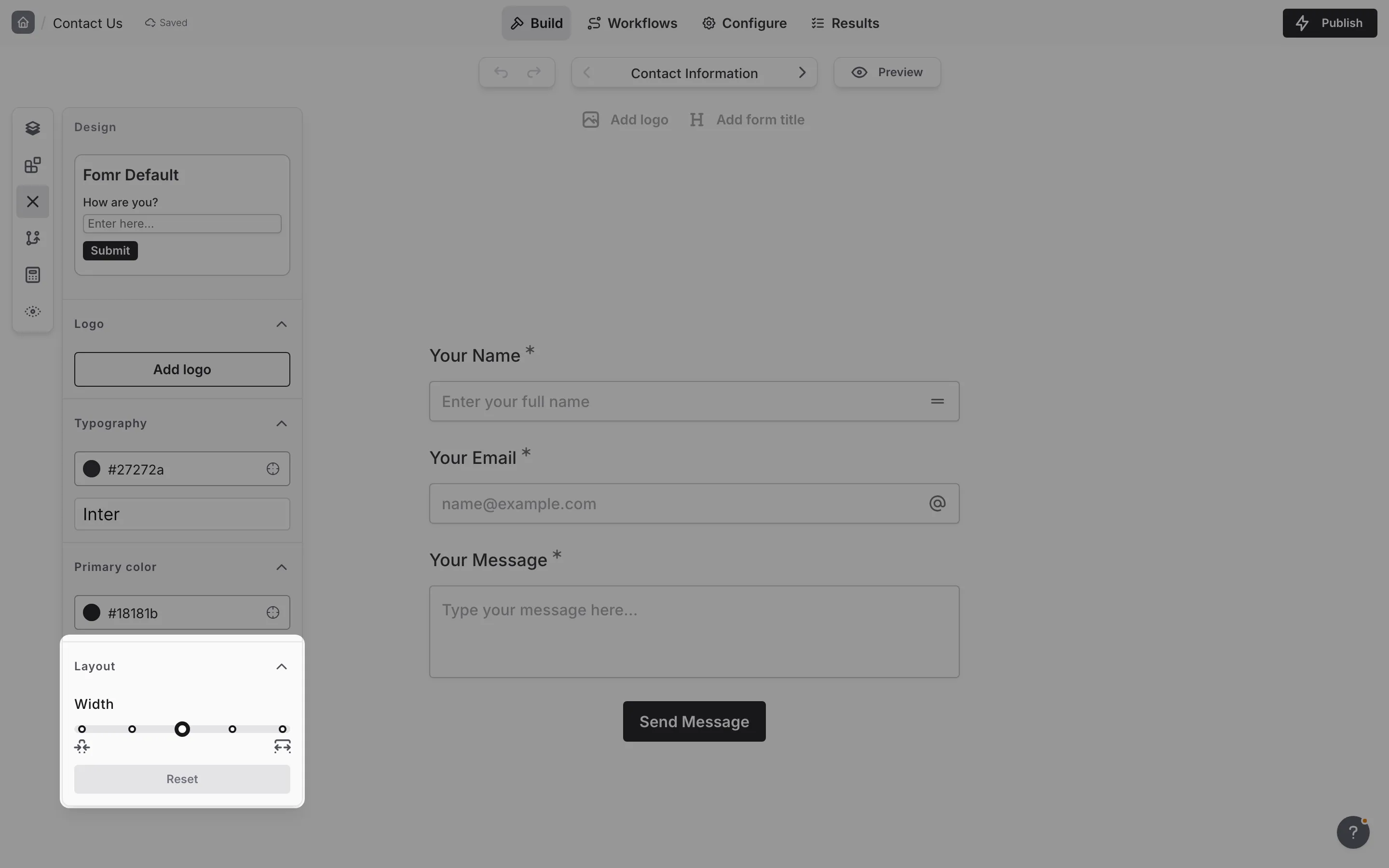
Section titled “Layout settings”Control the overall structure and spacing of your form.
Form width
Section titled “Form width”Set the maximum width of your form content:
| Width | Best For |
|---|---|
| Extra Small (xs) | Simple forms, popups, narrow embeds |
| Small (sm) | Contact forms, quick surveys |
| Medium (md) | Standard forms, most use cases |
| Large (lg) | Complex forms with longer questions |
| Extra Large (xl) | Data-heavy forms, wide displays |
Spacing
Section titled “Spacing”Adjust the vertical spacing between form components. More spacing creates a cleaner, more open feel, while tighter spacing fits more content on screen.
Horizontal alignment
Section titled “Horizontal alignment”Control how the form content aligns within its container:
- Left - Aligns content to the left
- Center - Centers content horizontally
- Right - Aligns content to the right
Vertical alignment
Section titled “Vertical alignment”Set how the form positions vertically on the page:
- Top - Form starts at the top of the viewport
- Center - Form is vertically centered
Button defaults
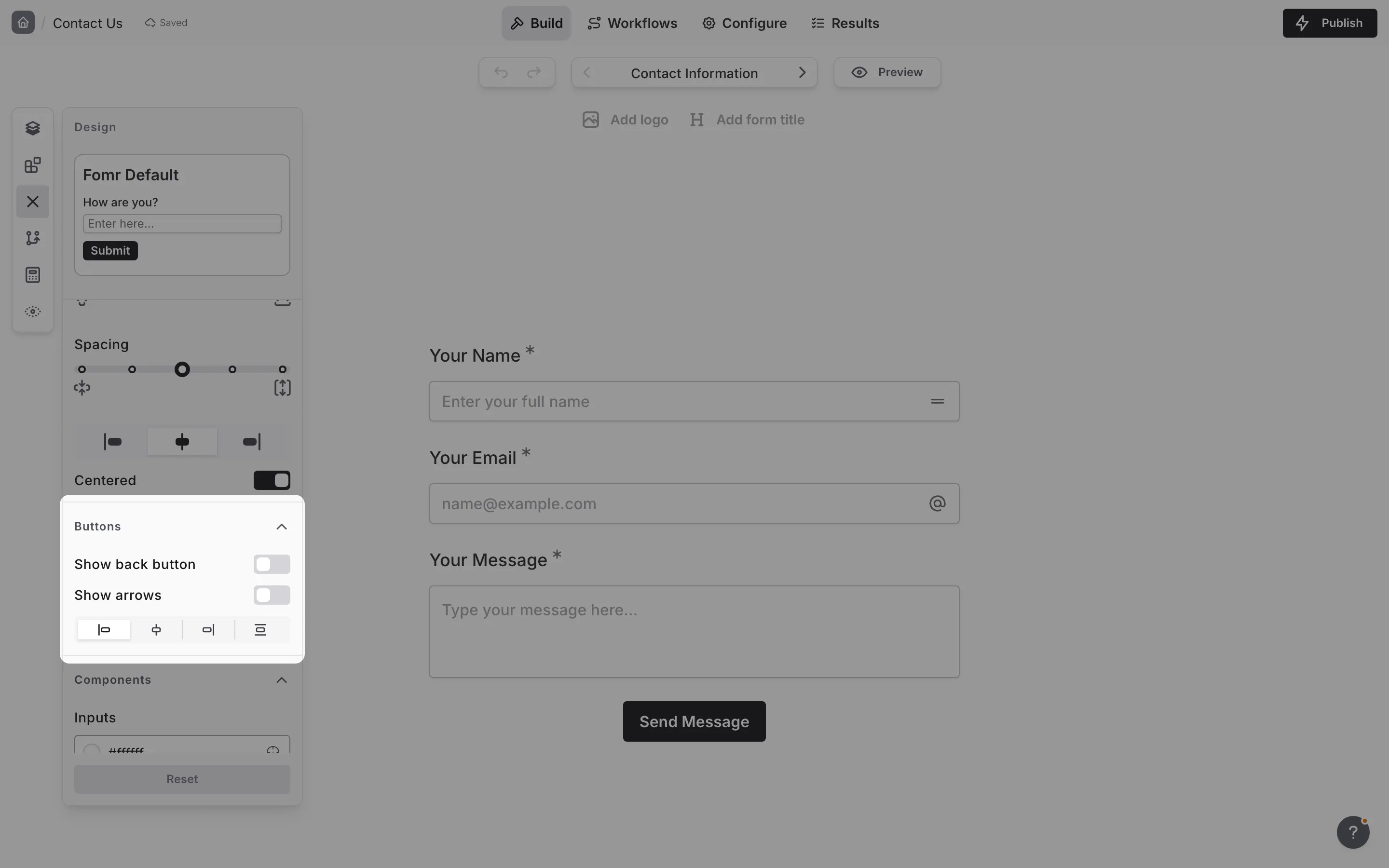
Section titled “Button defaults”Use the Buttons group in the Design panel to control the default behavior for Page Actions across the form.
Show back button
Section titled “Show back button”Turn this on to show a back button on eligible pages by default.
- Intro pages never show a back button
- The first page in a respondent’s flow does not show a back button
- Final pages do not show a back button
- Later pages follow the theme default unless that page has its own override
Show arrows
Section titled “Show arrows”Turn this on to add arrow icons to Page Actions buttons throughout the form.
Button alignment
Section titled “Button alignment”Choose the default alignment for Page Actions buttons:
| Alignment | Description |
|---|---|
| Left | Buttons align to the left edge |
| Center | Buttons are centered |
| Right | Buttons align to the right edge |
| Justify | Buttons spread across the available width |
Component defaults
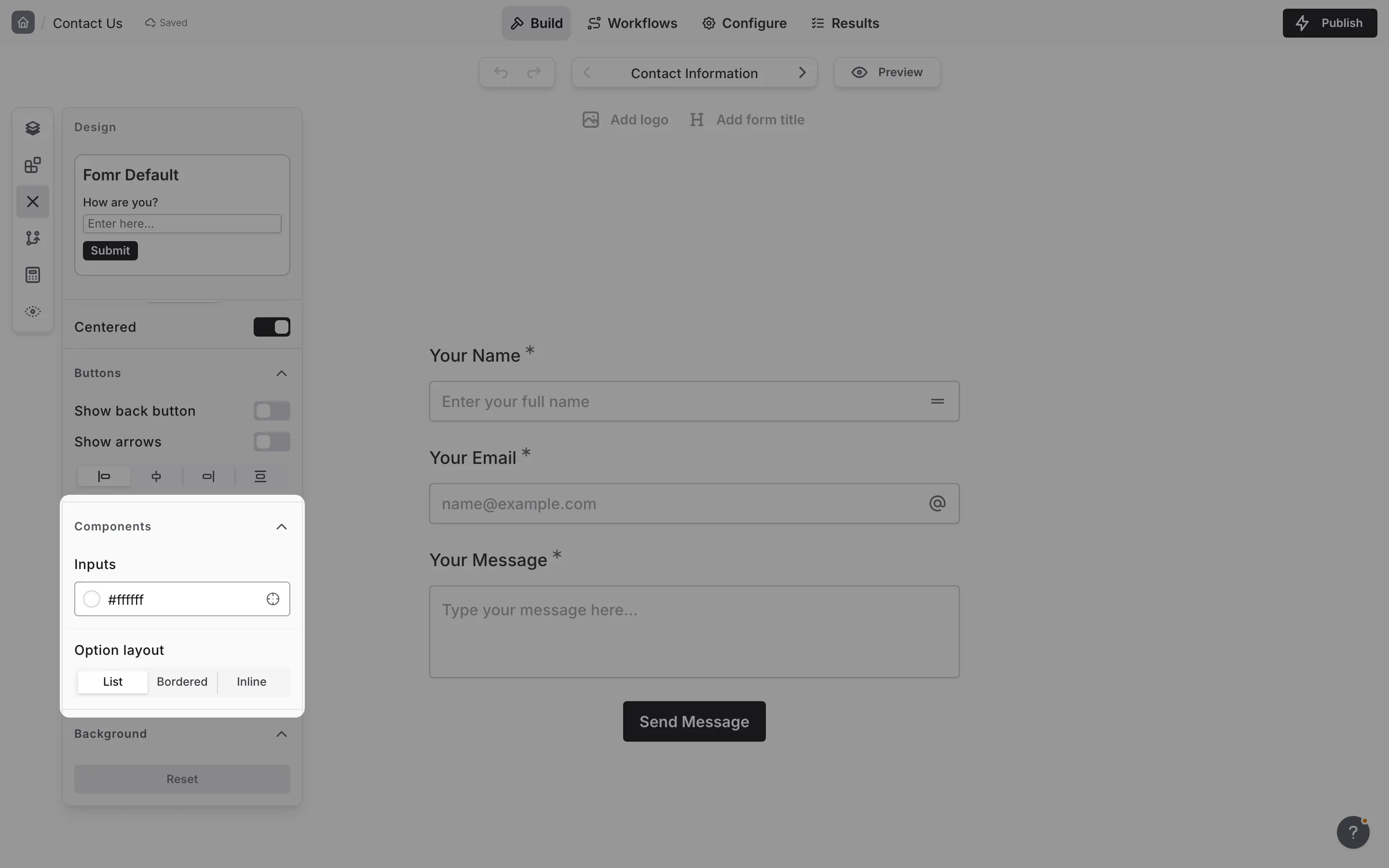
Section titled “Component defaults”Use the Components group in the Design panel to set the color of form fields and control how choice components look across the form.
Inputs
Section titled “Inputs”The Inputs color picker sets the color of every field surface respondents interact with:
- Text inputs and text areas
- Dropdowns and their open menus
- Date and time pickers and their popups
- Checkbox and radio boxes
- Options in the Bordered and Inline layouts
- Rating and NPS buttons
- Slider and switch tracks
- The file upload area and uploaded file cards
You don’t need to pick a text color for fields. Fomr chooses it automatically: fields use your theme’s text color when it is readable on the input color, and switch to near-black or white when it isn’t. Red details inside fields, such as weekend days in the date picker or file upload errors, also adjust so they stay readable.
When a checkbox is selected, it fills with your primary color and shows a contrasting checkmark. A selected radio keeps the input color as its fill and shows its dot and border in your primary color. A switch that is on keeps its input-colored track and shows a primary-colored handle. Choice questions with Colorful turned on keep their filled, colored look.
Every built-in theme comes with its own input color. Light themes, including tinted ones like Rose Garden, use white fields. Dark themes use a slightly lighter shade of their own background, so fields look raised from the page. Published forms that use a built-in theme pick up these defaults automatically.
The input color is independent of the page:
- Changing the background color doesn’t change the input color.
- Switching to a different theme resets the input color to that theme’s default.
Option layout
Section titled “Option layout”Choose how Multi Choice, Checkboxes, Yes/No, and Ranking questions display their options:
| Layout | Description |
|---|---|
| List | Full-width options stacked in a vertical list — the classic look |
| Bordered | Compact outlined options that hug their text, stacked and left-aligned |
| Inline | Bordered options that flow side by side and wrap onto new lines — great for many short options |
Every theme comes with its own option layout. Many of the colorful built-in themes — Coral Pink, Crimson Red, Forest Green, Golden Hour, Lavender, Mint Fresh, Rose Garden, Soft Teal, Sunset Orange, and other playful presets — use Bordered by default, while the professional, neutral, and dark themes use List. No theme defaults to Inline, so it only appears where you choose it.
Changing Option layout applies to every choice component in the form, including Ranking. Like the other Design settings, it customizes the current theme for this form — switching to a different theme adopts that theme’s layout instead. Individual questions can keep their own layout with the Layout style setting in their settings panel; those per-question choices survive theme switches.
Because the option layout is part of the theme, published forms follow layout changes right away — no republishing needed.
Option colors
Section titled “Option colors”Every theme carries a palette of ten distinct hues derived from its primary color. Choice questions use it when their Colorful setting is on: the first option takes the first hue, the second option the second, and so on, starting over after ten. Unselected options show the hue on their indicator (and on their outline in the Bordered and Inline layouts); the selected option fills its indicator with the hue.
Colorful is switched on per question rather than for the whole form — see the setting in Multi Choice, Checkboxes, Yes/No, and Ranking. The palette itself follows the theme: pick a different primary color, or switch themes, and every colorful question updates to the new hues.
Readability and accessibility
Section titled “Readability and accessibility”Fomr keeps the colors it creates from your theme easy to read. Description and placeholder text, error messages, links, button labels, field borders, focus outlines, and selected states are adjusted just enough to meet accessibility guidelines for contrast whenever they’d be hard to see. Colors that are already readable stay exactly as they are, and your own text color is never changed, so choose one that stands out against your background.
See Accessibility for how this works, along with keyboard navigation, focus outlines, error messages, and screen reader support.
Background settings
Section titled “Background settings”Customize your form’s background with images or solid colors.
Background options
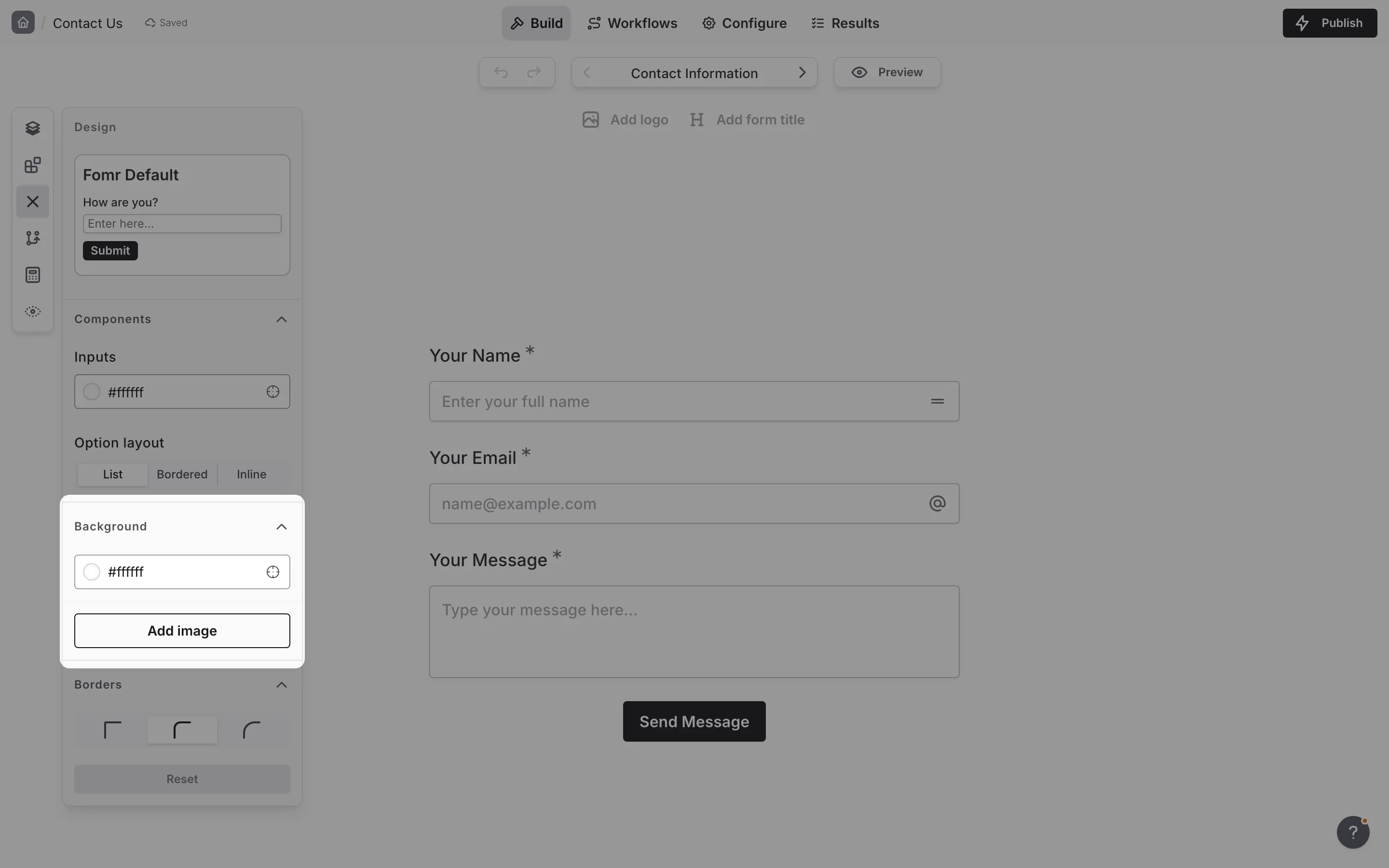
Section titled “Background options”- Image upload — Upload your own background image directly from your computer. Supported formats include JPG, PNG, and WebP.
- Unsplash — Search millions of free, high-quality photos from Unsplash directly within Fomr. Search for a keyword and select an image.
- URL — Enter a direct HTTPS URL to any publicly accessible image to use as your background.
- Solid color — Choose a solid background color for a clean, simple look.
Blur effect
Section titled “Blur effect”Apply a blur effect to your background image. This helps ensure text remains readable while still showcasing your background imagery.
Form background color
Section titled “Form background color”Toggle whether the form content area has its own background color. When enabled, the form appears on a card-like surface that stands out from the page background.
Border settings
Section titled “Border settings”Fine-tune the visual edges and depth of your form elements.
Border radius
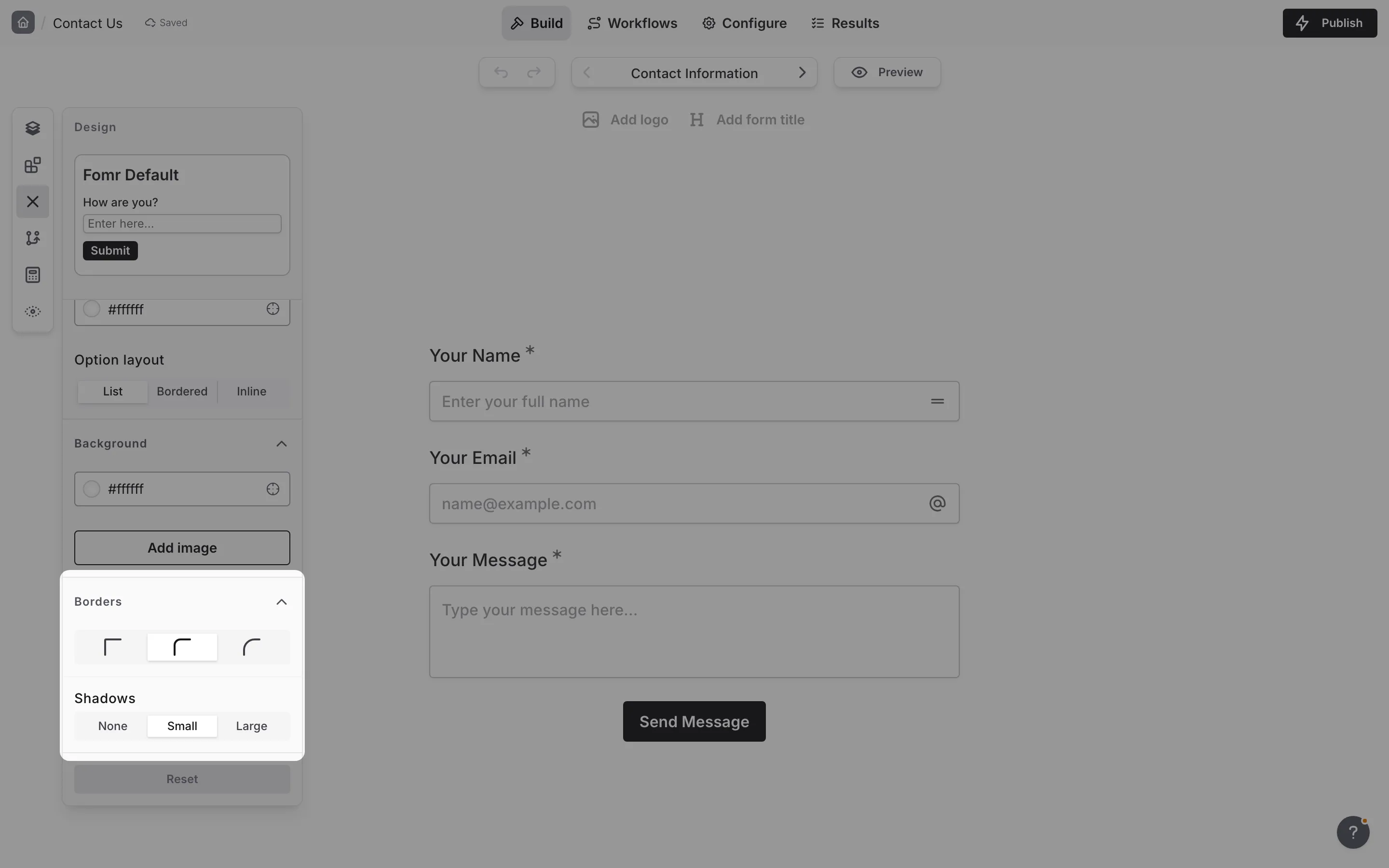
Section titled “Border radius”Control the roundness of corners on form elements:
- None - Sharp, square corners
- Small - Subtle rounding for a modern look
- Full - Maximum rounding for a softer appearance
Shadow
Section titled “Shadow”Add depth with shadow effects:
- None - Flat appearance with no shadow
- Small - Subtle shadow for slight elevation
- Large - Prominent shadow for strong depth effect
Reset theme
Section titled “Reset theme”If you’ve made changes and want to start fresh, use the Reset button to restore all design settings to their default values. Reset also removes the logo and clears its size.
Best practices
Section titled “Best practices”Maintain brand consistency. Use your brand colors, fonts, and logo to create a cohesive experience that respondents will recognize.
Prioritize readability. Fomr adjusts the colors it creates, but not your text color, so make sure it stands out clearly against your background. Test your form on different devices.
Make fields easy to spot. Pick an input color that stands apart from your page background so respondents can see at a glance where to type and click.
Keep it simple. While customization options are extensive, sometimes less is more. A clean, uncluttered design often performs better.
Test on mobile. Preview your form on different screen sizes to ensure your design works well everywhere.
Consider your audience. A playful design might work for a fun survey but could feel inappropriate for a professional application form.
