
The Slider component provides an interactive way to select a numeric value within a defined range. By dragging a handle along a track, respondents can quickly and intuitively choose values with immediate visual feedback.

When to use Slider
Section titled “When to use Slider”Slider is ideal for:
- Satisfaction or sentiment scales
- Budget or price ranges
- Quantity selection within bounds
- Percentage or probability estimates
- Any numeric value within a known range
Adding a Slider component
Section titled “Adding a Slider component”-
Open your form in the editor
-
Drag the Slider component from the left sidebar onto your form
-
Click the component to select it and configure its settings
Configuration options
Section titled “Configuration options”Question label
Section titled “Question label”The main question or prompt displayed above the slider.
Examples:
- “How satisfied are you with our service?”
- “What’s your budget range?”
- “How likely are you to recommend us?”
Supporting content
Section titled “Supporting content”Add helper text, an example image, or a divider between the question’s title and its input: drag a Text, Image, or Divider component onto the question and drop it on the line that appears under the title. Supporting text comes with full formatting and answer piping. Learn more in Supporting content.
Minimum value
Section titled “Minimum value”The lowest value on the slider scale.
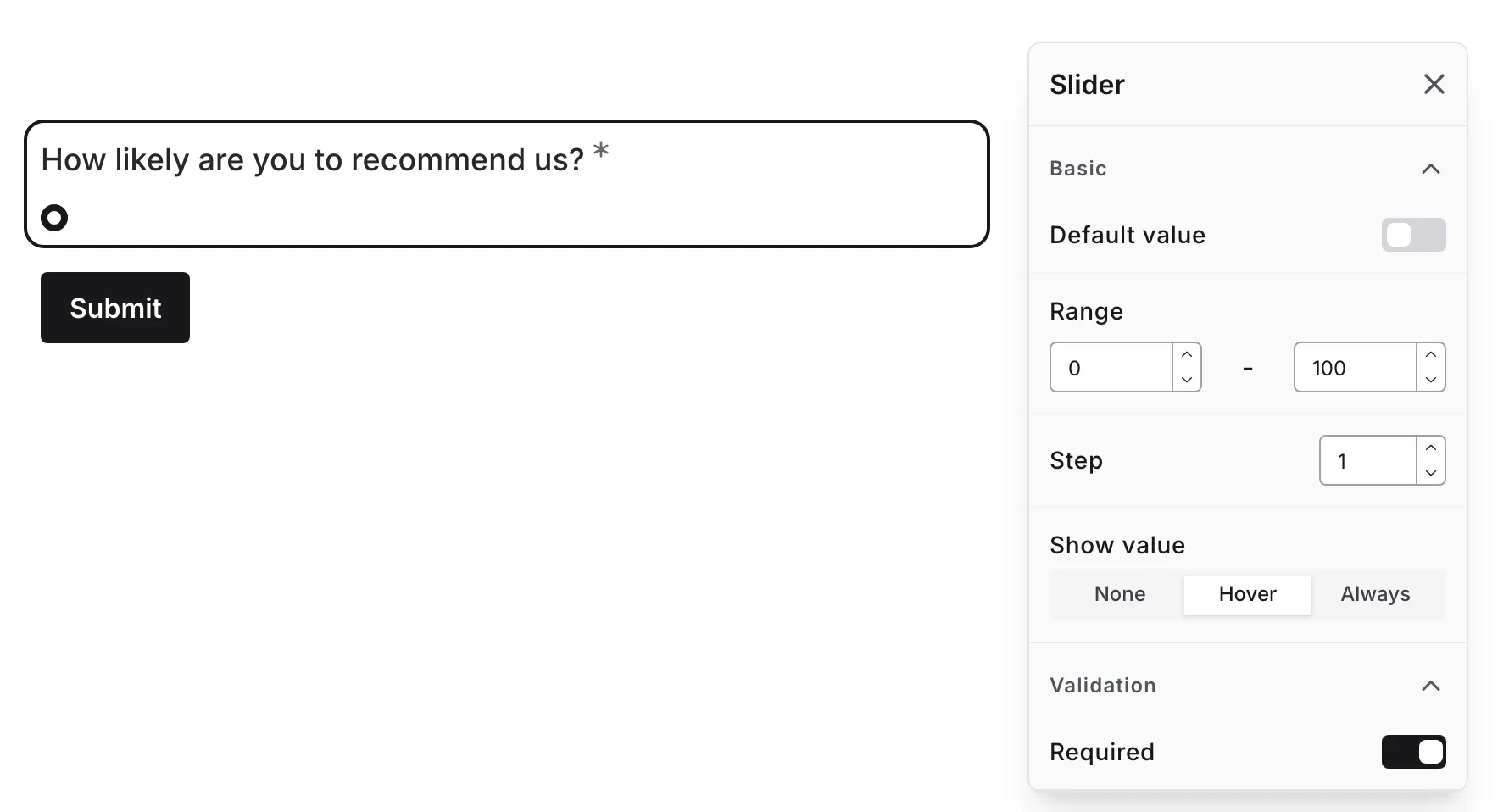
Common minimum values:
- 0 (for scales starting at zero)
- 1 (for 1-10 scales)
- Custom values based on your range
Maximum value
Section titled “Maximum value”The highest value on the slider scale.
Common maximum values:
- 10 (for 1-10 scales)
- 100 (for percentage scales)
- Custom values based on your range
The increment between selectable values.
| Step | Effect | Best For |
|---|---|---|
| 1 | Every whole number | Most scales |
| 5 | Multiples of 5 | Budget ranges |
| 10 | Multiples of 10 | Rough estimates |
| 0.5 | Half increments | Precise ratings |
Show value
Section titled “Show value”Control when the selected value is displayed:
| Option | Behavior |
|---|---|
| None | Value is never shown |
| Hover | Value appears when hovering/dragging |
| Always | Value is always visible |
Required
Section titled “Required”Toggle whether a value must be selected before the form can be submitted.
When enabled:
- An asterisk (*) appears next to the question label
- Users must interact with the slider to submit
- A validation message appears if not touched
Slider interaction
Section titled “Slider interaction”Desktop
Section titled “Desktop”- Click anywhere on the track to jump to that value
- Click and drag the handle to adjust
- Use arrow keys for fine control when focused
Mobile
Section titled “Mobile”- Tap the track to set a value
- Touch and drag the handle
- Works smoothly on touch devices

Slider vs. other components
Section titled “Slider vs. other components”| Component | Best For |
|---|---|
| Slider | Continuous ranges, approximate values |
| Number | Exact numeric input |
| Linear Scale | Discrete numbered options |
| Rating | Star-based satisfaction |
Accessibility
Section titled “Accessibility”The Slider component is built with accessibility in mind:
- Proper slider/range semantics
- Keyboard navigation (Arrow keys)
- Screen reader announces value changes
- Clear visual feedback
- Touch-friendly on mobile
Handling responses
Section titled “Handling responses”Slider responses in your form results:
- Show the numeric value selected
- Can be analyzed statistically (average, distribution)
- Are included in exports as numbers
- Allow comparison across respondents
Analyzing slider data
Section titled “Analyzing slider data”Common ways to analyze slider responses:
- Average: Mean value across all responses
- Distribution: How responses spread across the range
- Median: Middle value (less affected by outliers)
- Segments: Group responses into ranges (0-33, 34-66, 67-100)
