
Free forms show a subtle “Made with Fomr” banner. On a paid plan this banner is removed by default, and you can turn it back on or off with the Hide branding toggle to create a white-label experience where your forms display only your own branding.
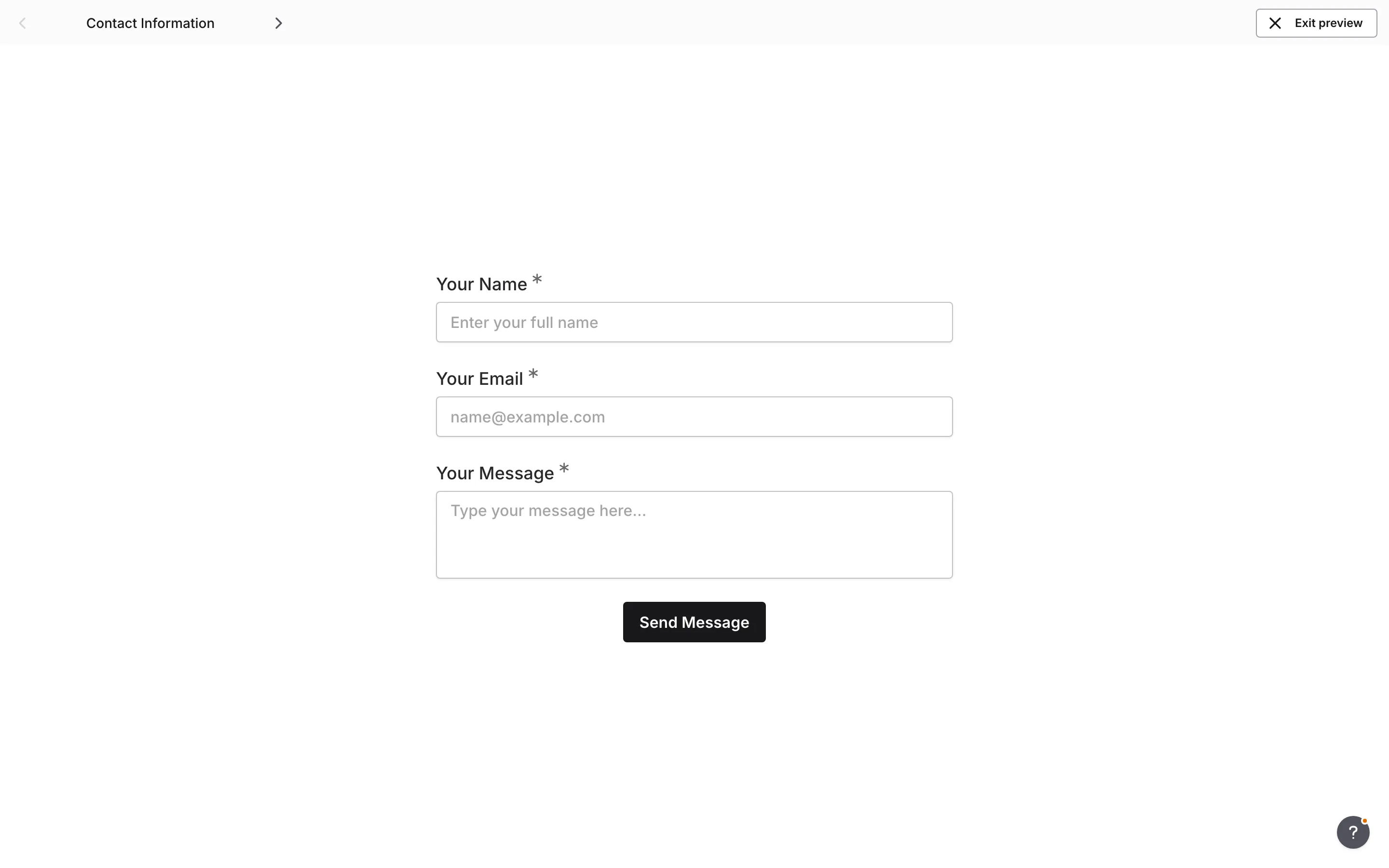
What is Fomr branding?
Section titled “What is Fomr branding?”Forms on the free plan show one small, subtle “Made with Fomr” banner. This banner:
- Appears once on the form, not on every page
- Links back to the Fomr website
- Is visible to all respondents
- Is removed by default on paid plans
Why hide branding?
Section titled “Why hide branding?”Removing the Fomr banner creates a white-label experience:
Brand consistency. Your forms appear as part of your brand without third-party references.
Client-facing forms. When creating forms for clients, hidden branding keeps the focus on your work.
Enterprise requirements. Some organizations require unbranded tools for internal or external use.
Custom branding. Combined with your logo and colors, forms appear to be built in-house.
How to hide branding
Section titled “How to hide branding”Hiding the Fomr banner is a simple toggle in your form settings.
-
Open your form in the editor
-
Open the Configure tab, open the General section, and look under Appearance
-
Find the Hide branding toggle
-
Turn it on to remove the “Made with Fomr” banner
-
The change applies immediately
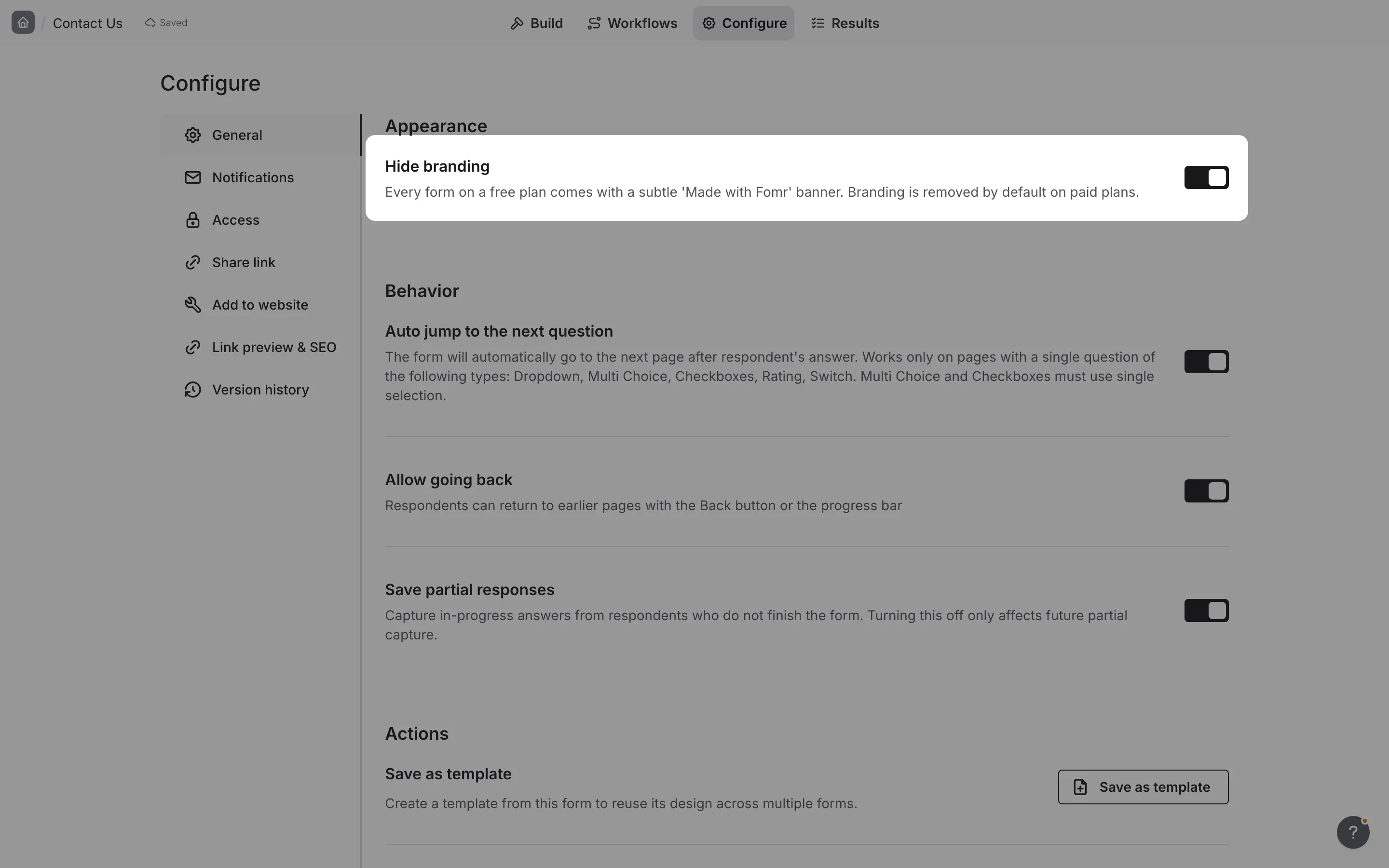
What changes when branding is hidden
Section titled “What changes when branding is hidden”When you enable hidden branding:
| Element | With Branding | Without Branding |
|---|---|---|
| Banner | ”Made with Fomr” visible | No banner displayed |
| Form appearance | Standard Fomr styling | Clean, unbranded look |
| Respondent experience | May click the banner to learn about Fomr | Focused entirely on your form |
The rest of your form remains exactly the same—all your design choices, colors, fonts, and content are unaffected.
Creating a white-label experience
Section titled “Creating a white-label experience”Hiding the Fomr banner is one part of creating a white-label experience. Combine it with logo, design, and domain settings for complete brand control:
Add your logo
Section titled “Add your logo”Upload your company logo to appear at the top of your form. This immediately identifies the form as yours.
-
Open the Design panel on the Build tab of the editor
-
Find the Logo section
-
Upload your logo or enter a URL
-
Choose your preferred alignment
Learn more about logo settings.
Use a custom domain
Section titled “Use a custom domain”Instead of fomr.io/s/your-form, serve your forms from your own domain like forms.yourcompany.com/contact-us.
-
Set up a custom domain in your account settings
-
Configure DNS records as instructed
-
Your forms are now served from your domain
Learn more about custom domains.
Match your brand colors
Section titled “Match your brand colors”Customize every visual aspect of your form to match your brand guidelines:
- Primary color and theme colors
- Typography and fonts
- Background images or colors
- Button styles and borders
Learn more about design and themes.

The white-label stack
Section titled “The white-label stack”For a complete branded experience, combine these settings:
| Feature | What It Does |
|---|---|
| Hide branding | Removes the “Made with Fomr” banner |
| Logo | Adds your logo to the form header |
| Custom domain | Serves forms from your own domain |
| Custom design | Matches your brand colors and style |
Together, these features create forms that appear to be entirely your own creation.
Per-form setting
Section titled “Per-form setting”The hide branding setting is configured per form, not globally. This means:
- You can hide branding on some forms and show it on others
- Each form can have its own branding preference
- Changing one form doesn’t affect others
This flexibility is useful if you want branded forms for internal use but unbranded forms for client-facing projects.
Best practices
Section titled “Best practices”Combine with your logo. When hiding Fomr branding, add your own logo so respondents know who the form belongs to.
Use custom domains for clients. If you’re building forms for clients, a custom domain plus hidden branding reinforces your brand.
Maintain brand consistency. Match your form’s design to your website and other materials for a cohesive experience.
Consider your audience. For internal forms or casual surveys, branding may not matter. Save the white-label treatment for client-facing and professional use cases.
Upgrading to Pro
Section titled “Upgrading to Pro”To access the hide branding feature, you need a Fomr Pro subscription.
-
Click Upgrade to Pro in the usage card at the bottom of the sidebar
-
Choose the Pro plan
-
Complete the upgrade process
-
The hide branding toggle becomes available immediately
Learn more about Fomr Pro features and billing.
Troubleshooting
Section titled “Troubleshooting”Toggle is disabled
Section titled “Toggle is disabled”- Verify you have an active Pro subscription
- Check your billing status by clicking Settings at the bottom of the sidebar and choosing Billing
- Contact support if your subscription is active but the toggle is disabled
Branding still visible after hiding
Section titled “Branding still visible after hiding”- Make sure you saved/published your changes
- Clear your browser cache
- Try viewing the form in an incognito window
- Verify the toggle is actually turned on
Branding reappeared
Section titled “Branding reappeared”- Check if your Pro subscription is still active
- Verify the setting wasn’t changed by another team member
- Review your billing status for any payment issues
