
Duplicating a form creates an exact copy that you can modify independently. This is useful when you need a variation of an existing form or want to preserve a form’s structure while making significant changes. You can duplicate templates the same way.
When to duplicate a form
Section titled “When to duplicate a form”Duplication is helpful in several scenarios:
Creating variations. You need a similar form with minor differences, like a survey for different departments or regions.
Testing changes. You want to experiment with significant changes without affecting your live form.
Seasonal updates. You’re running a recurring form (like an annual survey) and want to preserve the previous version.
Starting from existing work. A form you’ve built is close to what you need for a new project.
How to duplicate a form
Section titled “How to duplicate a form”You can duplicate a form from its card or from its settings.
From the form’s card
-
Open a workspace and go to its Forms list
-
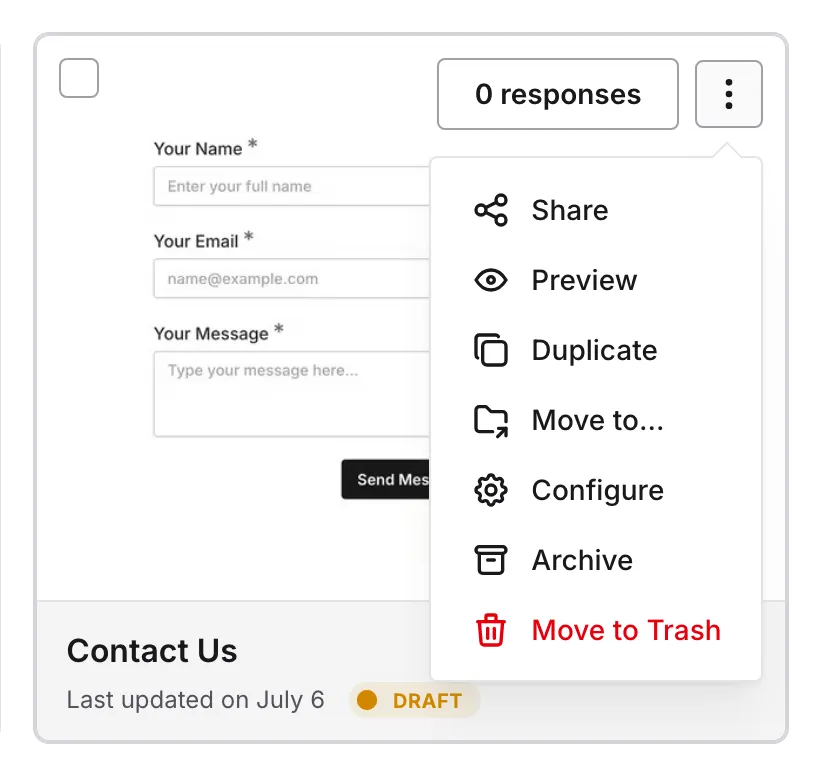
Open the … menu on the form’s card
-
Choose Duplicate
From the form’s settings
-
Open the form you want to copy, then open Configure and go to the General tab
-
Under Actions, click Duplicate form
Either way, the copy is created right away and opens in the editor, ready for you to customize. There’s no name to enter first: the copy gets the original’s name with “copy” added, such as “Contact form copy”.
The copy is created in the same workspace as the original. To put it in a different workspace, move it afterwards with Move to… (a Pro feature). Learn more about workspaces.
Duplicating a template
Section titled “Duplicating a template”To copy a template, open a workspace’s Templates list, open the … menu on the template’s card, and choose Duplicate. The copy is created in the same workspace and opens in the editor. Learn more about form templates.
What gets duplicated
Section titled “What gets duplicated”When you duplicate a form, the copy includes:
| Included | Not included |
|---|---|
| All pages and structure | Responses and submissions |
| All components and settings | Publishing status |
| Question text and supporting content | Version history |
| Design and theme settings | Form URL (new URL assigned) |
| Component configurations | |
| Required component settings | |
| Logic rules and Calculated values | |
| Notification, access, and link preview settings |
Understanding the copy
Section titled “Understanding the copy”The duplicated form is completely independent from the original:
- Changes to the duplicate don’t affect the original
- Changes to the original don’t affect the duplicate
- Each form has its own responses, settings, and URL
- Both forms can be published simultaneously
After duplicating
Section titled “After duplicating”Once you’ve duplicated a form:
-
Review the form structure in the editor
-
Make any necessary changes to questions or settings
-
Update the design if needed for the new context
-
Check the notification and access settings for the new form
-
Preview and test the form
-
Publish when ready to start collecting responses
Duplication vs. templates
Section titled “Duplication vs. templates”Both duplication and templates help you create forms faster, but they serve different purposes:
| Feature | Duplication | Templates |
|---|---|---|
| Best for | One-time copies | Reusable starting points |
| Access | The form card’s … menu, or Configure > General > Actions | Use template in the Template gallery or a workspace’s Templates list |
| Organization | Creates another form in the same workspace | Stored in a workspace’s Templates list |
| Sharing | Individual form | Shared with every workspace when kept in the Default Workspace |
Use duplication when:
- You need a quick copy of a specific form
- You’re creating a one-off variation
- You want to preserve a form before major changes
Use templates when:
- You’ll create multiple forms with the same structure
- You want to standardize forms across your team
- You’re building a library of reusable form designs
Best practices
Section titled “Best practices”Rename it once it opens. The copy is created with a name based on the original, so give it a clear, distinct name right away to avoid confusion.
Review before publishing. Always review the duplicated form to ensure all content is appropriate for its new purpose.
Update form-specific content. Check for any text that references the original form’s context (dates, event names, etc.) and update accordingly.
Review copied settings. Notification, access, and other settings are copied from the original, so check that they fit the new form’s purpose.
Clean up unused forms. If you duplicate forms frequently for testing, remember to archive forms you no longer need or move them to Trash.
Frequently asked questions
Section titled “Frequently asked questions”Does duplicating affect the original form?
Section titled “Does duplicating affect the original form?”No. The original form remains completely unchanged. The duplicate is an independent copy.
Are responses copied when I duplicate?
Section titled “Are responses copied when I duplicate?”No. Responses are never copied. The duplicated form starts fresh with zero responses.
Can I duplicate a form multiple times?
Section titled “Can I duplicate a form multiple times?”Yes. You can duplicate any form as many times as you need.
Can I duplicate archived forms?
Section titled “Can I duplicate archived forms?”Yes. Open the … menu on the archived form’s card and choose Duplicate. To see archived forms, open Filter in the workspace’s Forms list, choose Status, and check Archived. The copy starts as a regular draft.
Is there a limit to how many forms I can create through duplication?
Section titled “Is there a limit to how many forms I can create through duplication?”No. Since Fomr offers unlimited forms, you can duplicate as many times as needed.
Troubleshooting
Section titled “Troubleshooting”Duplicate option not visible
Section titled “Duplicate option not visible”- Ensure you have edit permissions for the form
- Check that you’re looking under Configure > General > Actions, or in the … menu on the form’s card in the workspace’s Forms list
- Refresh the page if the option doesn’t appear
Duplicate form missing content
Section titled “Duplicate form missing content”- Verify the original form has the expected content
- Check if any components failed to copy (rare)
- Contact support if content is consistently missing
Can’t find the duplicated form
Section titled “Can’t find the duplicated form”- The duplicate opens automatically after creation
- Look in the same workspace as the original form, for a form with the original’s name plus “copy”
- Click the Display button (the sliders icon) in the Forms list and sort by Date created to see the newest forms first
