Not sure where to start? Describe the form you want in plain language and Fomr builds a first draft for you in seconds. You still get a normal form in the editor—AI just gives you a running start instead of a blank canvas.
Generate a form
Section titled “Generate a form”-
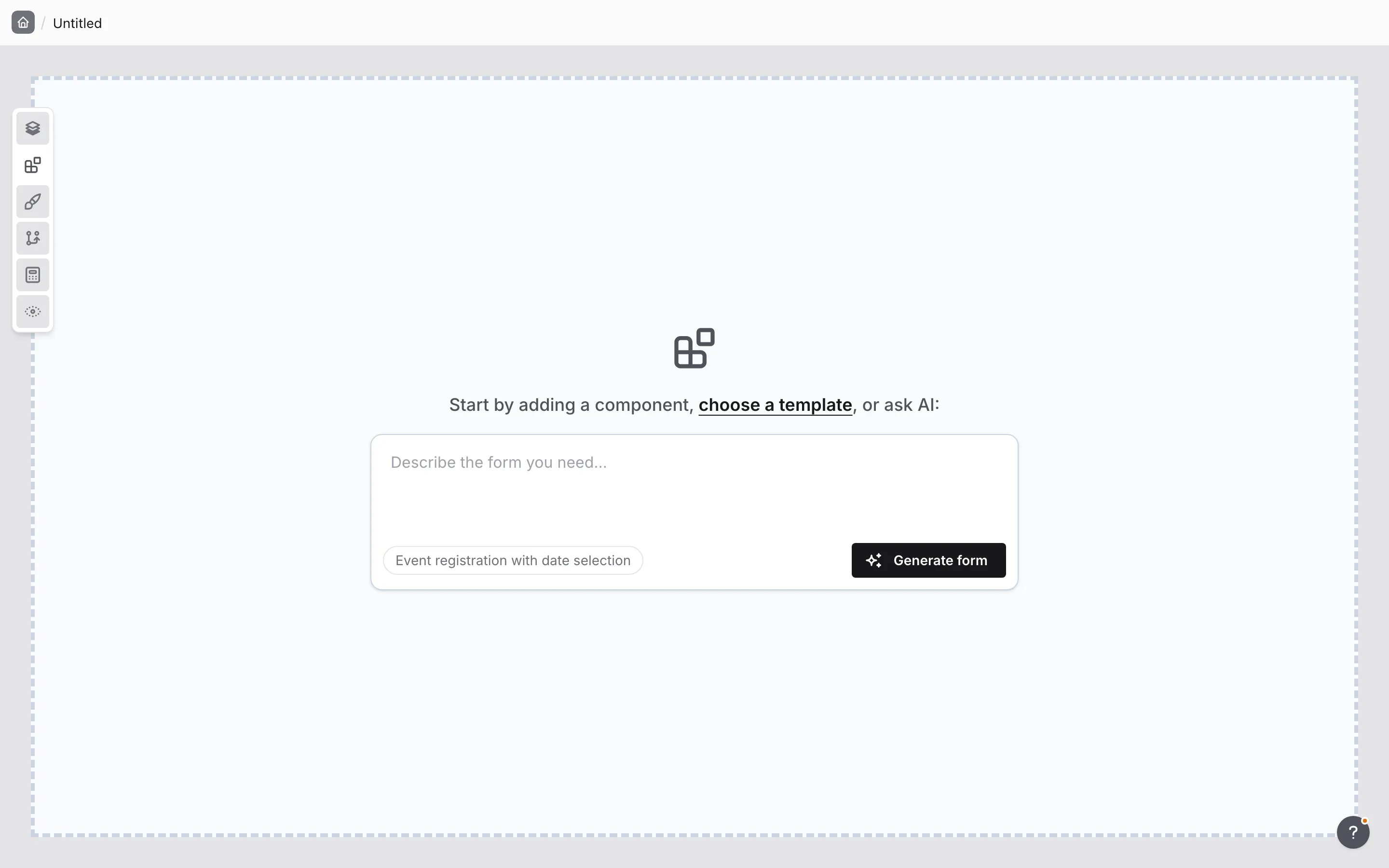
Start a new form. On the empty canvas you’ll see the option to add a component, choose a template, or ask AI.
-
In the AI box, describe the form you need—for example, “a customer feedback survey with a rating, a few multiple-choice questions, and a comment box.” Short of ideas? Click one of the rotating suggestions under the box to fill it in.
-
Click Generate form (or press Enter).
-
Fomr builds the draft and drops you straight into the editor, ready to review and edit.
If a form needs more than one page, AI splits it into pages for you, adds the submit button where it belongs, and turns on back buttons on the pages where they make sense. In suitable conversational or accuracy-sensitive forms, it may also use answer piping to personalize later text or add a page where respondents can review key answers before submitting.
When your prompt asks for follow-up questions, branching, a scored quiz, a price or quote, or different endings, AI also adds conditional logic and Calculated values. Check them in the Logic and Calculated values panels before you publish.
Different endings follow your plan. On Pro, AI can add extra ending pages, such as a pass page and a retry page for a quiz, and send each respondent to the right one. Multiple endings are a Pro feature, so on the Free plan and as a guest, AI keeps the single Default ending and shows each outcome on it with a Text value instead. The draft is ready to publish without upgrading.
Write a good prompt
Section titled “Write a good prompt”The more context you give, the closer the first draft will be to what you want.
- Say what the form is for. “Event registration,” “job application,” “bug report”—the purpose shapes the questions.
- List the details you need to collect. Name, email, dates, a rating, file of preferences—mention them and AI will add matching questions.
- Mention the tone or length. “Keep it short,” “friendly,” or “detailed” all help.
- Ask for structure. Say “split into pages” or “put contact details on the first page” if you have a layout in mind.
You don’t need to get it perfect. A rough description is enough to start—you’ll refine everything in the editor.
Refine the draft
Section titled “Refine the draft”The AI draft is a normal Fomr form, so everything is editable:
- Click any question to change its label, mark it required, or adjust its settings.
- Add, remove, or reorder components and pages.
- Restyle it under Design.
- Preview it, then publish when you’re happy.
Generate a template
Section titled “Generate a template”If you’re building a reusable template, the same AI box appears on a new template’s canvas. Describe the template you need and click Generate template to get a starting point you can save and reuse.
Troubleshooting
Section titled “Troubleshooting”Generation failed
Section titled “Generation failed”Occasionally a request doesn’t go through. Try again, simplify your description, or start the form manually and add components yourself.
The form isn’t quite right
Section titled “The form isn’t quite right”AI gives you a starting point, not a final form. Edit questions, remove extras, and adjust the design until it matches what you need—that’s exactly what the editor is for.