The form title is an optional one-line heading that appears below your logo on every question page. By default it shows the name of the current page, so respondents always know where they are in the form. You can also switch it to a single custom text that stays the same on every page.
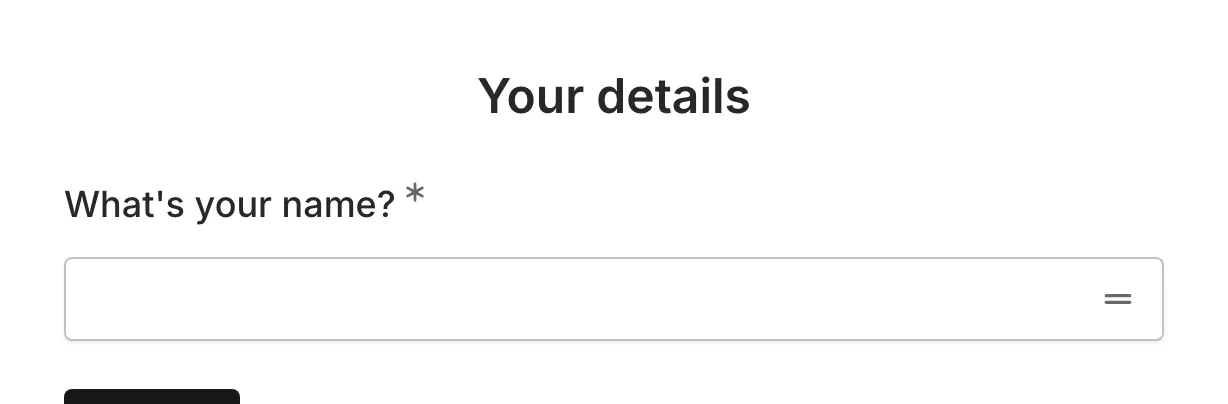
Where the title appears
Section titled “Where the title appears”- The title shows below the logo, above the page content, on every question page.
- It never appears on intro pages or on ending (thank-you) pages.
- It is one element for the whole form: the same text mode, size, and alignment apply everywhere. You add it once and it shows up on all question pages.
Add a form title
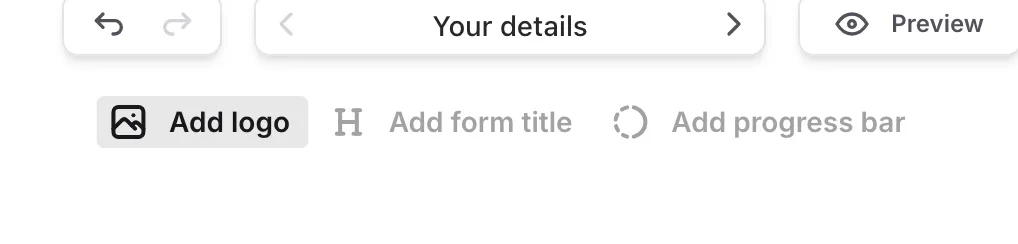
Section titled “Add a form title”The form title isn’t in the Components panel and can’t be dragged onto the canvas. Instead, you add it from the Quick-add bar—a row of subtle buttons pinned at the top of the canvas on the Build tab. The buttons become fully visible when you hover over them, and the bar fades out as you scroll down the canvas.
-
Open your form in the editor and stay on the Build tab
-
Select a question page
-
Click Add form title in the Quick-add bar at the top of the canvas
-
The title appears below the logo, showing the current page’s name
Use page name
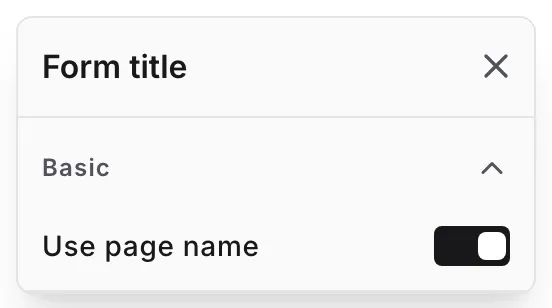
Section titled “Use page name”The title starts with Use page name turned on: it automatically shows the name of whichever page the respondent is on. Rename a page in the Pages panel and the title updates with it—no extra editing needed.
To check or change this setting:
-
Click the title on the canvas to select it
-
Click the gear (Node settings) button
-
Toggle Use page name on or off
Use your own text
Section titled “Use your own text”Turn Use page name off to switch the title to a single custom text shown on every question page. The text starts out as your form’s name, and you can edit it directly on the canvas—click the title and type, just like any other text.
You don’t have to open the settings first: start typing on the title while Use page name is on, and it switches to your custom text automatically. Turn Use page name back on (or undo) to return to showing page names.
The title is plain, single-line text of up to 255 characters. It doesn’t support links, lists, or inline formatting.
Size and alignment
Section titled “Size and alignment”While editing the title, a small toolbar appears above it with two controls:
- Heading size — choose H1, H2, or H3. The default is H2.
- Alignment — align the title left, center, or right. The default is center.
Both settings apply form-wide, so the title looks the same on every page.
Hide the title on a page
Section titled “Hide the title on a page”Like other components, the title can be hidden per page. Select the title on a page and click the hide (eye) control to leave it out of that page in the published form, while it keeps showing on the others.
Remove the form title
Section titled “Remove the form title”Select the title on the canvas and delete it like any other component. Because the form has a single title, removing it takes it off every page at once. The Add form title button then returns to the Quick-add bar, so you can add it back whenever you like.