Hiding lets you remove a page or a component from your published form without deleting it. Hidden items stay in your draft exactly as you left them, so you can bring them back at any time. This is a non-destructive way to stage content, run a shorter version of a form, or temporarily pull a question, all without rebuilding anything later.
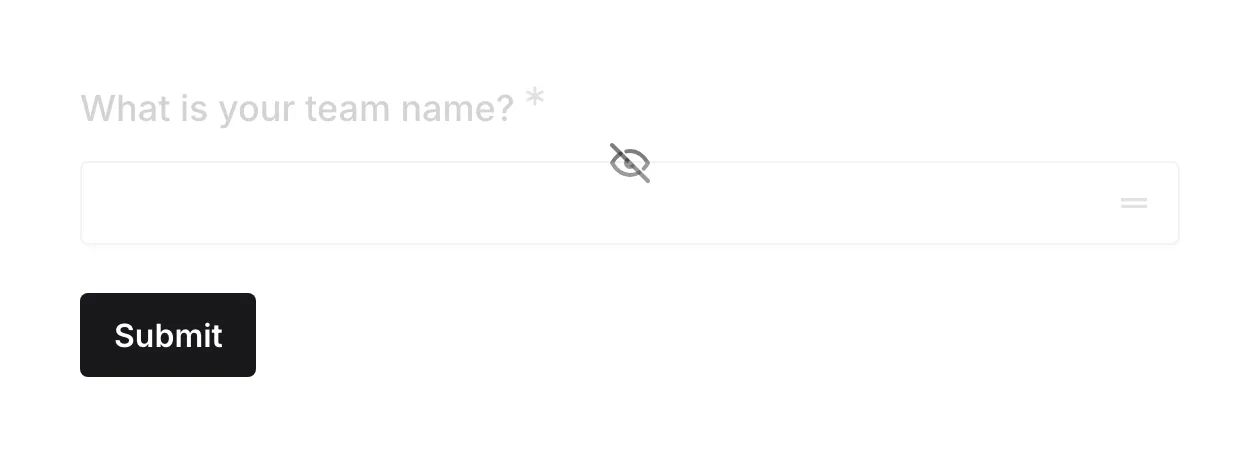
How hiding works
Section titled “How hiding works”When you hide something in the editor, it disappears from the version respondents see the next time you publish, but it never leaves your draft:
- Hidden components are left out of the published form. Respondents never see them.
- Hidden pages are removed from the published form entirely, and the page flow closes the gap around them.
- Everything you hide stays in your draft, so you keep the content, layout, and settings.
- Answers you have already collected are never affected. Hiding a question does not delete or change any responses already in your results.
Hiding is a draft-time decision. Nothing changes for respondents until you publish again.
Hide or show a component
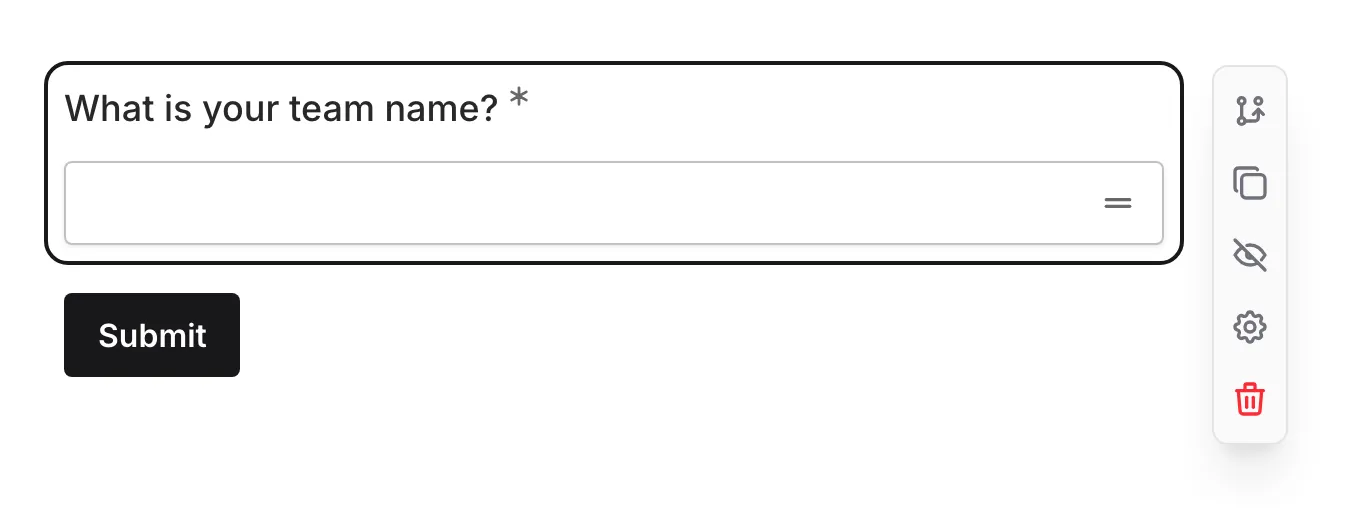
Section titled “Hide or show a component”Each component on the canvas has a visibility toggle you can use to hide it or show it again.
-
Open your form in the editor
-
Select the component you want to hide
-
Click the hide (eye) control on the component
-
The component is marked as hidden in the editor and will be excluded when you publish
To bring it back, select the component again and click the show control. Hidden components remain fully editable in the editor while they are hidden, so you can finish or update them before showing them.
Hide or show a page
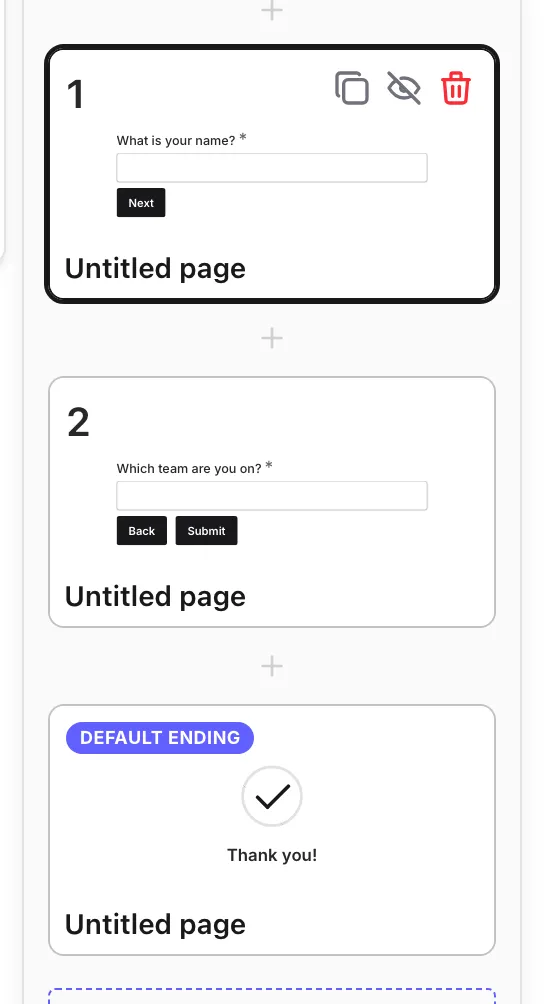
Section titled “Hide or show a page”You can hide an entire page the same way. Every component on that page is hidden along with it, and the page is dropped from the published form.
-
Open your form in the editor
-
Find the page you want to hide in the page list
-
Click the hide (eye) control on the page
-
The page is marked as hidden and will be skipped in the published form
Click the show control on the page to add it back to your form.
What happens when you publish
Section titled “What happens when you publish”When you publish, Fomr builds the live version of your form from only the visible items:
- Hidden pages and hidden components are left out of the published form. Respondents never see them, and hidden pages do not appear in the navigation flow.
- The page navigation flow automatically closes the gap around a hidden page. The Next and Back buttons route respondents from the last visible page straight to the next visible one.
- Publishing checks only your visible content. A hidden page or component that is unfinished will not block publishing, because it is not part of the live form.
- If a Logic rule uses a page or component you hide, the rule is flagged and skipped in Preview and on the published form until you update the rule or show the item again.
- If you hide the page respondents currently start on, Fomr automatically promotes the next visible page to be the new starting point, so your form always has a valid entry point.
What you cannot hide
Section titled “What you cannot hide”A published form always needs a valid structure, so a few items cannot be hidden:
- Ending pages cannot be hidden. Every form needs a page where respondents finish, so endings always stay visible. To stop sending respondents to an extra ending, delete it or remove the logic that jumps to it.
- Some structural components cannot be hidden, such as the components a page needs to function. If a component does not offer a hide control, it is required for the form to work.
If you want to remove one of these, edit or delete it instead.
When to hide instead of delete
Section titled “When to hide instead of delete”Stage content before it goes live. Build a new page or question now, keep it hidden, and show it when you are ready, without a separate draft form.
Run a shorter version temporarily. Hide an optional or seasonal page to shorten the form for a while, then show it again later without rebuilding it.
Pull a question without losing data. Hide a question that is causing confusion or is no longer needed. Answers you already collected stay in your results, and you can bring the question back if you change your mind.
A/B a simpler flow. Hide extra pages to test whether a leaner form improves completion, then restore the full version.
Best practices
Section titled “Best practices”Publish to apply changes. Hiding takes effect for respondents only after you publish. Remember to publish once your visible content is ready.
Preview before publishing. Use the Preview button to walk through the form as a respondent and confirm the hidden items are gone and the flow still makes sense.
Prefer hiding over deleting for anything you might reuse. Deleting removes content permanently; hiding keeps it in your draft for later.
Check your navigation after hiding a page. Make sure the remaining pages still read in a logical order once the hidden page is skipped.
Troubleshooting
Section titled “Troubleshooting”A page or component is missing from the live form
Section titled “A page or component is missing from the live form”- Check whether the item is hidden in the editor and show it if needed
- Publish again after showing it, since changes apply only on publish
A hidden page still appears to respondents
Section titled “A hidden page still appears to respondents”- Confirm you published after hiding the page
- Clear your browser cache or open the live form in a private window
The hide control is not available
Section titled “The hide control is not available”- Ending pages cannot be hidden, since every form needs a page where respondents finish
- Some structural components required for the form to work cannot be hidden; edit or delete them instead