Everything you do to a form happens in the editor. This page is a quick map of where things live, so you always know where to click. Keep it handy—most other help articles point back here when they mention a setting.
The editor header
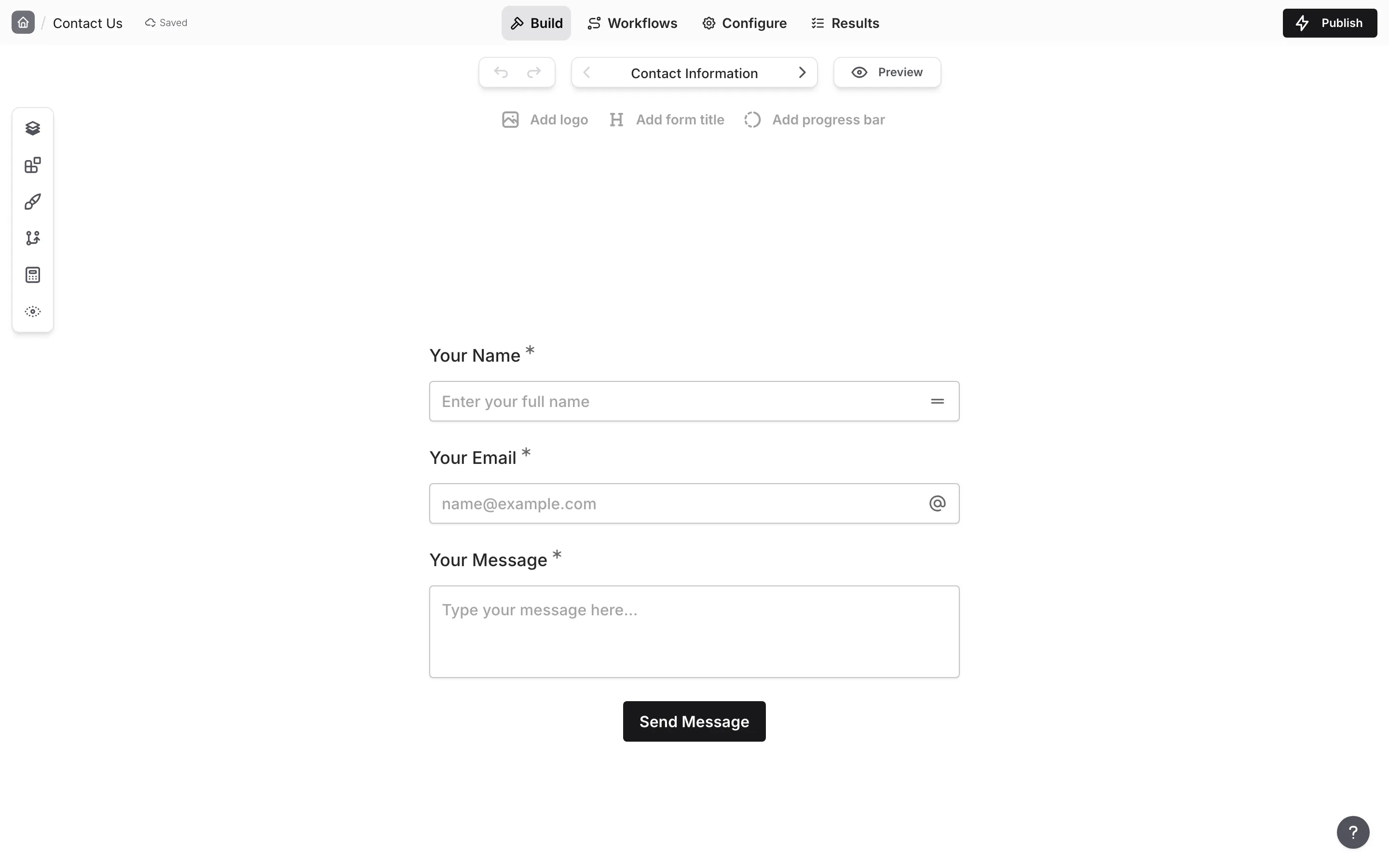
Section titled “The editor header”The top-left corner of the editor shows where the form lives:
- Workspace tile — a small colored square with the icon or first letter of the form’s workspace. Hover over it and it turns into a back arrow. Click it to return to that workspace’s Forms list. When you’re editing a template, it takes you to the workspace’s Templates list instead.
- Form name — click it to rename the form.
The four tabs
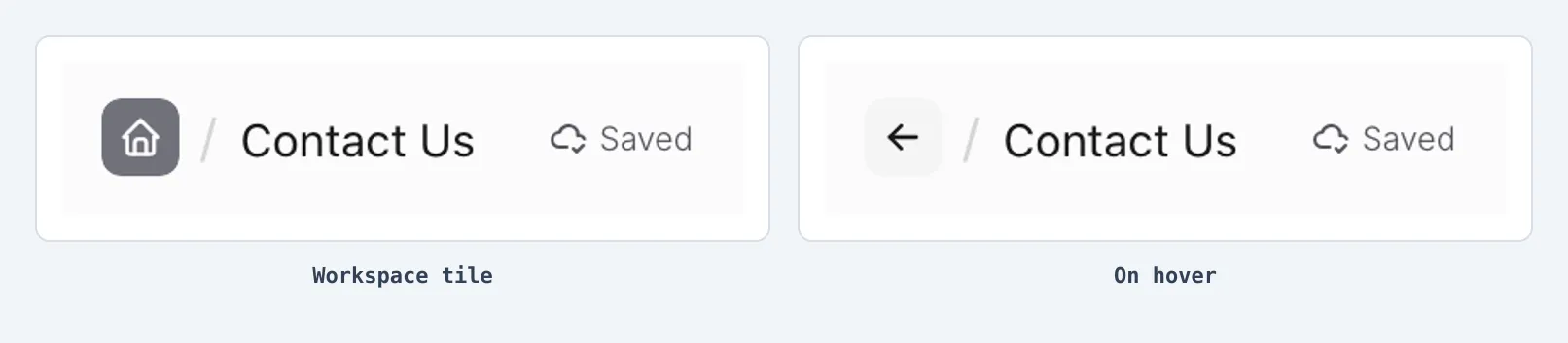
Section titled “The four tabs”The editor is organized into a few tabs at the top of the screen. On smaller screens they show as icons only, but they are always in the same order:
- Build — where you add questions, arrange pages, and style the form. This is where you land when you open a form.
- Workflows — automate what happens when responses arrive, like sending them to Google Sheets.
- Configure — every form setting, grouped into sections (notifications, access, sharing, and more).
- Results — the responses people have submitted.
On the Build tab you’ll also find the Preview and Publish buttons in the top-right corner. Once a form is published, the Publish button becomes a Share button.
The Build tab is the canvas where your form takes shape. Along the left edge is the editor dock, with these panels:
- Pages — add, reorder, rename, and hide pages, and add endings.
- Components — the full list of question types and content blocks. Click one (or drag it) to add it to the canvas.
- Design — the look of your form: theme, colors, logo, fonts, layout, buttons, and background. See Design and themes.
- Logic — the Logic rules that show, hide, require, or make questions optional, skip pages, and pick the ending. A badge on the button counts the rules that need attention.
- Calculated values — the scores, totals, and text your rules work out.
- Hidden values — declare the values your form accepts from its link or embed.
At the top of the canvas sits the Quick-add bar—a row of subtle buttons that offers Add logo while the form has no logo, Add form title while it has no form title, and Add progress bar while it has no progress bar. The buttons light up on hover, and the bar fades away as you scroll down the canvas.
To change a single question, click it on the canvas. Its settings open right there, where you can rename it, mark it required, add validation, and more.
Undo and redo
Section titled “Undo and redo”Use the undo and redo buttons beside the page navigator to reverse recent changes in Build and Design. You can also press Ctrl/Cmd+Z to undo, or Ctrl/Cmd+Shift+Z or Ctrl+Y to redo. When a focused Build or Design field is part of editor history, these shortcuts commit its current value before applying undo or redo. Fields outside editor history, such as form and page names, keep the browser’s text undo behavior.
Recent editor history includes changes to pages, components, inline text, ordering, visibility, and design settings. Continuous edits to one field, such as typing or dragging a slider, count as one step. Each form draft keeps its own history, and that history remains available after you reload the editor.
When you undo Add page, Fomr selects a remaining page and opens the Pages panel so you can see the updated page list.
Workflows keep a separate history for graph changes. Use the controls in the workflow header to undo or redo adding, removing, moving, or connecting workflow steps without affecting the form’s Build history.
Publishing, form settings, access, domains, and workflow enable or pause actions are not included in editor history. Editor undo is also separate from Version history, which records published form versions.
Configure
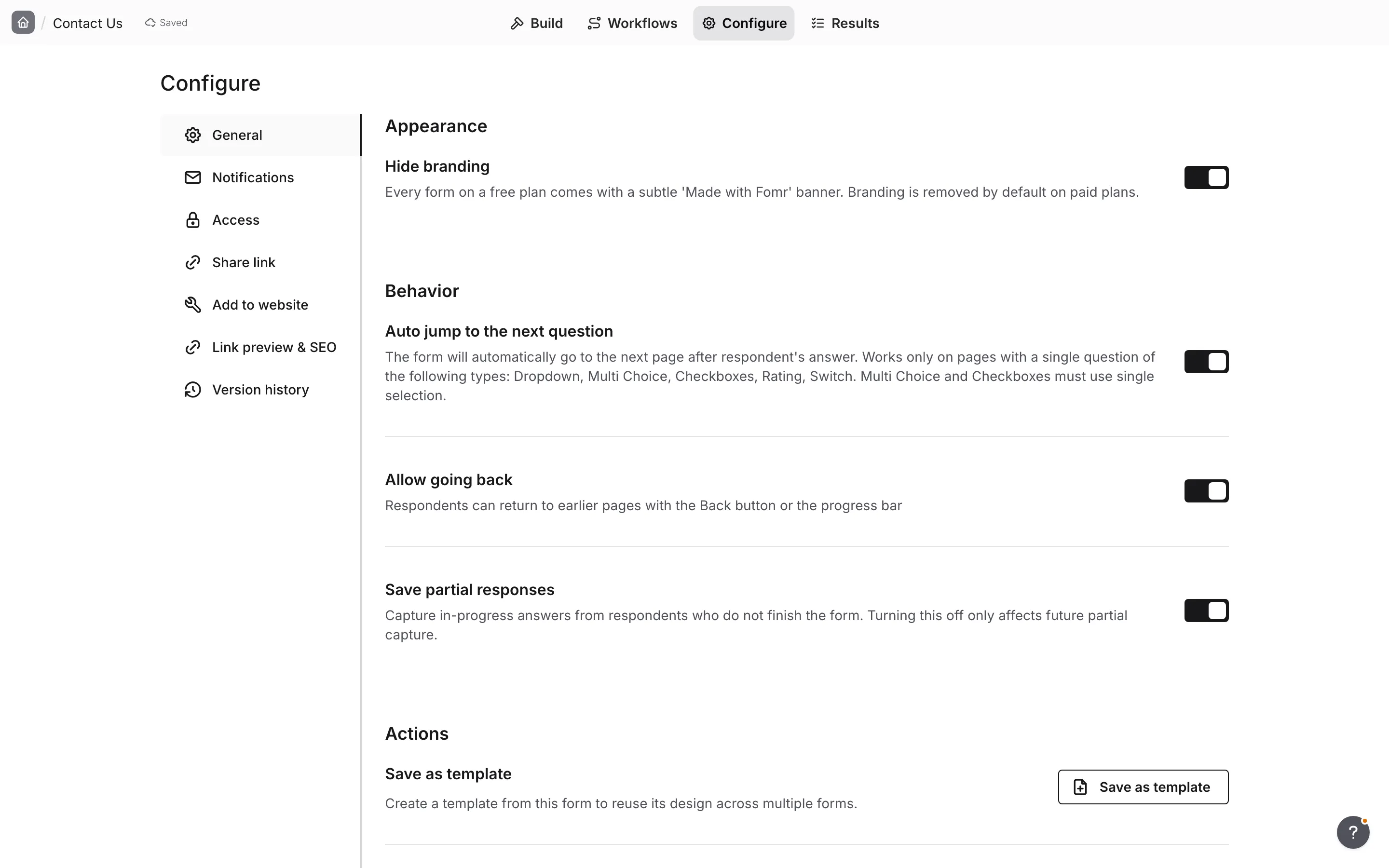
Section titled “Configure”The Configure tab holds every form-level setting, split into sections down the side:
- General — grouped into:
- Appearance — the Hide branding toggle.
- Behavior — Auto jump to the next question, Allow going back, and Save partial responses.
- Actions — Save as template and Duplicate form.
- Danger zone — Archive the form or move it to Trash.
- Notifications — get an email when someone responds.
- Access — schedule when the form opens or closes, close it, or unpublish it.
- Share link — copy the form’s public link, download a branded QR code, and pick a custom domain.
- Add to website — embed the form on your own site.
- Link preview & SEO — control how the form looks when shared and whether search engines index it.
- Version history — see a timeline of published versions.
Results
Section titled “Results”The Results tab lists every submission in a table. Click a row to see the full response, and use Export CSV to download everything. See Collect responses for details.
Preview and publish
Section titled “Preview and publish”Preview (on the Build tab) opens your form exactly as a respondent will see it, so you can test the flow before going live.
Publish makes your latest changes public. Remember: changes stay in your draft until you publish again. Learn more in Form publishing.
Where to find things
Section titled “Where to find things”| I want to… | Go to |
|---|---|
| Add or edit a question | Build → Components, or click the question on the canvas |
| Change colors, fonts, logo, or background | Build → Design |
| Add a form title | The Quick-add bar at the top of the canvas |
| Add a progress bar | The Quick-add bar at the top of the canvas |
| Reorder or hide a page | Build → Pages |
| Show, hide, or skip questions based on answers | Build → Logic |
| Add a score, total, or other calculated value | Build → Calculated values |
| Add another ending (Pro) | Build → Pages → Add ending page |
| Turn on auto-jump between pages | Configure → General → Behavior |
| Stop respondents going back to earlier pages | Configure → General → Behavior → Allow going back |
| Get an email for new responses | Configure → Notifications |
| Schedule, close, or unpublish the form | Configure → Access |
| Copy the public link | Configure → Share link (or Share once published) |
| Download a QR code | Configure → Share link |
| Embed the form on a website | Configure → Add to website |
| Set the social preview and SEO | Configure → Link preview & SEO |
| Duplicate the form or save it as a template | Configure → General → Actions |
| Archive the form or move it to Trash | Configure → General → Danger zone |
| View or export responses | Results |