The File Upload component lets respondents attach files to their response. Use it to collect CVs, portfolios, photos, signed documents, receipts, or any other supporting material.
Uploaded files are private to your workspace. Only members of your workspace who can view the form’s responses can open or download them, and the download links are generated fresh each time. Files are never published to a public address.

When to use File Upload
Section titled “When to use File Upload”File Upload works well for:
- Job applications that need a CV or portfolio
- Support requests that need a screenshot or log file
- Claims and reimbursements that need a receipt
- Registration forms that need a signed document or ID photo
- Creative submissions that need artwork, audio, or video
Adding a File Upload component
Section titled “Adding a File Upload component”-
Open your form in the editor
-
On the Build tab, open the Components panel and drag the File Upload component onto your form
-
Click the component on the canvas to select it and configure its settings
Configuration options
Section titled “Configuration options”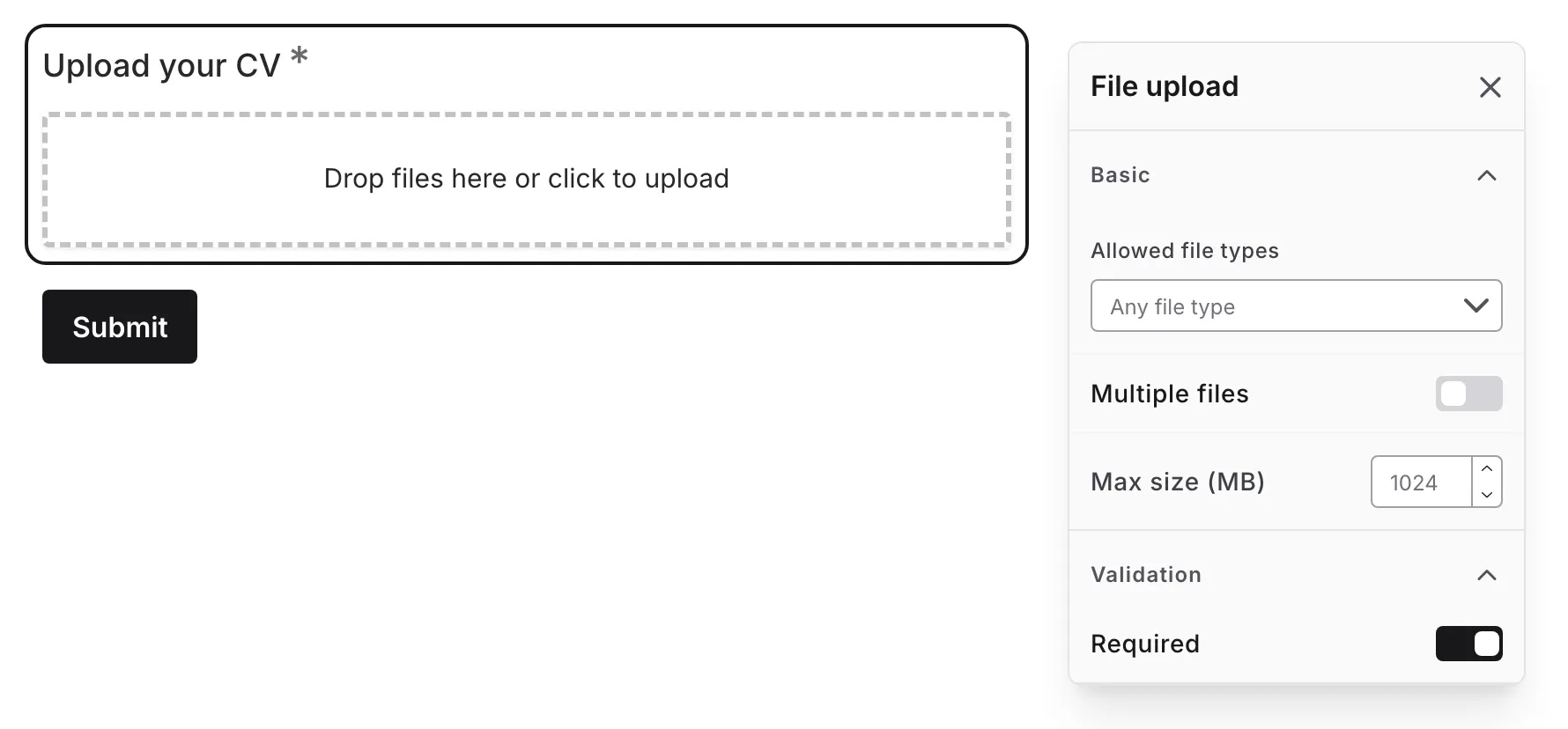
Question label
Section titled “Question label”The main question or prompt displayed above the upload area.
Examples:
- “Upload your CV”
- “Attach a photo of the damage”
- “Share your portfolio”
Supporting content
Section titled “Supporting content”Add helper text, an example image, or a divider between the question’s title and the upload area: drag a Text, Image, or Divider component onto the question and drop it on the line that appears under the title. Supporting text comes with full formatting and answer piping. Learn more in Supporting content.
Allowed file types
Section titled “Allowed file types”Choose which kinds of file respondents may attach: images, video, audio, documents, or archives. Leave the setting empty to accept any of them.
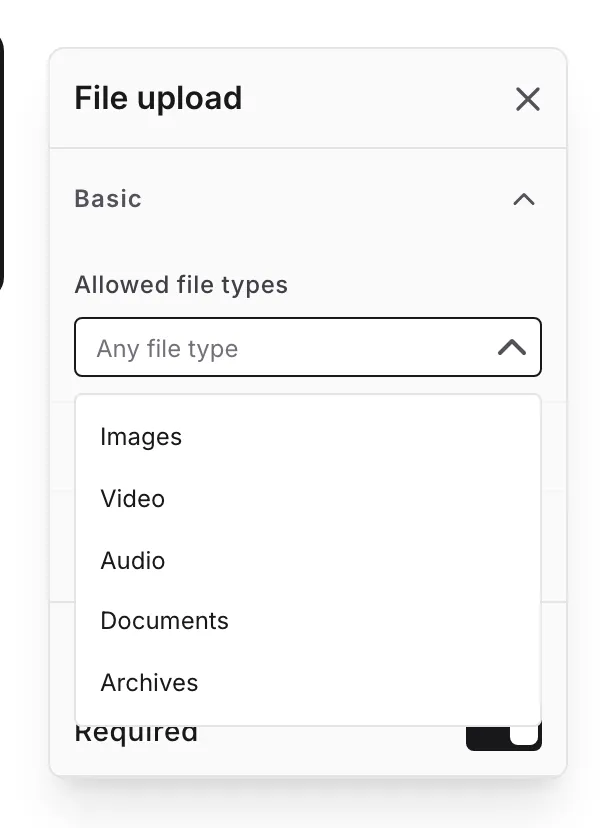
Each type covers these file formats:
| Type | File formats |
|---|---|
| Images | jpg, jpeg, png, gif, webp, heic, heif, svg |
| Video | mp4, m4v, mov, webm, avi, mkv |
| Audio | mp3, wav, ogg, m4a, aac, flac |
| Documents | pdf, doc, docx, xls, xlsx, ppt, pptx, txt, csv, md, rtf, odt, ods, odp, json |
| Archives | zip, rar, 7z, tar, gz |
Respondents see an error immediately if they pick a file outside the types you allow, and Fomr checks the file again after it is uploaded. Files outside this list — including anything that could run code in a browser — are never accepted, whatever you select here.
Multiple files
Section titled “Multiple files”By default each respondent can attach one file. Turn on Multiple files to accept more, and optionally set a File limit of up to 20 files per question — leave it empty to allow the full 20. When the limit is reached, the upload area disappears until the respondent removes a file.
Max size
Section titled “Max size”Set the largest size a single file may be, in megabytes. Your plan sets the ceiling: 10 MB per file on Free, 5 GB per file on Pro. Leave it empty to use the plan limit.
Keep this as low as your use case allows. Smaller limits mean faster uploads for respondents and slower use of your workspace storage.
Required
Section titled “Required”Toggle whether the respondent must attach at least one file before the form can be submitted.
When enabled:
- An asterisk (*) appears next to the question label
- Respondents cannot submit without a completed upload
- A validation error appears if no file is attached
What respondents see
Section titled “What respondents see”Respondents can click the upload area to browse for a file or drag a file straight onto it. Each file uploads in the background with a progress bar, so a large attachment does not block them from filling in the rest of the page.
If a file is the wrong type, too large, or fails to upload, only that file shows an error. The respondent can dismiss it and try another file without losing the rest of their answers.
Storage and limits
Section titled “Storage and limits”Files respondents send you count towards your workspace storage, alongside the images in your asset library. Free workspaces include 100 MB of storage and Pro workspaces include 10 GB.
When your workspace runs out of storage, new uploads stop being accepted — including files respondents try to attach to a form — and Fomr emails your workspace admins so nothing is missed silently. Free up space by deleting responses that contain large files or removing unused images from your asset library, or upgrade for more room.
You can check how much storage you have used at any time from the workspace menu in the sidebar.
Handling in responses
Section titled “Handling in responses”On the Responses tab, file answers appear as the file names the respondent sent. Open a response to see each file with its size and type, then preview it or download it.
Images, PDFs, video, and audio open in a preview window inside Fomr, with a player for video and audio files. Every other file type downloads instead, and files always download as attachments rather than opening in the browser.
Exports and integrations receive a secure download link for each file rather than the file itself. Anyone following that link must be signed in to Fomr as a member of your workspace with access to the form, so a shared spreadsheet never exposes your respondents’ files to people outside your workspace.
Accessibility
Section titled “Accessibility”The upload area is reachable with the keyboard and can be opened with Enter or Space. Errors are shown next to the file they belong to, and the question label is announced with the control.
If the file you are asking for has strict requirements, put them in the question label or supporting content rather than relying only on the hint text.