A redirect sends respondents to a page of your own as soon as they submit, instead of showing them an ending page. Use it to continue the journey on your website: a checkout, a booking calendar, a download, or a thank-you page that matches your brand.
How it works
Section titled “How it works”A redirect is a Logic rule with two parts:
- A Reached ending condition, which says which ending the redirect follows
- A Redirect to URL action, which holds the address
When a respondent submits and reaches that ending, Fomr records their response and then sends them straight to the address. They don’t see the ending page.
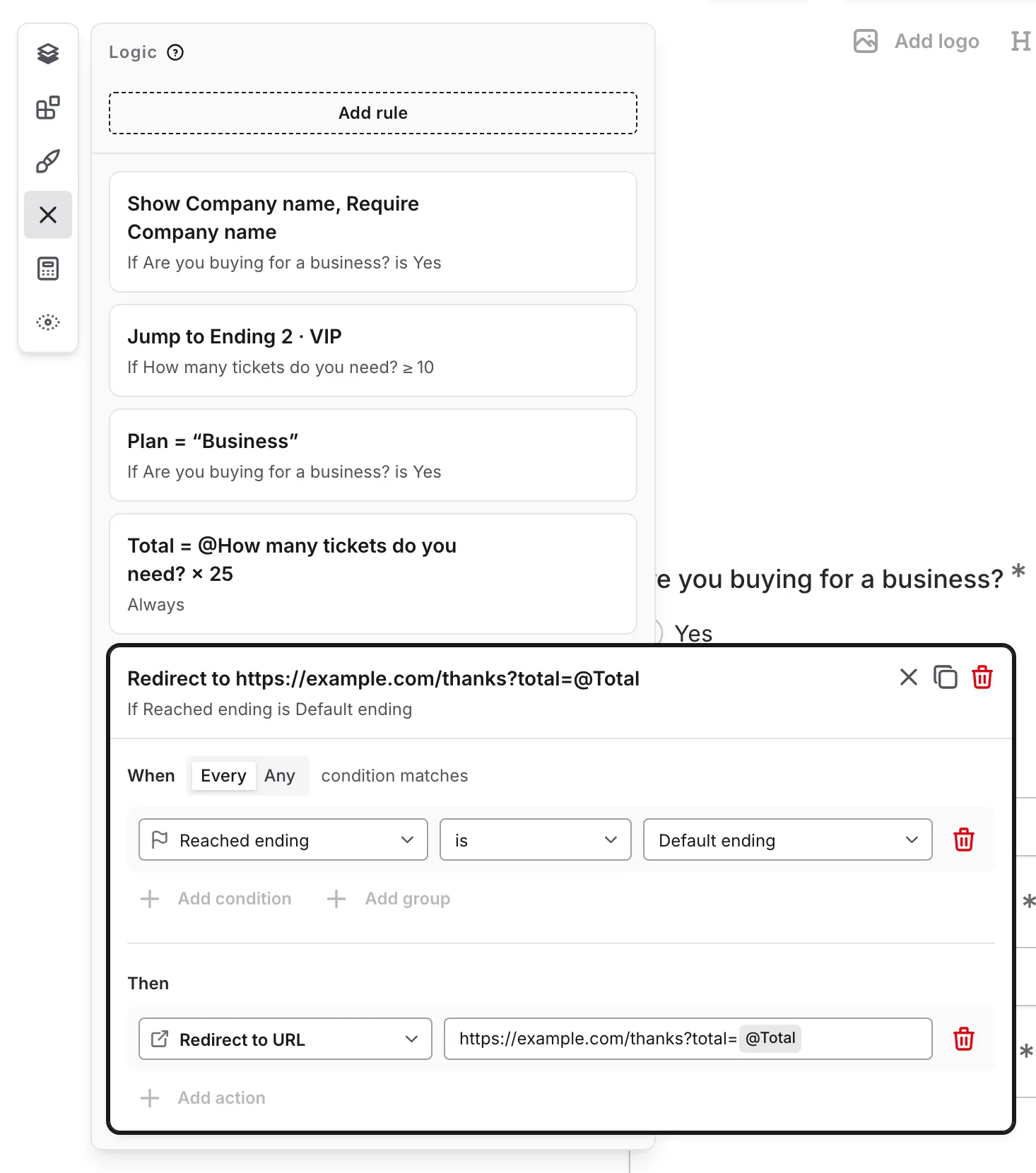
Set up a redirect
Section titled “Set up a redirect”-
Open your form in the editor and click Logic in the editor dock
-
Click Add rule. Under When, choose Reached ending, is, and the ending to redirect from, such as Default ending
-
Under Then, choose Redirect to URL and enter a full address that starts with
http://orhttps:// -
Publish your form
For a walkthrough with examples, see Redirect after submit.
Pass answers in the link
Section titled “Pass answers in the link”Type @ in the address to insert an answer, a Hidden value, or a Calculated value. For example:
https://example.com/thanks?email=@Emailpasses the respondent’s email to your pagehttps://example.com/checkout?total=@Totalsends a calculated order total to your checkouthttps://example.com/welcome?source=@utm_sourcekeeps a campaign parameter from the form’s link
Fomr encodes inserted values automatically, so spaces and special characters in answers don’t break the address.
Redirect from different endings
Section titled “Redirect from different endings”With several endings, add one rule per ending that should send respondents somewhere else. Endings without a redirect rule keep showing their ending page.
You can also add more conditions to a redirect rule. For example, send respondents who chose Enterprise to your sales booking page and everyone else on the same ending to your standard thank-you page. If two matching rules redirect to different addresses, the rule higher in the Logic panel wins, and both rules show a conflict badge.
Test a redirect
Section titled “Test a redirect”Preview doesn’t leave the editor. When a redirect would happen, it shows “Redirect to” and the resolved address instead, so you can check the link without losing your place. To follow the redirect for real, submit the published form.
Things to know
Section titled “Things to know”- The address must be a full web address. Logic flags a redirect that doesn’t start with
http://orhttps://, or that has no Reached ending condition. - One redirect per rule. A rule can hold either one Redirect to URL action or one Jump to page action, not both. To redirect from several endings, add one rule per ending.
- Other actions in a redirect rule have no effect. Showing, hiding, requiring, or making components optional can’t change anything once respondents are on their way out, so Logic marks those actions with a warning. Calculate still works and can feed the redirect link.
- Flagged rules are skipped. A rule with an issue doesn’t block publishing, but respondents see the ending page instead of being redirected until you fix it.
- Redirects are a Pro feature at publish. A form with a redirect rule uses Pro features, so publishing it needs Fomr Pro.
- Redirects moved from the Thank You component. The Thank You component used to have its own redirect setting. Forms that used it were converted to an equivalent Logic rule automatically, so there’s nothing you need to do.