Duplicate response prevention helps limit repeated submissions to your form. You can match a question’s answer, the respondent’s IP address, or a previous response remembered by their browser.
It is included in every plan and is Off by default.
Turn on duplicate prevention
Section titled “Turn on duplicate prevention”-
Open your form in the editor.
-
Go to Configure → Access.
-
Turn on Prevent duplicate responses.
-
In Matching method, choose Respondent IP address, Submission ID, or a question.
-
Wait until the editor shows Saved. While it shows Saving or Saved on this device, the change is not active yet.
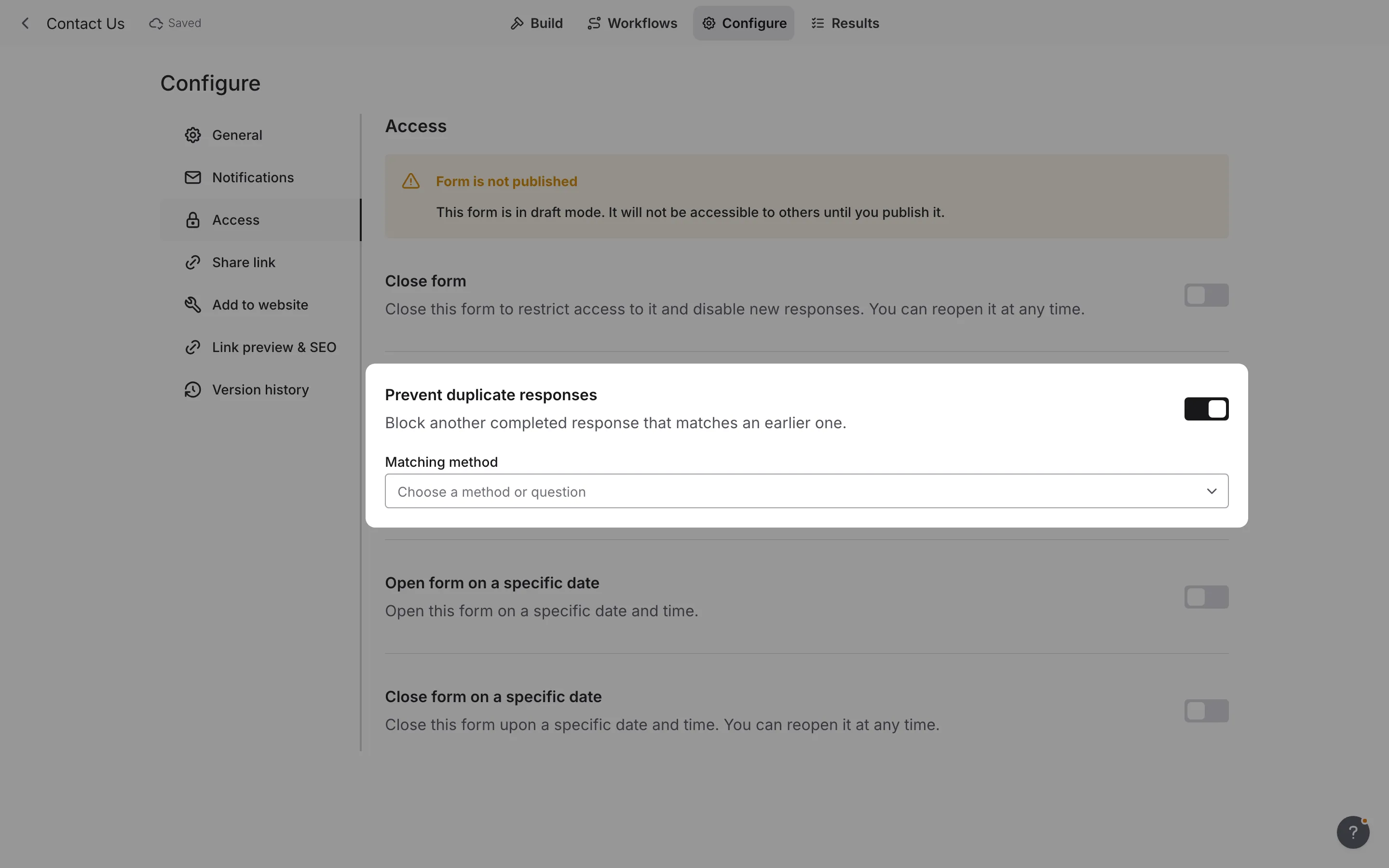
Only one method can apply at a time. You do not need to republish after changing this setting. Turning the switch on does nothing until you choose a method. Turn it off to allow repeated responses again.
Choose a matching method
Section titled “Choose a matching method”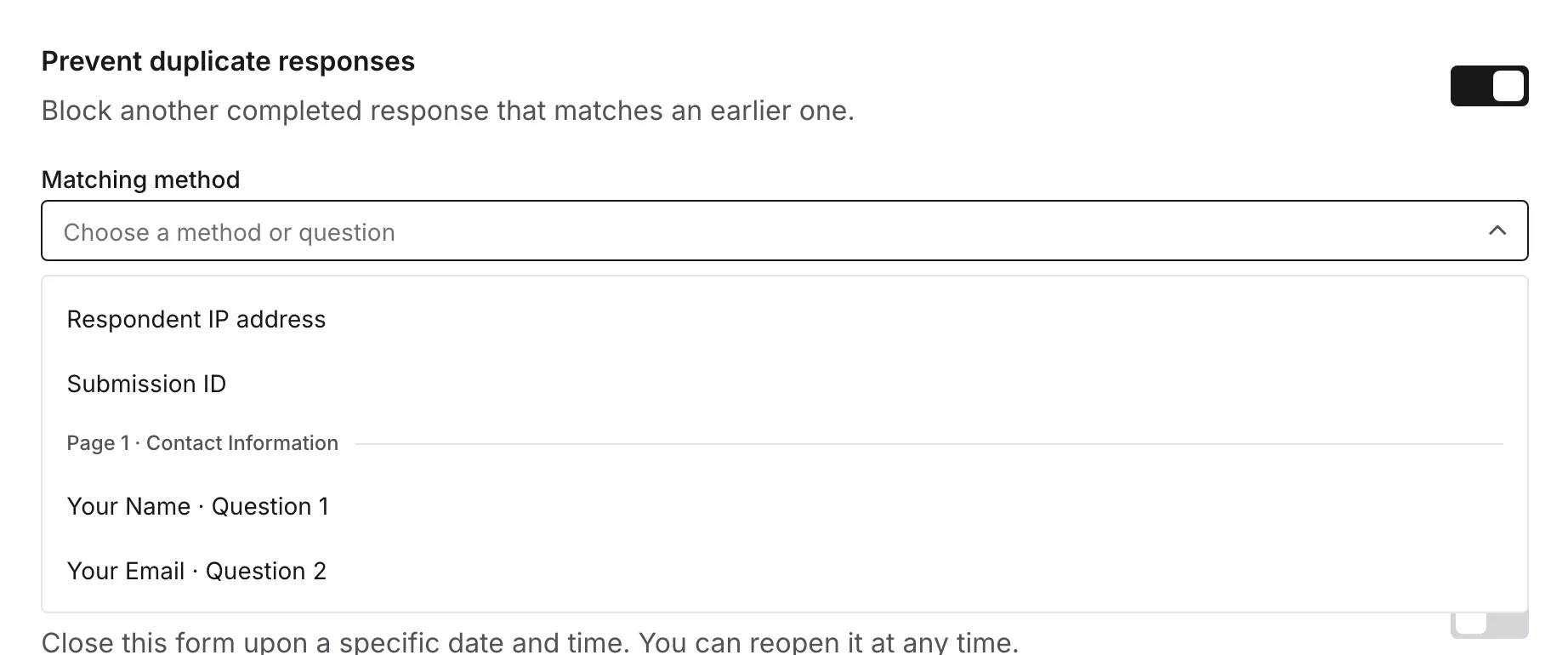
A question’s answer
Section titled “A question’s answer”Choose an Email, Phone, Short answer, Link, or Number question to block another response with the same answer. For example, selecting an Email question helps prevent repeated signups with the same email address.
The menu lists these questions by page and position, such as Your Email · Question 2 under Page 1. Hidden questions and questions on hidden pages are not listed.
Blank optional answers are not checked. Make the question required if everyone needs to provide an answer for this check.
| Question type | How answers are compared |
|---|---|
Capitalization and spaces at either end are ignored. [email protected] matches [email protected]. Addresses with different dots or plus tags count separately. | |
| Phone | Formatting such as spaces, parentheses, hyphens, dots, and a leading + is ignored. Country codes are not added automatically, so local and international versions of a number may count separately. |
| Short answer | Spaces at either end are ignored. Capitalization and spaces within the answer must match. |
| Link | Equivalent address formatting, such as https://EXAMPLE.com and https://example.com/, matches. Different paths, query details, or fragments can count separately. |
| Number | The numeric value must match: 1 and 1.0 are the same. Zero is checked; an empty answer is not. |
You can choose a question you haven’t published yet. Answers are checked against the published form, so that question starts blocking duplicates after you publish it. Until then, a warning below the menu says the question isn’t published yet.
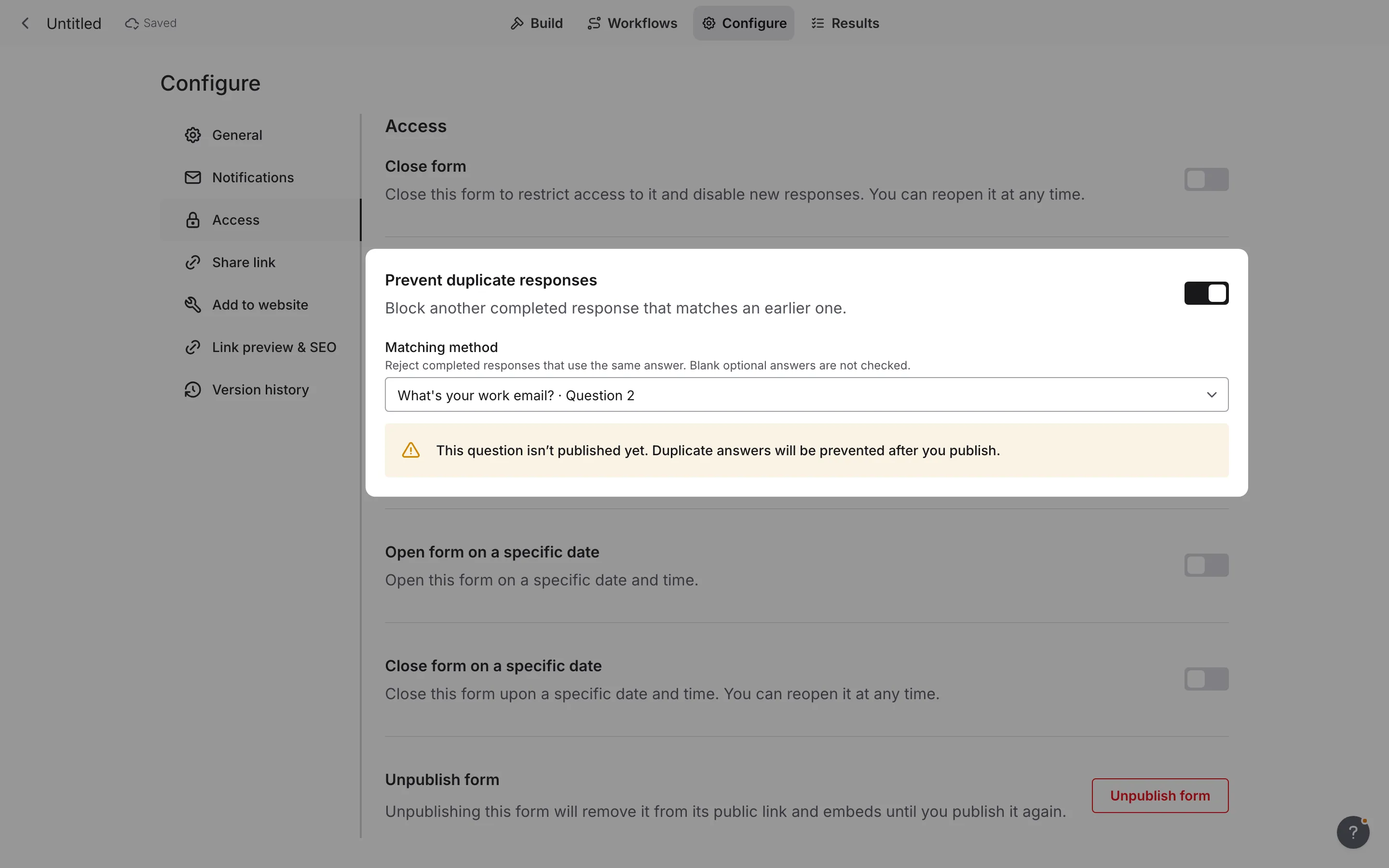
If you delete or hide the selected question, a warning says it is no longer in the form. Once the published form stops showing the question, its answers are not checked. Choose another question or method.
Renaming a question keeps its response history. Replacing it with a new question starts a separate history, even if the wording is the same.
Respondent IP address
Section titled “Respondent IP address”Choose Respondent IP address to block another completed response from the same internet address.
People at the same school, office, home, or public network may share an IP address. This method can block someone who has never answered your form. Someone who switches networks may be able to submit again.
Submission ID
Section titled “Submission ID”Choose Submission ID to remember that a response was completed in the respondent’s browser and block another submission from that browser.
This method needs browser storage. Clearing browser data, using private browsing, or switching browsers or devices can allow another response. Opening the form through a different website or embed may also allow another response.
No method guarantees one response per person. Choose the method that best fits your audience.
Which responses are checked?
Section titled “Which responses are checked?”Only completed responses count. Partial Responses and unfinished forms do not block another submission.
Checks use responses collected since this feature was introduced, including responses received while prevention was Off. Earlier responses are not checked, and existing duplicates remain unchanged.
Publishing edits or switching matching methods does not clear your form’s available response history. Browser matching also depends on the respondent’s browser still remembering their previous response.
Deleting a response stops it from blocking another submission once the deletion finishes syncing. If several responses share the same answer or IP address, all matching responses must be deleted to allow it again.
A copied form keeps the same setting but starts its own response history. Forms created from public templates start with prevention Off.
See the privacy notice for details about data collection and retention.
Help with blocked responses
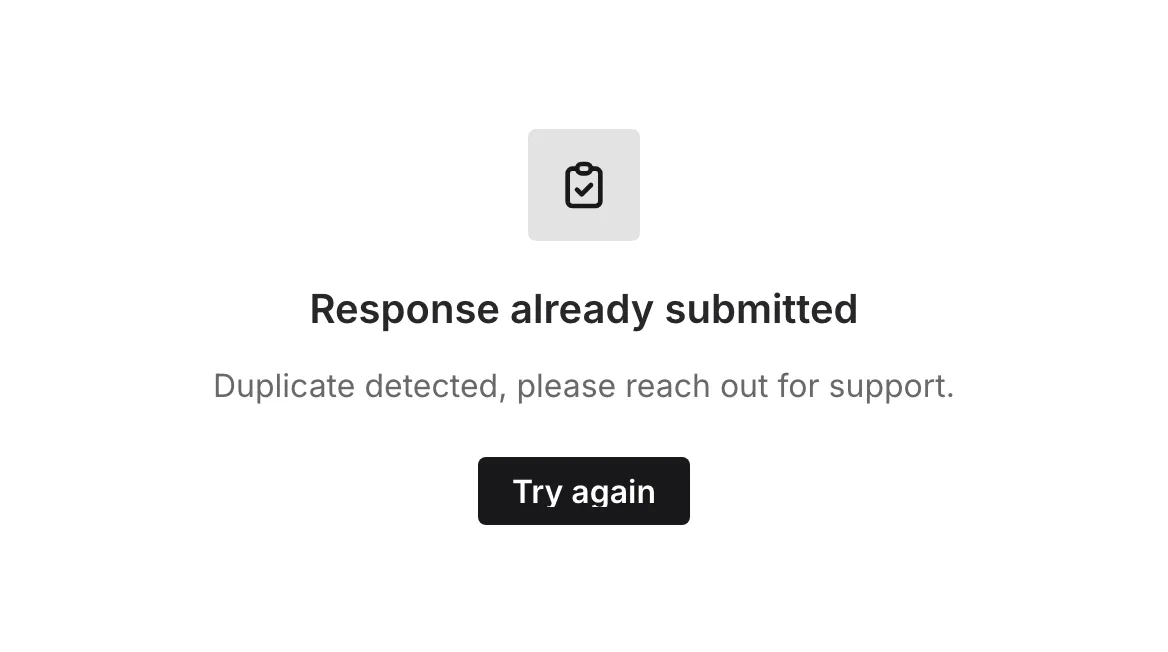
Section titled “Help with blocked responses”When a response is blocked, the form is replaced by a message explaining why. With Respondent IP address or Submission ID, the check runs as the form opens, so a blocked respondent sees the message instead of the questions. When a question’s answer matches, selecting Try again starts the form over from the first page with empty answers.
| Problem | What to do |
|---|---|
| Duplicate detected, please reach out for support | Another response already used one of your answers. Select Try again and enter a different answer, or contact the form owner. |
| A response to this form has already been submitted | Another response came from the same IP address. The message does not mention the IP address. Check whether your audience shares a network. As the form owner, consider choosing a different method. |
| The browser has already submitted | The form remembers a completed response from this browser. As the form owner, delete that response to allow another. |
| Browser storage is unavailable | Enable storage for the site and retry. If the response was already saved, select Retry to finish that submission without creating another. |
| Fomr cannot check for a duplicate | Keep the form open and retry. The response cannot be completed until the check succeeds. |
| The duplicate-response setting needs attention | As the form owner, open Configure → Access and choose the method again. |
| The session expired | Reload the page and start again. You will need to enter your answers and upload files again. |