Every form you publish should work for everyone who opens it, whether they use a mouse, a keyboard, a screen reader, or a phone. Fomr builds that in for you. There’s nothing to switch on or set up: it works with every theme, including your own colors, on hosted forms and on forms embedded in your website.
Our approach comes down to four things:
- Readable by default. Fomr checks the colors it creates from your theme and adjusts any that would be hard to see.
- Everything works with a keyboard. Every question can be answered without a mouse.
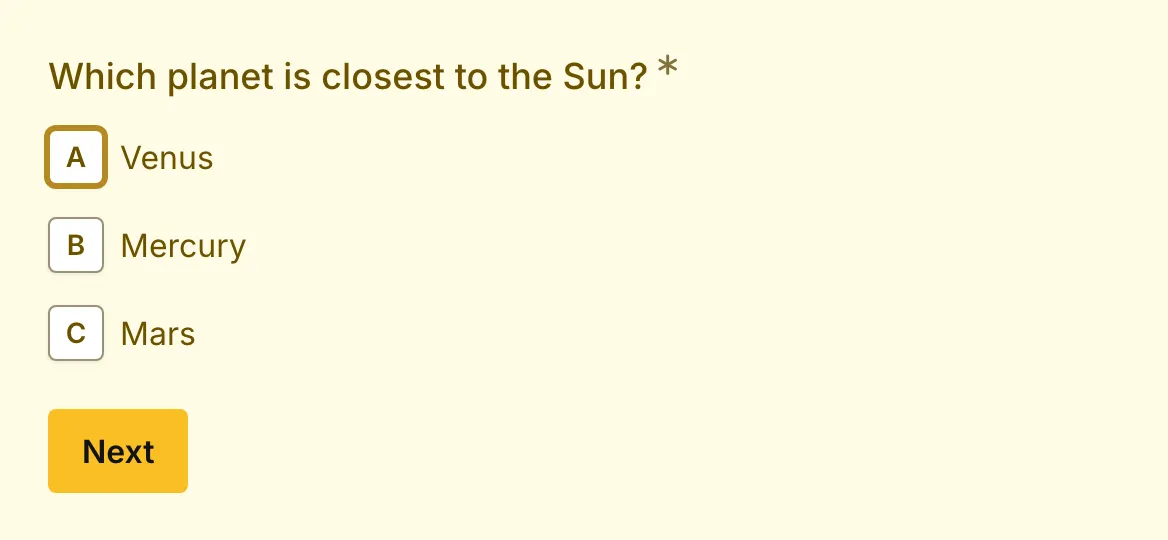
- You always know where you are. The focused field or option has a clear outline.
- Problems are easy to spot and fix. Questions that need fixing turn red and say exactly what’s missing.
Readable colors
Section titled “Readable colors”You pick the primary, background, text, and input colors, and Fomr creates the rest of the theme from them: description and placeholder text, error messages, links in questions and descriptions, button labels, field borders, focus outlines, selected states, and the labels on selected Colorful options. If any of these would be hard to see or read, Fomr adjusts it just enough to meet accessibility guidelines for contrast. Colors that are already readable stay exactly as they are.
You’re most likely to notice this in two places:
- Buttons. If your primary color is a medium shade, buttons keep their white label and the fill gets slightly deeper. If it’s a light color, such as yellow, lime, mint, or peach, the label switches to near-black instead. This also applies to a button text color you picked yourself, if it would be too hard to read on the button.
- Field borders. Borders are always strong enough to see clearly against both the page and the input color.
Keyboard navigation
Section titled “Keyboard navigation”Every question can be answered with the keyboard:
- Tab moves to the next field or choice option, and Shift+Tab moves back.
- Space or Enter selects or clears the focused option.
- In Ranking questions, press Space to pick up an item, move it with the arrow keys, and press Space again to drop it. Press Escape to cancel the move.
- In Matrix questions, Tab moves from row to row, and the arrow keys choose an answer within the row.
Visible focus
Section titled “Visible focus”Keyboard focus is always easy to spot. The focused field or option shows a solid outline in your primary color, in an adjusted shade if your primary color would be hard to see. Focused buttons show an outline in your theme’s text color.


Clear error messages
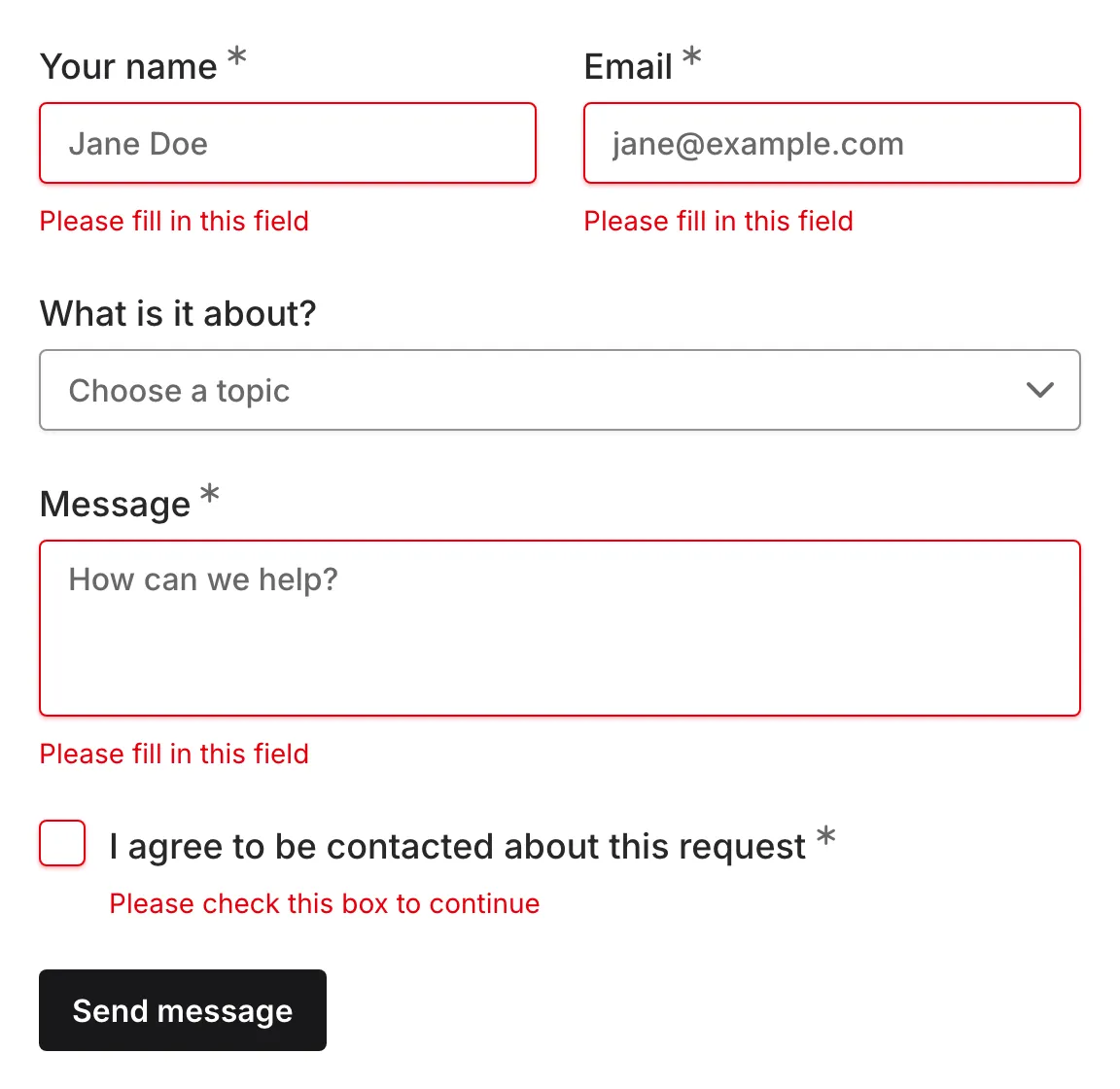
Section titled “Clear error messages”When a respondent tries to continue without answering a required question, or with an answer in the wrong format, Fomr marks the question in red and explains what’s needed right below it:
- An empty required question says Please fill in this field, or the equivalent for its type, like Please check this box to continue.
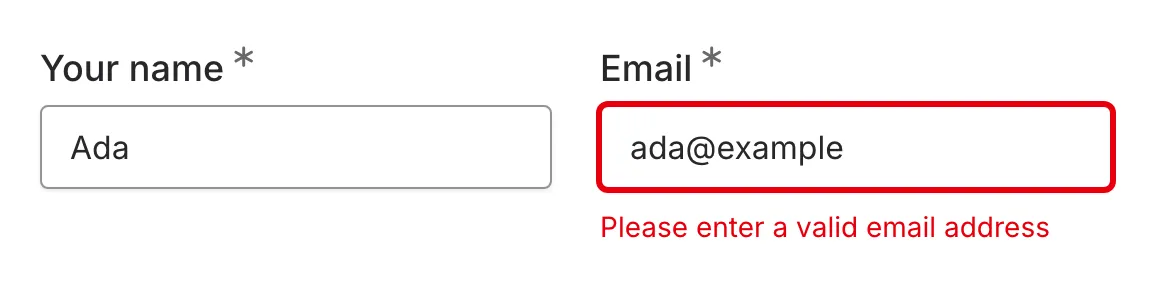
- A filled-in email, link, or phone number question that isn’t in the right format says so, for example Please enter a valid email address.
- Choice questions show red borders and indicators too, not only text fields.
When a respondent moves back to a question that needs fixing, its focus outline turns red as well, so it’s clear both where they are and what to fix.
In a multi-column layout, fields placed side by side stay lined up even when only one of them shows an error message.
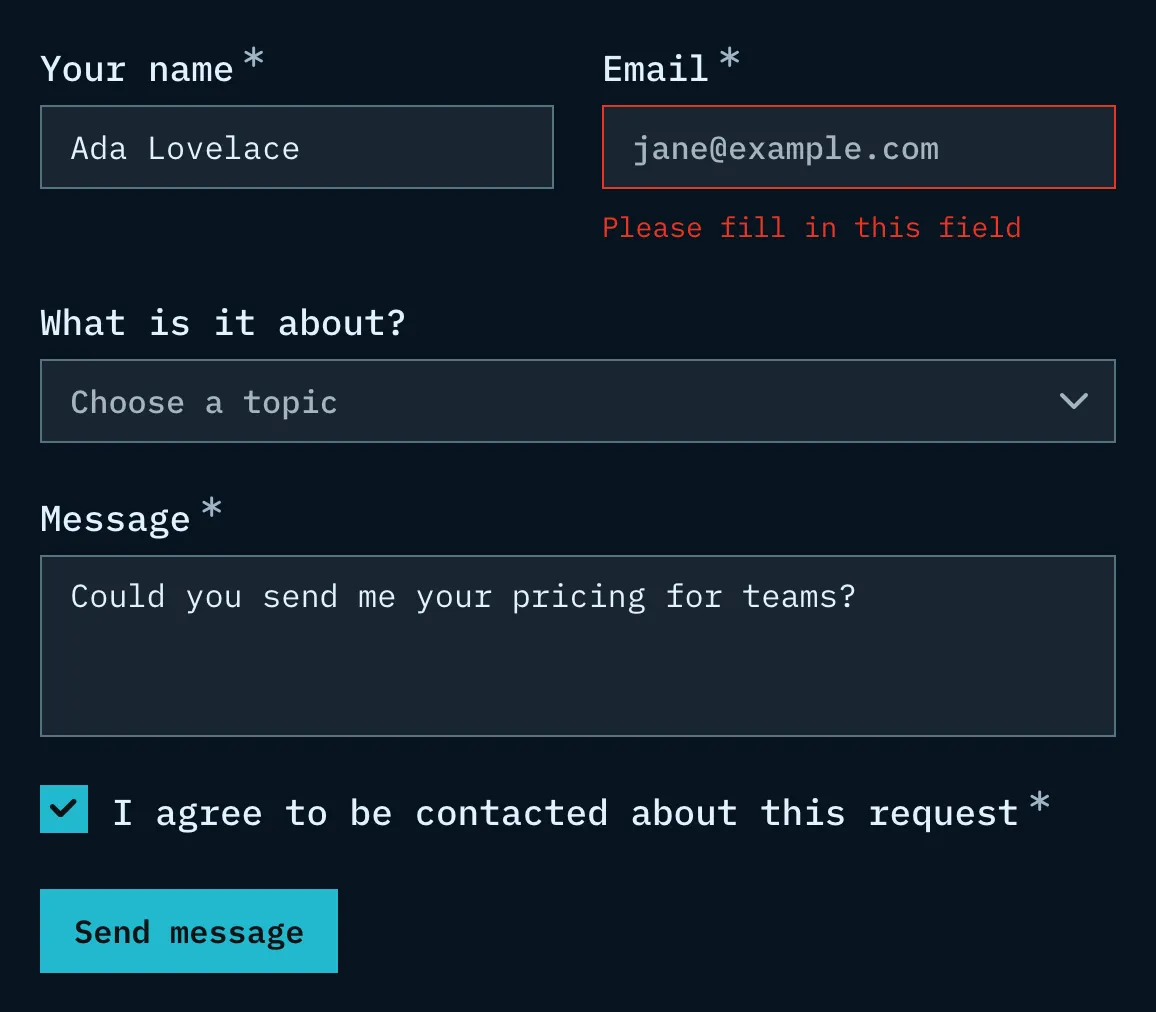
Error colors follow the same readability rules as the rest of the theme, so they stay clear on dark themes too.
Screen readers
Section titled “Screen readers”Screen readers read out each question, say whether it’s required, and announce which options are selected. Error messages are linked to their question, so they’re read out along with it. While a respondent reorders a Ranking question, they also hear each item’s new position.
Reduced motion
Section titled “Reduced motion”If a respondent’s device is set to reduce motion, the form skips its decorative animations.
Tips for accessible forms
Section titled “Tips for accessible forms”Fomr handles colors, keyboard support, and focus for you. A few choices are still yours:
- Pick a readable text color. It’s the one color Fomr leaves exactly as you set it.
- Write clear questions and labels. Screen readers read them out as written, so say what you’re asking in plain words.
- Don’t rely on images or media alone. If an image, video, or post carries information respondents need, also say it in the question text or a caption.
- Test with your keyboard. Open your published form, press Tab, and make sure you can reach and answer every question.