The progress bar is an optional indicator that shows respondents how far they are through a multi-page form. It’s pinned to the top or bottom edge of the screen, spans the full width, and stays in place while respondents scroll. Each question page in your form counts as one step, and the ending counts as one final step.
The progress bar uses your theme’s colors: the primary color for completed progress and a muted track for what’s left. It never shows text labels such as “Step 3 of 5”.
Where the progress bar appears
Section titled “Where the progress bar appears”- The progress bar is one element for the whole form. You add it once and it shows on every page: intro, question, and ending pages.
- On an intro page it shows no progress yet. On ending (thank-you) pages it shows the form as complete.
- Its style, position, and animation apply form-wide, so it looks the same on every page.
- Each visible question page is one step, in the order of your Pages panel. Pages you hide in the editor aren’t counted.
- The ending is always the last step, even if your form has several ending pages or redirects respondents after they submit. It’s completed only once respondents reach the end, so a one-page form still shows two steps.
Add a progress bar
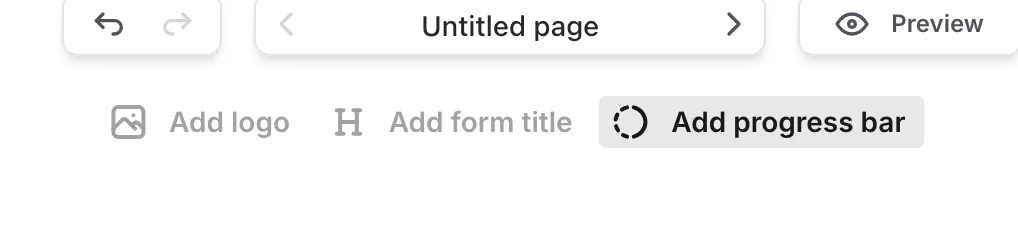
Section titled “Add a progress bar”The progress bar isn’t in the Components panel and can’t be dragged onto the canvas. Instead, you add it from the Quick-add bar—a row of subtle buttons pinned at the top of the canvas on the Build tab.
-
Open your form in the editor and stay on the Build tab
-
Select any page
-
Click Add progress bar in the Quick-add bar at the top of the canvas
-
The progress bar appears on every page and is selected. Click its settings icon to pick a style
Change the progress bar settings
Section titled “Change the progress bar settings”-
Click the progress bar on the canvas to select it
-
Click the gear (Node settings) button
-
Choose a Style and Position, and turn Animated on or off
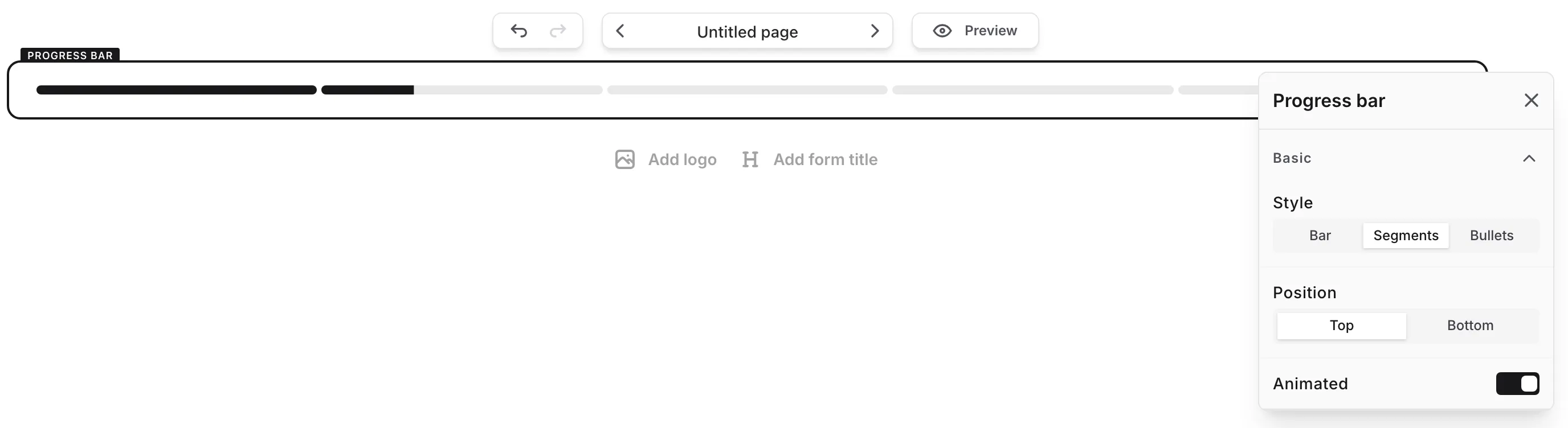
Every change applies to the progress bar on all pages at once.
Choose how progress is drawn:
| Style | What respondents see |
|---|---|
| Bar | A single bar that fills up as respondents complete pages |
| Segments | One segment per step. Completed steps are filled, and the current step is filled a third of the way in your primary color. This is the default. |
| Bullets | A numbered dot for each question step, joined by lines, with a flag on the last dot for the ending. Completed dots show a checkmark, the line fills up to the current dot, and the current dot is outlined in your primary color. |

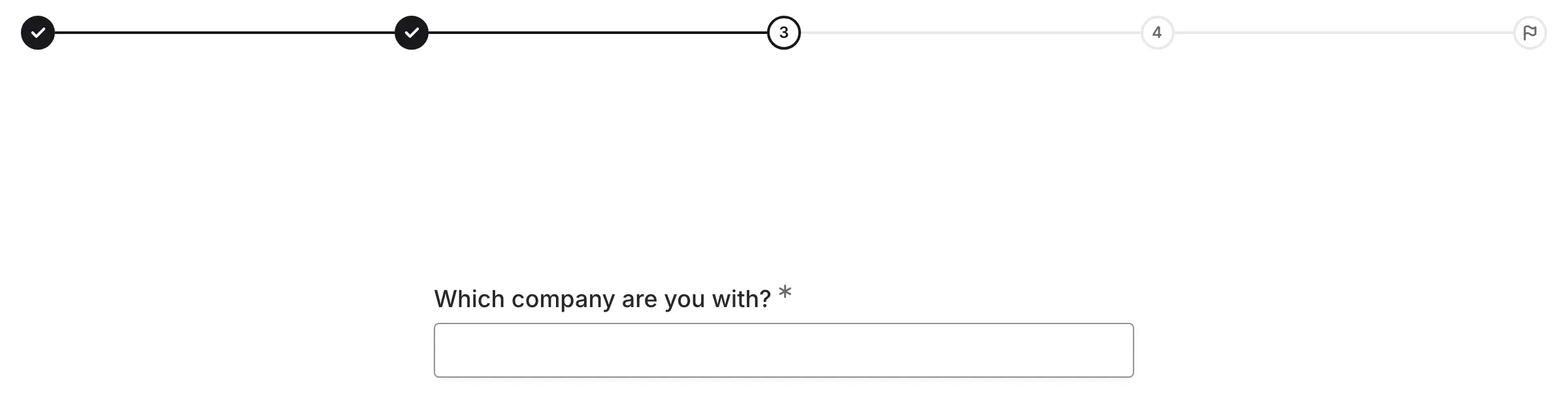
In Segments and Bullets, a step that conditional logic jumped over counts as passed and is drawn with a hatched pattern, so respondents can tell it was skipped.
When there are too many bullets to fit on a small screen, the progress bar shows a window of steps instead: the first, previous, current, next, and last steps, with ”…” in place of the rest.
Position
Section titled “Position”- Top — the default. The progress bar sits at the top edge of the screen.
- Bottom — the progress bar sits at the bottom edge of the screen.
Either way, it spans the full width of the screen and your form content leaves room for it, so it never covers your questions. When your form is embedded on a website, the progress bar is pinned to the edge of the embed instead.
Animated
Section titled “Animated”With Animated on (the default), the progress bar animates only when respondents move from one step to another: the fill slides to the new step, and with Bullets a checkmark pops in once when a step is completed. Nothing moves while a respondent stays on a page, and going back and then forward again doesn’t replay a checkmark that already popped. Turn it off for a progress bar that updates instantly.
Respondents whose device is set to reduce motion never see these animations, even when Animated is on.
Let respondents go back with the progress bar
Section titled “Let respondents go back with the progress bar”With the Segments and Bullets styles, respondents can click an earlier step they’ve already visited to go back to that page. A step click works exactly like the Back button: it doesn’t validate the current page, and their answers are kept. After the jump, focus moves into the form, to the first field on that page (or its first button when it has no fields), so keyboard and screen reader users carry on from the top of the page.
- Respondents can only go back to steps they’ve visited. Upcoming steps and steps that were skipped by logic can’t be clicked.
- Step clicks work only while Allow going back is turned on in Configure → General → Behavior. It’s on by default. This applies whether or not your pages show a Back button.
- The Bar style is never clickable.
Learn more about going back in Page navigation.
Hide the progress bar on a page
Section titled “Hide the progress bar on a page”Like other components, the progress bar can be hidden per page. Select the progress bar on a page and click the hide (eye) control to leave it out of that page in the published form, while it keeps showing on the others. In the editor, a hidden progress bar appears faded on that page.
Delete the progress bar
Section titled “Delete the progress bar”Select the progress bar on the canvas and click the delete (trash) control. Because the form has a single progress bar, deleting it removes it from every page at once. The Add progress bar button then returns to the Quick-add bar, so you can add it back whenever you like.