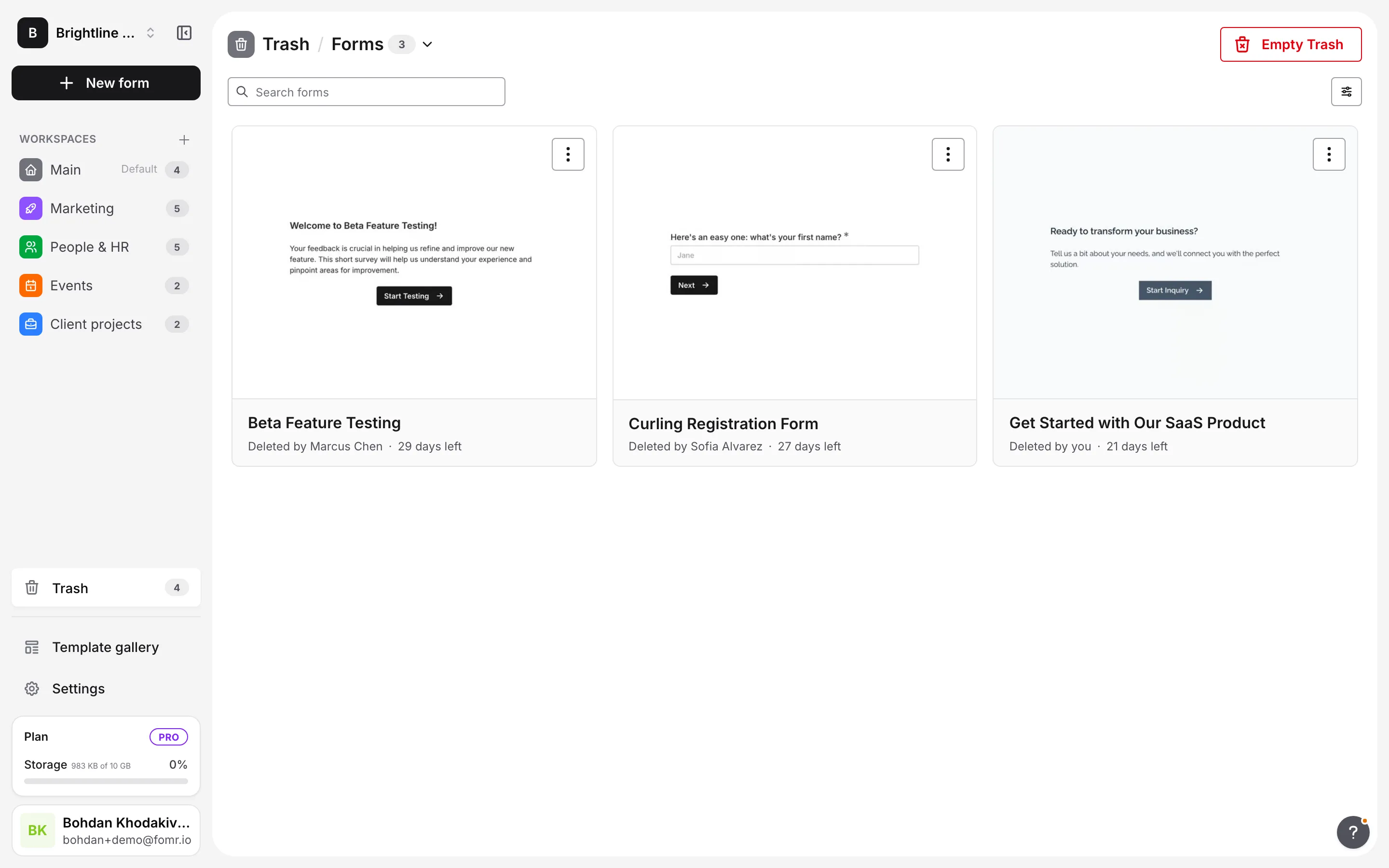
When you delete a form, template, or asset, it isn’t gone right away. It moves to Trash, where it stays for 30 days. During that time you can restore it or delete it permanently yourself. After 30 days, Fomr deletes it permanently for you.
How deletion works
Section titled “How deletion works”Deleting in Fomr happens in two stages, so a single click never destroys your work:
-
Move to Trash. The item leaves its workspace and goes to Trash. A trashed form goes offline right away, but nothing is lost: its responses, workflows, and version history are kept. This step is reversible for 30 days.
-
Restore or delete permanently. From Trash, you can restore the item to bring it back. Or it’s removed for good in one of three ways: you click Delete permanently, you click Empty Trash, or 30 days pass and Fomr deletes it automatically. This step can’t be undone.
Deleting a workspace follows the same path: all of its items move to Trash first.
If you want a form out of the way but aren’t ready to delete it, archive it instead. Archived forms stay in their workspace, closed to new responses, for as long as you like, and never move to Trash on their own.
| Archive | Move to Trash | Delete permanently | |
|---|---|---|---|
| Applies to | Forms | Forms, templates, and assets | Items in Trash |
| Where the item goes | Stays in its workspace, hidden from the Forms list | Trash | Removed for good |
| Published form | Goes offline | Goes offline | Goes offline |
| Responses and history | Kept | Kept for 30 days | Deleted |
| How long it lasts | Until you unarchive | 30 days, then deleted automatically | Permanent |
| Undo | Unarchive at any time | Restore within 30 days | Not possible |
Move items to Trash
Section titled “Move items to Trash”You can move a single item or several items at once.
- One form or template: open the … menu on its card and choose Move to Trash. You can also open it, go to Configure → General, and in the Danger zone, click Move to Trash next to Move form to Trash (or Move template to Trash). After you confirm, Fomr takes you back to the workspace’s Forms (or Templates) list.
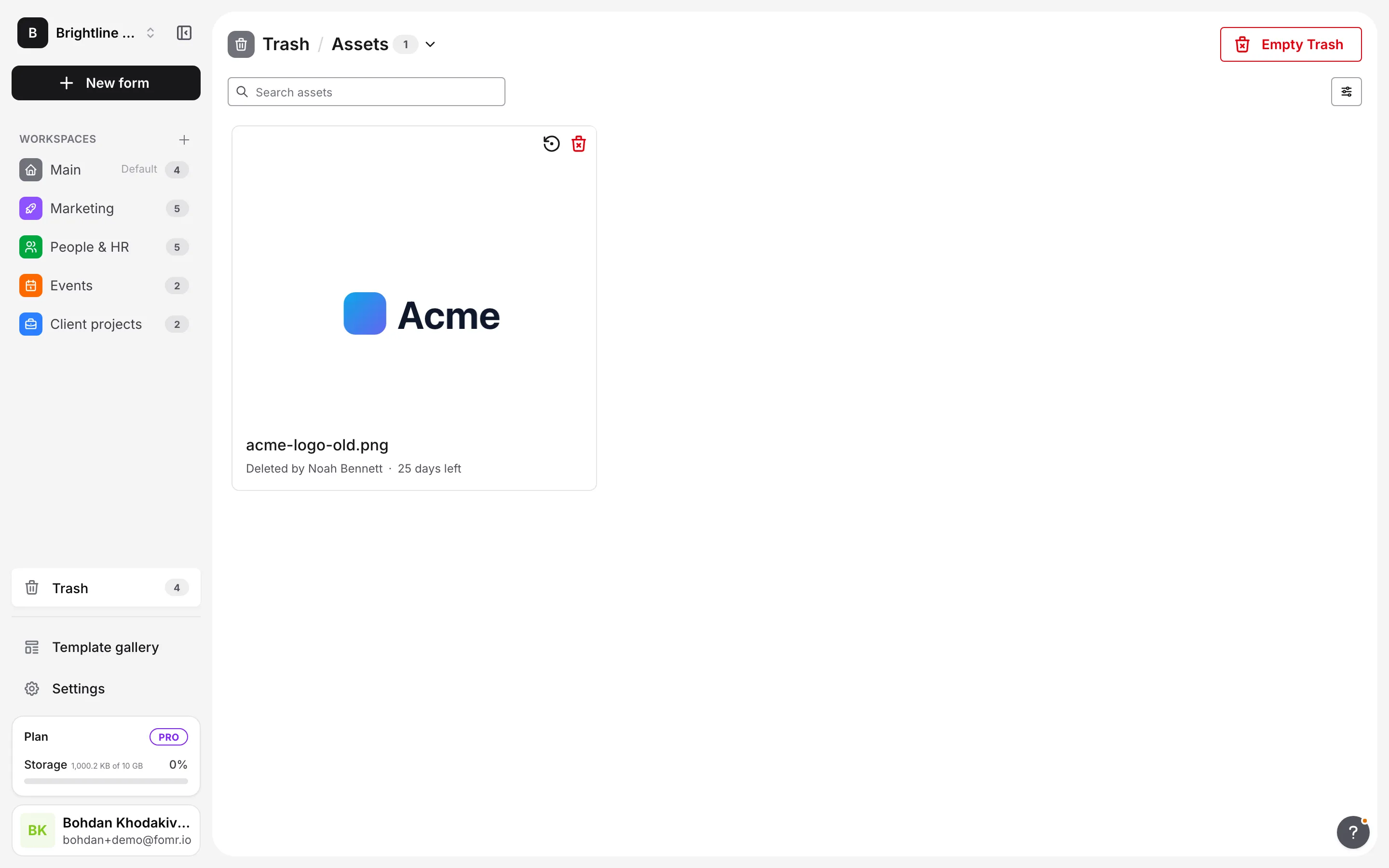
- One asset: click the trash icon on the asset in the workspace’s Assets list. The same trash icon appears on assets in the image library while you’re editing a form.
- Several items: select them in a workspace and choose the red Move to Trash in the action bar at the bottom of the page. Learn more about selecting several items.
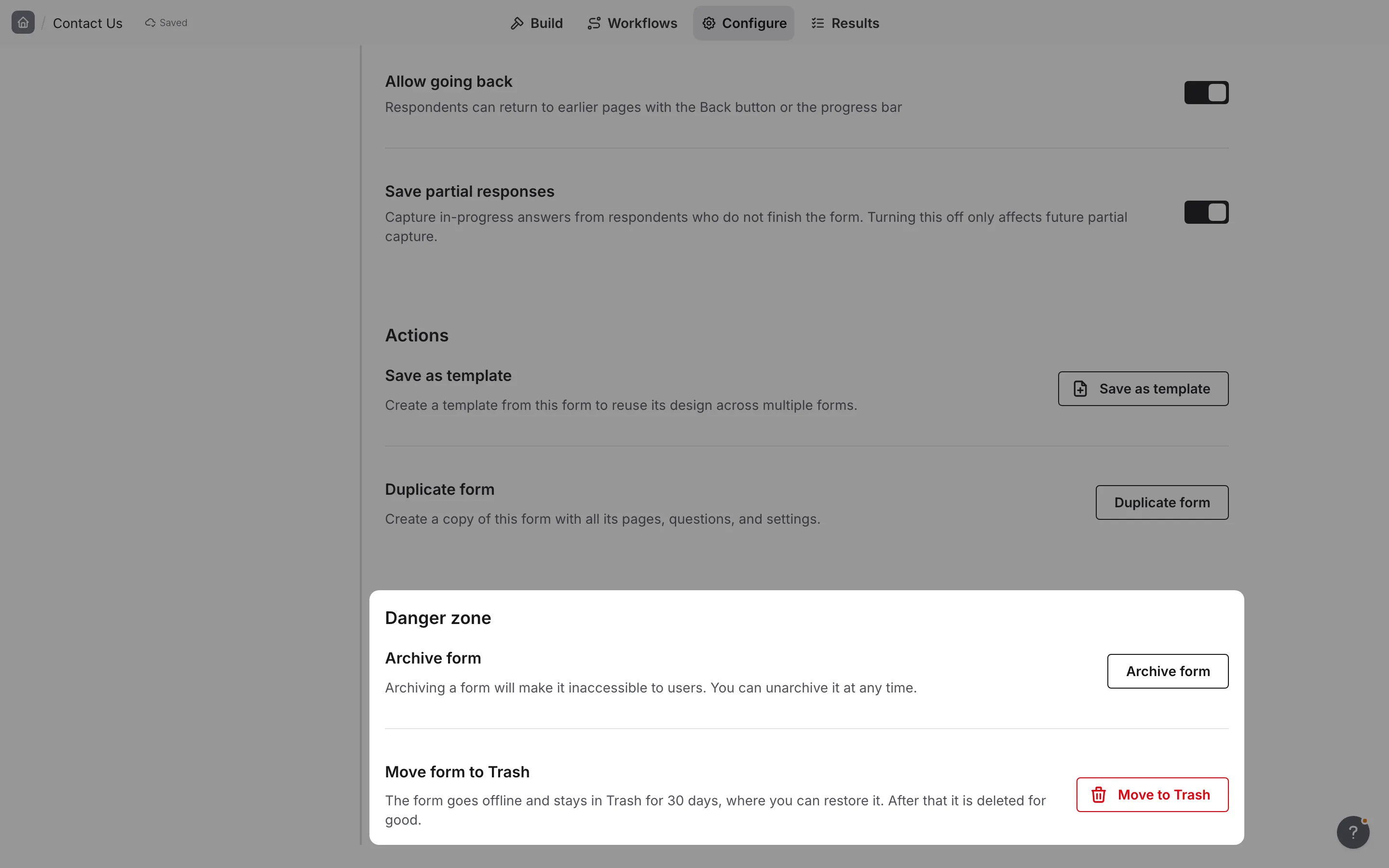
Fomr asks you to confirm in a dialog such as Move 1 form to Trash?, which reminds you that published forms go offline and how long you can restore them. Click the red Move to Trash to continue.
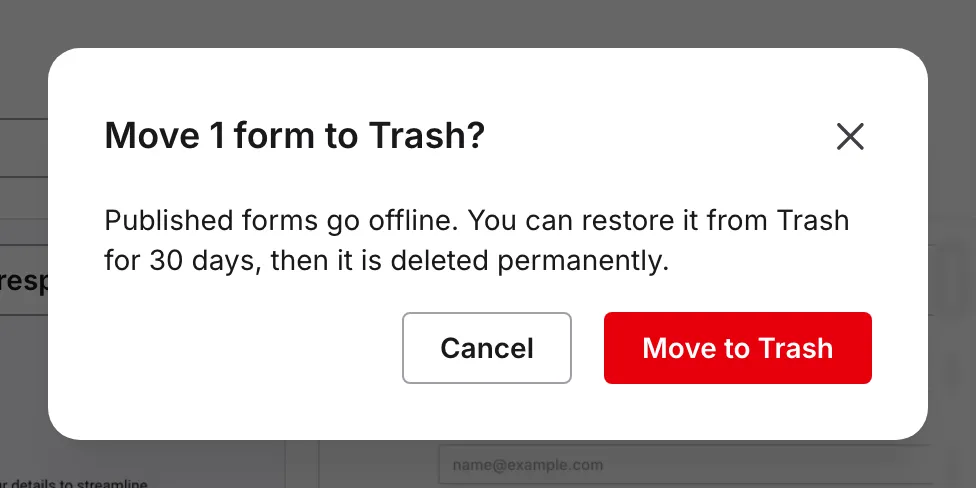
Changed your mind? Open Trash and restore the items.
What happens to a form in Trash
Section titled “What happens to a form in Trash”Moving a form to Trash unpublishes it. Its public link and any custom domain link go offline immediately, so respondents can no longer open or submit it.
Everything else is kept while the form is in Trash, including its responses, workflows, and version history.
What happens to an asset in Trash
Section titled “What happens to an asset in Trash”A trashed asset keeps working in any form that already uses it until it is deleted permanently. After that, the image no longer shows in those forms.
Storage
Section titled “Storage”Items in Trash still count toward your organization’s storage until they are deleted permanently. To free up space right away, delete them permanently or empty Trash.
Open Trash
Section titled “Open Trash”Click Trash near the bottom of the sidebar, just above Template gallery and Settings. The badge next to it shows how many items are in Trash. Each organization has one Trash, shared by all of its workspaces. If your role doesn’t let you manage forms, templates, or assets, the Trash link doesn’t appear.
Trash works like a workspace page:
- Click the section name in the title to switch between Forms, Templates, and Assets. Each section in the menu shows how many items it holds.
- Search narrows the list by name
- Display, the icon button with sliders, changes the sort order: Recently deleted or Name A–Z. In Forms and Templates, it also switches between grid and list layout. Assets has sort only.
- Click a card, or tick its checkbox, to select it. Select several items to act on them from the action bar.
Each item shows who deleted it and how many days are left before it is deleted permanently, for example Deleted by Alex · 12 days left.
Restore items
Section titled “Restore items”-
Open Trash and choose the Forms, Templates, or Assets section
-
Find the item you want to bring back
-
Restore it:
- Forms and templates: open the … menu on the card and choose Restore
- Assets: click the restore icon on the asset
- Several items: select them and click Restore in the action bar
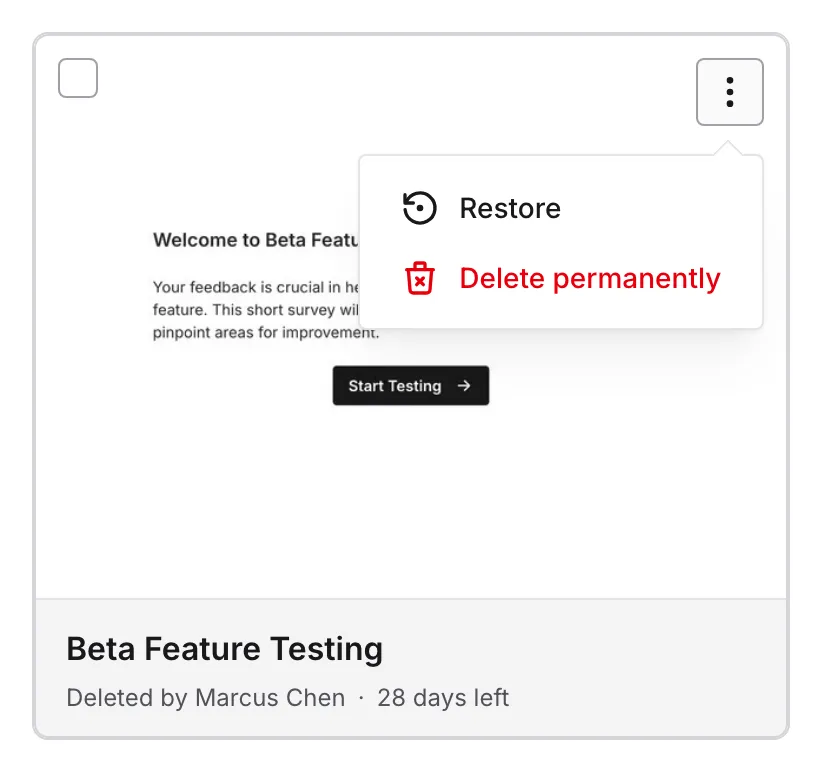
Restored items go back to the workspace they were deleted from. If that workspace has since been deleted, they go to the Default Workspace instead.
Restoring a form
Section titled “Restoring a form”A restored form comes back unpublished. It returns as a draft, or stays archived if it was archived when you moved it to Trash. It is not published again automatically:
- Its responses, workflows, and version history are all still there
- Review it and publish it again when you’re ready to collect responses
- If it used a custom domain link and another form has taken that link while it was in Trash, the restored form loses the link. Choose a new one in Configure → Share link.
Delete items permanently
Section titled “Delete items permanently”Deleting permanently removes an item and everything attached to it, such as a form’s responses. This can’t be undone.
-
Open Trash and find the item
-
Delete it:
- Forms and templates: open the … menu on the card and choose Delete permanently
- Assets: click the red delete icon on the asset
- Several items: select them and click Delete permanently in the action bar
-
Confirm in the dialog
Empty Trash
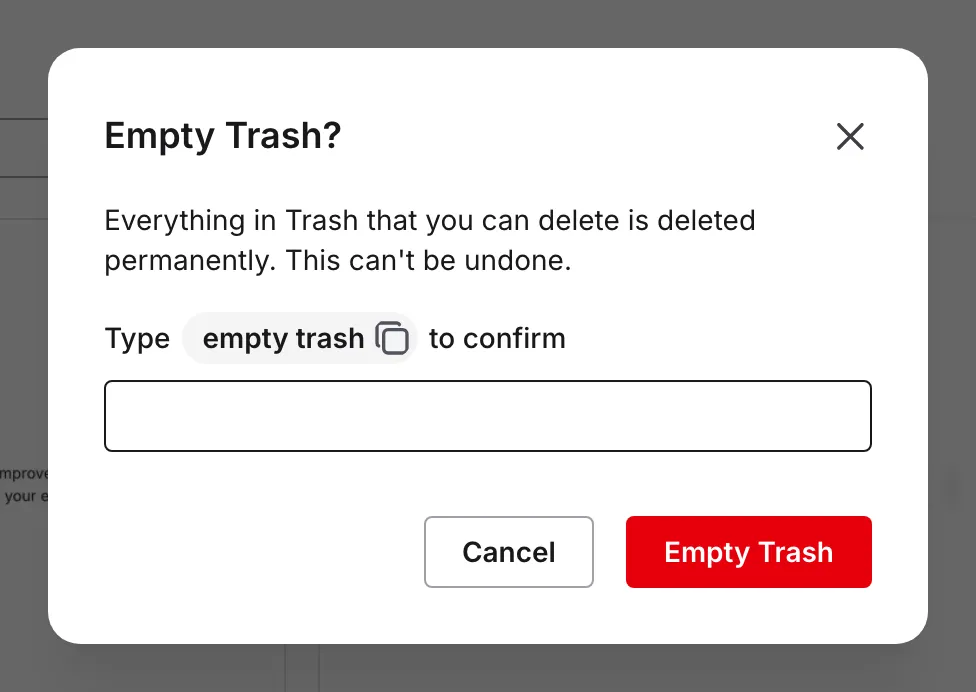
Section titled “Empty Trash”Empty Trash deletes everything in Trash that you’re allowed to delete, across forms, templates, and assets. The button is disabled when there’s nothing to empty.
-
Open Trash
-
Click Empty Trash
-
Type
empty trashto confirm. The phrase is shown in a pill above the field, with a copy button you can use instead of typing it. -
Click Empty Trash
Automatic deletion after 30 days
Section titled “Automatic deletion after 30 days”Items are deleted permanently and automatically 30 days after they were moved to Trash. This applies on every plan. You won’t get a warning first, so keep an eye on the days left shown on each item and restore anything you still need.
Deleting a workspace
Section titled “Deleting a workspace”When you delete a workspace, all of its forms, templates, and assets move to Trash. Published forms in it go offline. You can restore those items from Trash for 30 days, but the workspace itself can’t be restored. Restored items go to the Default Workspace.
Who can use Trash
Section titled “Who can use Trash”Trash shows only the kinds of items you’re allowed to manage. If your role lets you edit and delete forms, you see trashed forms and can restore or delete them permanently. The same applies to templates and assets. Items you can’t manage don’t appear in your Trash, and Empty Trash leaves them in place.
Frequently asked questions
Section titled “Frequently asked questions”How long do items stay in Trash?
Section titled “How long do items stay in Trash?”30 days on every plan. After that they are deleted permanently and automatically.
Can I get a form back after it was deleted permanently?
Section titled “Can I get a form back after it was deleted permanently?”No. Once an item is deleted permanently, by you or automatically after 30 days, it can’t be recovered.
Does restoring a form publish it again?
Section titled “Does restoring a form publish it again?”No. Restored forms come back unpublished, as drafts or still archived. Publish the form again when you’re ready.
Is Trash the same as archiving?
Section titled “Is Trash the same as archiving?”No. Archiving keeps a form in its workspace, closed to new responses, for as long as you like. Trash is for forms you want to get rid of: they’re kept for 30 days and then deleted permanently. See the comparison table above.
Troubleshooting
Section titled “Troubleshooting”I can’t find a deleted item
Section titled “I can’t find a deleted item”- Check that you’re in the right section of Trash: Forms, Templates, or Assets
- Search by name
- If it was deleted more than 30 days ago, it has already been deleted permanently
- If you can’t manage that kind of item, it won’t appear in your Trash. Ask a team member who can.
My restored form doesn’t open for respondents
Section titled “My restored form doesn’t open for respondents”Restored forms come back unpublished. Open the form, unarchive it if needed, and click Publish.