The Media component shows a video, song, podcast, or social post from another service right inside your form. Paste a link from YouTube, Spotify, Instagram, or any of the other supported services, and respondents can watch, listen, or read without leaving the form.
Media does not collect responses. It only displays content to respondents.
Adding Media
Section titled “Adding Media”There are three ways to add Media to a page.
From the Components panel
Section titled “From the Components panel”-
Open your form in the editor
-
Drag the Media component from the Content and layout group onto your form, or tap it to add it
-
Paste a link into the Paste a YouTube, Spotify, X… link field that appears on the canvas. The icons below the field show which services are supported.
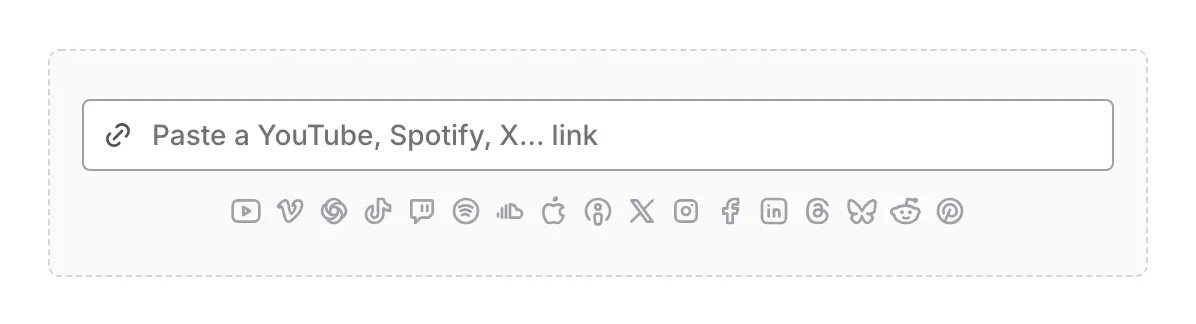
Media appears as soon as you paste the link. If you type the link instead, press Enter when you’re done. If the link can’t be used, a message below the field explains why. See Why a link can be rejected.
Paste a link onto the canvas
Section titled “Paste a link onto the canvas”You can skip the Components panel entirely:
-
Copy a link from a supported service. Copy the full link, starting with
https://. -
In the editor, click an empty part of the canvas or select any component, so that you are not typing in a text field
-
Paste the link
Fomr adds a new Media component with that link and selects it. If a component is selected, the new Media goes directly below it. Otherwise, it goes at the end of the page, above the page’s buttons.
If Fomr can’t use the link, no component is added. A Cannot add media notice explains why, using the same messages described in Why a link can be rejected.
With AI
Section titled “With AI”When you create a form with AI, include a link from a supported service in your description, for example “a feedback form that starts with this video: https://youtu.be/…”. The AI can add Media with that link to your draft.
Change the link
Section titled “Change the link”To show something else, select the Media component, open its settings, and paste a new link into Link.
After you add a link, Fomr saves a tidy version of it, so the Link field may not show exactly what you pasted. Tracking details and extra text are removed, and share links are replaced by the full link they lead to. SoundCloud and TikTok links appear as the address of their player, for example w.soundcloud.com/player/… or tiktok.com/player/v1/…. This is expected, and the Media still shows the same track or video.
Supported services
Section titled “Supported services”Media works with 17 services. Copy the link from your browser’s address bar or from the service’s Share or Copy link button. Short share links, such as youtu.be, spotify.link, or pin.it, work too.
| Service | What you can add | Link to copy |
|---|---|---|
| YouTube | A video, Short, or live stream | The video page (youtube.com/watch?v=…, youtube.com/shorts/…, youtube.com/live/…) or a youtu.be share link. YouTube Music video links also work. |
| Vimeo | A video | The video page (vimeo.com/…). For an unlisted video, copy its full private link, which includes the extra code at the end. |
| Loom | A video | The share link (loom.com/share/…) |
| TikTok | A video | The video page (tiktok.com/@name/video/…) or a vm.tiktok.com or vt.tiktok.com share link |
| Twitch | A channel, a past broadcast, or a clip | The channel page (twitch.tv/name), a past broadcast (twitch.tv/videos/…), or a clip (clips.twitch.tv/… or twitch.tv/name/clip/…) |
| Spotify | A track, album, playlist, artist, podcast, or episode | The link from Share > Copy link (open.spotify.com/… or spotify.link/…) |
| SoundCloud | A track or playlist | The track or playlist page (soundcloud.com/name/…) or an on.soundcloud.com share link. Private share links work too. |
| Apple Music | An album, playlist, or song | The link from Share > Copy Link on an album or playlist. For a single song, copy the link from the song’s row on its album. |
| Apple Podcasts | A show or episode | The show or episode link (podcasts.apple.com/…) |
| X | A post | The post link (x.com/name/status/…). twitter.com links also work. |
| A post or reel | The post or reel link (instagram.com/p/… or instagram.com/reel/…) | |
| A public post or video | The post link (facebook.com/name/posts/…), a video or reel link, or a fb.watch or facebook.com/share/… share link | |
| A public post | The link from Copy link to post (linkedin.com/posts/… or linkedin.com/feed/update/…) | |
| Threads | A post | The post link (threads.com/@name/post/…) or a threads.com/t/… share link |
| Bluesky | A post | The post link (bsky.app/profile/…/post/…) |
| A post | The post link (reddit.com/r/…/comments/…), a redd.it link, or a link from Reddit’s Share button | |
| A pin | The pin link (pinterest.com/pin/…, including regional Pinterest sites) or a pin.it share link |
Why a link can be rejected
Section titled “Why a link can be rejected”When Fomr can’t use a link, it tells you why right away. These are the common reasons.
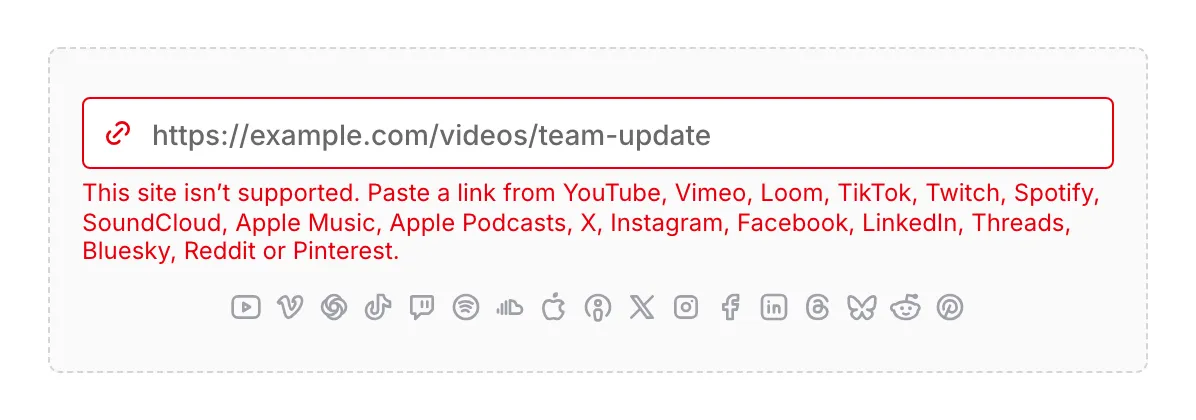
The site isn’t supported. Media only works with the 17 services listed above. A link from any other site shows “This site isn’t supported. Paste a link from YouTube, Vimeo, Loom, TikTok, Twitch, Spotify, SoundCloud, Apple Music, Apple Podcasts, X, Instagram, Facebook, LinkedIn, Threads, Bluesky, Reddit or Pinterest.” Links to regular web pages, files, and other video sites can’t be added as Media. Missing a service you use? Click Need more? next to the service icons in an empty Media component to tell us which one to add.
The text isn’t a link. If what you pasted isn’t a web address, you’ll see “That isn’t a link.” followed by the same list of supported services.
The link points to a profile or channel, not a specific item. Media shows one video, post, song, or other item, so the link must point to that item. For example:
- A YouTube channel link shows “Paste a link to a specific YouTube video.”
- An Instagram profile link shows “Paste a link to a specific Instagram post or reel.”
- A SoundCloud profile link shows “Paste a link to a specific SoundCloud track or playlist.”
- An X profile link shows “Paste a link to a specific post on X.”
Open the video, post, or track itself, then copy its link. Twitch is the one exception: a Twitch channel link is accepted and shows that channel’s live stream.
Configuration options
Section titled “Configuration options”Select the Media component and click the gear icon to open its settings. The settings contain Link, Caption, and Full width. When full width is off, Size appears below it.
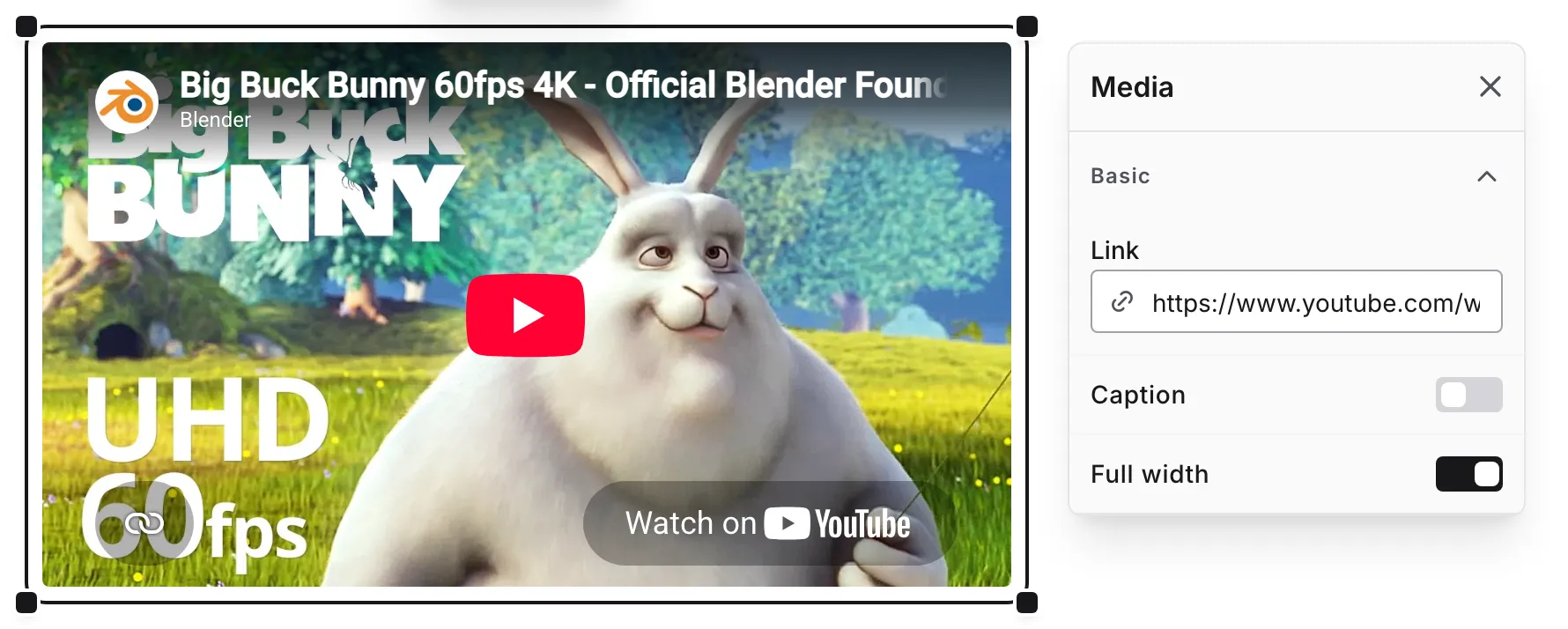
The link to the video, song, podcast, or post that Media shows. See Change the link.
Caption
Section titled “Caption”Turn on Caption in the component settings, then click below the Media on the canvas and type your caption. Captions support rich text formatting.
Turn Caption off to remove the caption.
Full width
Section titled “Full width”New Media fills the available form width. Turn Full width off in the settings to show it at the service’s standard size, or drag the corner handles on the canvas to pick a width.
Some content has a natural maximum size. Vertical videos, such as YouTube Shorts and TikTok videos, stay narrow, and Apple Music and Apple Podcasts players stay at their standard width, even when full width is on.
When full width is off, set the Media width. For videos, the height follows the video’s shape, so changing the width or the height keeps the two in proportion. Music and podcast players keep the service’s standard height, and social posts set their own height, shown as Auto. Each service has a smallest and largest width, and a value outside that range is adjusted when you leave the field. You can also drag the corner handles on the canvas.
Resize Media
Section titled “Resize Media”Resize Media directly on the canvas, the same way as an image:
-
Click the Media on the canvas to select it. A handle appears on each of its four corners.
-
Drag any corner handle to change the width.
-
Release to apply the new size.
How resizing behaves:
- The shape stays the same — Videos keep their proportions. Music and podcast players keep their standard height and only change width. Social posts adjust their height to fit the post.
- Each service has a minimum width — For example, a Twitch player can’t be made narrower than 400 pixels.
- Snap to full width — Drag to the edge of the available space to make the Media full width again.
- Cancel a drag — Press Escape while dragging to put the Media back to its previous size.
- One undo step per resize — Each resize can be reversed with a single undo.
Alignment
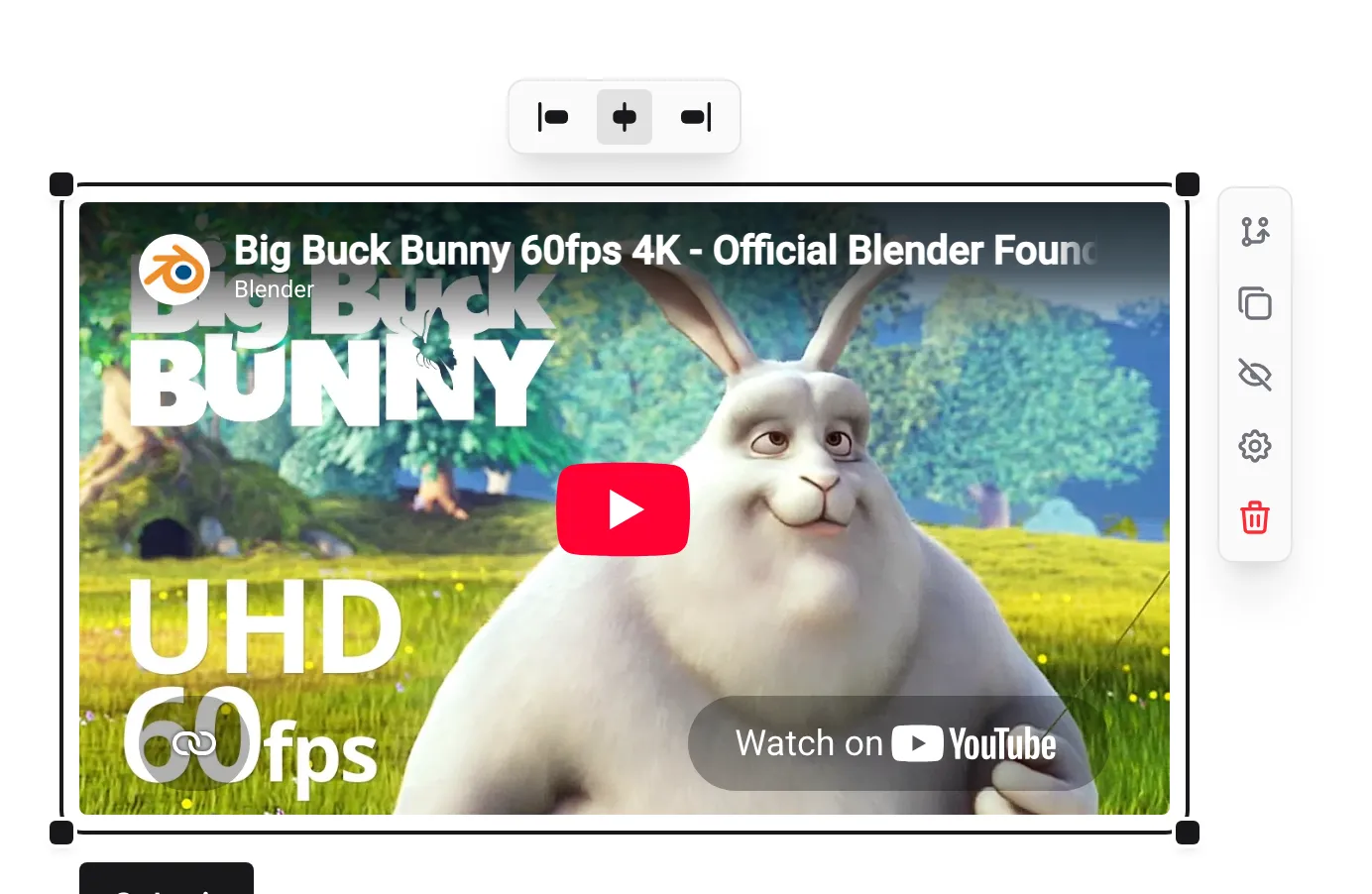
Section titled “Alignment”Select the Media on the canvas. A small bubble with three alignment buttons appears above it. Choose left, center, or right. Media is centered by default. The bubble stays visible while the settings are open, so you can change alignment and settings together.
Alignment positions Media that is narrower than the form, such as a resized video or a vertical TikTok video.
Using Media in the editor
Section titled “Using Media in the editor”On the canvas, Media is a live preview. While a Media component isn’t selected, clicking it selects the component, so you can’t start playback by accident while arranging your form. Once it is selected, you can play, scroll, or interact with it just like respondents will.
You can place Media anywhere you can place an image:
- On regular pages and on ending pages. Adding content to endings requires the Pro plan.
- Inside columns, including narrow ones
- As supporting content between a question’s title and its input
Like other components, Media can be duplicated, hidden, and deleted.
What respondents see
Section titled “What respondents see”Respondents see the same player or post that appears on the service’s own site. Media loads as respondents reach it on the page, and nothing plays on its own. YouTube and Vimeo videos play in those services’ privacy-enhanced modes.
Known limits
Section titled “Known limits”Media shows content exactly as the service allows it to be shown on other websites. A few situations are controlled by the service or the person who posted the content, not by Fomr:
- Vimeo videos restricted to certain websites — Vimeo lets uploaders choose which websites can show a video. If the video’s owner hasn’t allowed your form’s address, Vimeo shows an error instead of the video.
- Uploaders who turn off sharing on other websites — Some services, including YouTube and SoundCloud, let uploaders stop their content from appearing outside the service. These items show the service’s own “not available” message.
- 30-second previews on Spotify and Apple Music — Respondents who aren’t signed in to Spotify or Apple Music in their browser hear a 30-second preview instead of the full track.
- Removed or private posts — If a post, video, or track is deleted or made private after you add it, respondents see the service’s “not available” message instead. Check your forms from time to time if they rely on content you don’t control.
Handling in responses
Section titled “Handling in responses”Since Media is display-only:
- It does not appear in form responses
- It is not included in exports
- It does not affect required components or validation
- It has no impact on submission data